> For the complete documentation index, see [llms.txt](https://helpcenter.xopero.com/xopero-one-en/llms.txt). Markdown versions of documentation pages are available by appending `.md` to page URLs; this page is available as [Markdown](https://helpcenter.xopero.com/xopero-one-en/backup-and-recovery/devops/azure-devops-and-devops-server/recovery/recovering-multiple-projects.md).
# Recovering multiple projects
Restore multiple Azure DevOps and DevOps Server project backup copies at once.
**Restoring multiple Azure DevOps projects enables organizations to quickly recover projects, repositories, and source code at scale, ensuring consistent and reliable restoration across the development environment.**
***
## Recovery process
The below steps demonstrate how to restore multiple **Azure DevOps** projects at once using **Xopero ONE Management Service**.
{% hint style="danger" %}
**Deleted artifacts cannot be restored ****while they remain in the recycle bin**** — they can be restored, but you must remove them from the recycle bin first.**
{% endhint %}
{% hint style="danger" %}
**Azure does not allow restoring deleted packages to the same feed.** Once a package is deleted, it must remain deleted. Restoring to a new feed does not have this limitation, so all packages should be restored there.
{% endhint %}
{% stepper %}
{% step %}
Get into the restore view using the following method:
1. Open the **Azure DevOps** tab (**DevOps** > **Azure DevOps**), then click the **Explore** button next to the organization whose backup you want to restore (explore icon in list view).
2. In the **Projects & repositories** tab, select all projects you want to restore, and then click **Restore** in the top menu.
{% endstep %}
{% step %}
Click every chosen project to select the backup plan and copy from which you want to restore data, then click **Next**.
{% hint style="info" %}
By default, the latest backup is always selected, regardless of the plan.
{% endhint %}
{% endstep %}
{% step %}
Select the destination for the recovery and click **Next**.
{% hint style="info" %}
You can choose any device or organization registered in **Xopero ONE** (you can find more information about cross-recovery in **Useful links and items section**).
{% endhint %}
{% endstep %}
{% step %}
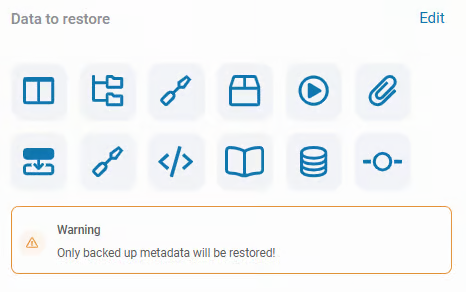
In **Data to restore section** at the top, click **Edit** and select data you want to restore.
{% hint style="success" %}
By default, all items are selected for restoration. However, **Xopero ONE** allows you to choose which metadata to restore. You can include or exclude each element by toggling the switch next to it.
{% endhint %}
{% endstep %}
{% step %}
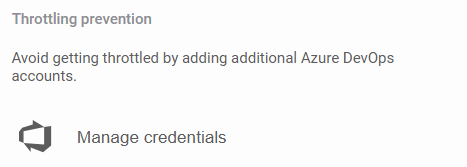
In the **Throttling prevention** section, you can add additional **DevOps** organization accounts to avoid throttling.
{% hint style="warning" %}
To use additional organization accounts, you must first add them in the organization settings (organization view > **Edit**).
{% endhint %}
{% endstep %}
{% step %}
Configure the recovery destination settings, depending on where the backup will be restored.
#### Restore to a Git organization
1. Select the target organization (where applicable).
2. In **Restore settings**, you can set custom names for all projects and repositories in the project, or add a suffix to their original names.
{% hint style="danger" %}
If the custom name—or the original project and repository names—already exists within the selected **Git** organization, **the restoration will fail**. To ensure successful recovery, choose unique names or select the **Add suffix to repo/project name** option, so the restored items to retain their original names with an automatically generated suffix.
{% endhint %}
3. If you are restoring your project to the **Azure DevOps** or **DevOps Server** organization:
1. Choose whether to restore repositories from the project's copy:
1. When the **Restore only repositories located in this project backup** switch is turned off during the restore process, along with the project, all of its protected repositories are restored, **regardless of whether the repositories were protected by the same plan or by different plans**. The latest available backups are used.
2. When the switch is turned on, a different restore mechanism is applied. In this case, **only repositories backed up by the same plan as the project are restored**.
{% hint style="danger" %}
Due to required changes, the latter mechanism is not available for backups created with **Xopero ONE** versions earlier than 2.0.5 or for agents running versions lower than 2.0.5.
{% endhint %}
4. Adjust the bandwidth and other available settings, depending on the recovery destination.
5. Check which agent is set as the default for recovery and change it if necessary.
#### Restore to a device
{% hint style="warning" %}
To restore a repository to a local device, you must have a **Git** client and the **Xopero ONE** agent installed on that device (you can find more information about agents in **Useful links and items** section).
{% endhint %}
{% hint style="danger" %}
You can restore **only the repository** (without metadata) when restoring data to local resources.
{% endhint %}
1. Select the destination device (a registered device).
2. Make sure the device where you want to restore data has the **Git** client added to the PATH environment variable. The PATH variable is usually configured automatically after **Git** installation (a system restart may be required) — if it isn’t, you will have to configure it manually.
{% hint style="info" %}
To configure the PATH variable in **Windows**, open the environment variables, select the PATH variable, and click the **Edit** button. Copy the path to the git.exe file and add it to the PATH variable.
{% endhint %}
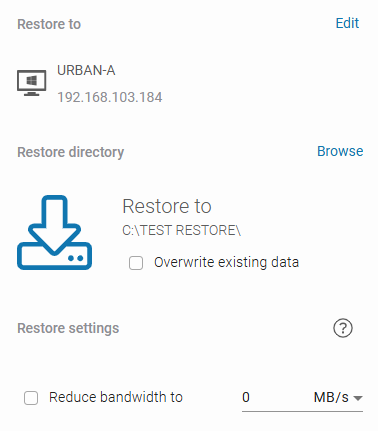
3. Specify the restoration directory and configure other options (for example, whether to overwrite existing data or reduce bandwidth). If needed, you can create a new restoration folder on the selected drive from the **Management Service** level.
{% endstep %}
{% step %}
After defining all parameters, click the **Restore** button to begin the recovery process. When the process is complete, a new project/repository/folder will be created in your organization/on your device. You can monitor the restoration process in the **Tasks** tab.
{% endstep %}
{% endstepper %}
***
## Useful links and items
{% content-ref url="/pages/MPPruGaBeSFEcj3XiDhQ" %}
[Xopero ONE Agent](/xopero-one-en/deployment-and-configuration/xopero-one-agent.md)
{% endcontent-ref %}
{% content-ref url="/pages/Re0fSeu8DnGeWjWmPVcG" %}
[Cross-recovery for DevOps organizations](/xopero-one-en/backup-and-recovery/devops/general/cross-recovery-for-devops-organizations.md)
{% endcontent-ref %}
{% content-ref url="/pages/SZG8dLNiBbeA6U1nHebm" %}
[LFS recovery for DevOps organizations](/xopero-one-en/backup-and-recovery/devops/general/lfs-recovery-for-devops-organizations.md)
{% endcontent-ref %}
{% content-ref url="/pages/fqHadXWTxBQLul6SCq9x" %}
[Wiki recovery for DevOps organizations](/xopero-one-en/backup-and-recovery/devops/general/wiki-recovery-for-devops-organizations.md)
{% endcontent-ref %}
{% content-ref url="/pages/ch2cGR1agZ7mvw2L8z3N" %}
[Throttling prevention](/xopero-one-en/rate-limiting-and-throttling/throttling-prevention.md)
{% endcontent-ref %}

 icon in list view).
2. In the **Projects & repositories** tab, select all projects you want to restore, and then click **Restore** in the top menu.
icon in list view).
2. In the **Projects & repositories** tab, select all projects you want to restore, and then click **Restore** in the top menu.