> For the complete documentation index, see [llms.txt](https://helpcenter.xopero.com/xopero-one-en/llms.txt). Markdown versions of documentation pages are available by appending `.md` to page URLs; this page is available as [Markdown](https://helpcenter.xopero.com/xopero-one-en/backup-and-recovery/devops/azure-devops-and-devops-server/recovery/single-project-recovery.md).
# Single project recovery
Recover a single Azure DevOps and DevOps Server project backup copy, including its repositories and other metadata.
**Xopero ONE enables single project recovery for Azure DevOps, allowing organizations to restore individual projects along with their selected metadata, ensuring data integrity and consistency while minimizing disruption to other projects and repositories.**
***
## Recovery process
The below steps demonstrate how to quickly restore a single **Azure DevOps** project using **Xopero ONE Management Service**.
{% hint style="danger" %}
**Deleted artifacts cannot be restored ****while they remain in the recycle bin**** — they can be restored, but you must remove them from the recycle bin first.**
{% endhint %}
{% hint style="danger" %}
**Azure does not allow restoring deleted packages to the same feed.** Once a package is deleted, it must remain deleted. Restoring to a new feed does not have this limitation, so all packages should be restored there.
{% endhint %}
{% stepper %}
{% step %}
Get into the restore view using the following method:
1. Open the **Azure DevOps** tab (**DevOps** > **Azure DevOps**), then click the **Explore** button next to the organization whose backup you want to restore (explore icon in list view).
2. In the **Projects & repositories** tab, search for the project you want to restore, then click the restore icon in the action menu of that project.
{% endstep %}
{% step %}
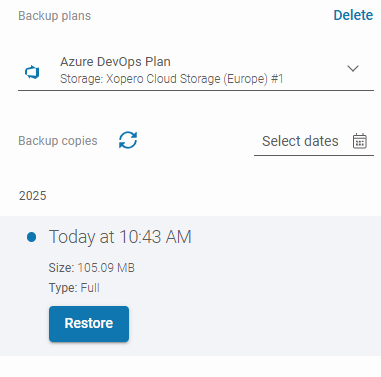
Select the backup plan from which you want to restore data. Click the drop-down under **Backup plans** section and choose one of the plans from the list.
{% endstep %}
{% step %}
Choose the backup version from all the backups that have already been performed — select the desired date and click the **Restore** button.
{% endstep %}
{% step %}
Select the destination for the recovery and click **Next**.
{% hint style="info" %}
You can choose any device or organization registered in **Xopero ONE** (you can find more information about cross-recovery in **Useful links and items section**).
{% endhint %}
{% endstep %}
{% step %}
Select the available metadata to restore and click **Restore selected** or **Restore all** to proceed.
{% hint style="success" %}
**Xopero ONE** allows you to select specific metadata to restore — **each element can be included or excluded by toggling the switch next to it**.
{% endhint %}
{% hint style="info" %}
The available data to restore depends on the restoration destination.
{% endhint %}
{% endstep %}
{% step %}
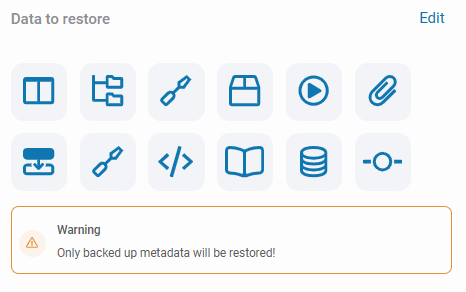
In the **Data to restore** section at the top, you can select which of the previously chosen available data you want to restore, if needed.
{% endstep %}
{% step %}
In the **Restore to** section, you can change the previously selected recovery destination if needed.
{% endstep %}
{% step %}
In the **Throttling prevention** section, you can add additional **DevOps** organization accounts to avoid throttling.
{% hint style="warning" %}
To use additional organization accounts, you must first add them in the organization settings (organization view > **Edit**).
{% endhint %}
{% endstep %}
{% step %}
Configure the recovery destination settings, depending on where the backup will be restored.
#### Restore to a Git organization
1. Select the target organization (where applicable).
2. If you are restoring your project to **Azure DevOps** or **DevOps Server** organization:
1. Set a unique, custom name for the project in **Restore settings** (or use the custom name automatically generated by **Xopero ONE**).
2. Choose whether to restore repositories from the project's copy:
1. When the **Restore only repositories located in this project backup** switch is turned off during the restore process, all of project's protected repositories are restored, **regardless of whether the repositories were protected by the same plan or by different plans**. The latest available backups are used.
2. When the switch is turned on, a different restore mechanism is applied. In this case, **only repositories backed up by the same plan as the project are restored**.
{% hint style="danger" %}
Due to required changes, the latter mechanism is not available for backups created with **Xopero ONE** versions earlier than 2.0.5 or for agents running versions lower than 2.0.5.
{% endhint %}
3. If you are restoring your project to a different **Git** organization than the original (for example, **GitHub**), you can set custom names for all repositories in the project or add a suffix to the original repository names. You can also choose whether to add a label to the restored elements (where applicable).
{% hint style="danger" %}
If the custom name or the original repository name already exists in the selected **Git** organization, **the restore will fail**. To complete the restoration successfully, you must choose unique repository names or select the **Add suffix to repo name** option so the restored repositories keep their original names with an automatically generated suffix.
{% endhint %}
4. Adjust the bandwidth settings.
5. Check which agent is set as the default for recovery and change it if necessary.
#### Restore to a device
{% hint style="warning" %}
To restore a repository to a local device, you must have a **Git** client and the **Xopero ONE** agent installed on that device (you can find more information about agents in **Useful links and items** section).
{% endhint %}
{% hint style="danger" %}
You can restore **only the repository** (without metadata) when restoring data to local resources.
{% endhint %}
1. Select the destination device (a registered device).
2. Make sure the device where you want to restore data has the **Git** client added to the PATH environment variable. The PATH variable is usually configured automatically after **Git** installation (a system restart may be required) — if it isn’t, you will have to configure it manually.
{% hint style="info" %}
To configure the PATH variable in **Windows**, open the environment variables, select the PATH variable, and click the **Edit** button. Copy the path to the git.exe file and add it to the PATH variable.
{% endhint %}
3. Specify the restoration directory and configure other options (for example, whether to overwrite existing data or reduce bandwidth). If needed, you can create a new restoration folder on the selected drive from the **Management Service** level.
{% endstep %}
{% step %}
After defining all parameters, click the **Restore** button to begin the recovery process. When the process is complete, a new project/repository/folder will be created in your organization/on your device. You can monitor the restoration process in the **Tasks** tab.
{% endstep %}
{% endstepper %}
***
## Useful links and items
{% content-ref url="/pages/MPPruGaBeSFEcj3XiDhQ" %}
[Xopero ONE Agent](/xopero-one-en/deployment-and-configuration/xopero-one-agent.md)
{% endcontent-ref %}
{% content-ref url="/pages/Re0fSeu8DnGeWjWmPVcG" %}
[Cross-recovery for DevOps organizations](/xopero-one-en/backup-and-recovery/devops/general/cross-recovery-for-devops-organizations.md)
{% endcontent-ref %}
{% content-ref url="/pages/SZG8dLNiBbeA6U1nHebm" %}
[LFS recovery for DevOps organizations](/xopero-one-en/backup-and-recovery/devops/general/lfs-recovery-for-devops-organizations.md)
{% endcontent-ref %}
{% content-ref url="/pages/fqHadXWTxBQLul6SCq9x" %}
[Wiki recovery for DevOps organizations](/xopero-one-en/backup-and-recovery/devops/general/wiki-recovery-for-devops-organizations.md)
{% endcontent-ref %}
{% content-ref url="/pages/ch2cGR1agZ7mvw2L8z3N" %}
[Throttling prevention](/xopero-one-en/rate-limiting-and-throttling/throttling-prevention.md)
{% endcontent-ref %}

 icon in list view).
2. In the **Projects & repositories** tab, search for the project you want to restore, then click the restore
icon in list view).
2. In the **Projects & repositories** tab, search for the project you want to restore, then click the restore  icon in the action menu of that project.