# Adding GitLab (self-managed) organization to Xopero ONE
## Using Personal Access Token (PAT)
{% stepper %}
{% step %}
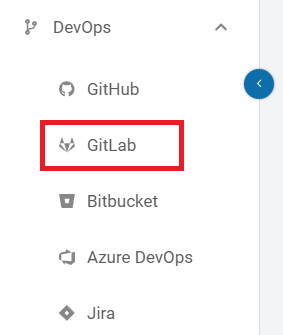
Log in to [**XMS**](#user-content-fn-1)[^1], open the **DevOps** tab on the left side of the window, and select **GitLab** from the list.
{% endstep %}
{% step %}
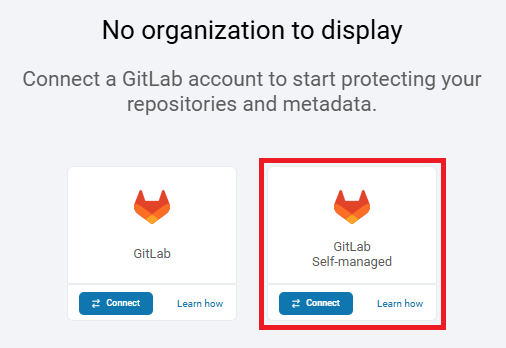
Click the **Connect** button under **GitLab Self-managed**.
{% endstep %}
{% step %}
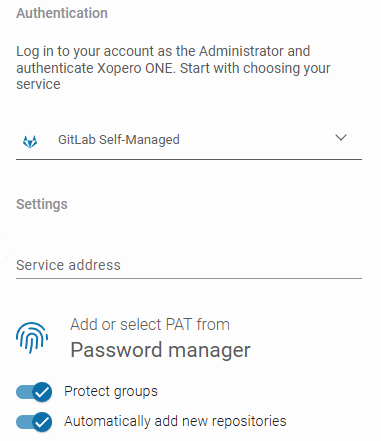
Set your authentication method.
1. In **Authentication**, select **GitLab Self-Managed**.
2. In **Settings**, enter your **GitLab** service IP address.
3. Add or select **PAT** from the **Password Manager**.
4. Choose whether **Xopero** should automatically add new repositories to your backup and whether it should include **GitLab** groups in the backup.
{% endstep %}
{% step %}
Configure your repository sync and default worker. Specify hours for synchronization, or set a time interval for automatic updates.
{% endstep %}
{% step %}
Click **Proceed** to complete adding your **GitLab** (self-managed) organization and grant **Xopero ONE** access to the specified resources.
{% endstep %}
{% endstepper %}
[^1]: Xopero ONE Management Service