> For the complete documentation index, see [llms.txt](https://helpcenter.xopero.com/xopero-one-en/llms.txt). Markdown versions of documentation pages are available by appending `.md` to page URLs; this page is available as [Markdown](https://helpcenter.xopero.com/xopero-one-en/backup-and-recovery/virtual-machines/hyper-v/integration/adding-hyper-v-host-to-xopero-one.md).
# Adding Hyper-V host to Xopero ONE
This article describes how to add a Hyper-V server to Xopero ONE.
## Adding Hyper-V
{% hint style="info" %}
In **Xopero ONE**, the minimum supported **Hyper-V** server version is **Windows Server 2016**. Integration requires a **Hyper-V** per-socket license, based on the number of sockets in the server's motherboard. For example, a server with two CPU sockets needs two licenses (even if there's only one processor).
{% endhint %}
{% stepper %}
{% step %}
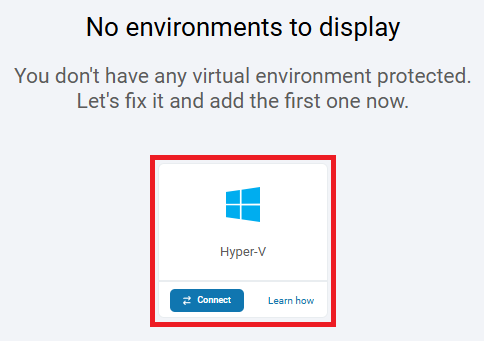
Log in to [**XMS**](#user-content-fn-1)[^1], open the **Virtual Machines** tab on the left side of the window, and select **Hyper-V** from the list.
{% endstep %}
{% step %}
Click the **Connect** button under **Hyper-V**.
{% endstep %}
{% step %}
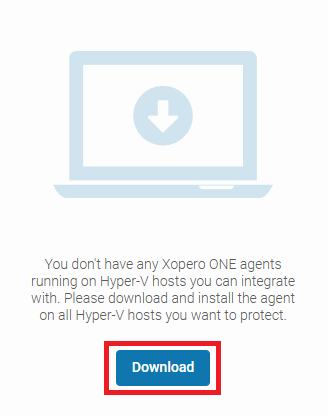
Download and install the agent
on all **Hyper-V** hosts you want to protect. After installation, the device(s) will appear in the upper-right corner for activation. Once added, it will be listed in the **Devices** tab and ready to protect physical hardware.
{% endstep %}
{% step %}
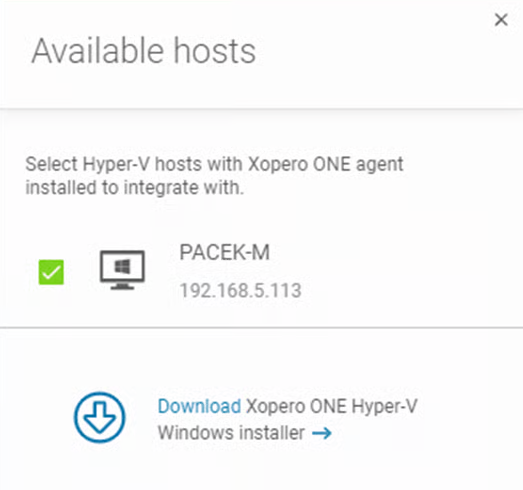
Activated devices will now appear in the **Available hosts** section. Select the host(s) you want to integrate with, and click **Save**.
{% endstep %}
{% step %}
Specify the frequency at which the **Hyper-V** server should refresh.
{% endstep %}
{% step %}
Once these steps are complete, you can start planning your **Hyper-V** backup strategy.
{% endstep %}
{% endstepper %}
***
## Adding Hyper-V cluster
Integrating a **Hyper-V** cluster in **Xopero ONE** follows [the same procedure as adding a single host](#adding-hyper-v), with one key difference: the agent must be installed **on every host in the cluster**. When adding the cluster, select all machines to include in the setup and enter the **cluster IP address**, and administrator’s login credentials.
[^1]: Xopero ONE Management Service