> For the complete documentation index, see [llms.txt](https://helpcenter.xopero.com/xopero-one-en/llms.txt). Markdown versions of documentation pages are available by appending `.md` to page URLs; this page is available as [Markdown](https://helpcenter.xopero.com/xopero-one-en/backup-and-recovery/virtual-machines/vmware/backup/process-overview.md).
# Process overview
Functionality and mechanisms of VMware backup plans in Xopero ONE.
**Xopero ONE provides secure, consistent protection for virtual machines by capturing entire VM data or selected disks according to defined backup policies. Data is collected directly from the VMware environment, then encrypted before transfer to the designated storage datastore. Backup jobs follow configured schedules and retention policies, ensuring data integrity, efficient storage usage, and rapid recovery in case of system failure or data loss.**
***
## General information
Using **Xopero ONE**, you can protect multiple components of your IT infrastructure, including **VMware** environments. Each environment can have its own specific backup configuration and may use either a [virtual appliance](/xopero-one-en/backup-and-recovery/virtual-machines/vmware/integration/virtual-appliance.md) or a local backup agent.
In **VMware** environments, efficient communication and data transfer to data stores are critical. Fast transport methods, like HotAdd, require a virtual appliance (VA). Without it, local devices acting as **VMware** backup agents (workers) transfer data over the LAN—first to the agent and then to storage—resulting in much longer transfer times. For improved backup efficiency, it is recommended to use a VA rather than a local agent.
{% hint style="warning" %}
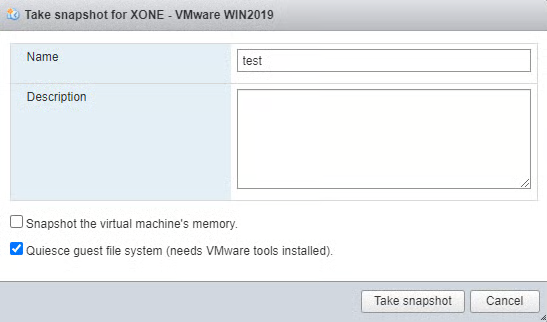
**VMware** backups are created using system snapshots (application-aware on supported systems); therefore **VMware Tools** must be installed.
{% endhint %}
To test **VMware** snapshots for **Xopero ONE**, create a snapshot as follows:
***
## Backup snapshots
**VMware** backup copies are created using system snapshots. For machines running **Windows**, **Xopero ONE** uses file-system consistent backups by default. Application-aware backups can be enabled for machines running **Windows Server**.
Only crash-consistent backups are supported on **Linux** systems.
### Application-aware backup
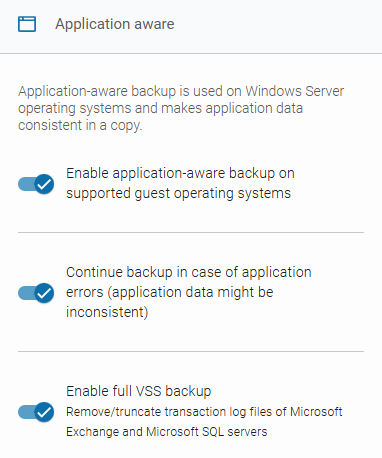
In **Xopero ONE**, when creating or editing a **VMware** backup plan, you can enable the application-aware backup option (available only for machines running **Windows Server**), which allows you to create transactionally consistent backups or replicas of virtual machines.
The functionality relies on **Microsoft** VSS (Volume Shadow Copy Service) technology, which temporarily silences the application, pauses write requests for up to 60 seconds, flushes the file system buffer, and freezes the file system. This ensures that file system metadata is recorded and data is saved in a consistent order.
### File-system consistent backup
File-system consistent backups achieve consistency by capturing a snapshot of all data on the virtual disks simultaneously. These snapshots flush in-memory buffers to disk and synchronize file system metadata and open files, ensuring that the logical relationships among data on the disk are accurate and complete.
{% hint style="info" %}
Consistency is typically achieved through system-level operations, such as VSS writer coordination on **Windows**.
{% endhint %}
While a file-system consistent backup ensures that the file system itself will not be corrupted upon restore, it does not guarantee that running applications are in a consistent state. To create an application-consistent snapshot, the application should be paused or quiesced before taking the snapshot. This ensures that all in-memory operations are safely written to disk, allowing a reliable and consistent restore.
### Crash-consistent backup
A crash-consistent backup captures all data on a disk at a single, precise moment, similar to abruptly powering off the system**\***. It ensures write-order consistency, meaning files are not corrupted, but it does not capture in-memory data or pending I/O transactions. As a result, crash-consistent backups are suitable for file servers but not for active databases or email servers. They are faster and simpler to perform, but less reliable for transactional workloads.
**\***The term "crash-consistent" indicates that the backup reflects the system state just before a server crash, power-off, or reset, effectively serving as a restore point.
***
## Full VSS backup
**Xopero ONE** relies on the Volume Shadow Copy Service (VSS) to create application-aware backups, coordinating with VSS-aware applications such as **Microsoft Exchange** and **Microsoft SQL Server**. This method ensures that both the file system and the running applications are captured in a consistent state, allowing reliable restoration of application data.
When the full VSS backup option is enabled, the backup captures all relevant data via shadow copy and notifies the application that the full backup has been completed. This allows transaction logs to be safely truncated, helping to manage storage and maintain application health.
Enabling full VSS backup is recommended in the following cases:
* [x] When backing up **Microsoft Exchange** or **Microsoft SQL Server** and automatically truncating transaction logs.
* [x] When performing a production-grade backup of any VSS-aware application with internal transaction logs.
* [x] When ensuring the backup is recognized by the application as a complete and valid recovery point.
{% hint style="warning" %}
If another system already handles log truncation, or if you only need a data copy without impacting the application's internal backup cycle, avoid using the full VSS backup option.
{% endhint %}
***
## Backup resiliency
**Xopero ONE** ensures the resilience of **VMware** machine backups and restores against network issues. In the event of temporary disconnections, the system automatically retries connecting to the machine's disk, ensuring that backup tasks complete successfully.
Additionally, administrators can use direct disk access via the **VMware** datastore to shorten the data transfer path, minimize network issues, and improve backup performance.
{% hint style="info" %}
Learn how to enable datastore access mode in [this article](/xopero-one-en/backup-and-recovery/virtual-machines/vmware/backup/datastore-access-mode.md).
{% endhint %}
***
## Disk consolidation
**Xopero ONE** allows administrators to force disk consolidation of the source machine's disks on the **VMware** side before taking a snapshot, ensuring virtual disk consistency and optimizing I/O performance. The disk consolidation option can be enabled in the backup plan settings.
In scenarios where the virtual appliance (VA) fails, such as during a sudden service outage, **VMware** machine disks mounted to the VA may remain attached. This can block disk consolidation and leave behind unnecessary incremental VMDK files. To ensure proper disk consolidation and prevent disk space from filling up in the affected **VMware** environment, **Xopero ONE** uses a mechanism that, at the start of a backup task, identifies disks still attached to the VA and safely unmounts them, freeing the locked resources.
***
## Useful links and items
{% content-ref url="/pages/xbBqRlmzgCZ3TGMi7KiB" %}
[Backup options & features](/xopero-one-en/backup-and-recovery/virtual-machines/vmware/backup/backup-options-and-features.md)
{% endcontent-ref %}
{% content-ref url="/pages/1lIPVWeAAZ3sjrImG47Q" %}
[Datastore access mode](/xopero-one-en/backup-and-recovery/virtual-machines/vmware/backup/datastore-access-mode.md)
{% endcontent-ref %}
{% embed url="" %}