> For the complete documentation index, see [llms.txt](https://helpcenter.xopero.com/xopero-one-en/llms.txt). Markdown versions of documentation pages are available by appending `.md` to page URLs; this page is available as [Markdown](https://helpcenter.xopero.com/xopero-one-en/backup-plans-and-features/backup-deletion/deleting-a-single-resource-from-the-selected-backup.md).
# Deleting a single resource from the selected backup
This article describes how to delete all versions of a single resource from a selected backup in the Xopero ONE platform.
{% stepper %}
{% step %}
In [**XMS**](#user-content-fn-1)[^1], go to **Storages** tab and click the **Browse storage** button next to the selected storage.
{% endstep %}
{% step %}
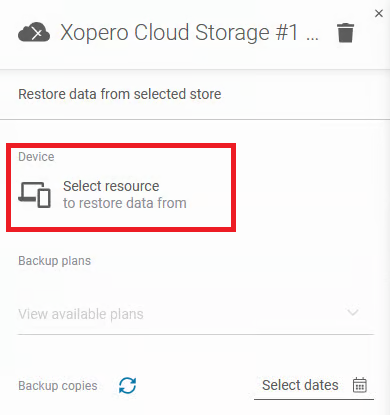
In the storage info panel, click **Select resource to restore data from** under **Device** section.
{% endstep %}
{% step %}
Select one of the available resources from your resources list (the list displays all devices, **Microsoft 365** accounts, **VMware** virtual machines, and other).
{% endstep %}
{% step %}
After selecting a resource, choose the backup plan from the list of available plans whose copies you want to delete, and click **Delete** to proceed.
{% endstep %}
{% step %}
Confirm that you want to delete your data by checking the **Yes, I want to delete all \[NAME] backups from \[NAME] backup plan** checkbox, then click the **Proceed** button.
{% hint style="success" %}
Additionally, you can use the **View details** button to review the creators, backup plans, and storage locations that will be deleted. This option ensures transparency and allows you to confirm the impact of the operation before proceeding.
{% endhint %}
{% endstep %}
{% step %}
Once confirmed, the deletion process will start— its progress can be monitored in the **Tasks** tab.
{% endstep %}
{% endstepper %}
[^1]: Xopero ONE Management Service
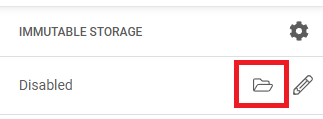
 button next to the selected storage.