> For the complete documentation index, see [llms.txt](https://helpcenter.xopero.com/xopero-one-en/llms.txt). Markdown versions of documentation pages are available by appending `.md` to page URLs; this page is available as [Markdown](https://helpcenter.xopero.com/xopero-one-en/rate-limiting-and-throttling/throttling-prevention/additional-github-credentials.md).
# Additional GitHub credentials
This article explains how to prepare and add additional GitHub and GitHub Enterprise credentials to Xopero ONE in order to prevent throttling.
## GitHub account preparation
You can add anyone to your **GitHub** (or **GitHub Enterprise**) organization, and they will become a member. To do this, follow the instructions on the [official **GitHub** page](https://docs.github.com/en/enterprise-server@3.4/organizations/managing-membership-in-your-organization/adding-people-to-your-organization).
***
## Personal access token preparation
#### To create a personal access token in **GitHub**:
1. In the upper-right corner of any page, click your **profile photo** and select **Settings**.
2. In the left sidebar, click **Developer settings**.
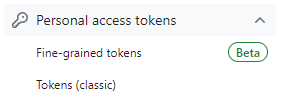
3. Select **Personal access tokens**.
4. Click **Generate new token**.
5. Enter a descriptive name for the token.
{% hint style="danger" %}
You must use **tokens (classic)**— **Xopero ONE does not support** fine-grained tokens.
{% endhint %}
{% hint style="warning" %}
Please note that the beta version may have changed. After the full release, our administrators will need time to analyze the possibility of supporting this token type.
{% endhint %}
{% hint style="info" %}
More details about creating a personal access token can be found in [**GitHub** official documentation](https://docs.github.com/en/enterprise-server@3.4/authentication/keeping-your-account-and-data-secure/managing-your-personal-access-tokens).
{% endhint %}
***
## Adding GitHub credentials to Xopero ONE
{% hint style="danger" %}
Adding additional credentials in **Xopero ONE** does not automatically integrate them into backup tasks— you **must** enable new credentials for use in a backup plan.
{% endhint %}
{% stepper %}
{% step %}
Login to [**XMS**](#user-content-fn-1)[^1], open the **GitHub** tab and click **Edit** in the bottom-left corner of your **GitHub** organization tile.
{% endstep %}
{% step %}
Go to the **Throttling prevention** section and click **Manage credentials**.
{% endstep %}
{% step %}
Click the **Add new** button and select one of the available options:
{% endstep %}
{% step %}
For **Access Token**:
Enter your account username and add or select **PAT** from the **Password Manager**, then confirm your selection. You can add any number of accounts to your organization.
{% hint style="warning" %}
We use a specific user and their limits, which is why a dedicated backup user is recommended. This prevents situations where real users might hit their API limits.
{% endhint %}
{% hint style="info" %}
To learn how to add a **PAT** to the **Password Manager** see [this article](/xopero-one-en/management/password-manager.md).
{% endhint %}
{% endstep %}
{% step %}
For **GitHub App**:
From the drop-down list, select an application (#1–#10) and install it in the appropriate organization. The process is the same as when adding the main **GitHub** app.
{% hint style="info" %}
The account is used solely for application installation. After the installation is complete, the account is no longer utilized for any operations, as all subsequent actions are performed by the installed application.
{% endhint %}
**IMPORTANT!** You can add an additional **GitHub** **App** only if the following conditions are met:
1. The installing account has sufficient permissions on **GitHub**— the installation must not require sending and approving an installation request (it may happen, for example, when the account lacks **repository administration** rights or has a role other than **Owner** in an organization). For more details, see [Installing a **GitHub App** from a third party – **GitHub Docs**](https://docs.github.com/en/apps/using-github-apps/installing-a-github-app-from-a-third-party#requirements-to-install-a-github-app)**\***.
2. The organization in **Xopero** system has the main credentials for the **GitHub** account where the additional **GitHub App** is being installed**\*\***:
1. If the organization was registered through a **GitHub App**, additional **GitHub Apps** can only be added for accounts that already have the main **GitHub App** registered. Additional **GitHub App** for other personal accounts are not allowed.
2. If the organization was registered through **OAuth** or a **PAT**, additional **GitHub App** can be added for any account, including other personal accounts.
{% hint style="danger" %}
\*If condition 1 is not met, an error message will indicate that you do not have the required permissions to complete the installation.
{% endhint %}
{% hint style="danger" %}
\*\*If condition 2 is not met, an error message will prompt you to first register the account with the organization in our system.
{% endhint %}
{% endstep %}
{% endstepper %}
***
## Enabling GitHub credentials for backup
{% stepper %}
{% step %}
In [**XMS**](#user-content-fn-1)[^1], open the **Plans** tab and click **Add plan**, or select **Edit plan** if you already have one.
{% endstep %}
{% step %}
Scroll down to **Advanced settings**, click **Edit**, and enable the **Additional git credentials** switch.
{% endstep %}
{% step %}
The system will display all additional accounts available for the selected organization. Toggle the switch **ON** next to the accounts you want to use, and then click the **Save** button.
{% endstep %}
{% step %}
Back in the **Edit backup plan** panel, click the **Save** button to save your backup plan settings. The backup plan will now run using the selected additional **GitHub** (or **GitHub Enterprise**) accounts.
{% endstep %}
{% endstepper %}
[^1]: Xopero ONE Management Service