> For the complete documentation index, see [llms.txt](https://helpcenter.xopero.com/xopero-one-en/llms.txt). Markdown versions of documentation pages are available by appending `.md` to page URLs; this page is available as [Markdown](https://helpcenter.xopero.com/xopero-one-en/deployment-and-configuration/xopero-one-management-service-xms/installation-on-windows-and-linux.md).
# Installation on Windows & Linux
This article describes the process of Xopero ONE Management Service installation on Windows, Linux, and as a Docker container for on-premise deployment model.
{% hint style="warning" %}
Before you begin the installation process, check the following articles: [System requirements](/xopero-one-en/xopero-one/system-requirements.md), [Supported platforms](/xopero-one-en/xopero-one/supported-platforms.md).
{% endhint %}
{% hint style="success" %}
To register for a free trial and download the installer visit the [**Xopero** website](https://xopero.com/). If you're already a registered user, download the installer [here](https://xopero.com/latest-updates/).
{% endhint %}
{% tabs fullWidth="false" %}
{% tab title="Windows" %}
## Installation process for Windows
1. Download and run **Xopero ONE** installer.
2. Click **Next** to start the installation setup.
3. Accept the **End-User License Agreement** and hit **Next** to continue.
4. Select the installation folder and click **Next**.
5. Define the HTTP port for **Xopero ONE Management Service**. Depending on your needs you can either use a custom HTTP port, or stay with the default **XMS** HTTP port (28555).
6. Click **Install** to start the installation process.
7. Once the installation is completed successfully, click **Finish** to close the installation wizard.
{% endtab %}
{% tab title="Linux" %}
## Installation process for Linux
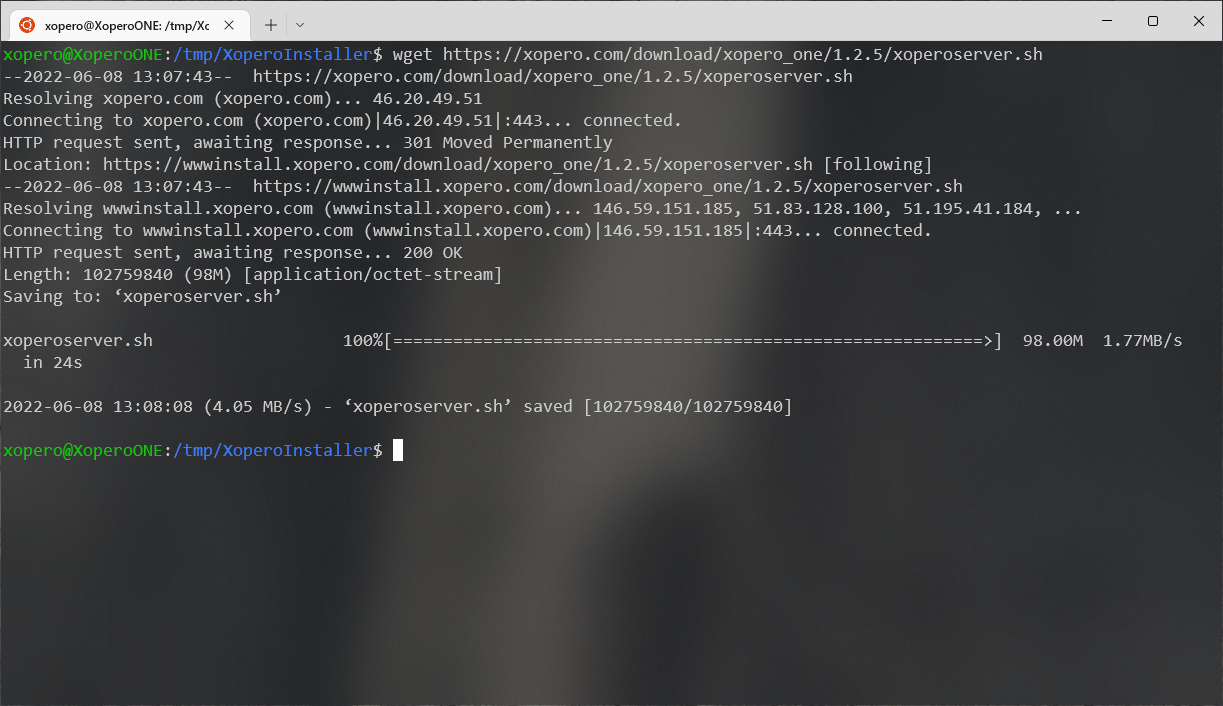
1. Download and run **Xopero ONE** installer (`XoperoONEManagementService.sh`).
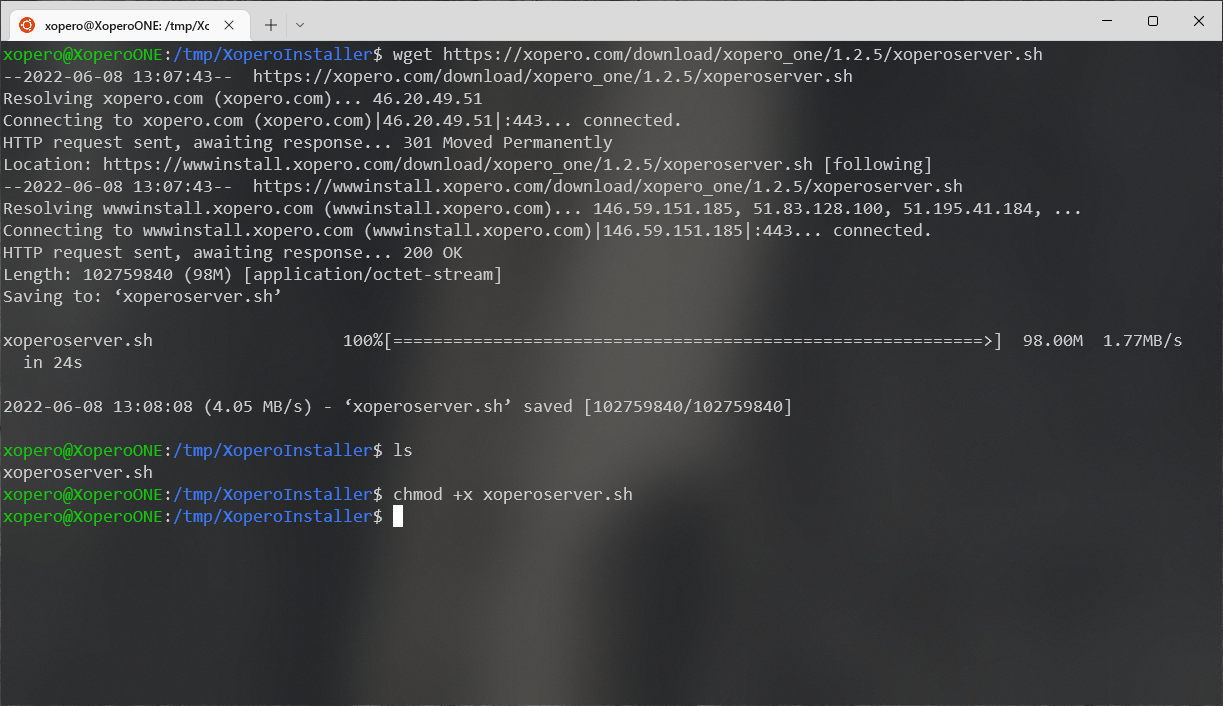
2. Add `execute` permission to the downloaded file using the following command:
```bash
chmod +x xoperoserver.sh
```
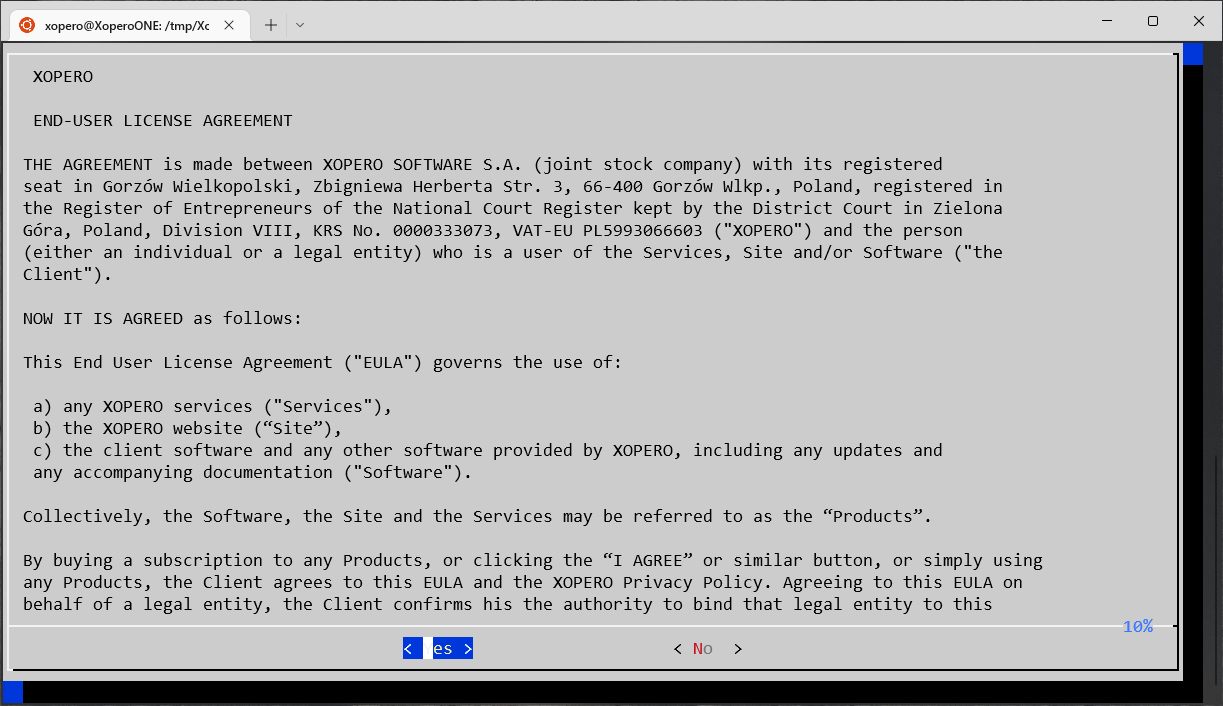
3. Run `xoperoserver.sh`. Accept the **End-User License Agreement** to continue.
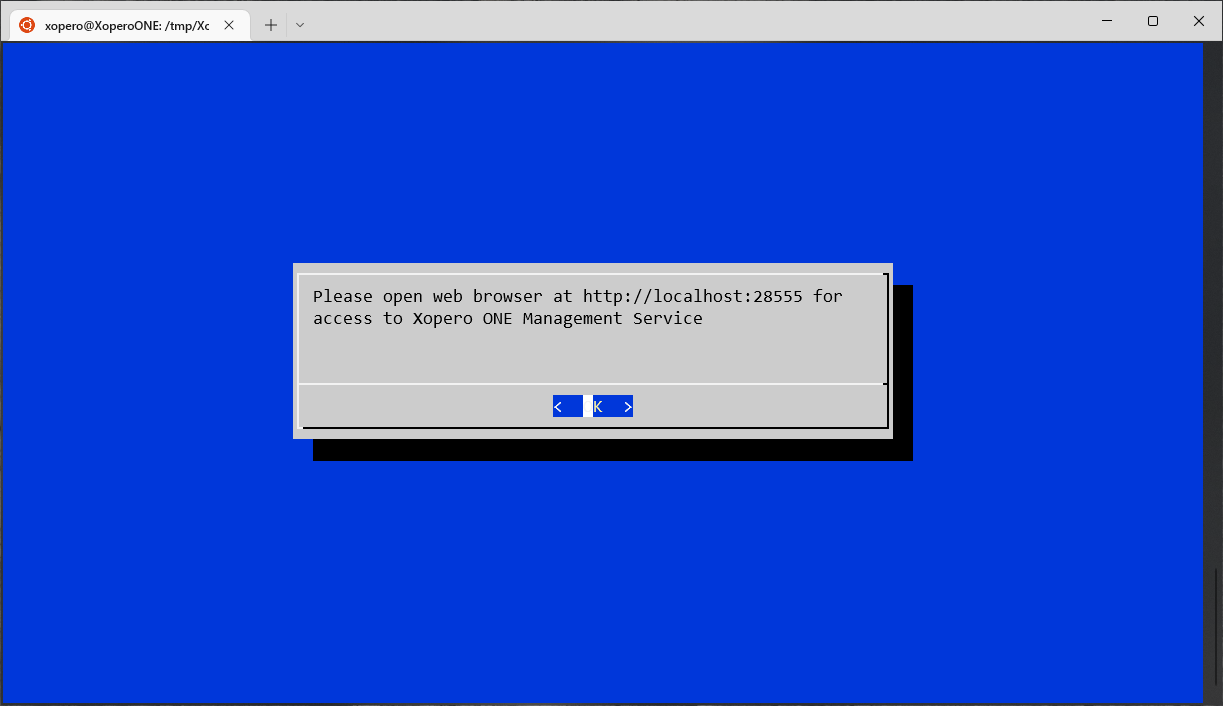
4. Once the installation is completed, you can close the software installation window.
{% hint style="warning" %}
Please note that, by default, the **Xopero ONE Management Service** installed on **Linux** uses port 28555.
{% endhint %}
{% endtab %}
{% endtabs %}