> For the complete documentation index, see [llms.txt](https://helpcenter.xopero.com/xopero-one-en/llms.txt). Markdown versions of documentation pages are available by appending `.md` to page URLs; this page is available as [Markdown](https://helpcenter.xopero.com/xopero-one-en/deployment-and-configuration/xopero-one-management-service-xms/installation-within-a-docker-container.md).
# Installation within a Docker container
This article describes the process of Xopero ONE Management Service (XMS) installation within Docker container for on-premise deployment model.
{% tabs %}
{% tab title="Docker Desktop (manual)" %}
## Deployment
1. Download **Xopero ONE Management Service** (**XMS**) [**Docker** image](https://xopero.com/download/xopero_one/latest/management-image.tar) to your device. Next, open **cmd** console and pull **XMS** **Docker** image using the following command:
```docker
docker load -i docker_name.tar
```
{% hint style="danger" %}
Replace `docker_name.tar` with the name of your **XMS Docker** image file.
{% endhint %}
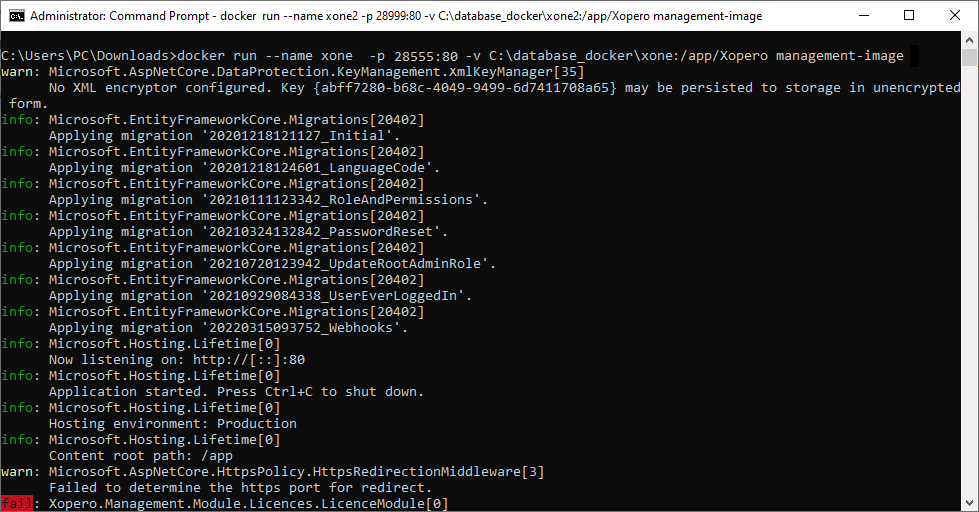
2. Once the **Docker** image is imported, use the following command to create a container:
```docker
docker run -d \
--name \
-p :80 \
-v :/app/Xopero \
xopero/xopero-one-service
```
{% hint style="warning" %}
In the above command, replace **drive\_location\_database** with the location to mount the database on (from the container to the local directory) — **this is important for upgrading the container later**. In place of **container\_name**, enter the name of your container and in place of **xms\_port**, enter the service port which will be used by **Xopero ONE** (by default, the port is set to 28555).
{% endhint %}
{% code title="Example:" overflow="wrap" %}
```docker
docker run -d \
--name xone \
-p 28555:80 \
-v C:\database_docker\xone:/app/Xopero \
xopero/xopero-one-service
```
{% endcode %}
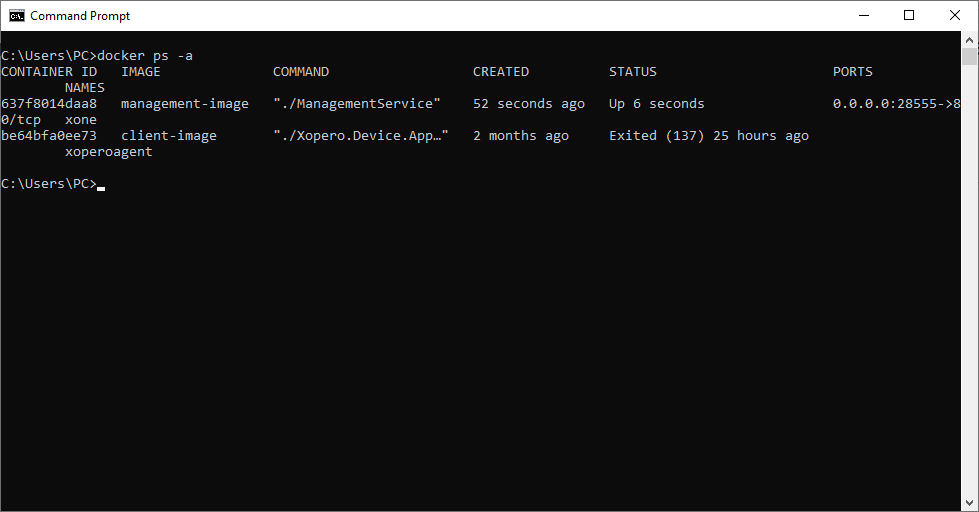
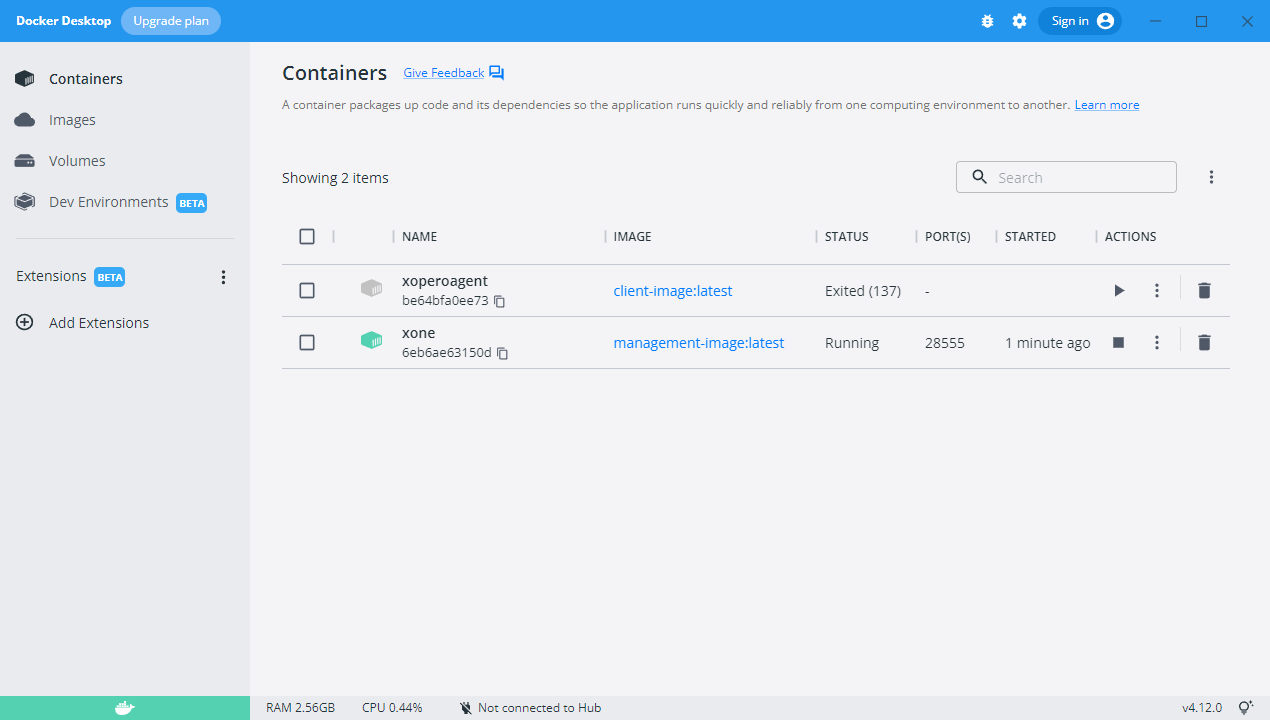
4. Next, use the following command to view the list of containers (or view the list in **Docker Desktop**):
```docker
docker ps -a
```
5. If you see no errors, that means the **XMS** implementation was done correctly. You can open the **Xopero ONE Management Service** web panel using the following address:
```http
http://DockerHostAddress:28555
```
6. Before you start using **XMS** you must create an administrator account and assign a license to your unit.
{% endtab %}
{% tab title="QNAP NAS (CS > 3.0)" %}
## Prerequisites
**QNAP** with:
* x86 or x64 CPU (ARM is **not supported**)
* minimum 2GB of RAM
* **Container Station** app from the **App Center**
***
## Environment setup
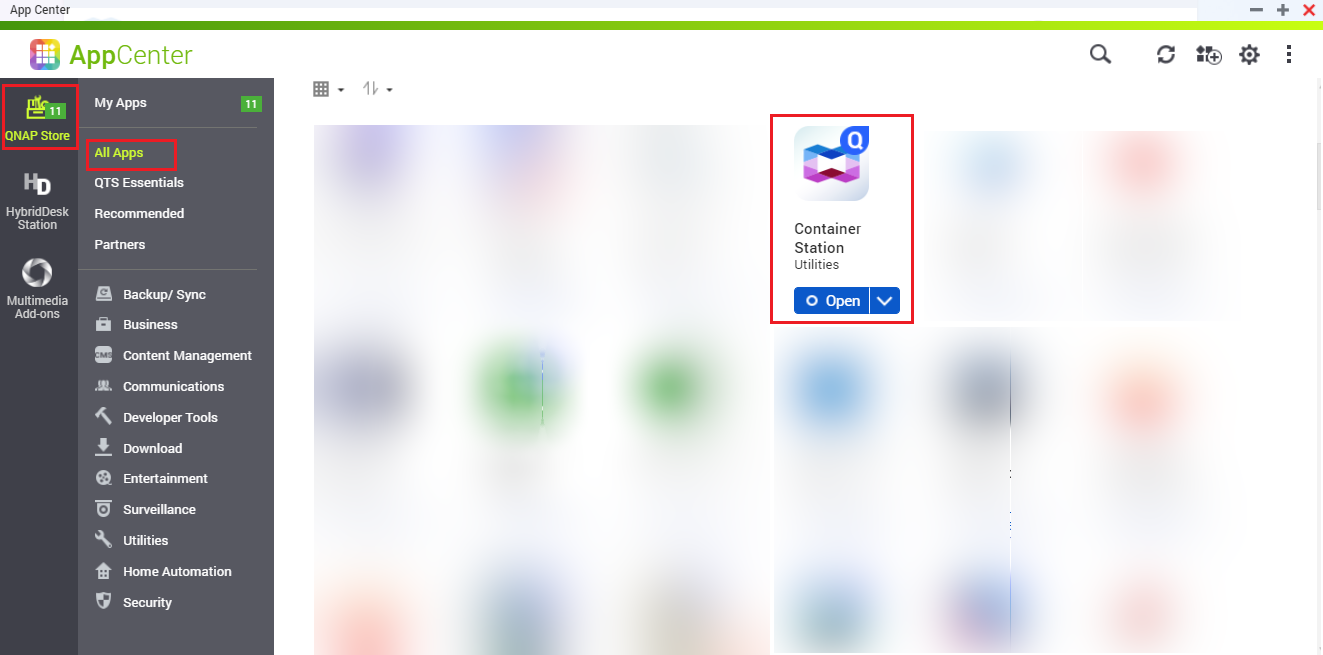
1. Login to your **QNAP** web panel and open the **App Center** application. Go to **QNAP Store** > **All Apps** and search for **Container Station** (**CS**).
2. Download the **Container Station** application. Once downloaded, open the app and select the path you'll be using as your **Docker** container data directory.
3. Click **Start Now** to proceed.
***
## Deployment
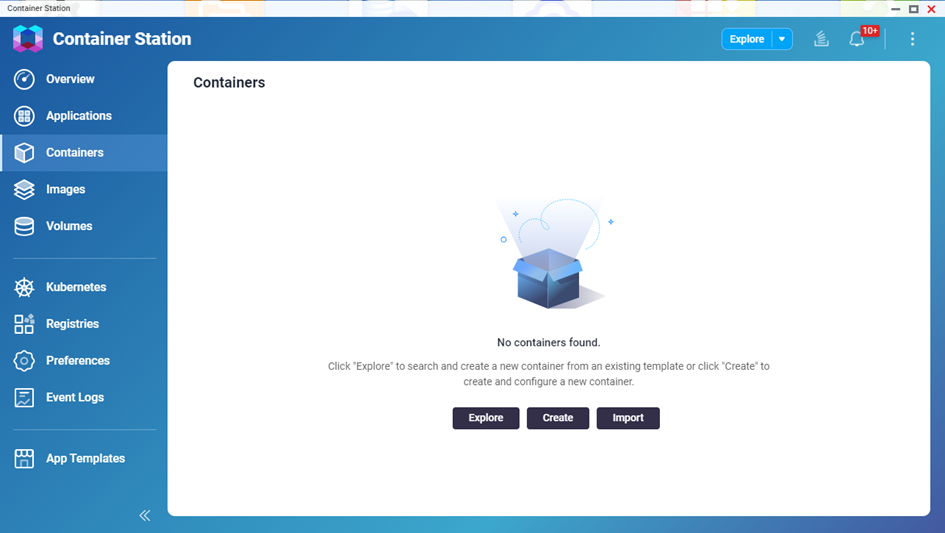
1. In the **Container Station** application, open the **Containers** menu option, and click the **Create** button.
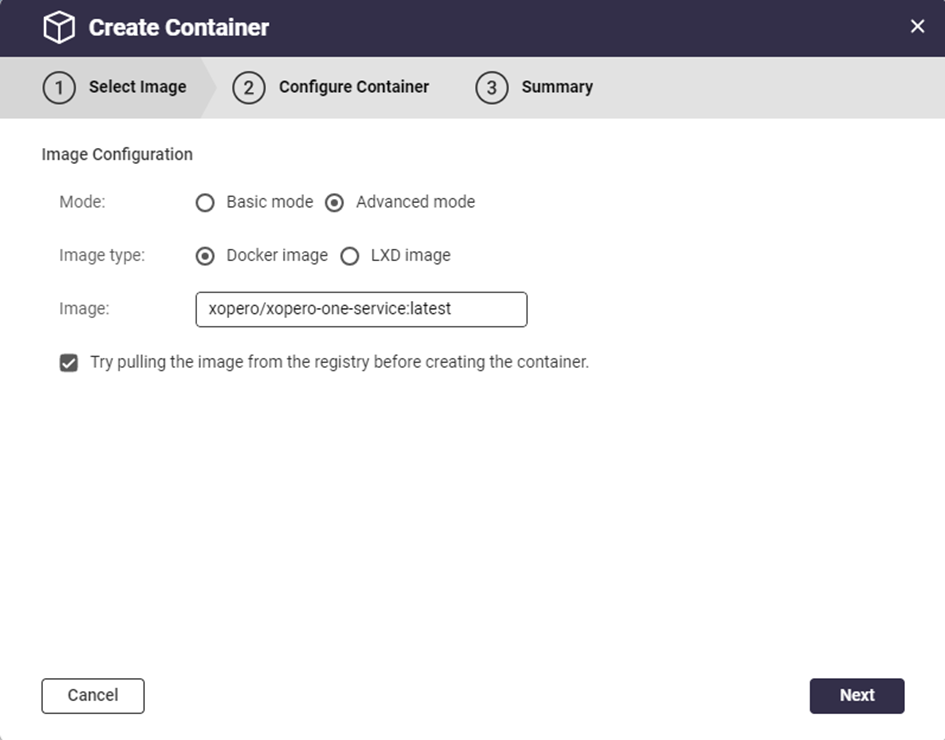
2. In **Image Configuration**, choose **Advanced mode**. For **Image type** select **Docker image**, and in the **Image** field, paste the following:
```docker
xopero/xopero-one-service:latest
```
3. Ensure **Try pulling the image from the registry before creating the container.** checkbox is checked, then hit **Next**.
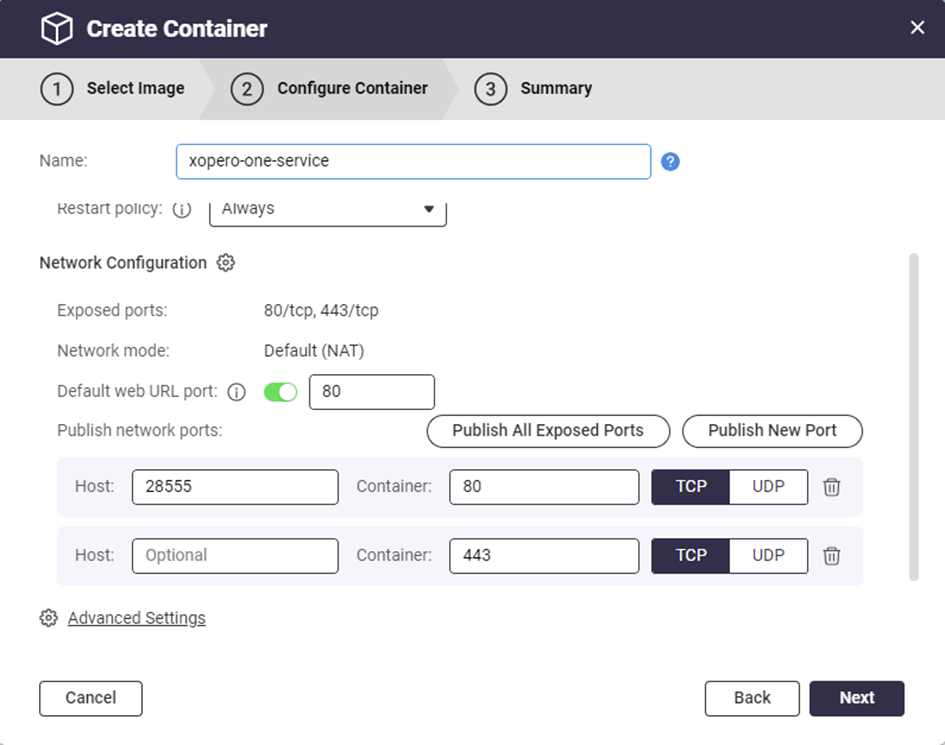
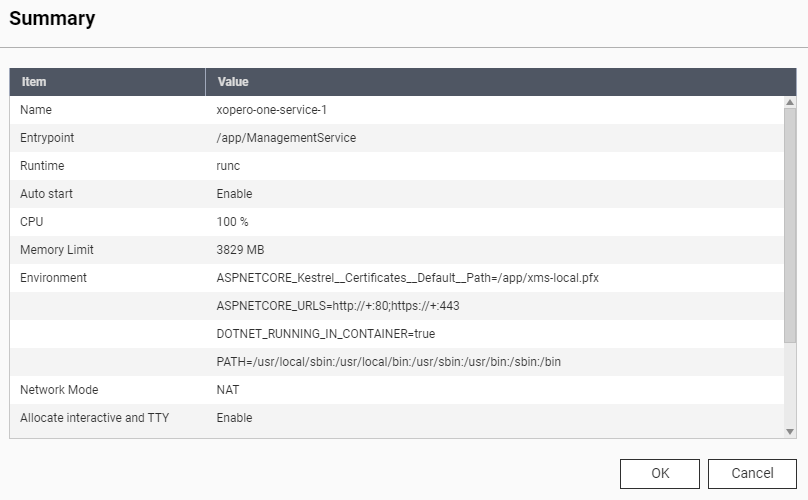
4. In the **Configure Container** tab, configure the **Xopero ONE Docker** container and hit **Next** to continue.
> **Name:** set a custom name for the container
>
> **Auto start:** defines if the container should startup automatically (i.e., in case of **QNAP** restart)
>
> **Publish network ports:** enter a port number in the **Host** field— this will be the port used to connect to **Xopero ONE** service on the container on port 80 (the recommended host port number is 28555)
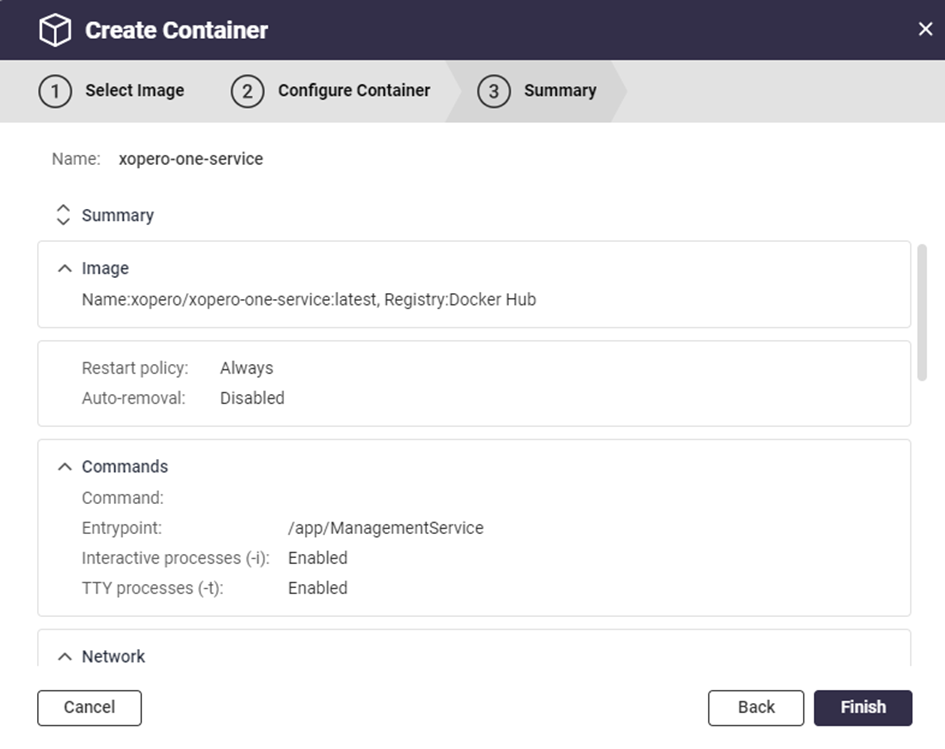
5. Double-check your configuration settings and hit **Finish**.
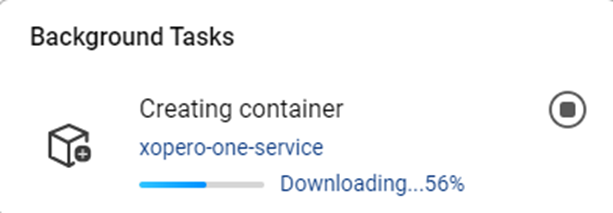
6. **Container Station** will download the latest **Xopero ONE** image and create the container based on it.
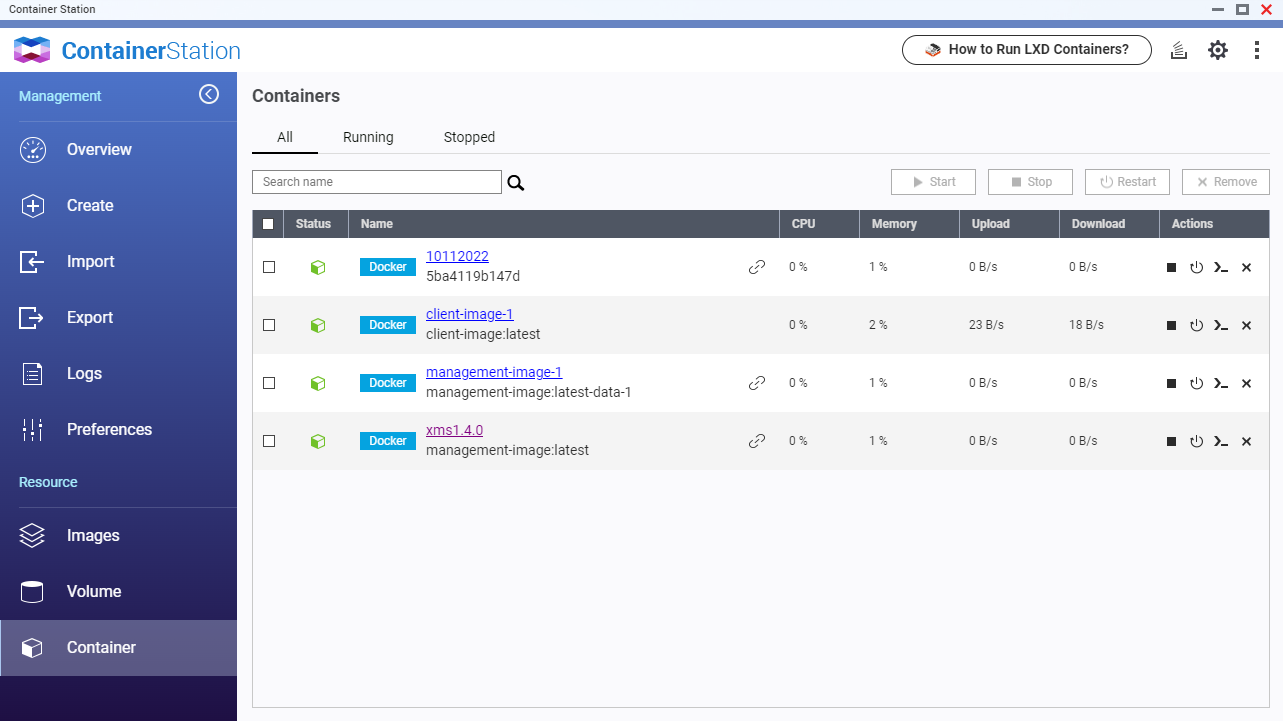
7. Once the container creation process is completed, your new container will be available in the **Container Station** application (under **Containers** menu option).
8. Connect to **Xopero ONE** using your web URL address in the following format (you can find it under **Container Details** > **General** > **Web URL**):
> [http://QNAPaddress:port](https://helpcenter.xopero.com/xopero-one-en/deployment-and-configuration/xopero-one-management-service-xms/http:/QNAPaddress:port)
9. To finish the **XMS** setup, create a new administrative account, provide the license code, and select data to protect.
{% endtab %}
{% tab title="QNAP NAS (CS < 3.0)" %}
## Prerequisites
**QNAP** with:
* [x] x86 or x64 CPU (ARM is **not supported**)
* [x] minimum 2GB of RAM
* [x] **Container Station** app from the **App Center**
***
## Environment setup
1. Login to your **QNAP** web panel and open the **App Center** application. Go to **QNAP Store** > **All Apps** and search for **Container Station** (**CS**).
2. Download the **Container Station** application. Once downloaded, open the app and select the path you'll be using as your **Docker** container data directory.
3. Click **Start Now** to proceed.
***
## Deployment
1. Open the **Container Station** application and click ➕ **Create** in the left-hand side menu.
2. Copy and paste xopero/xopero-one-service in the search field and hit **Enter** to search for **XMS Docker** image (it should be the first search result in **Docker Hub** tab).
3. Click the **Install** button next to the **Docker** image to start the container creation process.
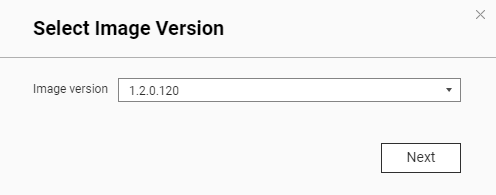
4. Select the latest image version and click **Next** to continue.
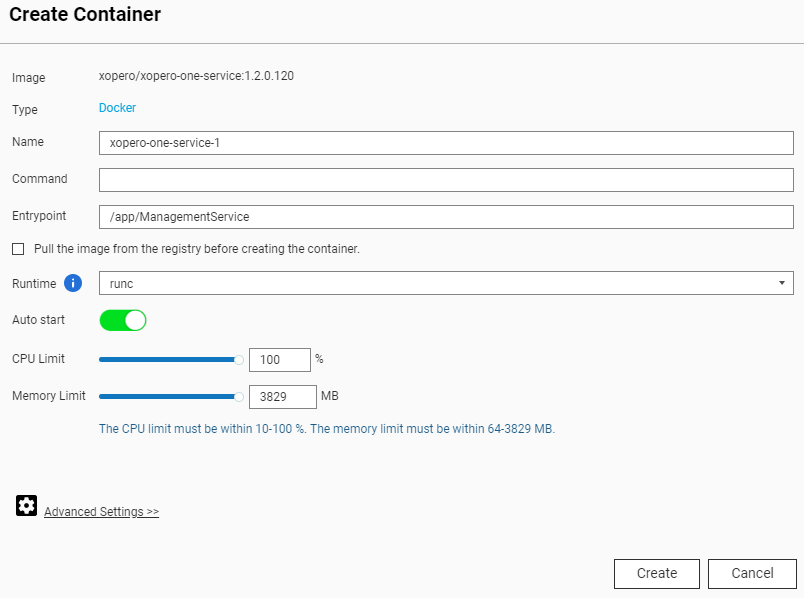
5. In the **Create Container** window, configure the **Xopero ONE Docker** container.
> **Name:** set a custom name for the container
>
> **Auto start:** defines if the container should startup automatically (i.e., in case of **QNAP** restart)
>
> **CPU Limit:** allows you to set the CPU percentage usage available for the container
>
> **Memory Limit:** RAM memory allocated to the container
6. Scroll down a little and click the ⚙️ **Advanced Settings>>**
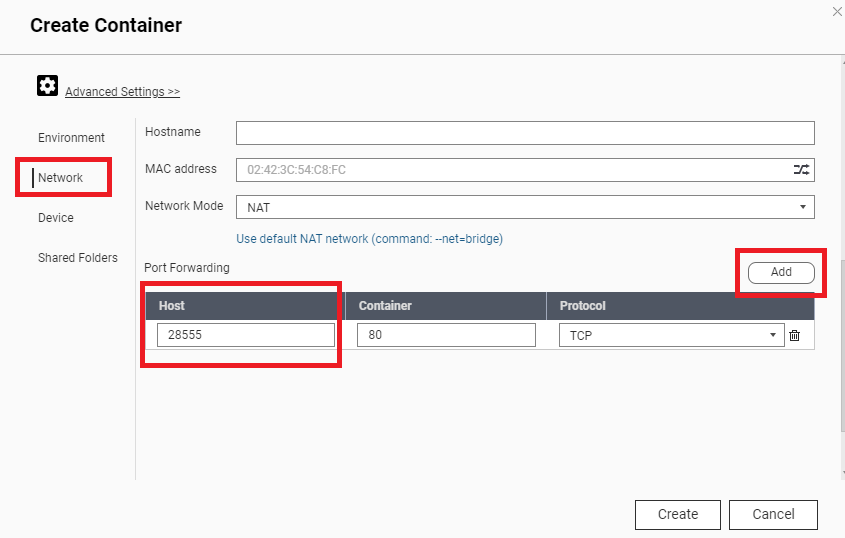
7. In the ⚙️ **Advanced Settings>>** go to **Network** and click the **Add** button on the right. Enter a port number in the **Host** field under the **Port Forwarding** section— this will be the port used to connect to **Xopero ONE** service (the recommended, default port number is **28555**).
8. Click the **Create** button— this will display the setup summary. Double-check your configuration and click **OK** to create the container.
9. Once the container creation process is completed, your new container will be available in the **Container Station** application (under **Container** menu option).
10. Connect to **Xopero ONE Management Service** by launching it via **Container Station**, or using your web URL address in the following format:
> [http://QNAPaddress:port](https://helpcenter.xopero.com/xopero-one-en/deployment-and-configuration/xopero-one-management-service-xms/http:/QNAPaddress:port)
11. To finish the **XMS** setup, create a new administrative account, provide the license code, and select data to protect.
{% endtab %}
{% tab title="Synology NAS" %}
## Prerequisites
**Synology** must meet the following requirements:
* [x] x86 or x64 CPU (ARM is **not supported**)
* [x] minimum 2 GB of RAM
* [x] **Docker** app from the **Package Center**
***
## Deployment
1. Open the **Docker Hub**, navigate to the **Container** menu, and click **Create** button.
2. Expand the **Image** section and select **Add image**. Then, search for xopero/xopero-one-service. Once located, select the image, click **Download**, and choose the version tagged as **latest**. Confirm the selection to proceed.
3. Once you download the image, select it from the **Image** drop-down menu in **General Settings**. Next, define a name for the container and enter it in the **Container Name** field. Configure container resource limits if necessary.
4. Check the **Enable auto-restart** checkbox to ensure the container automatically restarts when the device reboots, and proceed to the next step.
5. In **Volume Settings**, click ➕ **Add Folder** button. To ensure data persistence during container updates or maintenance operations, mount the management databases to an external directory. The databases are stored in **/app/Xopero** and should be mapped to a designated location outside the container to prevent data loss or inconsistencies.
6. In the **Environment** section, define the required variables:
> **ASPNETCORE\_URLS:** management service ports for http and https protocol (i.e., **http\://+:****PORT\_NUMBER****;https\://+:****PORT\_NUMBER**)
{% hint style="warning" %}
The management console is available on port **28555** for the encrypted protocol (**https**), and on port **28556** for the unencrypted (**http**) protocol.
{% endhint %}
7. Go to **Advanced Settings**. Select **bridge** from the **Network Name** drop-down menu in the **Network** tab to enable the container to share the same network namespace as the container's host, then select **Use the same network as Docker Host** checkbox at the bottom.
8. Confirm the configuration and click **Next**. In **Summary**, double-check the settings and hit **Done** to finish the container creation process.
9. Once you've created the container, you can connect to your **XMS** using one of the following addresses:
> https\://**yourSynologyAddress**:28555 (i.e., https\://**192.168.0.100**:28555)
>
> http\://**yourSynologyAddress**:28556 (i.e., http\://**192.168.0.100**:28556)
> {% endtab %}
> {% endtabs %}