> For the complete documentation index, see [llms.txt](https://helpcenter.xopero.com/xopero-one-en/llms.txt). Markdown versions of documentation pages are available by appending `.md` to page URLs; this page is available as [Markdown](https://helpcenter.xopero.com/xopero-one-en/deployment-and-configuration/xopero-one-management-service-xms/post-installation-actions.md).
# Post-installation actions
This article contains information about how to proceed after installing the Xopero ONE Management Service (XMS) component.
## Accessing XMS in on-prem deployment model
To access the on-premise **Xopero ONE Management Service**, connect to the device which **XMS** console is installed on, using the following address:
```
ipAddress:port
```
> **`ipAddress`** - the IP address of the device with **XMS** installed on
>
> **`port`** - port defined during installation process— by default, **Xopero ONE** uses **28555**
If your **Management Service** opened successfully, you can proceed with the below steps (creating your root account, adding the license code, logging in, running your first setup).
***
## Xopero ONE first configuration
{% stepper %}
{% step %}
#### Create the administrator account.
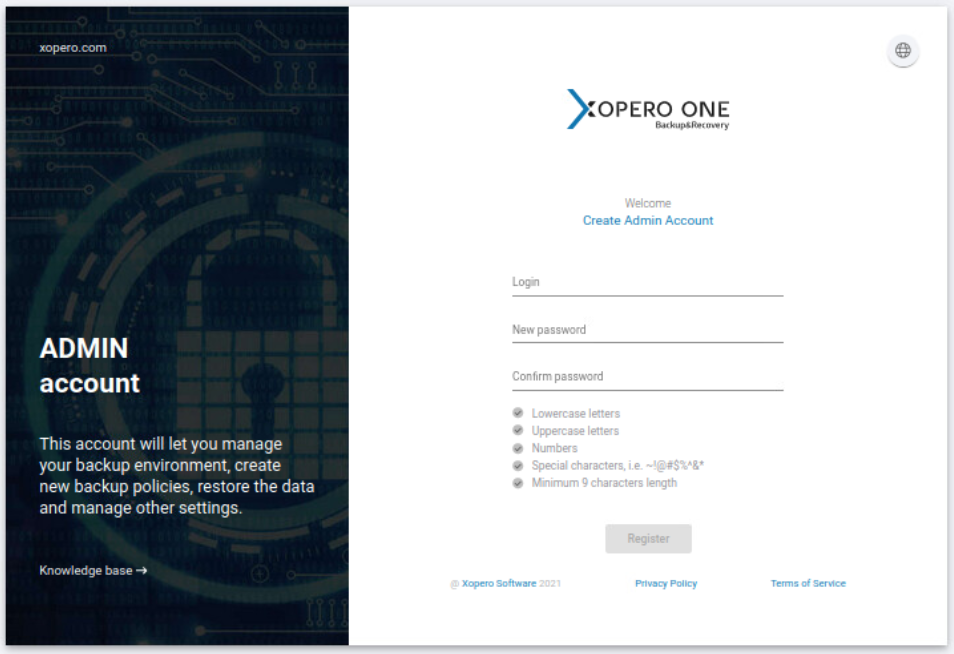
When you launch the **Management Service** for the first time, you will be prompted to create an administrator account. To register a valid admin account you have to provide your **login** (it has to be a **valid email address**) and create a **password** compliant with the **Xopero** password policy.
Once you complete the form click **Register** to proceed to the next step.
{% endstep %}
{% step %}
#### Add the license key.
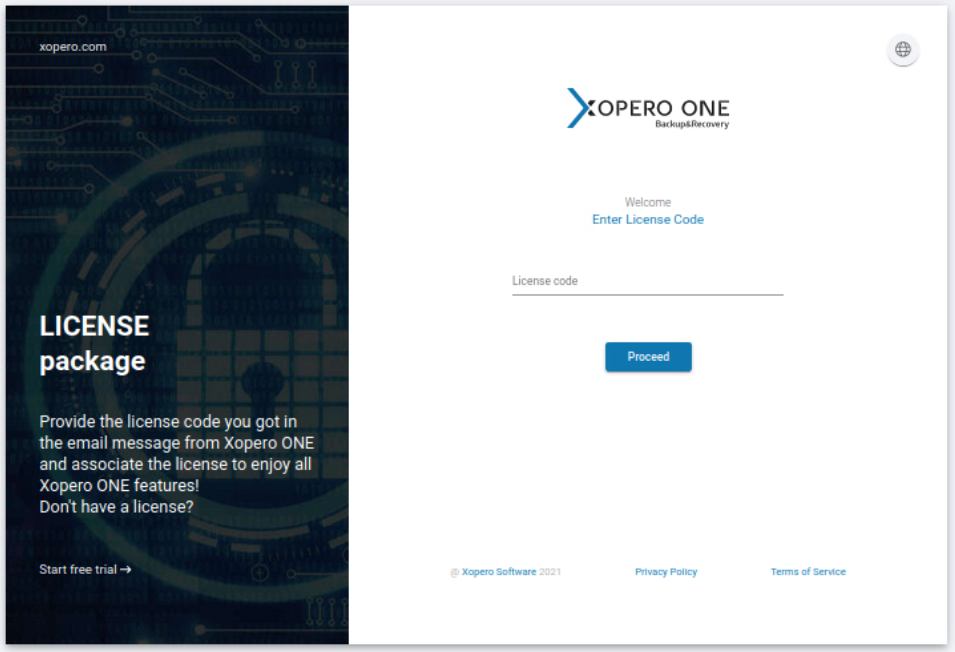
Having the administrator account registered, you will then be asked to provide a license key (which you should've received via email upon registering for **Xopero ONE**)— this is the last step before the **Xopero ONE** system becomes operational and ready to use.\
\
Once done, click **Proceed** to go to the system setup.
{% endstep %}
{% step %}
#### Run your first setup.
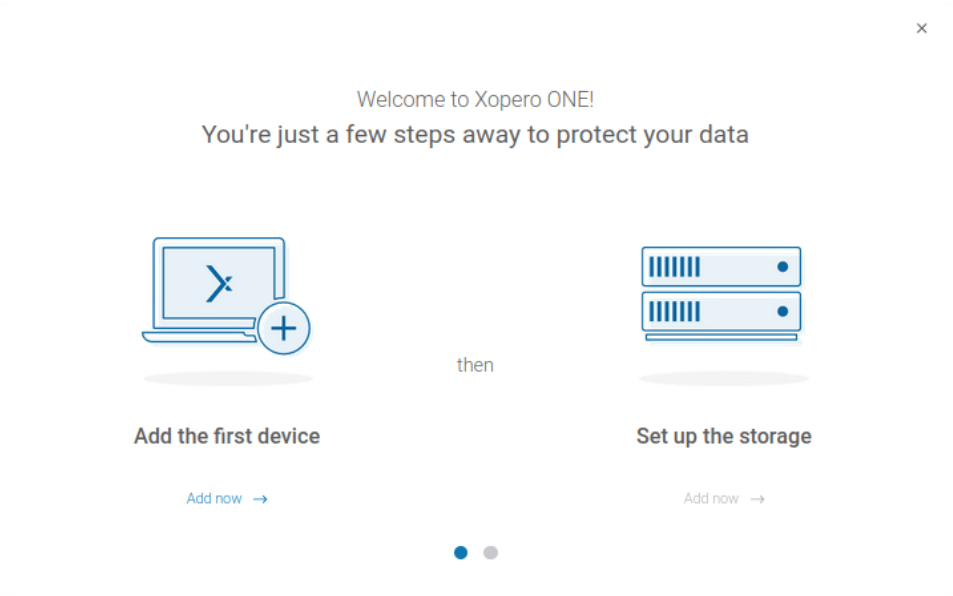
In the initial setup you should add your first device which you want to use to set up the storage. Then, you have to install the backup agent and activate it in **Xopero** system.
{% hint style="info" %}
Browse [**Xopero ONE agent**](/xopero-one-en/deployment-and-configuration/xopero-one-agent.md) category to find more information about agent installation.
{% endhint %}
Next, add the storage where you want to store your data. As **Xopero ONE** is a multi-storage system, you can add different storages from different sources and use both local storage (i.e., **SMB**, **NFS**) and cloud solutions (i.e., **Wasabi**, **Amazon**, etc.).
{% hint style="info" %}
Learn more about storages in [STORAGE (BACKUP DESTINATION) OVERVIEW & SETUP)](/xopero-one-en/storage/overview.md) section.
{% endhint %}
With all system components initialized, you can start protecting your data and create backup plans.
{% endstep %}
{% endstepper %}