# Aktualizacja w systemie Windows

#### Ideą aktualizacji Management service jest wykonanie kilku kroków w kreatorze instalacji, które opisano poniżej.

***

## Proces aktualizacji

{% hint style="info" %}
Poniższa instrukcja ma zastosowanie dla modelu wdrożenia on-premise **Xopero ONE Management Service**.
{% endhint %}

{% stepper %}
{% step %}
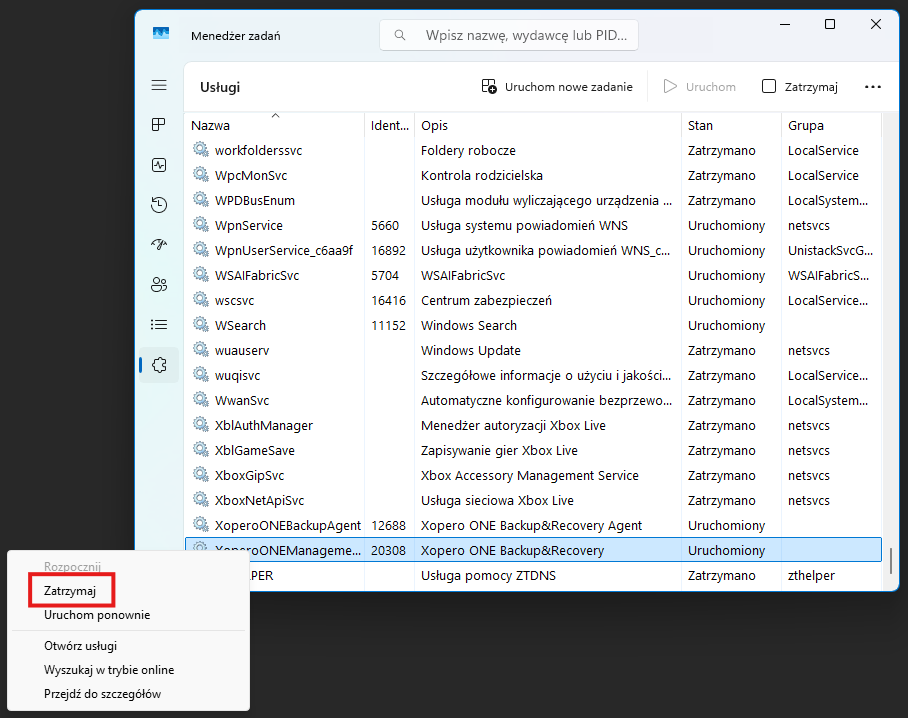
Otwórz **Menedżera zadań** systemu **Windows**, a następnie zakładkę **Usługi**.
{% endstep %}

{% step %}
Zatrzymaj usługę `XoperoONEManagementService`.

<figure><img src="https://1873867500-files.gitbook.io/~/files/v0/b/gitbook-x-prod.appspot.com/o/spaces%2Fwg6DDqlTFok8F9zv6rqa%2Fuploads%2FmpWFmvZekcqpuhS6shS2%2Fimage.png?alt=media&#x26;token=e374cea8-e41b-4bfa-8e8a-a29e1bd1f6f7" alt=""><figcaption></figcaption></figure>
{% endstep %}

{% step %}
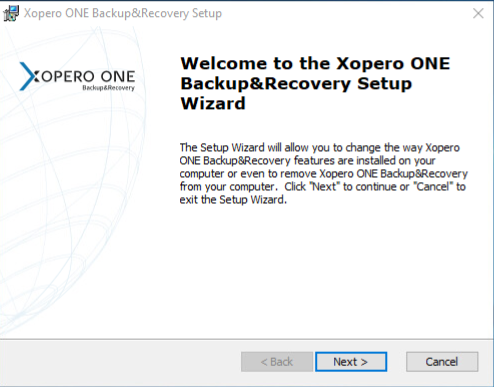
Uruchom instalator **Xopero ONE Management Service**, który nazywa się `XoperoServer.msi`, i kliknij przycisk **Dalej (Next)**.

<figure><img src="https://content.gitbook.com/content/wg6DDqlTFok8F9zv6rqa/blobs/eMuVN2tBS9NqHMjggTc6/image.png" alt="Xopero ONE updating creator"><figcaption></figcaption></figure>
{% endstep %}

{% step %}
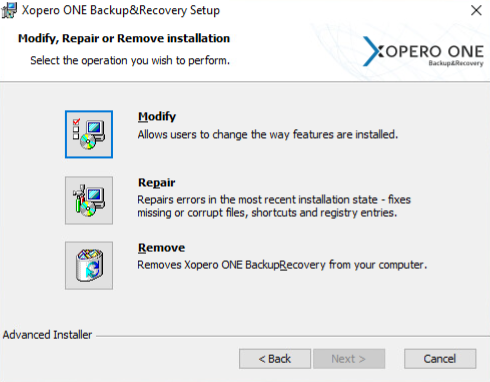
Wybierz opcję **Modyfikuj (Modify)** i przejdź dalej.

<figure><img src="https://content.gitbook.com/content/wg6DDqlTFok8F9zv6rqa/blobs/cQEnkK8mvsMlzVSutubJ/image.png" alt="Xopero ONE updating creator"><figcaption></figcaption></figure>
{% endstep %}

{% step %}
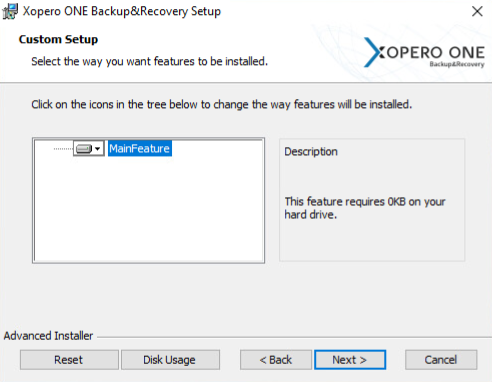
Kliknij przycisk **Dalej (Next)**.

<figure><img src="https://content.gitbook.com/content/wg6DDqlTFok8F9zv6rqa/blobs/AhrL0U2Qvky93EjNPB2x/image.png" alt="Xopero ONE updating creator"><figcaption></figcaption></figure>
{% endstep %}

{% step %}
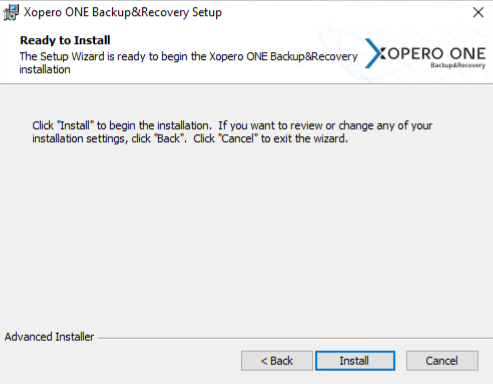
Kliknij przycisk **Zainstaluj (Install)**.

<figure><img src="https://content.gitbook.com/content/wg6DDqlTFok8F9zv6rqa/blobs/LdqWYbDdD2O9ULjzNCTV/image.png" alt="Xopero ONE updating creator"><figcaption></figcaption></figure>
{% endstep %}

{% step %}
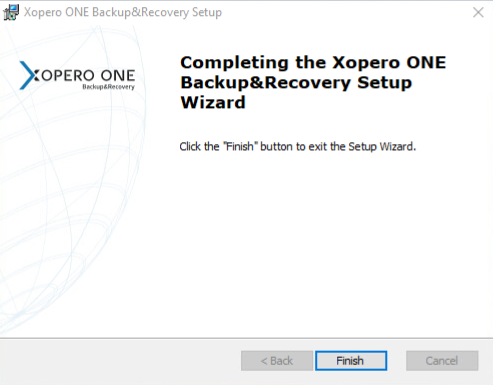
Gdy proces instalacji się zakończy, kliknij przycisk **Zakończ (Finish)**.

<figure><img src="https://content.gitbook.com/content/wg6DDqlTFok8F9zv6rqa/blobs/SrchHm5gXOSknQkLFb3z/image.png" alt="Xopero ONE updating creator"><figcaption></figcaption></figure>
{% endstep %}

{% step %}
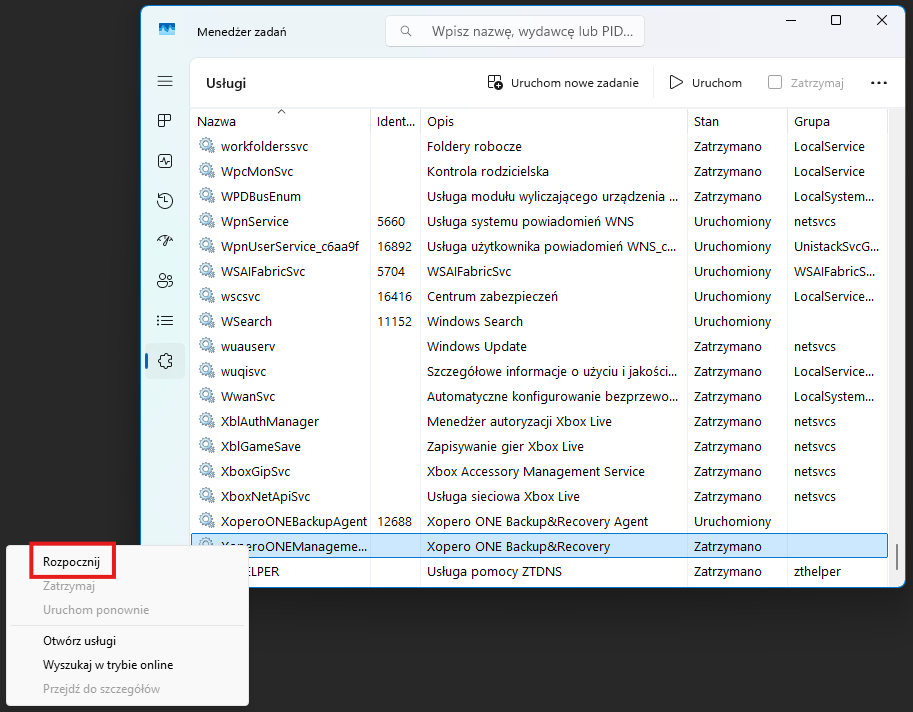
Uruchom usługę `XoperoONEManagementService` z **Menedżera zadań**.

<figure><img src="https://1873867500-files.gitbook.io/~/files/v0/b/gitbook-x-prod.appspot.com/o/spaces%2Fwg6DDqlTFok8F9zv6rqa%2Fuploads%2FXgHQBHkarhYDa6yP0wBS%2Fimage.png?alt=media&#x26;token=2cbb0647-80c2-4825-88aa-e8f220ccd3de" alt=""><figcaption></figcaption></figure>
{% endstep %}

{% step %}
Usługa **Xopero ONE Management Service** została zaktualizowana i jest gotowa do pracy.
{% endstep %}
{% endstepper %}
---

# Agent Instructions: Querying This Documentation

If you need additional information that is not directly available in this page, you can query the documentation dynamically by asking a question.

Perform an HTTP GET request on the current page URL with the `ask` query parameter:

```
GET https://helpcenter.xopero.com/xopero-one-en/pl/aktualizacje/xopero-one-management-service/aktualizacja-w-systemie-windows.md?ask=<question>
```

The question should be specific, self-contained, and written in natural language.
The response will contain a direct answer to the question and relevant excerpts and sources from the documentation.

Use this mechanism when the answer is not explicitly present in the current page, you need clarification or additional context, or you want to retrieve related documentation sections.