> For the complete documentation index, see [llms.txt](https://helpcenter.xopero.com/xopero-one-en/llms.txt). Markdown versions of documentation pages are available by appending `.md` to page URLs; this page is available as [Markdown](https://helpcenter.xopero.com/xopero-one-en/storage/cloud-storage/azure-blob-storage/adding-new-storage.md).
# Adding new storage
This article explains how to set up an Azure Blob Storage container as storage in Xopero ONE.
{% hint style="danger" %}
**Xopero ONE** supports only three **Azure Blob Storage** access tiers: hot, cool, and cold. **The archive access tier is not supported.** Learn more about access tiers for blob data in the [official Microsoft documentation](https://learn.microsoft.com/en-us/azure/storage/blobs/access-tiers-overview).
{% endhint %}
{% stepper %}
{% step %}
Open the **Storages** section and click **Add storage** button.
{% endstep %}
{% step %}
The **Add storage** sidebar will appear— use it to enter the name of your new storage in the **Add storage name** field (**step 1**), then click the arrow next to the **Storage type** section (**step 2**) to expand the list of available storage types.
{% endstep %}
{% step %}
Scroll down the list and select the **Azure Blob Storage** option.
{% endstep %}
{% step %}
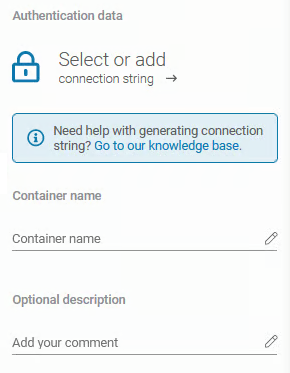
After selecting storage option, the system will display additional sections, including: **Authentication data**, **Container name**, and **Optional description**.
{% endstep %}
{% step %}
To select the password for your container, click the **Select or add connection string** button and choose an existing password from the **Password Manager** or create a new one.
{% endstep %}
{% step %}
Enter the container name and description (if needed).
{% endstep %}
{% step %}
Ensure that the browsing machine—a device with an active license and the **Xopero ONE** agent installed—can access your **Azure Blob Storage** container. To use a different device, click **Change** next to the **Browsing machine** at the bottom.
{% endstep %}
{% step %}
Review your settings and click the **Save** button to add the storage to **Xopero ONE**. Refresh the page to see the newly added storage on your storages list.
{% endstep %}
{% endstepper %}