> For the complete documentation index, see [llms.txt](https://helpcenter.xopero.com/xopero-one-en/llms.txt). Markdown versions of documentation pages are available by appending `.md` to page URLs; this page is available as [Markdown](https://helpcenter.xopero.com/xopero-one-en/storage/cloud-storage/azure-blob-storage/azure-integration-methods.md).
# Azure integration methods
Learn about Azure integration methods.
## Integration methods
After creating the storage account and a blob container, you can integrate them using one of two methods— **access keys** or a **shared access signature** (**SAS**):
1. **Access keys** provide full administrative access to your storage account, allowing any operation. They are suitable for scenarios requiring complete control but must be handled carefully due to their high level of access.
2. A s**hared access signature** (**SAS**) offers more granular control, allowing access to specific resources for a limited time with restricted permissions. This method is ideal for scenarios where you need to grant a temporary access to clients or applications without exposing primary keys, enhancing security and flexibility in managing storage resources.
***
## SAS configuration
Minimal required permissions to configure **Azure Blob Storage** for use with:
1. Allowed services:
* [x] **Blob**
2. Allowed resource types:
* [x] **Container**
* [x] **Objects**
3. Allowed permissions:
* [x] **Read**
* [x] **Write**
* [x] **Delete**
* [x] **List**
{% hint style="warning" %}
To use replication tasks when granting permissions, these permissions **must** either be full or extended with **Add** and **Create**.
{% endhint %}
Example of correct permissions for Azure Blob Storage.
Example of correct replication permissions for Azure Blob Storage.
***
## Generating the connection string
#### Generating the connection string with the specified permissions:
1. Login to the **Azure** portal as an administrator.
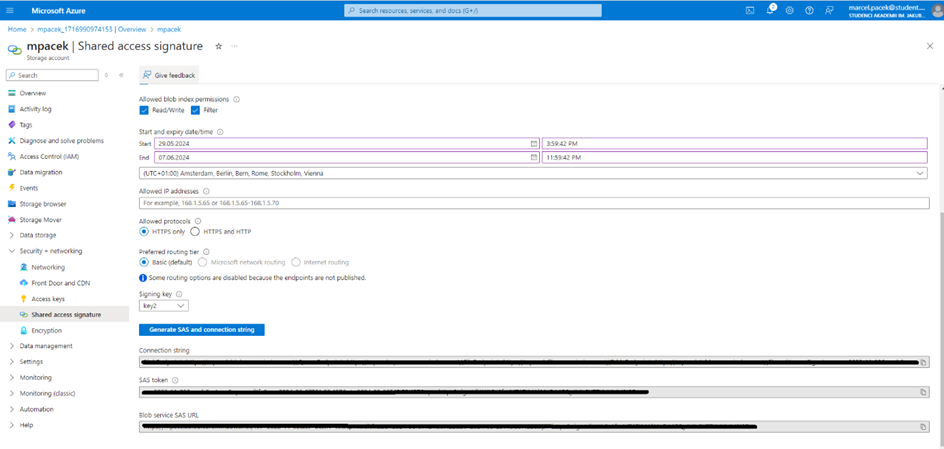
2. Select the storage account and click **Shared Access Signature** in the **Settings** tab.
3. Select the permissions described in the [SAS configuration](#shared_access_signature_configuration-1) section of this article.
4. Click **Generate SAS and connection string**.
5. For setting up the blob storage, you will need the connection string:
#### Generating the connection string with the full permission:
1. Login to the **Azure** portal as an administrator.
2. Select the storage account.
3. Go to **Access keys** under the **Security + networking** menu section.
4. For setting up the blob storage, you will need the connection string:
***
## Useful links and items
{% embed url="" %}
{% embed url="" %}