> For the complete documentation index, see [llms.txt](https://helpcenter.xopero.com/xopero-one-en/llms.txt). Markdown versions of documentation pages are available by appending `.md` to page URLs; this page is available as [Markdown](https://helpcenter.xopero.com/xopero-one-en/storage/cloud-storage/google-cloud-storage/adding-new-storage-to-xopero-one.md).
# Adding new storage to Xopero ONE
How to set up a Google Cloud Storage bucket as a storage repository in Xopero ONE.
**Google Cloud Storage can be configured as a backup destination in Xopero ONE, allowing backup data to be stored in a dedicated Cloud Storage bucket.**
***
## Storage setup
The following steps demonstrate how to add a **Cloud Storage** bucket to **Xopero ONE**.
{% stepper %}
{% step %}
In **Xopero ONE Management Service**, open the **Storages** tab and click the **+ Add storage** button in the top bar.
{% endstep %}
{% step %}
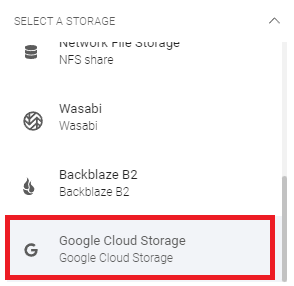
Enter the name of your new storage in the **Add storage name** field (step 1). In the **Storage type** section, expand the list of available storage types (step 2).
{% endstep %}
{% step %}
Select **Google Cloud Storage** from the list.
{% endstep %}
{% step %}
Copy the secret access key and access key ID from **Google Cloud Storage**. Paste the access key ID to the corresponding field, then click **Select or add secret access key** to open the **Password Manager** menu and add the secret key to your bucket.
{% hint style="info" %}
To generate a new secret access key and access key ID, navigate to **Cloud Storage** > **Settings** > **Interoperability** in the **Google Cloud Console** and create a new key under the **HMAC keys** section. For further details on managing access keys, refer to the [official Google Cloud Storage documentation](#useful-links-and-items).
{% endhint %}
{% endstep %}
{% step %}
In the **Service URL** field, enter the request endpoint URL obtained from **GCS** interoperability settings (e.g., ). Enter the bucket name in the corresponding field and, optionally, provide a description to help identify this storage repository in the console.
{% endstep %}
{% step %}
Select the default backup agent (worker) to be used for browsing the data. Ensure that the selected backup agent can access your **Google Cloud Storage** bucket.
{% endstep %}
{% step %}
Review your settings and click **Save** to add the storage to **Xopero ONE**. Refresh the page to view the newly added storage repository on the list (if needed).
{% endstep %}
{% endstepper %}
***
## Useful links and items
{% embed url="" %}