> For the complete documentation index, see [llms.txt](https://helpcenter.xopero.com/xopero-one-en/llms.txt). Markdown versions of documentation pages are available by appending `.md` to page URLs; this page is available as [Markdown](https://helpcenter.xopero.com/xopero-one-en/storage/cloud-storage/s3-compliant/adding-new-storage.md).
# Adding new storage
This article describes the process of setting up an S3-compatible bucket as storage in Xopero ONE.
{% stepper %}
{% step %}
Open the **Storages** section and click **Add storage** button.
{% endstep %}
{% step %}
The **Add storage** sidebar will appear— use it to enter the name of your new storage in the **Add storage name** field (step 1), then click the arrow next to the **Storage type** section (step 2) to expand the list of available storage types.
{% endstep %}
{% step %}
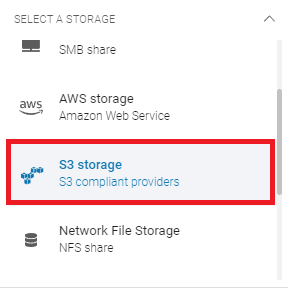
Scroll down the list and select the **S3 storage** option.
{% endstep %}
{% step %}
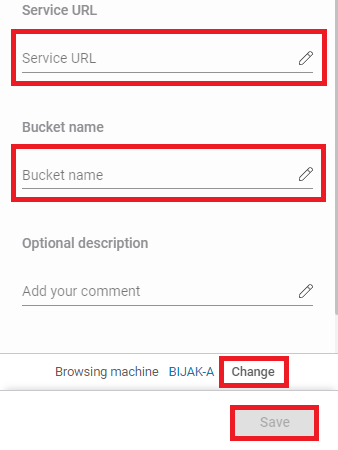
After selecting storage option, the system will display additional sections, including: **Authentication data**, **Service URL**, **Bucket name**, and **Optional description**.
{% endstep %}
{% step %}
Copy the **access key ID** and **secret access key** from your **S3**-compliant storage provider, paste the **access key ID** to the corresponding field, and click **Select or add secret access key** to open the **Password Manager** menu and add your copied **secret key** to your bucket.
{% hint style="info" %}
To get the **access key ID** and **secret access key**, visit your **S3**-compatible platform and create a new access key.
{% endhint %}
{% endstep %}
{% step %}
In the **Service URL** field, enter the URL provided by your **S3**-compliant storage provider.
{% endstep %}
{% step %}
Enter the bucket name in the **Bucket name** field and proceed to the next step.
{% endstep %}
{% step %}
Ensure that the browsing machine—a device with an active license and the **Xopero ONE** agent installed—can access your **S3** bucket. To use a different device, click **Change** next to the **Browsing machine** at the bottom.
{% endstep %}
{% step %}
Review your settings and click the **Save** button to add the storage to **Xopero ONE**. Refresh the page to see the newly added storage on your storages list.
{% endstep %}
{% endstepper %}