# MinIO S3

{% hint style="info" %}
**MinIO** is an open-source, high-performance distributed object storage system compatible with the **Amazon S3** public API. It serves as a local alternative to public cloud storage solutions. For more information go to the [MinIO website](https://min.io/).
{% endhint %}

{% stepper %}
{% step %}
Login to your **Xopero ONE Management Service** (**XMS**) admin panel, open the **Storages** tab and click the **(+) Add storage** button.
{% endstep %}

{% step %}
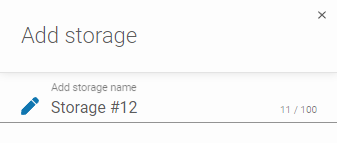
In **Add storage** form, define the storage name.

<figure><img src="https://content.gitbook.com/content/0CBTl43C3OO6ySL1DJ6k/blobs/zEiqBhDAnANcG94lF5ra/1.png" alt=""><figcaption></figcaption></figure>
{% endstep %}

{% step %}
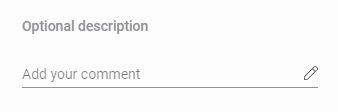
If needed, add an optional description.

<figure><img src="https://content.gitbook.com/content/0CBTl43C3OO6ySL1DJ6k/blobs/tItJswBIC02Ijd440spl/2.png" alt=""><figcaption></figcaption></figure>
{% endstep %}

{% step %}
Expand the **Storage type** list and select **S3 storage (S3 compliant providers)**.

<figure><img src="https://319733277-files.gitbook.io/~/files/v0/b/gitbook-x-prod.appspot.com/o/spaces%2F0CBTl43C3OO6ySL1DJ6k%2Fuploads%2FWnyf2PFyEGDTFV0ZK4eU%2Fimage.png?alt=media&#x26;token=2736a176-0699-470e-a479-dd7f2b4bf154" alt=""><figcaption></figcaption></figure>
{% endstep %}

{% step %}
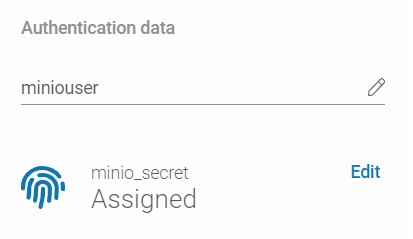
Enter your **MinIO** username in **Access key ID** and select (or add) a secret access key from the **Password Manager**.

{% hint style="warning" %}
Both **Access key ID** and secret access key are your **MinIO** login credentials.
{% endhint %}

{% hint style="info" %}
Learn more about using **Password Manager** [here](https://helpcenter.xopero.com/xopero-one-en/management/password-manager).
{% endhint %}

<figure><img src="https://content.gitbook.com/content/0CBTl43C3OO6ySL1DJ6k/blobs/qBi9Y78KUytIo6w1jN20/4.png" alt=""><figcaption></figcaption></figure>
{% endstep %}

{% step %}
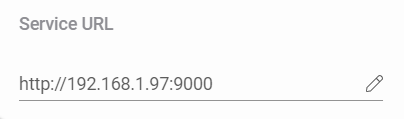
Set the **Service UR**L to your **MinIO** console IP address in `http://address:port` format. Default **MinIO** port is 9000.

<figure><img src="https://content.gitbook.com/content/0CBTl43C3OO6ySL1DJ6k/blobs/7BU1RZtqwd5i5YFdJpuR/6.png" alt=""><figcaption></figcaption></figure>

<figure><img src="https://319733277-files.gitbook.io/~/files/v0/b/gitbook-x-prod.appspot.com/o/spaces%2F0CBTl43C3OO6ySL1DJ6k%2Fuploads%2FXlB1Z8euGvLEuMhGQuvY%2Fimage.png?alt=media&#x26;token=06ece419-ef8b-4a5e-b91f-ac3295a7e8ea" alt="" width="420"><figcaption><p><em><strong>MinIO</strong> console IP address.</em></p></figcaption></figure>
{% endstep %}

{% step %}
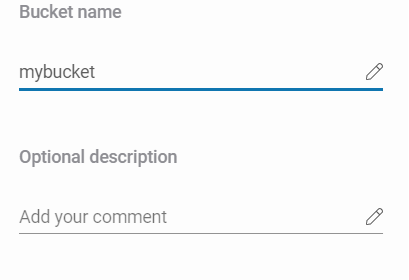
Set the bucket name.

<figure><img src="https://content.gitbook.com/content/0CBTl43C3OO6ySL1DJ6k/blobs/ebo2EJ3sKK4cCwKmsnkD/7.png" alt=""><figcaption></figcaption></figure>

{% hint style="info" %}
The bucket is created via **MinIO** web console (**Buckets** > **Create Bucket ➕**).
{% endhint %}

<figure><img src="https://319733277-files.gitbook.io/~/files/v0/b/gitbook-x-prod.appspot.com/o/spaces%2F0CBTl43C3OO6ySL1DJ6k%2Fuploads%2F5bzUzjZDazDvsuyP2LhZ%2Fimage.png?alt=media&#x26;token=a339fc28-e6bc-49c6-8bb9-8cbd25e215ca" alt="" width="563"><figcaption></figcaption></figure>
{% endstep %}

{% step %}
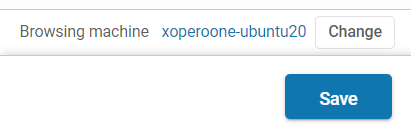
Ensure the browsing device can detect the storage. Use the **Change** button to select a **Browsing machine** from the devices assigned to **Xopero ONE**, which will connect the share to the system.

<figure><img src="https://content.gitbook.com/content/0CBTl43C3OO6ySL1DJ6k/blobs/IeE1J8uTDXxRzOcpZW8G/9.png" alt=""><figcaption></figcaption></figure>
{% endstep %}

{% step %}
To finish the storage configuration, click **Save**.
{% endstep %}
{% endstepper %}

---

# Agent Instructions: Querying This Documentation

If you need additional information that is not directly available in this page, you can query the documentation dynamically by asking a question.

Perform an HTTP GET request on the current page URL with the `ask` query parameter:

```
GET https://helpcenter.xopero.com/xopero-one-en/storage/local-storage/adding-new-storage/minio-s3.md?ask=<question>
```

The question should be specific, self-contained, and written in natural language.
The response will contain a direct answer to the question and relevant excerpts and sources from the documentation.

Use this mechanism when the answer is not explicitly present in the current page, you need clarification or additional context, or you want to retrieve related documentation sections.