> For the complete documentation index, see [llms.txt](https://helpcenter.xopero.com/xopero-one-en/llms.txt). Markdown versions of documentation pages are available by appending `.md` to page URLs; this page is available as [Markdown](https://helpcenter.xopero.com/xopero-one-en/storage/local-storage/adding-new-storage/smb-share.md).
# SMB share
{% stepper %}
{% step %}
Login to your **Xopero ONE Management Service** (**XMS**) admin panel, open the **Storages** tab and click the **(+) Add storage** button.
{% endstep %}
{% step %}
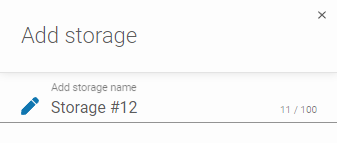
In **Add storage** form, define the storage name.
{% endstep %}
{% step %}
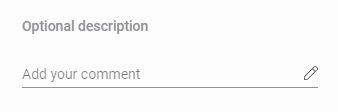
If needed, add an optional description.
{% endstep %}
{% step %}
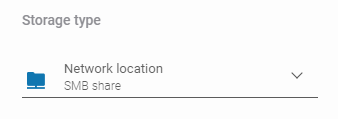
Expand the **Storage type** list and select **Network location (SMB share)**.
{% endstep %}
{% step %}
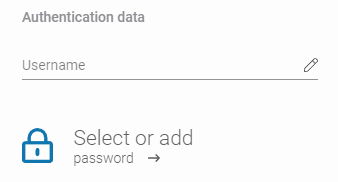
Fill in the **Username** and select (or add) a password, ensuring they match the domain credentials tied to the network location.
{% hint style="info" %}
Learn more about using **Password Manager** [here](/xopero-one-en/management/password-manager.md).
{% endhint %}
{% endstep %}
{% step %}
Ensure the browsing device can detect the storage. Use the **Change** button to select a **Browsing machine** from the devices assigned to **Xopero ONE**, which will connect the share to the system.
{% endstep %}
{% step %}
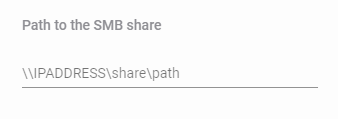
Enter the path or server address containing the share in the **Path to the SMB share** field.
{% endstep %}
{% step %}
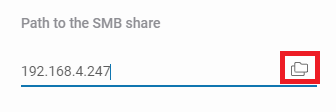
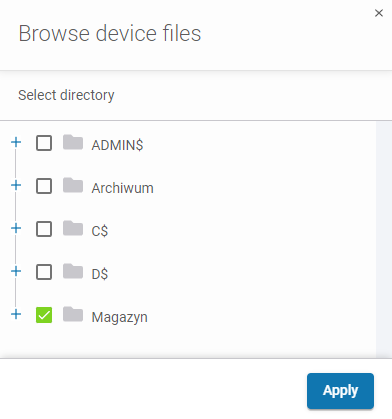
When using the second option (server address) you can browse the server shares— click on the **Folders** icon to see your available server shares options.
{% endstep %}
{% step %}
Select the share you want to store your data in and click **Apply**.
{% endstep %}
{% step %}
To finish the storage configuration, click **Save**.
{% endstep %}
{% endstepper %}