> For the complete documentation index, see [llms.txt](https://helpcenter.xopero.com/xopero-one-en/llms.txt). Markdown versions of documentation pages are available by appending `.md` to page URLs; this page is available as [Markdown](https://helpcenter.xopero.com/xopero-one-en/troubleshooting/fetching-device-logs.md).
# Fetching device logs
This article explains how to fetch device logs from Xopero ONE for self-troubleshooting or when submitting a support ticket for technical assistance.
Logs are generated on every device with the **Xopero ONE** **agent** application installed. They can be accessed directly on the device or downloaded to the server running the **Xopero ONE Management Service** (**XMS**).
The logs can be also fetched directly through the **Management Service** (below guide refers to the on-prem deployment model):
{% stepper %}
{% step %}
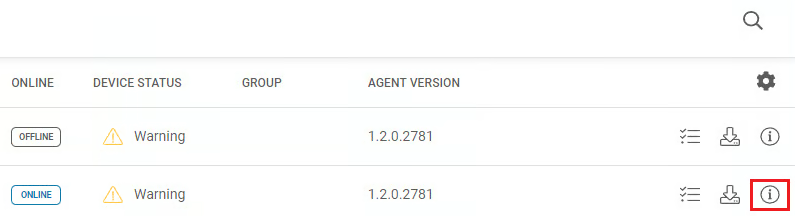
Login your **XMS** panel, open the **Devices** **tab**, and click the **device details** ℹ️ button next to the device.
{% endstep %}
{% step %}
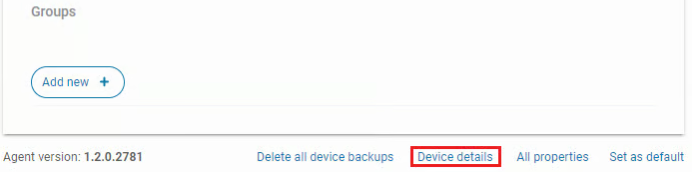
In the device info panel, scroll down to the very bottom and click **Device** **details**.
{% endstep %}
{% step %}
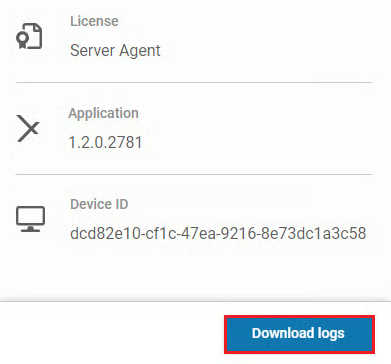
In **Device details** view, click the **Download logs** button at the bottom.
{% hint style="info" %}
In **Device details** view, you can check your device parameters such as CPU, RAM, operating system, IP address, license, application version, and device ID.
{% endhint %}
{% endstep %}
{% step %}
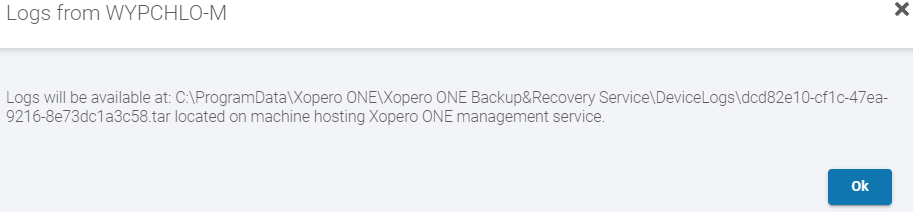
Downloaded device logs will be saved to the **Xopero ONE Management Service** (**XMS**) directory. The message displayed in the web panel provides the direct path to the **\*.tar** archive.
{% endstep %}
{% step %}
Attach this file to your support ticket or extract its contents to investigate the issue on your own.
{% endstep %}
{% endstepper %}