This article explains how to set up an Azure Blob Storage container as storage in Xopero ONE.
Open the Storages section and click Add storage button.
The Add storage sidebar will appear— use it to enter the name of your new storage in the Add storage name field (step 1), then click the arrow next to the Storage type section (step 2) to expand the list of available storage types.
Scroll down the list and select the Azure Blob Storage option.
After selecting storage option, the system will display additional sections, including: Authentication data, Container name, and Optional description.
To select the password for your container, click the Select or add connection string button and choose an existing password from the Password Manager or create a new one.
Enter the container name and description (if needed).
Ensure that the browsing machine—a device with an active license and the Xopero ONE agent installed—can access your Azure Blob Storage container. To use a different device, click Change next to the Browsing machine at the bottom.
Review your settings and click the Save button to add the storage to Xopero ONE. Refresh the page to see the newly added storage on your storages list.


This article explains how to configure a storage account and blob storage in Azure.
Navigate to the Create a resource section in the top-left corner of the Azure Portal.
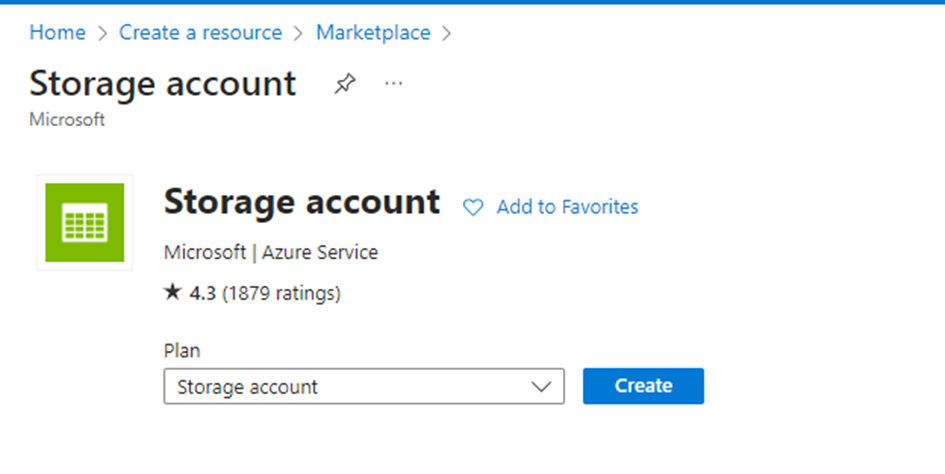
In the search bar, type storage account and select Create from the results.
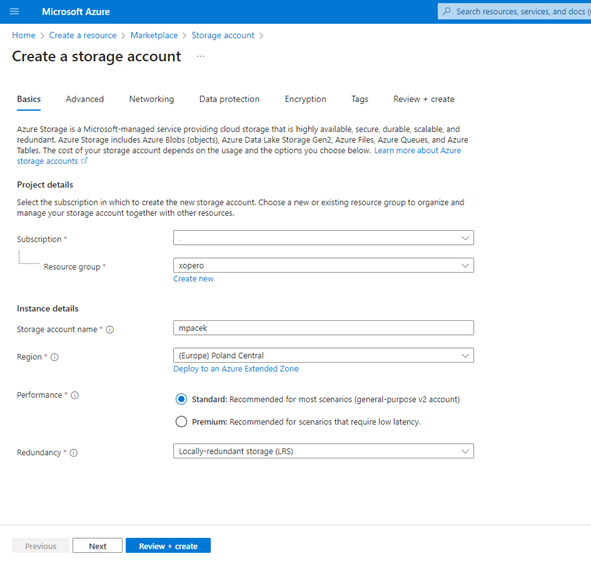
On the configuration page, complete the required fields: choose your subscription, select or create a resource group, and enter a unique name for the storage account that meets the global uniqueness requirement.
Select the region for the storage account, choose the performance tier (Standard or Premium), and specify the redundancy option, such as Locally-redundant storage (LRS) or Geo-redundant storage (GRS), according to your data redundancy needs.
Next, configure the networking options— choose whether the storage account will be accessible via the public internet, a private virtual network, or both.
In the Advanced tab, configure additional options such as data access and encryption. If needed, add tags in the Tags tab to meet management requirements (if you have any).
After configuring all settings, review your selections and click Create to finalize the creation of your storage account.
After creating the storage account, create a blob storage container— navigate to the storage account and select Containers from the side menu.
Click + Container to add a new container, enter a name, and select the appropriate access level (Private, Blob, or Container).

Learn about Azure integration methods.
After creating the storage account and a blob container, you can integrate them using one of two methods— access keys or a shared access signature (SAS):
Access keys provide full administrative access to your storage account, allowing any operation. They are suitable for scenarios requiring complete control but must be handled carefully due to their high level of access.
A shared access signature (SAS) offers more granular control, allowing access to specific resources for a limited time with restricted permissions. This method is ideal for scenarios where you need to grant a temporary access to clients or applications without exposing primary keys, enhancing security and flexibility in managing storage resources.
Minimal required permissions to configure Azure Blob Storage for use with:
Allowed services:
Allowed resource types:
Allowed permissions:
Allowed permissions for replication:
Login to the Azure portal as an administrator.
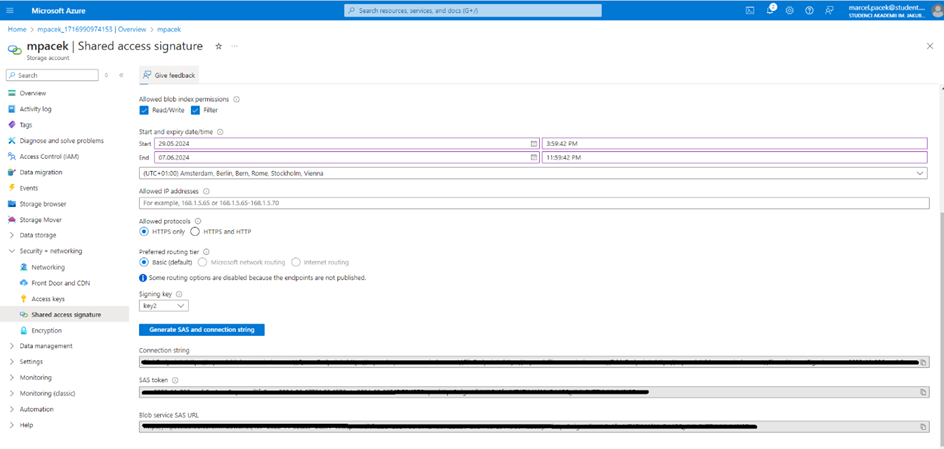
Select the storage account and click Shared Access Signature in the Settings tab.
Select the permissions described in the section of this article.
Click Generate SAS and connection string.
For setting up the blob storage, you will need the connection string:
Login to the Azure portal as an administrator.
Select the storage account.
Go to Access keys under the Security + networking menu section.
For setting up the blob storage, you will need the connection string: