All pages
Powered by GitBook
1 of 16

Loading...

Loading...

Loading...

Loading...

Loading...

Loading...

Loading...

Loading...

Loading...

Loading...

Loading...

Loading...

Loading...

Loading...

Loading...

Loading...

"Storage Initialization failed" error

Issue

The "Storage Initialization failed" error occurred.


Cause

Apart from performing backups, operations such as browsing the storage are also handled by the agents — XMS does not communicate with the storage directly. When browsing a backup, the default worker indicates which device will perform the operation. If this device does not have the required access permissions to the storage, browsing will fail and the above error will appear.


Resolution

  1. Verify that the default worker has communication with the storage enabled.

  2. Make sure that the storage configuration is correct, including storage access credentials and the path to the share.

  3. Make sure that your device has a connection to the specified storage.

Agent installation on Windows Server 2008 R2 ends prematurely because of an error

Issue

Agent installation (or update) on Windows Server 2008 R2 failed with a "Xopero ONE Backup&Recovery Agent setup ended prematurely because of an error." message.


Cause

Starting with version 1.9.6, Xopero ONE agent installation on Windows Server 2008 R2 requires the KB4457144 update. Without this update, the system lacks the necessary security components, causing the installation to fail.


Resolution

  1. Visit the and download the version of KB4457144 that matches your processor architecture (x64 for most Windows Server 2008 R2 environments).

  2. Run the downloaded installer on the target machine.

  3. Restart the system (a restart is mandatory after installing this update to ensure all system components are correctly updated).

  4. After the system restarts, run the Xopero ONE agent installer again. The process should now complete successfully.

Windows Server 2008 R2 is a legacy operating system. Ensure that all other critical and security updates from Windows Update are also installed to maintain the highest possible level of security and compatibility for your backups.

Microsoft Update Catalog

Backup task ends with a "DV0270: User-defined script failed" error

In this article, you will learn how to add the MySQL dump utility to the path variable. This is necessary for define arguments for the MySQL database backup script installed on Linux.

Issue

Backup task ends with error: "DV0270: User-defined script failed".


Cause

This occurs because the path to MySQL dump is missing from the operating system PATH variable.


Resolution

Add the MySQL dump utility to the system PATH (this is required to allow the MySQL database backup script installed on Linux to properly define its arguments):

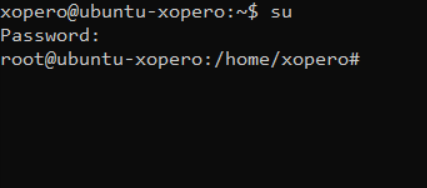
  1. Run the terminal as root, for example:

  1. Execute the following commands:

  1. Assigning the path to the MySQL dump utility should resolve issues with backing up MySQL databases.

mv /usr/bin/mysqldump /usr/bin/mysqldump0
echo '#!/bin/bash' > /usr/bin/mysqldump
echo 'export LD_LIBRARY_PATH=' >> /usr/bin/mysqldump
echo '/usr/bin/mysqldump0 $@' >> /usr/bin/mysqldump
chmod a+x /usr/bin/mysqldump
Executing the suggested commands in terminal.

Workstations and servers

This article describes the common issues related to workstations and servers.

Agent not visible in XMS after successful installation (Linux)
Backup ends with a DW1010 warning
Backup finishes with a "DV0140: Unable to query string" error
Backup task ends with a "DV0270: User-defined script failed" error
Cannot delete device in Management Service
Database backup ends with a "DV0249 - Unable to read backup data" error
Device did not connect to the Management Service
Disk image backup task ends with an error
File-level backup did not protect all the selected files
Installed device does not appear in XMS
Microsoft SQL Server database backup ends with "DV0270:User-defined script failed" error
"Storage Initialization failed" error
"The VSS Diff failed" error
"Unable to open store read" error
Cover
Cover
Cover
Cover
Cover
Cover
Cover
Cover
Cover
Cover
Cover
Cover
Cover
Cover

Database backup ends with a "DV0249 - Unable to read backup data" error

Issue

The database backup task ends with the "DV0249 – Unable to read backup data" error message.


Resolution

Check and resolve any connection stability issues. If the problem persists, you can increase the number of retry attempts in the Xopero ONE application—to do this, simply edit the MaxRetriesCount parameter in config.json file, changing its default value from 2 to a higher one, such as 20.

To modify the config.json file, you must stop the Xopero ONE agent service. After making the necessary changes, restart the service and, if needed, refresh the updates in the Management Service panel.

You can edit config.json with a simple text editor (i.e., Notepad++).

The config.json file, by default, is located in the following locations:

  1. For Windows: C:\Program Files\Xopero ONE Backup&Recovery Agent

  2. For Linux: /opt/XoperoONEBackupAgent/

Backup finishes with a "DV0140: Unable to query string" error

Issue

Backup finishes with a "DV0140: Unable to query string" error message.


Cause

If you see this message, it may indicate an issue with a device included in the backup plan. Typically, this occurs when the device’s license has been deactivated or detached; this error can also appear during a platform update or while migrating the Xopero ONE Management Service.


Resolution

To quickly resolve this issue, remove the device from the web panel and then reassign it. Make sure to update all backup plans by reassigning the device in each plan as needed.

Agent not visible in XMS after successful installation (Linux)

Issue

The agent does not appear or is unavailable for activation after installation.


Cause

On RedHat-based systems (such as Fedora, CentOS, or RHEL), if the agent is not visible after installation, it may indicate that some required components are missing.


Resolution

  1. Install OpenSSL and update certificates using the following commands:

yum install -y openssl11.x86_64 ca-certificates
update-ca-trust extract
  1. Next, you can either restart your Linux system or restart only the Xopero ONE agent service using the following command:

  1. Once done, the agent should be available for activation.

systemctl restart XoperoONEBackupAgent.service
Installed device does not appear in XMS

Issue

After installation, the device does not appear in the Activate agent tab of the Xopero ONE Management Service (XMS).


Resolution

If your device does not appear in the Devices tab after assigning a license, first verify the configuration of local worker, cloud worker, and feature worker licenses. You can check these settings by navigating to ⚙️ Settings > Advanced > Workers.

Method A

For domain-joined devices, the agent may take up to 10 minutes to start. Wait for this period, and if the agent still does not appear in XMS, check the configuration.

Method B

  1. Open the config.json file located in the backup agent installation directory:

    1. For Windows: C:\ProgramData\Xopero ONE\Xopero ONE Backup&Recovery Agent

    2. For Linux: /opt/XoperoONEBackupAgent

  2. Check whether the ServiceUrl parameter correctly points to your Xopero ONE Management Service. If the address is incorrect, update it and try again.

Device did not connect to the Management Service

Issue

The device is not connected to the Management Service after agent installation.


Resolution

If the device is not connected to the Management Service after agent installation:

  1. Make sure you used the correct Xopero ONE agent installer. Note that installers differ for Windows Server 2008R2, 2012, and 2012+.

  2. Verify that the Management Service address is configured correctly (using, for example, the config.json file located in the agent’s installation directory).

  3. Ensure that communication between the agent and Management Service is not blocked—either on the configured port for on-premise installations or between the agent and cloud-based Management Service for SaaS deployments.

  4. Check your local firewall settings.

  5. Verify if a feature worker license was not assigned by mistake (which, in this case, would be an incorrect license). Check the Workers tab in ⚙️ Settings (⚙️ Settings > Advanced > Workers).

Backup ends with a DW1010 warning

Issue

Device backup ends with a DW1010 warning.


Cause

The DW1010 warning indicates that not all query items were found. In other words, a folder specified in the query does not exist on the device.

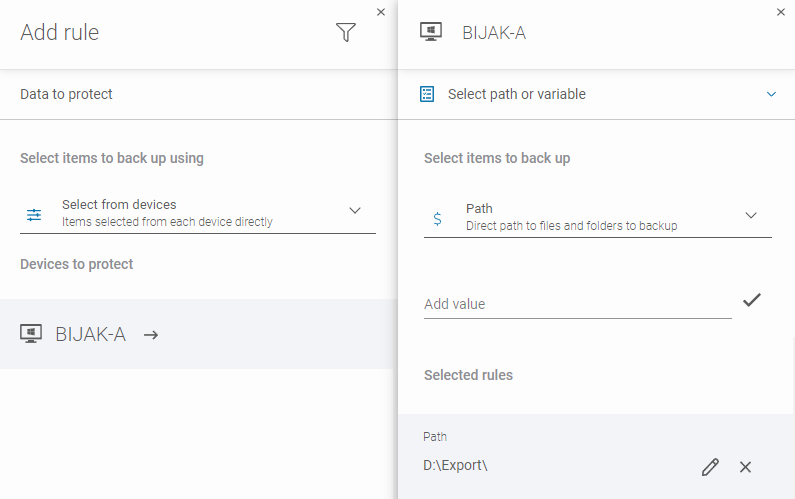
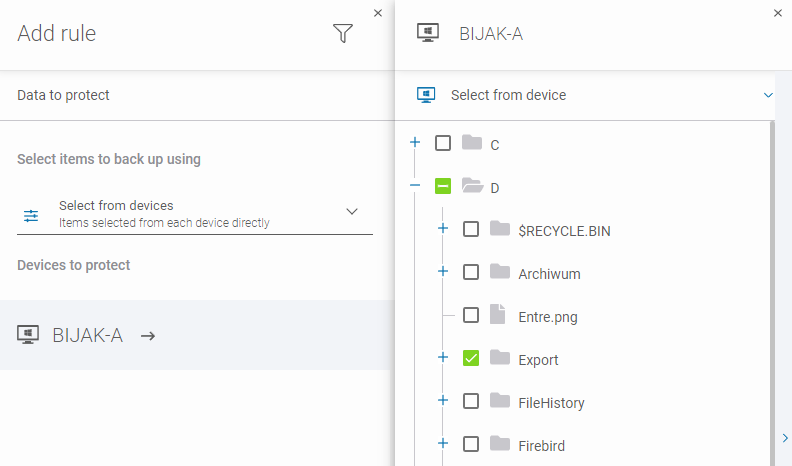
For example, the Export folder on the D: drive was selected for backup. If the folder has been deleted or moved, the backup task will still reference the original location.


Resolution

  1. In Data to protect settings of your backup plan, switch from Select from device to Select path or variable.

  1. Identify the missing path and specify its new location. You can either:

    1. Edit the existing path.

    2. Delete the old path and add a new one.

File-level backup did not protect all the selected files

Issue

The file-level backup skips the selected files and does not protect them.


Resolution

If none of the selected files are backed up using file-level backup, ensure that the Xopero ONE agent service has permission to access and copy the files.

The Xopero backup agent, by default, runs as the local system account (SYSTEM). When checking the permissions for the folder/file/resources you are backing up, verify whether SYSTEM has the correct permissions.

Data to protect - select from device
Data to protect - select path or variables
Options for selecting data to protect

Disk image backup task ends with an error

LOREM IPSUM.

Issue

Disk image backup task did not complete successfully (ended with an error).


Resolution

Ensure that the .NET Framework installed on your system is version 4.6.1 or higher. You can download it from the Microsoft website.

If the backup still fails after installing the correct .NET version, access to VSS services may be blocked by another process. In this case:

  1. In XMS, open the backup plan editing window.

  2. In Advanced settings, toggle the Continue backup after VSS error option ON and save the changes. This should resolve the issue.

Cannot delete device in Management Service

Issue

Unable to delete a device—it's greyed out, but still visible in XMS web panel.


Resolution

Stop the XoperoONEManagementService service and remove the DeviceModule directory from the XMS installation folder:

  1. For Windows: C:\ProgramData\Xopero ONE\Xopero ONE Backup&Recovery Service\

  2. For Linux: /opt/XoperoONEMangementService/

Executing this operation will remove all devices from your Xopero ONE instance. You will need to re-add each device and reassign them to all backup plans.

"The VSS Diff failed" error

Issue

The "VSS Diff failed (An error occurred during the fast difference check; a slower method will be used instead)" issue has occurred.


Cause

This issue is usually caused by the shadow storage size being too small.


Resolution

Windows workstations 7, 8, 10, 11:

  1. Use the command line and run the following command to resize the shadow storage:

vssadmin resize shadowstorage /for=X: /on=X: /maxsize=320MB
  1. X represents the disk letter (it is recommended to perform this operation on all accessible disks).

  1. After making the changes, run the backup task again. If it still fails, contact our technical support by .

  1. Delete all shadow copies using the following two additional command line commands:

  1. Run the backup again. If it still fails, contact our technical support by .

Windows Server:

submitting a request
vssadmin resize shadowstorage /for=X: /on=X: /maxsize=30%
diskshadow
delete shadows all

"Unable to open store read" error

Issue

It is not possible to browse or load backups from x86 and x64 operating systems in Xopero ONE.


Cause

If you are protecting both x86 and x64 operating systems, this message may appear when browsing the data storage. It is most likely caused by incompatibility with the agent application used to perform the backup.

It is important to remember that backups created with the x86 agent (designed for x86 operating systems) can only be browsed and restored using the x86 agent. The same applies to backups created with the x64 agent, which require the x64 agent for browsing or restoration. Any attempt to restore x86 backups with an x64 agent, or x64 backups with an x86 agent, will fail.


Resolution

To restore data, you need to select the correct device for browsing the storage. Open the restore view, choose the data you want to restore, then click the Change button next to Browsing backups with… at the bottom. Select the device that matches the correct architecture. After making this change, you will be able to restore the data without any issues.

Microsoft SQL Server database backup ends with "DV0270:User-defined script failed" error

⚠️ Issue

Microsoft SQL Server database backup task ends with a "DV0270:User-defined script failed" error.


💡 Cause

Some newer versions of Microsoft SQL Server use the ODBC driver 18, which enforces encryption by default and may therefore cause the error described above.


✅ Resolution

ODBC driver 18 encrypted connections requirement can be met by using a self-signed certificate.

The step-by-step instructions below describe how to generate, configure, and install the certificate in Microsoft SQL Server.

Generating a self-signed certificate for Microsoft SQL Server.pdf
PDF · 1MB
Open