List of the minimum VMware permissions required to use Xopero ONE.
For Xopero ONE to back up and restore VMware environments, the assigned permissions must cover all resources that need protection, ensuring your virtual machines and configurations can be securely accessed and managed.
Below is a list of all permissions required by Xopero ONE to back up and protect your VMware environment. Click each section to expand it and view the full set of privileges.
The listed permissions represent the minimum required for Xopero ONE to function. It is recommended to use the full set of permissions to ensure optimal operation.
To integrate VMware hosts with Xopero ONE, you need an administrator account (root is not required). You can use an existing account, but best practice is to create a dedicated VMware user with admin privileges for backup and restore tasks.
Adding VMware hosts is just the first step.
To fully integrate the VMware environment, you can install a virtual appliance (VA) on the VMware host — this enables faster backups using advanced transport methods like HotAdd. Installing the VA is not required for faster backups — you can also use a storage area network (SAN), though this requires proper configuration and a SAN datastore.
Remember that Xopero ONE requires VMware version 6.7 or later and at least an essential license.
If a vCenter server exists in your infrastructure, connect Xopero ONE to the vCenter server rather than an individual ESXi host. Connecting directly to an ESXi host when a vCenter server is present may cause issues.
This article explains how to add a VMware ESXi or vCenter server to Xopero ONE.
To add a VMware server to Xopero ONE, you must have at least one device on the same network with the Xopero ONE Agent installed. This device will handle the initial communication with VMware.
Log in to XMS, open the Virtual Machines tab on the left side of the window, and select VMware from the list.
Click the Connect button under vSphere/ESX.
Provide the IP address or name of your VMware server, enter a username, and add or select a password from the Password Manager.
Select the default VMware agent—the device that can communicate with VMware and will handle adding it to Xopero ONE.
Specify the frequency at which the VMware server should refresh.
After completing the form, click Next to proceed. Once these steps are complete, you can start planning your VMware backup strategy.
You need an administrator account for the VMware host.
Devices with macOS are not supported as VMware registration devices in Xopero ONE.


This article provides information about prerequisites and requirements for VMware integration.
To access all VMware features, including advanced and LAN-free transport methods, Xopero ONE requires VMware version 6.7 or later.
Xopero ONE requires a commercial VMware license.
Xopero ONE works with both ESXi and vSphere.
If you use vSphere, connect Xopero ONE to the vSphere server rather than an individual ESXi host. Connecting directly to an ESXi host when a vSphere server is active may cause backup issues.
Installing a virtual appliance (VA) is optional-- you can protect your infrastructure without it, but deploying a VA is strongly recommended.
To connect VMware to Xopero ONE, you need a VMware administrative account. It is recommended to create a dedicated VMware user account for backup tasks.
MacOS devices are not supported for many VMware operations. You cannot use macOS devices to:
Register the VMware host in Xopero ONE.
Back up VMware virtual machines.
Deploy virtual appliance machines on the VMware host.
Learn about virtual appliance and its role in Xopero ONE backup.
A virtual appliance (VA) is a virtual machine image running on a Linux-based system with the Xopero ONE application pre-installed. It can be deployed through the Xopero ONE Management Service (XMS).
The main purpose of a VA is to act as a backup proxy. It enables the use of SCSI HotAdd, one of the fastest transport methods, which allows attaching devices to a running virtual machine. This capability is especially useful for both backup and restore operations.
The default virtual appliance (VA) configuration parameters are:
2 CPUs
4 GB RAM
100 GB disk space
Log in to XMS, open the Virtual Machines tab on the left side of the window, and select Deploy virtual appliance at the top.
The system will display the New VMware protection view, where you can select one of the VMware environments available in Xopero ONE.
The selected environment will be responsible for running the Xopero ONE virtual appliance. You can choose the specific host or cluster on which the machine will run, as well as the datastore that will store the virtual machine drives.
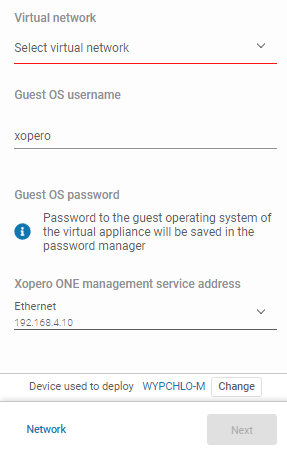
The next section is dedicated to the virtual network, where you can configure the network for your machine, guest OS username and password, as well as the Xopero ONE Management Service (XMS) address, which the application on the virtual appliance will use to establish a connection.
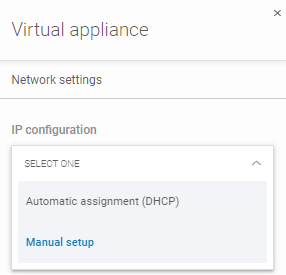
In Network settings you can also configure the IP settings by selecting Automatic assignment (DHCP) or Manual setup from the drop-down list. The first option automatically assigns network settings to the virtual machine adapter through the DHCP protocol, while the second option allows you to configure each parameter manually according to your preferences.
After making your selection and providing all the required details, click the Save button in Network settings, then click Next to install the virtual appliance. The system will display the progress of the deployment process.
Once the process completes successfully, the system will display a success message. You can now use the virtual appliance agent as a worker device in any VMware backup plan.
Xopero recommends using a virtual appliance to achieve the highest backup efficiency.
The password for the created virtual appliance on the host can be found in its description (notes). It is recommended to change it to a new, secure password after the machine is created.
Make sure the device used for deployment can communicate with your VMware host or cluster, as it will be responsible for the installation. If communication between the selected device and VMware is unavailable, the process will fail.
Devices with macOS are not supported as deployment devices for virtual appliances in Xopero ONE.