Functionality and mechanisms of VMware backup plans in Xopero ONE.
Xopero ONE provides secure, consistent protection for virtual machines by capturing entire VM data or selected disks according to defined backup policies. Data is collected directly from the VMware environment, then encrypted before transfer to the designated storage datastore. Backup jobs follow configured schedules and retention policies, ensuring data integrity, efficient storage usage, and rapid recovery in case of system failure or data loss.
General information
Using Xopero ONE, you can protect multiple components of your IT infrastructure, including VMware environments. Each environment can have its own specific backup configuration and may use either a virtual appliance or a local backup agent.
In VMware environments, efficient communication and data transfer to data stores are critical. Fast transport methods, like HotAdd, require a virtual appliance (VA). Without it, local devices acting as VMware backup agents (workers) transfer data over the LAN—first to the agent and then to storage—resulting in much longer transfer times. For improved backup efficiency, it is recommended to use a VA rather than a local agent.
VMware backups are created using system snapshots (application-aware on supported systems); therefore VMware Tools must be installed.
To test VMware snapshots for Xopero ONE, create a snapshot as follows:
Backup snapshots
VMware backup copies are created using system snapshots. For machines running Windows, Xopero ONE uses file-system consistent backups by default. Application-aware backups can be enabled for machines running Windows Server.
Only crash-consistent backups are supported on Linux systems.
Application-aware backup
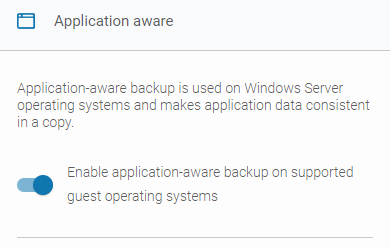
In Xopero ONE, when creating or editing a VMware backup plan, you can enable the application-aware backup option (available only for machines running Windows Server), which allows you to create transactionally consistent backups or replicas of virtual machines.
The functionality relies on Microsoft VSS (Volume Shadow Copy Service) technology, which temporarily silences the application, pauses write requests for up to 60 seconds, flushes the file system buffer, and freezes the file system. This ensures that file system metadata is recorded and data is saved in a consistent order.
File-system consistent backup
File-system consistent backups achieve consistency by capturing a snapshot of all data on the virtual disks simultaneously. These snapshots flush in-memory buffers to disk and synchronize file system metadata and open files, ensuring that the logical relationships among data on the disk are accurate and complete.
Consistency is typically achieved through system-level operations, such as VSS writer coordination on Windows.
While a file-system consistent backup ensures that the file system itself will not be corrupted upon restore, it does not guarantee that running applications are in a consistent state. To create an application-consistent snapshot, the application should be paused or quiesced before taking the snapshot. This ensures that all in-memory operations are safely written to disk, allowing a reliable and consistent restore.
Crash-consistent backup
A crash-consistent backup captures all data on a disk at a single, precise moment, similar to abruptly powering off the system*. It ensures write-order consistency, meaning files are not corrupted, but it does not capture in-memory data or pending I/O transactions. As a result, crash-consistent backups are suitable for file servers but not for active databases or email servers. They are faster and simpler to perform, but less reliable for transactional workloads.
*The term "crash-consistent" indicates that the backup reflects the system state just before a server crash, power-off, or reset, effectively serving as a restore point.
Full VSS backup
Xopero ONE relies on the Volume Shadow Copy Service (VSS) to create application-aware backups, coordinating with VSS-aware applications such as Microsoft Exchange and Microsoft SQL Server. This method ensures that both the file system and the running applications are captured in a consistent state, allowing reliable restoration of application data.
When the full VSS backup option is enabled, the backup captures all relevant data via shadow copy and notifies the application that the full backup has been completed. This allows transaction logs to be safely truncated, helping to manage storage and maintain application health.
Enabling full VSS backup is recommended in the following cases:
If another system already handles log truncation, or if you only need a data copy without impacting the application's internal backup cycle, avoid using the full VSS backup option.
Backup resiliency
Xopero ONE ensures the resilience of VMware machine backups and restores against network issues. In the event of temporary disconnections, the system automatically retries connecting to the machine's disk, ensuring that backup tasks complete successfully.
Additionally, administrators can use direct disk access via the VMware datastore to shorten the data transfer path, minimize network issues, and improve backup performance.
Learn how to enable datastore access mode in this article.
Disk consolidation
Xopero ONE allows administrators to force disk consolidation of the source machine's disks on the VMware side before taking a snapshot, ensuring virtual disk consistency and optimizing I/O performance. The disk consolidation option can be enabled in the backup plan settings.
In scenarios where the virtual appliance (VA) fails, such as during a sudden service outage, VMware machine disks mounted to the VA may remain attached. This can block disk consolidation and leave behind unnecessary incremental VMDK files. To ensure proper disk consolidation and prevent disk space from filling up in the affected VMware environment, Xopero ONE uses a mechanism that, at the start of a backup task, identifies disks still attached to the VA and safely unmounts them, freeing the locked resources.
Learn about virtual disk types that are excluded from backups due to hypervisor snapshot limitations, and how to protect them.
When performing a virtual machine backup (agentless), Xopero ONE relies on the hypervisor's snapshot mechanism to ensure data consistency. Certain disk types are architecturally excluded from snapshots by the hypervisor itself, which means they cannot be included in a standard VM-level backup.
Excluded VMware disks
The following disk modes do not support snapshots and cannot be backed up:
Independent persistent — changes are written immediately to the disk, but the disk does not participate in snapshots.
Independent non-persistent — changes are discarded when the VM is powered off or reset; these disks also do not support snapshots.
If you need to protect data on independent disks, you can use the following method:
Install the Xopero ONE Backup&Recovery Agent directly within the virtual machine’s guest operating system.
Configure a file or image-level backup task with the installed agent.
By using an in-guest agent, Xopero ONE utilizes the internal VSS (Windows) or live-read (Linux) mechanisms to capture the data, effectively bypassing the hypervisor's snapshot limitations.
This is not a limitation of Xopero ONE, but a characteristic of how these virtual disks are designed to operate within VMware and Hyper-V environments. Because a snapshot cannot be created, Xopero ONE cannot guarantee data consistency or access data during a host-level task.
Recommended workaround
Datastore access mode
Learn how to connect to a virtual machine's disk via VMware datastore.
Xopero ONE automatically retries connecting to the virtual machine's disk in the event of network disconnections, ensuring that backup tasks complete successfully. Administrators can enable direct disk access via VMware datastore to shorten the data transfer path, reduce network issues, and improve backup performance.
By default, the datastore access mode is disabled, and connections occur through the virtual machine. In on-premises deployment model, administrators can enable this mode globally by adding the following section to the Xopero ONE Management Service configuration (appsettings.json file):
Enabling datastore access mode
After saving the changes, the Xopero ONE Management Service must be restarted. If the section is not added or the value is incorrect, the system will revert to the previous connection mode, which uses the virtual machine.
Overview of VMware backup options and features in Xopero ONE, including useful tools, transport methods, and backup capacity settings.
Application aware
In Xopero ONE, when you're creating or editing a VMware backup plan, you can enable the application-aware backup option (available only for Windows Server versions). This allows you to create transactionally consistent backups or replicas of virtual machines.
This functionality relies on the Microsoft VSS (Volume Shadow Copy Service). VSS temporarily pauses the application and write requests (up to 60 seconds), flushes the file system buffer, and freezes the file system. This process ensures that file system metadata is written and that data is saved in a consistent order.
Changed Block Tracking (CBT)
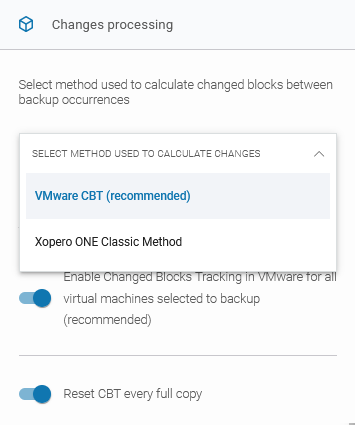
The Changed Block Tracking (CBT) tool calculates and provides Xopero with the differences between full, differential, and incremental backups; it's a VMware-provided tool that Xopero ONE uses by default.
If CBT is unavailable or you choose not to use it, you can enable the Xopero ONE Classic Method instead. In this case, the Xopero ONE agent calculates the differences between differential and incremental backup executions.
It is recommended to use the Xopero ONE virtual appliance for VMware backups. If you choose to use the Xopero ONE Classic Method, the agent installed on the virtual appliance will handle the calculation of changes.
Configuration
The method for calculating changes can be selected from the drop-down list. When VMware CBT (recommended) is selected, you can configure two additional checkboxes:
Enable Change Blocks Tracking in VMware for all virtual machines selected for backup (recommended) — when this option is enabled, CBT will be used for all protected virtual machines.
Reset CBT every full copy — when enabled, CBT will be reset during each full backup. Since CBT leaves markers indicating where the last changes occurred, this option clears those markers to prevent potential issues.
Following are all transport methods available in VMware backup settings:
Automatic (recommended) — Xopero ONE will automatically determine the best available transport method for each worker and apply it accordingly.
HotAdd — available only for virtual appliance workers (see for more details). This method creates a snapshot and a linked clone of the target virtual machine. The disk is then attached to the worker, which reads the linked clone’s virtual disks for backup.
SAN — this mode requires the backup server to have access to the SAN storage containing the virtual disks. A SAN backup worker must be a physical machine. In this mode, data is read directly from the VMware LUN
This feature skips SWAP partitions and files, as well as empty blocks. By using it, you can reduce the backup size and the time required to transfer the backup to storage.
This feature is enabled by default. Administrators can configure two additional settings:
Skip SWAP files, and partitions — SWAP files and partitions will be excluded from the backup.
Skip empty blocks — all empty blocks will be skipped during the backup.
Disk consolidation option forces consolidation of the source machine's disks on the VMware side before taking a snapshot to ensure virtual disk consistency and optimize I/O performance.
storage where the virtual disks are located.
LAN — also called NBD/NBDSSL. In this mode, the ESXi host reads data from the storage and sends it over the network to the worker. This method is typically used when no other transport option is available.
One of the key features of Xopero ONE software is VMware backup. The system enables you to back up all or selected virtual machines hosted on your ESXi or vCenter server. This article focuses on creating a VMware backup plan.
Creating a backup plan
1
Log in to XMS, go to the Backup tab (Plans > Backup) and click the + Add plan button in the top toolbar.
2
Select VMware from the platforms list.
3
Define the name of the backup plan.
4
Select one of the available ESXi or vCenter servers (from those already connected to Xopero ONE) and choose which virtual machines you want to protect. You can select Protect all to include all VMs from the chosen server, or Select VMs to manually add only specific virtual machines.
5
Click the Edit button next to the VMware backup options section to configure the following settings:
Application aware — a VSS-based feature that ensures a consistent backup of the virtual machine and its applications (for example, Windows Server systems running Microsoft SQL Server, Microsoft Exchange, or Microsoft Active Directory). In Xopero ONE, you can enable application-aware backup on supported guest operating systems (recommended). You can also choose to continue the backup in case of application errors—if this option is enabled, the backup process will proceed even if the application-aware feature encounters an error.
6
Specify the backup location by choosing from the available storage options within your service.
7
Configure the by defining when backups should run and which types of backup copies to use.
8
Go to the Advanced settings section to customize additional options, including encryption, compression levels, and deduplication. These settings provide greater flexibility and help optimize the backup process.
9
After completing the configuration, click the Save button. The protection plan will then automatically begin protecting your VMware virtual machines according to the schedule you defined.
Changes processing (CBT) —a feature that lets you configure how differential and incremental backups are performed. You can choose between the following options:
VMware CBT (recommended) — a VMkernel feature that tracks changes to the storage blocks of virtual machines over time. For VMware CBT, there are two additional settings: Enable CBT in VMware for all VMs included in the backup, and Reset CBT for every full copy to prevent any issues related to CBT.
Xopero ONE classic method — a less efficient but useful option when VMware CBT fails. This method compares data block by block to identify changes between the previous and current backup.
Virtual machine state — an optional feature that lets you specify the VM states in which the backup should be performed. If a virtual machine is in a different state than the one selected, it will not be included in the backup process.
Transport method — defines how virtual machines are transferred between VMware and the backup worker. There are four options available:
Automatic (recommended) — Xopero ONE will automatically determine the best available transport method for each worker and apply it accordingly.
HotAdd — available only for virtual appliance workers (see for more details). This method creates a snapshot and a linked clone of the target virtual machine. The disk is then attached to the worker, which reads the linked clone’s virtual disks for backup.
SAN — this mode requires the backup server to have access to the SAN storage containing the virtual disks. A SAN backup worker must be a physical machine. In this mode, data is read directly from the VMware LUN storage where the virtual disks are located.
LAN — also called NBD/NBDSSL. In this mode, the ESXi host reads data from the storage and sends it over the network to the worker. This method is typically used when no other transport option is available.
Skip SWAP and empty blocks — Xopero ONE allows you to reduce backup size using two additional options:
Skip SWAP files, and partitions — when this option is enabled, Xopero ONE will skip swap partitions and files. These function as virtual memory, storing temporary data that is not currently used by RAM.
Skip empty blocks — when this option is enabled, Xopero ONE will skip empty blocks that do not need to be backed up, reducing the overall backup size.
Disk consolidation: when this option is enabled, Xopero ONE forces consolidation of the source machine's disks on the VMware side before taking a snapshot.
Default worker — device directly responsible for backing up your virtual machines. You can have multiple workers and assign different workers to each backup plan. A worker can be either a physical or virtual machine.
Set the retention policy to determine how long backups are stored — any copies exceeding this periodwill be automatically deleted.