docker run -d \
  --name xopero-agent \
  -e ManagementServiceUrl="<your_xopero_service_URL>" \
<your_xopero_service_URL> — Xopero ONE Management Service address with the port (i.e., 123.456.7.890:28555)
<device_name> — custom Docker container name
Once done, the Xopero agent should now be up to date.
First, open Container Station on your QNAP device.
Locate and select the container running the agent you want to update, then click the settings ⚙️ icon to open the container settings.
Log in to XMS.
Go to the Devices tab and find the Docker agent.
Click the
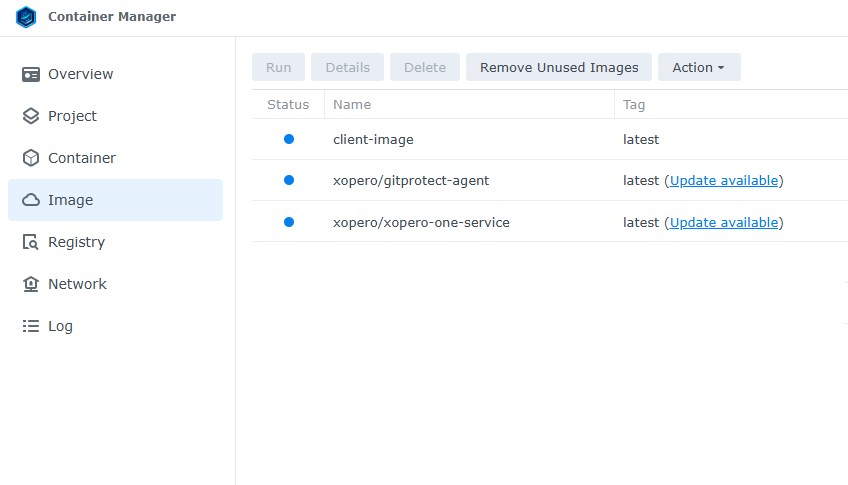
When using the :latest tag, the Container Manager monitors the image for updates. When a new version is detected, the Image tab will show the status Update available. Click the status to start the update process.
When activated, a system prompt will indicate that the services and container will be temporarily suspended during the update. Confirm by clicking the Update button.
In the settings menu, select the Recreate option to proceed with the update. This action replaces the current container with a new one based on the latest image.
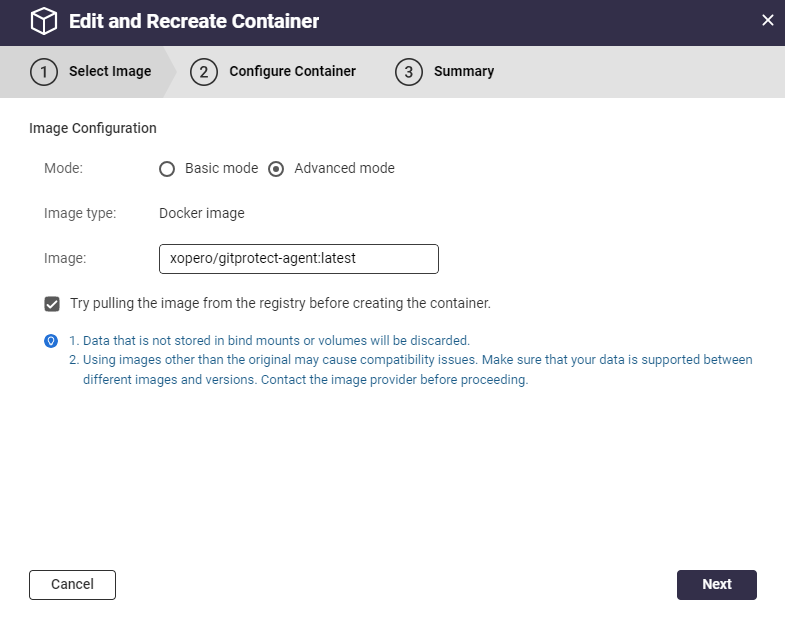
Switch to Advanced mode (see illustration below). You will be prompted for the Docker Hub image address — enter the address shown below:
Make sure you select the option Try pulling the image from the registry before creating the container (this ensures that the latest version of the image is used) and click Next to continue.
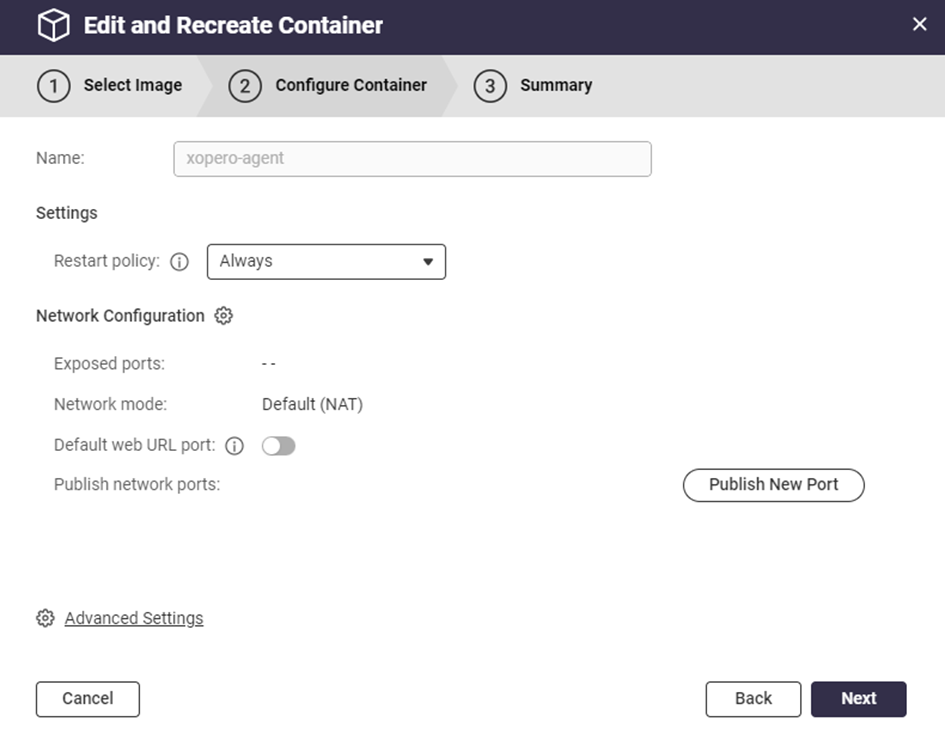
You can now edit the container settings as you would when creating a new container. Adjust them if needed, then click Next again to move to the summary page.
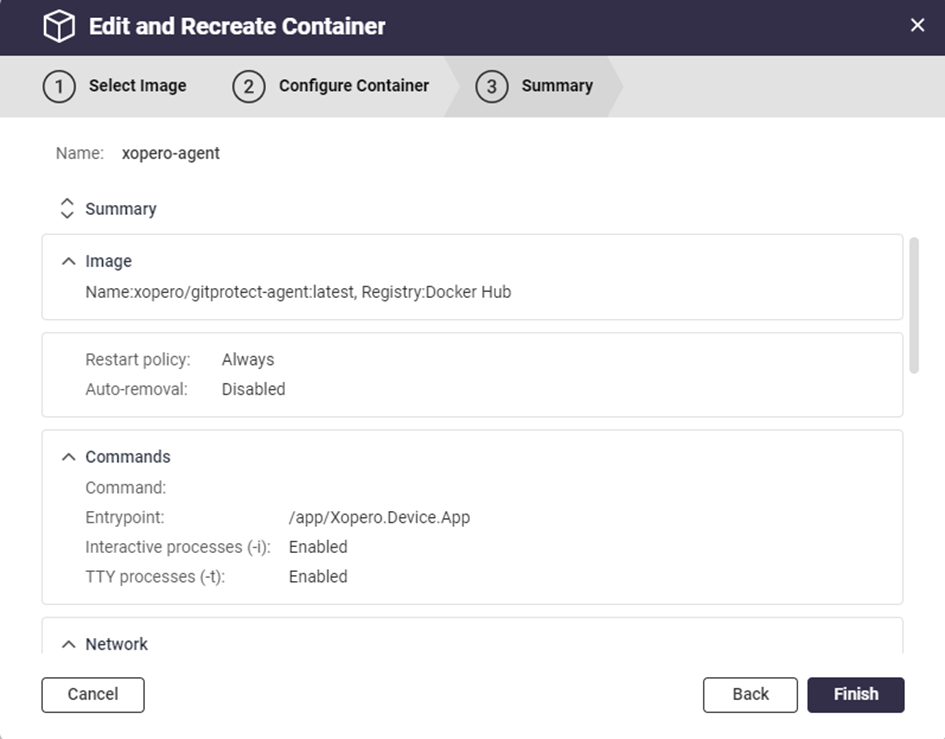
Review the summary of the settings and changes. When everything looks correct, click Finish. Container Station will download the latest image and create a new container using the settings and data from the previous one. This updates the agent to the latest version while preserving all existing settings and data.
device details
ℹ️ button. Review the
Docker agent
plans and note them, as you will need to add them again. All plans can be viewed in the
Backup plans
section; expand the list by clicking
Load more
.
Remove the old Xopero ONE agent container — in Container Station, click the Remove icon in the Actions tab to delete the container.
Once the old container has been removed, install the Xopero ONE agent Docker image again. Then, add the agent to all the plans it was previously assigned to.
You will be prompted to confirm the update again by clicking the Update button.
The update progress will appear in the list of operations. Once the image is successfully downloaded, containers set to auto-start will restart automatically.
To verify the update, go to the Containers tab to check that the container is functioning correctly. Also, check if the system shows the latest version in Xopero ONE Management Service.
-e XoperoOverriddenHostName="<device_name>" \
-v /opt/gitprotect-agent/data:/app/Xopero \
--restart unless-stopped \
xopero/gitprotect-agent:latest
This method requires Container Station version 3.0 or later.
Update process
The only way to update an agent installed in a container is to remove the existing version and install a new one. Creating a new container requires reactivating the device, so you will need to reassign it to all backup plans.
Update process
Update process
If the Update available button does not appear even when the agent update is available for other devices, you may wait up to 12 hours before it becomes visible.