All pages
Powered by GitBook
1 of 3

Loading...

Loading...

Loading...

Permissions

IAM roles and permission

To use Google Cloud Storage as backup storage in the Xopero ONE service, it is recommended to assign the Storage Admin IAM role (roles/storage.admin – full control of buckets and objects) to the GCS user, or create a service account with the minimal permission set:

  1. storage.objects.list

  2. storage.objects.get

  3. storage.objects.create

  4. storage.objects.delete


If you want to use immutable storage, the following permissions are required:

It must be added to the Action section, and after the changes, the section should look as shown below:


Required to read Object Lock
s3:GetBucketObjectLockConfiguration
Required to read the versioning configuration
configuration.s3:GetBucketVersioning
"Action": [
                    "s3:ListBucket",
                    "s3:GetObject",
                    "s3:PutObject",
                    "s3:DeleteObject",
		    "s3:GetBucketVersioning",
	            "s3:GetBucketObjectLockConfiguration"
               ],

Support for immutable storage

Remember that immutable storage configuration is available only when creating a new bucket— there is no option to enable it for an existing bucket.

Enabling retention and/or versioning for the bucket may result in additional data being stored. It is recommended that the retention period in Xopero ONE be longer than the one set for the storage. Otherwise, this may lead to storage overload.

Buckets with retention enabled cannot be used as storage for Xopero ONE.

Useful links and items

IAM roles for Cloud Storage  |  Google Cloud DocumentationGoogle Cloud Documentation
Logo
Set and manage IAM policies on buckets  |  Cloud Storage  |  Google Cloud DocumentationGoogle Cloud Documentation

Google Cloud Storage

Permissions
Adding new storage
Cover
Cover
Logo

Adding new storage

This article explains how to set up a Google Cloud Storage bucket as storage in Xopero ONE.

1

Open the Storages section and click Add storage button.

2

The Add storage sidebar will appear— use it to enter the name of your new storage in the Add storage name field (step 1), then click the arrow next to the Storage type section (step 2) to expand the list of available storage types.

3

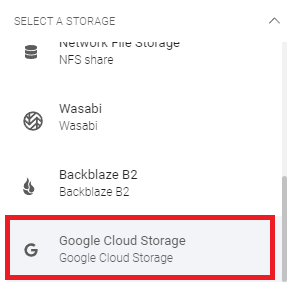
Scroll down the list and select the Google Cloud Storage option.

4

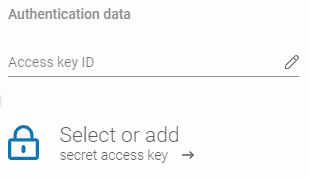
After selecting storage option, the system will display additional sections, including: Authentication data, Service URL, Bucket name, and Optional description.

5

Copy the access key ID and secret access key from Google Cloud Storage, paste the access key ID to the corresponding field, and click Select or add secret access key to open the Password Manager menu and add your copied secret key to your bucket.

6

In the Service URL field, enter the URL address from the Request Endpoint in Interoperability Settings (e.g., ). Enter the bucket name in the Bucket name field and proceed to the next step.

7

Ensure that the browsing machine—a device with an active license and the Xopero ONE agent installed—can access your Google Cloud Storage bucket. To use a different device, click Change next to the Browsing machine at the bottom.

8

Review your settings and click the Save button to add the storage to Xopero ONE. Refresh the page to see the newly added storage on your storages list.

To get the access key ID and secret access key, go to the Access Keys tab on Google Cloud Storage web platform and create a new access key. Learn more about access keys in Google Cloud Storage official documentation.

https://storage.googleapis.com
Protecting Cloud Storage with WORM, key management and more updates | Google Cloud BlogGoogle Cloud Blog
Logo