
Loading...
Loading...
Loading...
Loading...
Loading...
Loading...
Loading...
Loading...
Loading...
Loading...
Loading...
Loading...
Loading...
Loading...
Loading...
Loading...
Loading...
Loading...
Loading...
Loading...
Loading...
This article outlines the minimum permissions needed to use an AWS S3 bucket as backup storage for Xopero ONE. The policies below enable you to integrate your AWS S3 storage with Xopero ONE.
The bucket that will be used to store the data must have the following policy (JSON) assigned:
If you want to use immutable storage, the following permissions are required:
It must be added to the Action section, and after the changes, the section should look as shown below:
{
     "Version": "2012-10-17",
     "Statement": [
          {
               "Effect": "Allow",
               "Principal": {
                    "AWS": "arn:aws:iam::{account}:user/backup-user"
          },
               "Action": [
                    "s3:ListBucket",
                    "s3:GetObject",
                    "s3:PutObject",
                    "s3:DeleteObject"

               ],
               "Resource": [
                    "arn:aws:s3:::bucket-name",
                    "arn:aws:s3:::bucket-name/*"
               ]
          }
     ]
}s3:GetBucketObjectLockConfigurations3:GetBucketVersioning"Action": [
"s3:ListBucket",
"s3:GetObject",
"s3:PutObject",
"s3:DeleteObject",
"s3:GetBucketVersioning",
"s3:GetBucketObjectLockConfiguration"
],Xopero ONE supports the majority of the most popular cloud service providers compatible with S3:
Sending backup tasks to S3 cloud storage has a limit (buffer). The default buffer value is 128 MB, which limits both the maximum data size and the minimum internet speed. If your network environment or S3 endpoint has no additional restrictions, the minimum required upload speed is ~0.64 Mbit/s.
Xopero ONE supports S3-type immutable storage as a backup location. This feature is available for selected storages supported by Xopero ONE, such as AWS, Wasabi, and Backblaze B2. Datastores of this type allow you to freely save and read data, but modification and deletion are only possible after meeting the bucket's retention policies.
Advantages:
This article explains how to configure a storage account and blob storage in Azure.
Navigate to the Create a resource section in the top-left corner of the Azure Portal.
In the search bar, type storage account and select Create from the results.
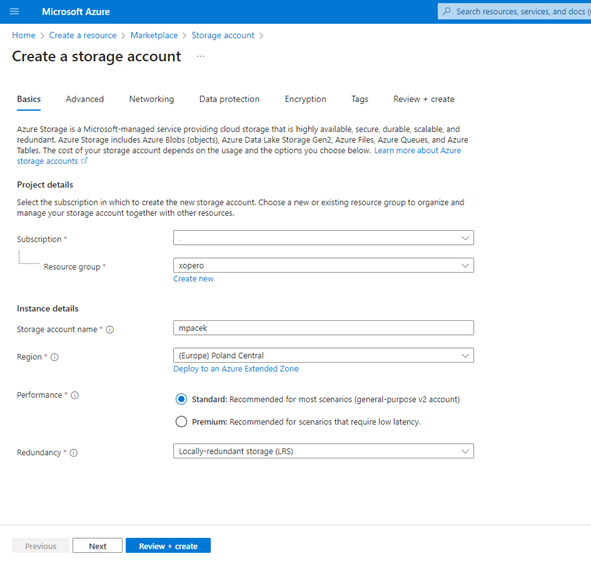
On the configuration page, complete the required fields: choose your subscription, select or create a resource group, and enter a unique name for the storage account that meets the global uniqueness requirement.
Select the region for the storage account, choose the performance tier (Standard or Premium), and specify the redundancy option, such as Locally-redundant storage (LRS) or Geo-redundant storage (GRS), according to your data redundancy needs.
Next, configure the networking options— choose whether the storage account will be accessible via the public internet, a private virtual network, or both.
In the Advanced tab, configure additional options such as data access and encryption. If needed, add tags in the Tags tab to meet management requirements (if you have any).
After configuring all settings, review your selections and click Create to finalize the creation of your storage account.
After creating the storage account, create a blob storage container— navigate to the storage account and select Containers from the side menu.
Click + Container to add a new container, enter a name, and select the appropriate access level (Private, Blob, or Container).

This article explains how to set up an Azure Blob Storage container as storage in Xopero ONE.
Open the Storages section and click Add storage button.
The Add storage sidebar will appear— use it to enter the name of your new storage in the Add storage name field (step 1), then click the arrow next to the Storage type section (step 2) to expand the list of available storage types.
Scroll down the list and select the Azure Blob Storage option.
After selecting storage option, the system will display additional sections, including: Authentication data, Container name, and Optional description.
To select the password for your container, click the Select or add connection string button and choose an existing password from the Password Manager or create a new one.
Enter the container name and description (if needed).
Ensure that the browsing machine—a device with an active license and the Xopero ONE agent installed—can access your Azure Blob Storage container. To use a different device, click Change next to the Browsing machine at the bottom.
Review your settings and click the Save button to add the storage to Xopero ONE. Refresh the page to see the newly added storage on your storages list.


Learn about Azure integration methods.
After creating the storage account and a blob container, you can integrate them using one of two methods— access keys or a shared access signature (SAS):
Access keys provide full administrative access to your storage account, allowing any operation. They are suitable for scenarios requiring complete control but must be handled carefully due to their high level of access.
A shared access signature (SAS) offers more granular control, allowing access to specific resources for a limited time with restricted permissions. This method is ideal for scenarios where you need to grant a temporary access to clients or applications without exposing primary keys, enhancing security and flexibility in managing storage resources.
Minimal required permissions to configure Azure Blob Storage for use with:
Allowed services:
Allowed resource types:
Allowed permissions:
Allowed permissions for replication:
Login to the Azure portal as an administrator.
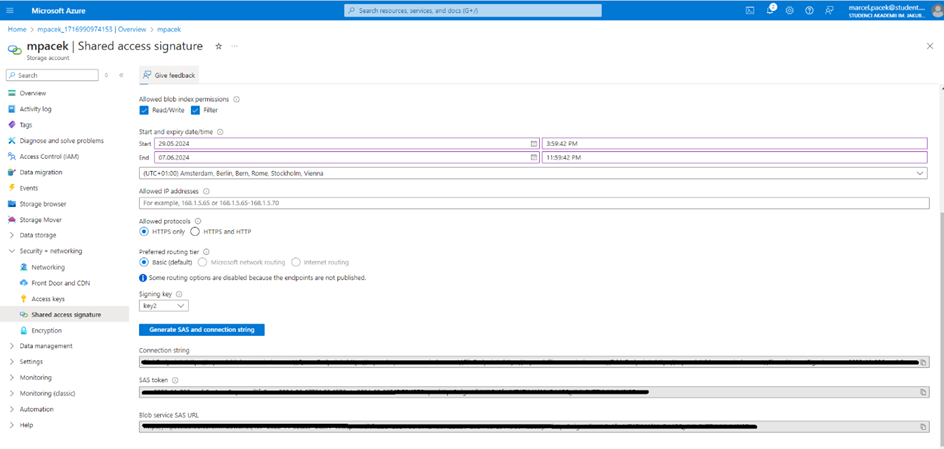
Select the storage account and click Shared Access Signature in the Settings tab.
Select the permissions described in the section of this article.
Click Generate SAS and connection string.
For setting up the blob storage, you will need the connection string:
Login to the Azure portal as an administrator.
Select the storage account.
Go to Access keys under the Security + networking menu section.
For setting up the blob storage, you will need the connection string:


This article describes the process of setting up an S3-compatible bucket as storage in Xopero ONE.
Open the Storages section and click Add storage button.
The Add storage sidebar will appear— use it to enter the name of your new storage in the Add storage name field (step 1), then click the arrow next to the Storage type section (step 2) to expand the list of available storage types.
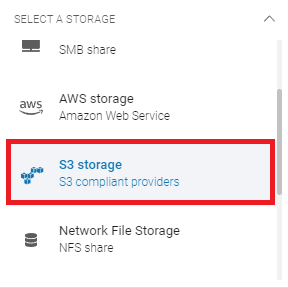
Scroll down the list and select the S3 storage option.
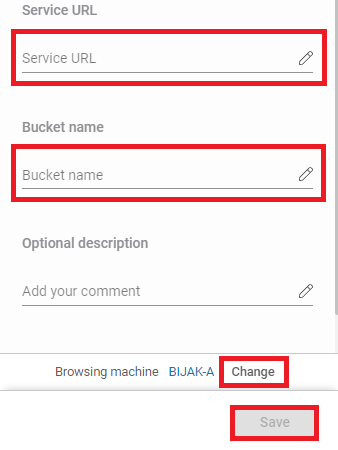
After selecting storage option, the system will display additional sections, including: Authentication data, Service URL, Bucket name, and Optional description.
Copy the access key ID and secret access key from your S3-compliant storage provider, paste the access key ID to the corresponding field, and click Select or add secret access key to open the Password Manager menu and add your copied secret key to your bucket.
In the Service URL field, enter the URL provided by your S3-compliant storage provider.
Enter the bucket name in the Bucket name field and proceed to the next step.
Ensure that the browsing machine—a device with an active license and the Xopero ONE agent installed—can access your S3 bucket. To use a different device, click Change next to the Browsing machine at the bottom.
Review your settings and click the Save button to add the storage to Xopero ONE. Refresh the page to see the newly added storage on your storages list.




Information on how to use Google Cloud Storage with Xopero ONE.
Identity and Access Management (IAM) roles and permissions for Cloud Storage.
How to set up a Google Cloud Storage bucket as a storage repository in Xopero ONE.
This article lists the minimal permissions required for a Wasabi bucket to be used as backup storage in Xopero ONE. The policies below allow you to add your Wasabi storage to the Xopero ONE platform, store backup data, and restore it when needed.
Access keys are generated for each Wasabi user account. You can view the list of access keys by logging in to your Wasabi account and navigating to the Access Keys tab.
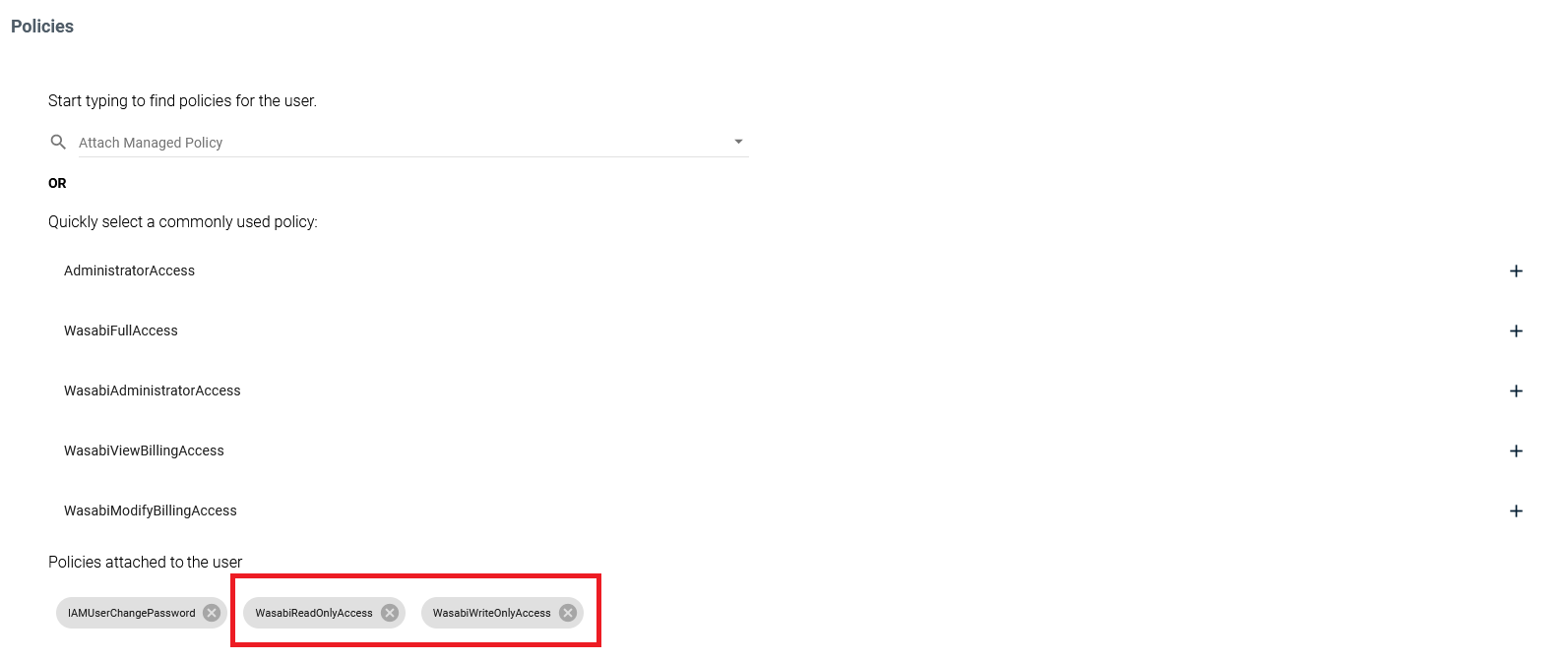
To create a new user account or edit an existing one, go to the Users tab. In the Policies section, select WasabiReadOnlyAccess and WasabiWriteOnlyAccess, according to your needs.
If you want to use immutable storage, the following permissions are required:
It must be added to the Action section, and after the changes, the section should look as shown below:
arn:aws:iam::100000176259:user/xone-storage- Wasabi user
arn:aws:s3:::xopero-test- Wasabi bucket
s3:GetBucketObjectLockConfigurationconfiguration.s3:GetBucketVersioning"Action": [
"s3:ListBucket",
"s3:GetObject",
"s3:PutObject",
"s3:DeleteObject",
"s3:GetBucketVersioning",
"s3:GetBucketObjectLockConfiguration"
],{
"Version": "2012-10-17",
"Statement": [
{
"Sid": "AllowPublicRead",
"Effect": "Allow",
"Principal": {
"AWS": "arn:aws:iam::100000176259:user/xone-storage"
},
"Action": [
                    "s3:ListBucket",
                    "s3:GetObject",
                    "s3:PutObject",
                    "s3:DeleteObject",
		    "s3:GetBucketVersioning",
	            "s3:GetBucketObjectLockConfiguration"
               ],
"Resource": [
"arn:aws:s3:::xopero-test/*",
"arn:aws:s3:::xopero-test"
]
}
]
}
If an app key is restricted to a bucket, the listAllBucketNames permission is required for compatibility with SDKs and integrations. This permission can be enabled during creation in the web UI or via the b2_create_key API call.
As a rule, both writeFiles and deleteFiles permissions must be assigned to any key used for deleting files in the S3 compatible API.
If you want to use immutable storage, the following permissions are required:
s3:GetBucketObjectLockConfigurationconfiguration.s3:GetBucketVersioningIt must be added to the Action section, and after the changes, the section should look as shown below:
"Action": [
                    "s3:ListBucket",
                    "s3:GetObject",
                    "s3:PutObject",
                    "s3:DeleteObject",
		    "s3:GetBucketVersioning",
	            "s3:GetBucketObjectLockConfiguration"
               ],
Identity and Access Management (IAM) roles and permissions for Cloud Storage.
Google Cloud Storage requires specific permissions to allow Xopero ONE to access and manage backup data. Configuring these permissions ensures seamless backup and recovery operations while maintaining strict access controls on the target storage bucket.
To use a Google Cloud Storage bucket as backup storage repository in Xopero ONE, it is recommended to assign the Storage Admin IAM role (roles/storage.admin with full control of buckets and objects) to the user account on the designated bucket.
Alternatively, you can create a service account with the following permissions:
storage.objects.list
storage.objects.get
storage.objects.create
storage.objects.delete
Xopero ONE does not support Google Cloud Storage buckets with Object Lock or retention enabled. If your compliance strategy requires immutability, select a storage target where this feature is fully supported, such as Xopero Cloud Storage, AWS, Wasabi, or Backblaze B2.
This article explains how to add AWS S3 storage to Xopero ONE.
Open the Storages section and click Add storage button.
The Add storage sidebar will appear— use it to enter the name of your new storage in the Add storage name field (step 1), then click the arrow next to the Storage type section (step 2) to expand the list of available storage types.
Scroll down the list and select the AWS storage option.
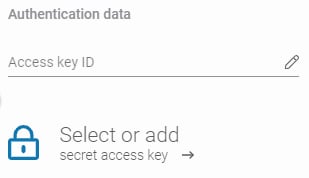
Copy the access key ID and secret access key from AWS, paste the access key ID to the corresponding field, and click Select or add secret access key to open the Password Manager menu and add your copied secret key to your bucket.
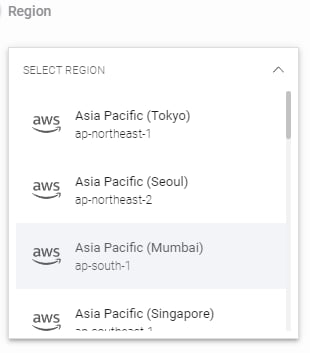
Next, select the region where your bucket is created and enter the bucket name (the bucket name is the unique identifier of the container where your objects are stored) in the appropriate field.
Define Bucket name (the bucket name is the unique identifier of the container where your objects are stored) and, if needed, Optional description.
Ensure that the browsing machine—a device with an active license and the Xopero ONE agent installed—can access your AWS bucket. To use a different device, click Change next to the Browsing machine at the bottom.
Review your settings and click the Save button to add the storage to Xopero ONE. Refresh the page to see the newly added storage on your storages list.
This article explains how to set up a Wasabi bucket as storage in Xopero ONE.
Open the Storages section and click Add storage button.
The Add storage sidebar will appear— use it to enter the name of your new storage in the Add storage name field (step 1), then click the arrow next to the Storage type section (step 2) to expand the list of available storage types.
Scroll down the list and select the Wasabi option.
Copy the access key ID and secret access key from Wasabi, paste the access key ID to the corresponding field, and click Select or add secret access key to open the Password Manager menu and add your copied secret key to your bucket.
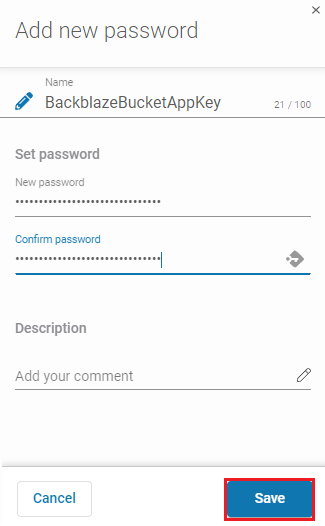
Click the Add new button to add your Wasabi secret access key to Xopero ONE Password Manager. Enter a password name, then enter the secret access key in the New password and Confirm password fields. Click Save to finish.
Next, select the region where your bucket is created and enter the bucket name (the bucket name is the unique identifier of the container where your objects are stored) in the appropriate field.
Ensure that the browsing machine—a device with an active license and the Xopero ONE agent installed—can access your Wasabi bucket. To use a different device, click Change next to the Browsing machine at the bottom.
Review your settings and click the Save button to add the storage to Xopero ONE. Refresh the page to see the newly added storage on your storages list.
This article explains how to set up an Backblaze B2 bucket as storage in Xopero ONE.
Open the Storages section and click Add storage button.
The Add storage sidebar will appear— use it to enter the name of your new storage in the Add storage name field (step 1), then click the arrow next to the Storage type section (step 2) to expand the list of available storage types.
Scroll down the list and select the Backblaze B2 option.
After selecting storage option, the system will display additional sections, including: Authentication data, Region, Bucket name, and Optional description.
Copy the key ID and application key (secret access key) from Backblaze B2, paste the key ID to the Access key ID field, and click Select or add secret access key to open the Password Manager menu and add your copied secret key to your bucket.
Click the Add new button to add your Backblaze B2 secret access key to Xopero ONE Password Manager. Enter a password name, then enter the application key in the New password and Confirm password fields. Click Save to finish.
Next, select the region where your bucket is created and enter the bucket name (the bucket name is the unique identifier of the container where your objects are stored) in the appropriate field.
Ensure that the browsing machine—a device with an active license and the Xopero ONE agent installed—can access your Backblaze bucket. To use a different device, click Change next to the Browsing machine at the bottom.
Review your settings and click the Save button to add the storage to Xopero ONE. Refresh the page to see the newly added storage on your storages list.




How to set up a Google Cloud Storage bucket as a storage repository in Xopero ONE.
Google Cloud Storage can be configured as a backup destination in Xopero ONE, allowing backup data to be stored in a dedicated Cloud Storage bucket.
The following steps demonstrate how to add a Cloud Storage bucket to Xopero ONE.
In Xopero ONE Management Service, open the Storages tab and click the + Add storage button in the top bar.
Enter the name of your new storage in the Add storage name field (step 1). In the Storage type section, expand the list of available storage types (step 2).
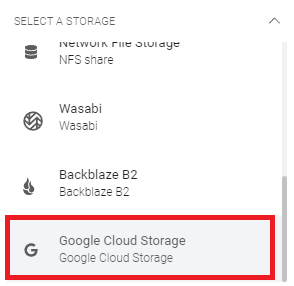
Select Google Cloud Storage from the list.
Copy the secret access key and access key ID from Google Cloud Storage. Paste the access key ID to the corresponding field, then click Select or add secret access key to open the Password Manager menu and add the secret key to your bucket.
In the Service URL field, enter the request endpoint URL obtained from GCS interoperability settings (e.g., https://storage.googleapis.com). Enter the bucket name in the corresponding field and, optionally, provide a description to help identify this storage repository in the console.
Select the default backup agent (worker) to be used for browsing the data. Ensure that the selected backup agent can access your Google Cloud Storage bucket.
Review your settings and click Save to add the storage to Xopero ONE. Refresh the page to view the newly added storage repository on the list (if needed).



This article explains how to integrate a bucket using IAM rules instead of an access/secret key.
To increase security and eliminate the use of tokens, you can disable access/secret keys for your AWS buckets and use integration via IAM rules. This approach, however, has specific requirements—integrating a bucket using IAM rules involves creating an IAM policy accessible to Amazon EC2 and designating an EC2 instance that can communicate directly with the bucket.
Since the Xopero machine template is not available in EC2, you must create an instance using a supported operating system and install the Xopero worker on it.
Steps for an AWS administrator:
Create an IAM role accessible to EC2.
Add a policy to the created role.
Assign the role to the selected EC2 instance.
Install the backup worker on the EC2 instance.
In the Xopero ONE Management Service (XMS) admin panel, enable the Use Amazon IAM toggle and specify your EC2 worker in the Default worker section at the bottom.
{
"Version": "2012-10-17",
"Statement": [
{
"Sid": "VisualEditor1",
"Effect": "Allow",
"Action": [
"s3:"
],
"Resource": [
"arn:aws:s3:::[bucket_name]",
"arn:aws:s3:::[bucket_name]/",
"arn:aws:s3:::[bucket_name]/"
]
}
]
}