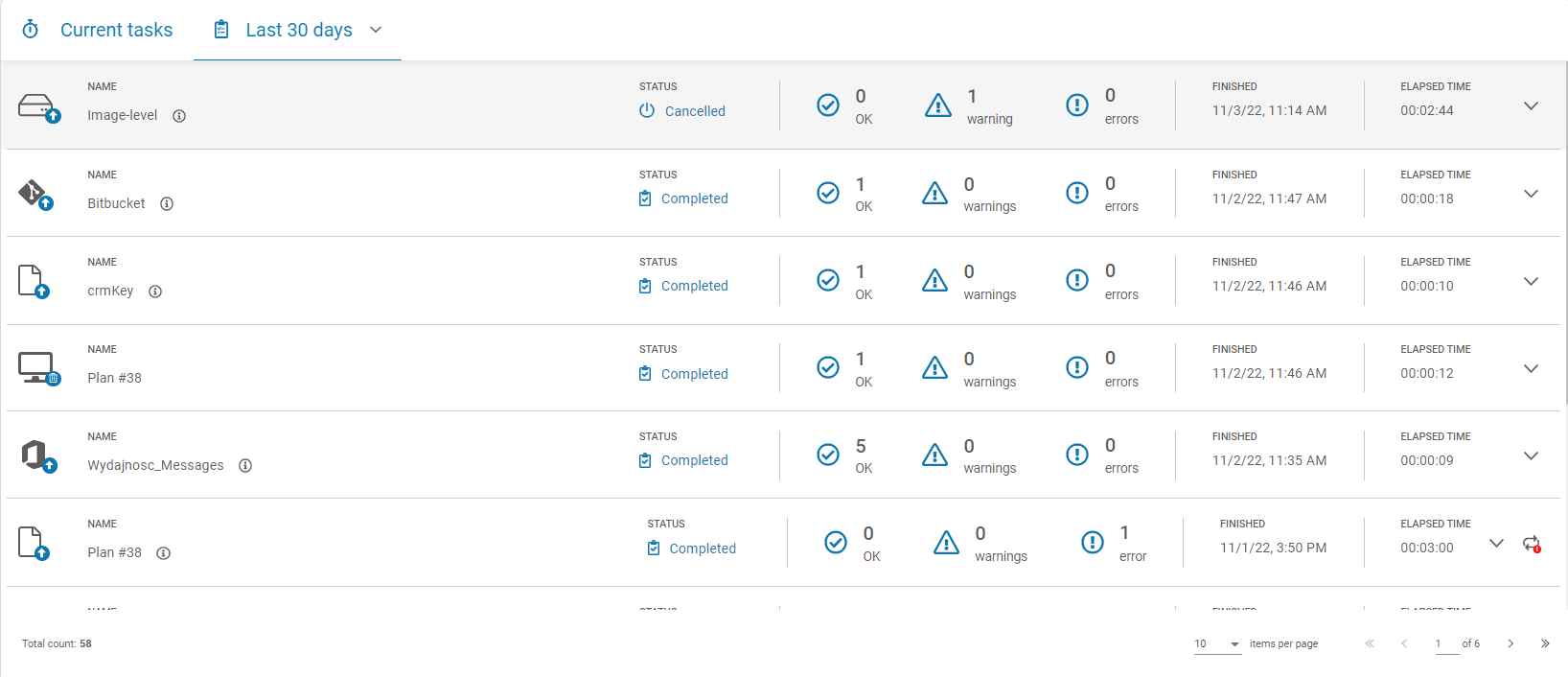
This article provides information about the list of current and past tasks in the Tasks tab.
Ongoing tasks can be found in the Current tasks tab. You can view task details by expanding the task row using the arrow caret button on the right side of the window.
The past task list can be viewed in the Last tasks tab. By default, it shows the task status, end time, and elapsed time. Similar to the Current Tasks tab, you can view task details by expanding the task row using the arrow caret button on the right side of the window.
You can choose to view tasks from the last 24 hours, 7 days, 14 days, or 30 days, depending on the time range you’re interested in.



In this article, you will learn how to trigger a backup task in Xopero ONE.
Xopero ONE allows you to run backup tasks manually. You don’t need to wait for the scheduler to start the backup—you can initiate it yourself at any time if needed.
In all relevant device dashboard views, simply click the Start now (device view) or start button (list view) to run a backup task manually.
Alternatively, you can open the Plans tab to see a list of all backup plans and trigger a backup task directly from there using the start button.
If, during the backup plan creation, you chose to protect your data using the basic schedule type, you can select whether a full or incremental copy will be performed when the backup task is triggered.


You can view all task details in the Tasks tab of the Xopero ONE Management Service (XMS) system— click the info icon next to the selected task to open the details panel.
The summary provides key information about each backup, including the plan name, status, end date, and duration. It also shows the backup type, device name, and details about transferred data — divided into data size and retention size — along with the total number of transferred files.
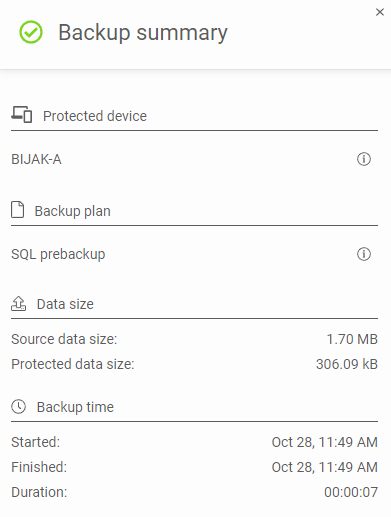
To view more information, click the Task details button on the right. A side panel will appear, showing sections for the protected device, backup plan, data size, and backup time. You can also see additional details, such as the task’s start and end time.
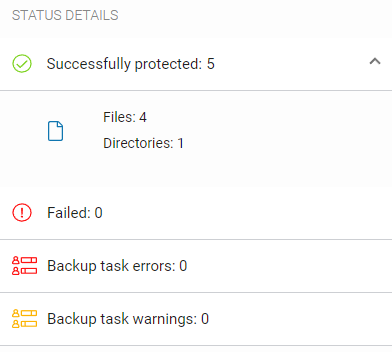
Below, you will find a status details section, where you can check the number of directories and files in the successfully protected, failed, errors, and warnings sections. A similar view is available for all secured resources.
Depending on the type of backup being performed, there may also be sections such as sent data, throttling diagnostics, or new resources.
Similarly to the backup summary, restoration summary contains information about the plan name, status, end date, and duration, as well as details about the device name, restored size, and restored sources.
To view more information about the restoration task, click the Task details button on the right. A side panel will appear, showing sections for the restore worker, type and creation date of backup, data source, data destination, data size, and backup time. You can also see additional details, such as the task’s start and end time.
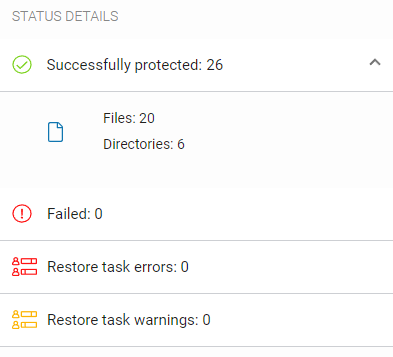
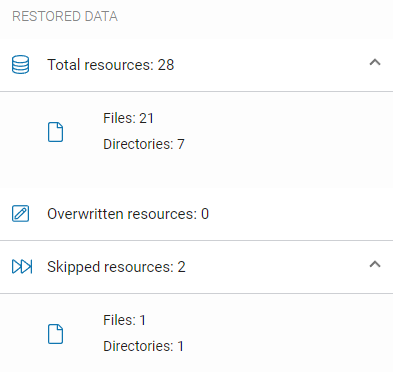
Below, you will find the details status, where you can check the number of restored directories and files in the successfully protected, failed, errors, and warnings sections. A similar view is available for all secured resources, along with additional information about overwritten data and omitted resources.
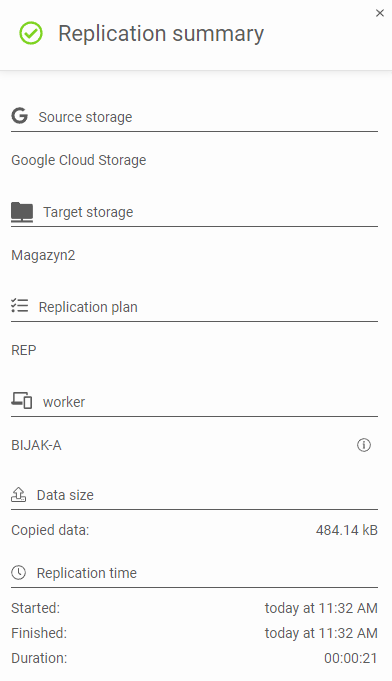
The replication summary contains information about the replication plan name, status, end date, and duration, as well as details about the device name, source storage, and target storage.
To view more information about the restoration task, click the Task details button on the right. A side panel will appear, displaying the following sections: source storage, target storage, replication plan, worker, data size, and replication time.
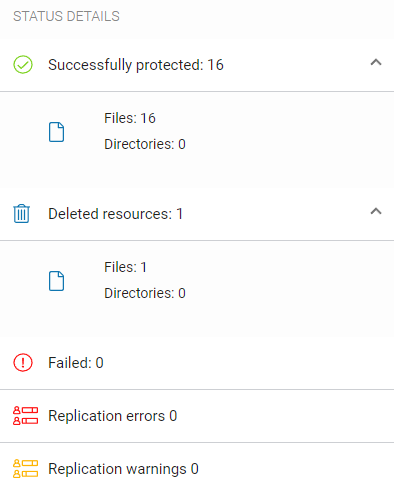
Below, same as for backup and restoration, you will find the status details section, where you can check the number of replication directories and files in the successfully protected, failed, errors, and warnings sections.