All pages
Powered by GitBook
1 of 4

Loading...

Loading...

Loading...

Loading...

Permissions

This article outlines the minimum permissions needed to use an AWS S3 bucket as backup storage for Xopero ONE. The policies below enable you to integrate your AWS S3 storage with Xopero ONE.


AWS bucket policy

The bucket that will be used to store the data must have the following policy (JSON) assigned:

{
     "Version": "2012-10-17",
     "Statement": [
          {
               "Effect": "Allow",
               "Principal": {
                    "AWS": "arn:aws:iam::{account}:user/backup-user"
          },
               "Action": [
                    "s3:ListBucket",
                    "s3:GetObject",
                    "s3:PutObject",
                    "s3:DeleteObject"
                
               ],
               "Resource": [
                    "arn:aws:s3:::bucket-name",
                    "arn:aws:s3:::bucket-name/*"
               ]
          }
     ]
}

Support for immutable storage

Remember that immutable storage configuration is available only when creating a new bucket— there is no option to enable it for an existing bucket.

Enabling retention and/or versioning for the bucket may result in additional data being stored— it is recommended that the retention period in Xopero ONE be longer than the one set for the storage. Otherwise, this may lead to storage overload.

If you want to use immutable storage, the following permissions are required:

Required to read Object Lock configuration
s3:GetBucketObjectLockConfiguration
Required to read the versioning configuration
s3:GetBucketVersioning

It must be added to the Action section, and after the changes, the section should look as shown below:

"Action": [
                    "s3:ListBucket",
                    "s3:GetObject",
                    "s3:PutObject",
                    "s3:DeleteObject",
		    "s3:GetBucketVersioning",
	            "s3:GetBucketObjectLockConfiguration"
               ],

Useful links and items

Adding new storage

This article explains how to add AWS S3 storage to Xopero ONE.

1

Open the Storages section and click Add storage button.

2

The Add storage sidebar will appear— use it to enter the name of your new storage in the Add storage name field (step 1), then click the arrow next to the Storage type section (step 2) to expand the list of available storage types.

3

Scroll down the list and select the AWS storage option.

4

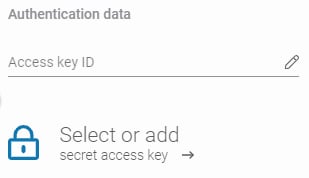
Copy the access key ID and secret access key from AWS, paste the access key ID to the corresponding field, and click Select or add secret access key to open the Password Manager menu and add your copied secret key to your bucket.

To get access keys for AWS storage, refer to section in AWS Documentation.

5

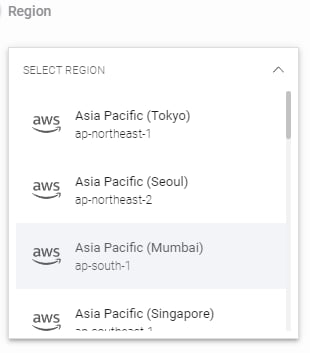
Next, select the region where your bucket is created and enter the bucket name (the bucket name is the unique identifier of the container where your objects are stored) in the appropriate field.

6

Define Bucket name (the bucket name is the unique identifier of the container where your objects are stored) and, if needed, Optional description.

7

Ensure that the browsing machine—a device with an active license and the Xopero ONE agent installed—can access your AWS bucket. To use a different device, click Change next to the Browsing machine at the bottom.

8

Review your settings and click the Save button to add the storage to Xopero ONE. Refresh the page to see the newly added storage on your storages list.

Authenticating with AWS
Adding a bucket policy by using the Amazon S3 console - Amazon Simple Storage ServiceAmazon Simple Storage Service
Logo
What is AWS Security Incident Response? - AWS Security Incident Response User GuideAWS Security Incident Response User Guide
Logo

AWS S3

Permissions
IAM rules
Adding new storage
Cover
Cover
Cover

IAM rules

This article explains how to integrate a bucket using IAM rules instead of an access/secret key.

IAM policy configuration

To increase security and eliminate the use of tokens, you can disable access/secret keys for your AWS buckets and use integration via IAM rules. This approach, however, has specific requirements—integrating a bucket using IAM rules involves creating an IAM policy accessible to Amazon EC2 and designating an EC2 instance that can communicate directly with the bucket.

Since the Xopero machine template is not available in EC2, you must create an instance using a supported operating system and install the Xopero worker on it.

The cloud worker cannot communicate with the bucket via IAM rules by default.

Steps for an AWS administrator:

  1. Create an IAM role accessible to EC2.

  2. Add a policy to the created role.

  3. Assign the role to the selected EC2 instance.

  4. Install the backup worker on the EC2 instance.


In the Xopero ONE Management Service (XMS) admin panel, enable the Use Amazon IAM toggle and specify your EC2 worker in the Default worker section at the bottom.


Policy
{
"Version": "2012-10-17",
"Statement": [
{
"Sid": "VisualEditor1",
"Effect": "Allow",
"Action": [
"s3:"
],
"Resource": [
"arn:aws:s3:::[bucket_name]",
"arn:aws:s3:::[bucket_name]/",
"arn:aws:s3:::[bucket_name]/"
]
}
]
}

Enabling IAM authentication

Useful links and items

Policies and permissions in AWS Identity and Access Management - AWS Identity and Access ManagementAWS Identity and Access Management
Logo