How to set up a Google Cloud Storage bucket as a storage repository in Xopero ONE.
Google Cloud Storage can be configured as a backup destination in Xopero ONE, allowing backup data to be stored in a dedicated Cloud Storage bucket.
The following steps demonstrate how to add a Cloud Storage bucket to Xopero ONE.
In Xopero ONE Management Service, open the Storages tab and click the + Add storage button in the top bar.
Enter the name of your new storage in the Add storage name field (step 1). In the Storage type section, expand the list of available storage types (step 2).
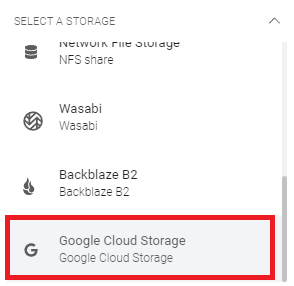
Select Google Cloud Storage from the list.
Copy the secret access key and access key ID from Google Cloud Storage. Paste the access key ID to the corresponding field, then click Select or add secret access key to open the Password Manager menu and add the secret key to your bucket.
In the Service URL field, enter the request endpoint URL obtained from GCS interoperability settings (e.g., https://storage.googleapis.com). Enter the bucket name in the corresponding field and, optionally, provide a description to help identify this storage repository in the console.
Select the default backup agent (worker) to be used for browsing the data. Ensure that the selected backup agent can access your Google Cloud Storage bucket.
Review your settings and click Save to add the storage to Xopero ONE. Refresh the page to view the newly added storage repository on the list (if needed).