> For the complete documentation index, see [llms.txt](https://helpcenter.xopero.com/xopero-one-en/llms.txt). Markdown versions of documentation pages are available by appending `.md` to page URLs; this page is available as [Markdown](https://helpcenter.xopero.com/xopero-one-en/management/backup-plans/optimization.md).
# Optimization
Learn how to optimize your backup tasks.
**Xopero ONE** provides several features to help you optimize your backup tasks and configure them quickly and easily, depending on your needs. When creating a backup plan, you can customize the backup window, task balancing, storage location, bandwidth limits, and more.
***
## Scheduler & Retention
This feature allows you to automate your backup schedule, set a backup window, and define the time zone for your backup plans.
{% hint style="info" %}
Learn more about scheduling in[ **Scheduler & Retention** article](/xopero-one-en/management/scheduler-and-retention.md).
{% endhint %}
### Backup window
The **backup window** allows you to specify the hours during which backups are permitted to run. Any backup tasks scheduled outside of this window will not start, and tasks that exceed the allowed time frame will be stopped and marked as failed. This ensures that backups do not interfere with business hours or critical system operations, giving you full control over when your backup processes run.
{% hint style="danger" %}
There is no way to run a backup task that was stopped for exceeding the backup window.
{% endhint %}
{% hint style="danger" %}
It is not possible to run a backup task during a blocked time frame.
{% endhint %}
***
## Task balancing
Balance backup speed and CPU load — **task balancing** feature allows you to set a limit on the number of concurrent tasks or configure a delay between the start of successive tasks.
Task balancing can be configured in the **Advanced settings** of a backup plan.
***
## Backup storage
In the **Backup storage** tab, you can view information about the assigned storages— **Xopero ONE** is a **multi-storage system**, allowing you to distribute backup data across multiple locations.
To optimize resource usage on the devices where data is stored, you can assign each backup plan to a different storage.
***
## Backup scripts
{% hint style="info" %}
Learn more about backup scripts in [this article](/xopero-one-en/management/backup-plans/scripts.md).
{% endhint %}
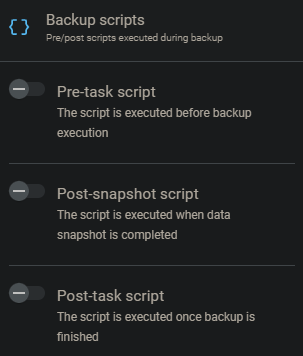
**Backup scripts** are divided into three categories depending on the moment at which we want to execute them:
1. Before backup
2. When the data snapshot is completed
3. When the backup is finished
### Shutdown
To shut down the computer after finishing the task, select the **Post-task script**, then choose the operating system and select **Shutdown** from the drop-down list. This script helps optimize backups by reducing energy consumption and freeing up system resources once the backup is complete, especially for machines that do not need to remain running outside working hours.
***
## Bandwidth limit
With the **bandwidth limit** feature, you can control network usage by setting an internet speed limit— simply enter a value and select the unit (**kB/s**, **MB/s**, or **GB/s**).
***
## S3 Buffer Settings
This setting applies to backups sent to **S3**-compatible storage. By default, the buffer size is 128 MiB, which allows transferring approximately 1,250 GiB of data. If your data exceeds this limit, you can adjust the buffer size accordingly.
Due to the system’s architectural design, this limit can be exceeded only by backup plans for the following resource types:
1. Disk image backups (endpoint/server).
2. File-level backups, including databases (endpoint/server).
3. **Hyper-V** virtual machine backups.
4. **Microsoft 365** account backups.
5. **VMware** virtual machine backups.
{% hint style="danger" %}
Adjusting the buffer size directly affects the agent’s RAM usage during the backup process.
{% endhint %}
BUFFER SIZE (MiB)
MAXIMUM DISK SIZE (GiB)
64
625
128
1250
210
2050
256
2500
$$
maximum disk size = \frac{bufferSize \* 10000}{1024}
$$