> This is part 1 of 5 of the full documentation (pages 1–100 of 411).
> The content is paginated: fetch every part to see all of it.
> Next part: https://helpcenter.xopero.com/xopero-one-en/llms-full.txt/1
> Page index: https://helpcenter.xopero.com/xopero-one-en/llms.txt

# Software overview

Information about the Xopero ONE backup solution, including its architecture and framework.

<table data-view="cards"><thead><tr><th data-type="content-ref"></th><th></th><th data-hidden data-card-cover data-type="image">Cover image</th></tr></thead><tbody><tr><td><a href="/xopero-one-en/xopero-one/software-overview/system-components-and-architecture">System components &amp; architecture</a></td><td>Examine the core architecture and primary components of <strong>Xopero ONE</strong> software.</td><td><a href="https://319733277-files.gitbook.io/~/files/v0/b/gitbook-x-prod.appspot.com/o/spaces%2F0CBTl43C3OO6ySL1DJ6k%2Fuploads%2FuruCv73sybNr7JH3htcv%2Ft%C5%82o%20X%201200x628.png?alt=media&amp;token=6aebddd9-8e43-49c2-b6d7-793239c0379d">background_XONE.png</a></td></tr><tr><td><a href="/xopero-one-en/xopero-one/software-overview/third-party-libraries">Third-party libraries</a></td><td>Review third-party software dependencies and open-source licenses in <strong>Xopero ONE</strong>.</td><td><a href="https://319733277-files.gitbook.io/~/files/v0/b/gitbook-x-prod.appspot.com/o/spaces%2F0CBTl43C3OO6ySL1DJ6k%2Fuploads%2FuruCv73sybNr7JH3htcv%2Ft%C5%82o%20X%201200x628.png?alt=media&amp;token=6aebddd9-8e43-49c2-b6d7-793239c0379d">background_XONE.png</a></td></tr></tbody></table>


# System components & architecture

Examine the core architecture and primary components of Xopero ONE software.

**The Xopero ONE architecture relies on a modular, multi-tier framework comprising the central management service, backup agents, and scalable storage targets.**

***

## General information

A backup solution is a software system or service that creates and stores copies of data so it can be restored if the original data is lost, corrupted, deleted, encrypted by ransomware, or otherwise becomes unavailable.

**Xopero** specializes in enterprise backup, disaster recovery, and cyber-resilience solutions. One of our flagship products, **Xopero ONE**, provides comprehensive data protection across a wide range of physical, virtual, and cloud environments. This solution enables organizations to protect business-critical data from accidental deletion, hardware failures, ransomware, cyberattacks, and other data-loss events.

{% hint style="success" %}
**Xopero ONE** can operate in two different deployment models: SaaS (cloud) and on-premises.
{% endhint %}

***

## Software architecture

**Xopero ONE** is designed to protect data across physical machines, virtual environments, databases, cloud services (**Microsoft 365**), SaaS applications (such as **Jira** and **Confluence**), and different **DevOps** platforms. It consists of two primary components: the management panel and the backup agent. The solution also requires a storage repository to store backup data. This storage can be managed by the user or provided by **Xopero** (i.e., **Xopero Cloud Storage**, **Xopero Unified Protection**).

The management system is used for administration and configuration, while the backup agents handle the actual execution of all backup-related operations. When a backup task is initiated, the management service dispatches the job to the backup agent, which performs the requested operation. Once the task is completed, the agent transmits the execution results and logs back to the management system, where administrators can review them in the web console.

<figure><picture><source srcset="/files/iv73g3mW4zebARjlWIie" media="(prefers-color-scheme: dark)"><img src="https://319733277-files.gitbook.io/~/files/v0/b/gitbook-x-prod.appspot.com/o/spaces%2F0CBTl43C3OO6ySL1DJ6k%2Fuploads%2FO2Q3tVVU4bsZFB2pFjvC%2Fxopero_diagram.png?alt=media&amp;token=238ff071-f041-4e08-9666-c83ba892dc1a" alt=""></picture><figcaption><p><em>Communication between the main <strong>Xopero ONE</strong> backup system components. The management system serves solely as a configuration interface — all operational tasks are performed by the backup agents.</em></p></figcaption></figure>

***

## Primary components

### <mark style="background-color:$tint;">Management system</mark>

The centralized management interface of **Xopero ONE** is the **Xopero ONE Management Service** (**XMS**). It enables administrators to comprehensively manage backups and related resources through the web console. In the on-premises deployment model, **XMS** can be installed on supported **Windows** and **Linux** operating systems, deployed in a **Docker** environment, or hosted directly on compatible NAS devices. In the SaaS deployment model, the management service runs on **Xopero's** cloud infrastructure.&#x20;

{% hint style="info" %}
The client management service application is called **Xopero ONE Backup\&Recovery**.
{% endhint %}

Regardless of the deployment model, the platform provides identical features and functionality through a unified user interface. The management panel is divided into separate modules, each of them dedicated to a different aspect of backup management, such as backup plans, storage, and backup tasks.

### <mark style="background-color:$tint;">Backup agent</mark>

A backup agent is a lightweight software installed on a protected server, virtual machine, laptop, or cloud instance. It reads source data and transfers it to the designated storage destination.

**Xopero ONE** backup agents (also referred to as workers in the **Xopero ONE** environment) perform all operations requested by the **Xopero ONE Management Service**, including processing data (such as encryption and compression), browsing storage repositories, transferring data directly to the storage, and restoring data.&#x20;

Agents execute backup and recovery operations directly and **do not transfer backup data through the management panel**. They are also responsible for integrating with virtualization hosts, and performing all other data-processing and infrastructure-related tasks within the system.

Depending on the deployment model and protected resources, administrators can deploy various backup agents, including the cloud worker, feature worker, local worker, endpoint agent, server agent, and virtual agent.

{% hint style="info" %}
The client backup agent application is called **Xopero ONE Backup\&Recovery Agent**.
{% endhint %}

### <mark style="background-color:$tint;">Storage</mark>

A data storage system is a medium designed to persistently retain and manage collections of data so that they can be retrieved and used later. Storage technologies span physical media, such as solid-state drives (SSDs) and hard disk drives (HDDs); deployment models, including cloud and hybrid cloud; and systems purpose-built for workloads such as artificial intelligence (AI) and edge computing.

In **Xopero ONE**, a storage repository is a designated destination used to persistently retain, organize, and protect backup data for subsequent retrieval and disaster recovery. The solution features a multi-storage architecture that supports storing backup data on-premises (local disks, SMB, NFS, and iSCSI targets), in cloud repositories (**Xopero Cloud Storage**, **AWS**, and S3-compatible storage), or in a hybrid model.

***

## Useful links and items

{% content-ref url="/pages/5NV0QNLcndKRppyGCvDE" %}
[Licensing overview](/xopero-one-en/xopero-one/licensing-overview)
{% endcontent-ref %}

{% content-ref url="/pages/OVh86wVfPNSlPuXe2ilG" %}
[Overview](/xopero-one-en/storage/overview)
{% endcontent-ref %}


# Third-party libraries

Review third-party software dependencies and open-source licenses in Xopero ONE.

**Xopero ONE incorporates third-party software libraries to power core system functions, including data encryption, network communication, storage interface operations, and data compression.**

***

## Libraries list

The table below outlines all third-party libraries used by **Xopero ONE**.

{% hint style="info" %}
The list is presented in alphabetical order.
{% endhint %}

<table data-header-hidden="false" data-header-sticky><thead><tr><th>Component name</th><th>License type</th><th>License details</th></tr></thead><tbody><tr><td>@fortawesome/fontawesome-svg-core</td><td>Font Awesome Free License</td><td><a href="https://www.google.com/search?q=https://github.com/FortAwesome/Font-Awesome/blob/master/LICENSE.txt">https://github.com/FortAwesome/Font-Awesome/blob/master/LICENSE.txt</a></td></tr><tr><td>@fortawesome/free-brands-svg-icons</td><td>Font Awesome Free License</td><td><a href="https://www.google.com/search?q=https://github.com/FortAwesome/Font-Awesome/blob/master/LICENSE.txt">https://github.com/FortAwesome/Font-Awesome/blob/master/LICENSE.txt</a></td></tr><tr><td>@fortawesome/pro-duotone-svg-icons</td><td>Font Awesome Pro License</td><td><a href="https://fontawesome.com/license">https://fontawesome.com/license</a></td></tr><tr><td>@fortawesome/pro-light-svg-icons</td><td>Font Awesome Pro License</td><td><a href="https://fontawesome.com/license">https://fontawesome.com/license</a></td></tr><tr><td>@fortawesome/pro-regular-svg-icons</td><td>Font Awesome Pro License</td><td><a href="https://fontawesome.com/license">https://fontawesome.com/license</a></td></tr><tr><td>@fortawesome/pro-solid-svg-icons</td><td>Font Awesome Pro License</td><td><a href="https://fontawesome.com/license">https://fontawesome.com/license</a></td></tr><tr><td>@microsoft/signalr</td><td>Apache 2.0</td><td><a href="https://www.google.com/search?q=https://docs.microsoft.com/en-us/gaming/playfab/sdks/unity3d/licenses/signalr-license">https://docs.microsoft.com/en-us/gaming/playfab/sdks/unity3d/licenses/signalr-license</a></td></tr><tr><td>@ng-select/ng-select</td><td>MIT</td><td><a href="https://github.com/ng-select/ng-select/blob/master/LICENSE">https://github.com/ng-select/ng-select/blob/master/LICENSE</a></td></tr><tr><td>@ngrx/effects</td><td>MIT</td><td><a href="https://www.google.com/search?q=https://github.com/ngrx/platform/blob/master/LICENSE">https://github.com/ngrx/platform/blob/master/LICENSE</a></td></tr><tr><td>@ngrx/store</td><td>MIT</td><td><a href="https://www.google.com/search?q=https://github.com/ngrx/platform/blob/master/LICENSE">https://github.com/ngrx/platform/blob/master/LICENSE</a></td></tr><tr><td>AgileObjects.ReadableExpressions</td><td>MIT</td><td><a href="https://licenses.nuget.org/MIT">https://licenses.nuget.org/MIT</a></td></tr><tr><td>AlphaVSS</td><td>Apache 2.0</td><td><a href="https://licenses.nuget.org/Apache-2.0">https://licenses.nuget.org/Apache-2.0</a></td></tr><tr><td>angular-i18next</td><td>MIT</td><td><a href="https://www.google.com/search?q=https://github.com/Romanchuk/angular-i18next/blob/master/LICENSE">https://github.com/Romanchuk/angular-i18next/blob/master/LICENSE</a></td></tr><tr><td>AutoMapper</td><td>MIT</td><td><a href="https://www.google.com/search?q=https://github.com/AutoMapper/AutoMapper/blob/master/LICENSE.txt">https://github.com/AutoMapper/AutoMapper/blob/master/LICENSE.txt</a></td></tr><tr><td>AWSSDK.S3</td><td>Apache 2.0</td><td><a href="https://www.google.com/search?q=http://aws.amazon.com/apache2.0/">http://aws.amazon.com/apache2.0/</a></td></tr><tr><td>chart.js</td><td>MIT</td><td><a href="https://github.com/chartjs/Chart.js/blob/master/LICENSE.md">https://github.com/chartjs/Chart.js/blob/master/LICENSE.md</a></td></tr><tr><td>chartjs-plugin-datalabels</td><td>MIT</td><td><a href="https://github.com/chartjs/chartjs-plugin-datalabels/blob/master/LICENSE.md">https://github.com/chartjs/chartjs-plugin-datalabels/blob/master/LICENSE.md</a></td></tr><tr><td>coverlet.collector</td><td>MIT</td><td><a href="https://licenses.nuget.org/MIT">https://licenses.nuget.org/MIT</a></td></tr><tr><td>DiscUtils</td><td>MIT</td><td><a href="https://github.com/DiscUtils/DiscUtils/blob/develop/LICENSE.txt">https://github.com/DiscUtils/DiscUtils/blob/develop/LICENSE.txt</a></td></tr><tr><td>FirebirdSql.Data.FirebirdClient</td><td>Developer's Public License Version 1.0</td><td><a href="https://www.google.com/search?q=https://raw.githubusercontent.com/FirebirdSQL/NETProvider/master/license.txt">https://raw.githubusercontent.com/FirebirdSQL/NETProvider/master/license.txt</a></td></tr><tr><td>FluentFTP</td><td>MIT</td><td><a href="https://github.com/robinrodricks/FluentFTP/blob/master/LICENSE.TXT">https://github.com/robinrodricks/FluentFTP/blob/master/LICENSE.TXT</a></td></tr><tr><td>FluentScheduler</td><td>BSD (3-clause)</td><td><a href="https://opensource.org/licenses/BSD-3-Clause">https://opensource.org/licenses/BSD-3-Clause</a></td></tr><tr><td>FubarDev.FtpServer</td><td>MIT</td><td><a href="https://github.com/FubarDevelopment/FtpServer/blob/master/LICENSE.md">https://github.com/FubarDevelopment/FtpServer/blob/master/LICENSE.md</a></td></tr><tr><td>Hali4831.MixERP.Net.VCards</td><td>Apache 2.0</td><td><a href="http://www.apache.org/licenses/LICENSE-2.0">http://www.apache.org/licenses/LICENSE-2.0</a></td></tr><tr><td>i18next</td><td>MIT</td><td><a href="https://github.com/i18next/i18next/blob/master/LICENSE">https://github.com/i18next/i18next/blob/master/LICENSE</a></td></tr><tr><td>i18next-browser-languagedetector</td><td>MIT</td><td><a href="https://www.google.com/search?q=https://github.com/i18next/i18next-browser-languageDetector/blob/master/LICENSE">https://github.com/i18next/i18next-browser-languageDetector/blob/master/LICENSE</a></td></tr><tr><td>i18next-http-backend</td><td>MIT</td><td><a href="https://github.com/i18next/i18next-http-backend/blob/master/licence">https://github.com/i18next/i18next-http-backend/blob/master/licence</a></td></tr><tr><td>Ical.Net</td><td>MIT</td><td><a href="https://www.google.com/search?q=https://github.com/rianjs/ical.net/blob/master/license.md">https://github.com/rianjs/ical.net/blob/master/license.md</a></td></tr><tr><td>iSCSIConsole</td><td>LGPL 3.0</td><td><a href="https://www.google.com/search?q=https://github.com/TalAloni/iSCSIConsole/blob/master/License.txt">https://github.com/TalAloni/iSCSIConsole/blob/master/License.txt</a></td></tr><tr><td>JsonLogic.Net</td><td>MIT</td><td><a href="https://raw.githubusercontent.com/yavuztor/JsonLogic.Net/master/LICENSE">https://raw.githubusercontent.com/yavuztor/JsonLogic.Net/master/LICENSE</a></td></tr><tr><td>jwt-decode</td><td>MIT</td><td><a href="https://github.com/auth0/jwt-decode/blob/master/LICENSE">https://github.com/auth0/jwt-decode/blob/master/LICENSE</a></td></tr><tr><td>K4os.Hash.xxHash</td><td>MIT</td><td><a href="https://www.google.com/search?q=https://raw.githubusercontent.com/MiloszKrajewski/K4os.Hash.xxHash/master/LICENSE">https://raw.githubusercontent.com/MiloszKrajewski/K4os.Hash.xxHash/master/LICENSE</a></td></tr><tr><td>LightningDB</td><td>OpenLDAP Public License</td><td><a href="https://www.google.com/search?q=https://www.nuget.org/packages/LightningDB/0.13.0/License">https://www.nuget.org/packages/LightningDB/0.13.0/License</a></td></tr><tr><td>LiteDB</td><td>MIT</td><td><a href="https://www.google.com/search?q=https://raw.github.com/mbdavid/LiteDB/master/LICENSE">https://raw.github.com/mbdavid/LiteDB/master/LICENSE</a></td></tr><tr><td>LZ4</td><td>BSD (2-clause)</td><td><a href="https://github.com/bwlewis/lz4/blob/master/LICENSE">https://github.com/bwlewis/lz4/blob/master/LICENSE</a></td></tr><tr><td>MailKit</td><td>MIT</td><td><a href="https://licenses.nuget.org/MIT">https://licenses.nuget.org/MIT</a></td></tr><tr><td>Microsoft.AspNet.WebApi.Client</td><td>Microsoft EULA</td><td><a href="https://www.google.com/search?q=http://www.microsoft.com/web/webpi/eula/net_library_eula_ENU.htm">http://www.microsoft.com/web/webpi/eula/net_library_eula_ENU.htm</a></td></tr><tr><td>Microsoft.AspNetCore</td><td>Apache 2.0</td><td><a href="https://raw.githubusercontent.com/aspnet/AspNetCore/2.0.0/LICENSE.txt">https://raw.githubusercontent.com/aspnet/AspNetCore/2.0.0/LICENSE.txt</a></td></tr><tr><td>Microsoft.AspNetCore.Authentication.JwtBearer</td><td>Apache 2.0</td><td><a href="https://raw.githubusercontent.com/aspnet/AspNetCore/2.0.0/LICENSE.txt">https://raw.githubusercontent.com/aspnet/AspNetCore/2.0.0/LICENSE.txt</a></td></tr><tr><td>Microsoft.AspNetCore.CookiePolicy</td><td>Apache 2.0</td><td><a href="https://raw.githubusercontent.com/aspnet/AspNetCore/2.0.0/LICENSE.txt">https://raw.githubusercontent.com/aspnet/AspNetCore/2.0.0/LICENSE.txt</a></td></tr><tr><td>Microsoft.AspNetCore.Hosting</td><td>Apache 2.0</td><td><a href="https://raw.githubusercontent.com/aspnet/AspNetCore/2.0.0/LICENSE.txt">https://raw.githubusercontent.com/aspnet/AspNetCore/2.0.0/LICENSE.txt</a></td></tr><tr><td>Microsoft.AspNetCore.Http.Connections</td><td>Apache 2.0</td><td><a href="https://raw.githubusercontent.com/aspnet/AspNetCore/2.0.0/LICENSE.txt">https://raw.githubusercontent.com/aspnet/AspNetCore/2.0.0/LICENSE.txt</a></td></tr><tr><td>Microsoft.AspNetCore.Identity</td><td>Apache 2.0</td><td><a href="https://raw.githubusercontent.com/aspnet/AspNetCore/2.0.0/LICENSE.txt">https://raw.githubusercontent.com/aspnet/AspNetCore/2.0.0/LICENSE.txt</a></td></tr><tr><td>Microsoft.AspNetCore.Identity.EntityFrameworkCore</td><td>Apache 2.0</td><td><a href="https://raw.githubusercontent.com/aspnet/AspNetCore/2.0.0/LICENSE.txt">https://raw.githubusercontent.com/aspnet/AspNetCore/2.0.0/LICENSE.txt</a></td></tr><tr><td>Microsoft.AspNetCore.Identity.EntityFrameworkCore</td><td>Apache 2.0</td><td><a href="https://licenses.nuget.org/Apache-2.0">https://licenses.nuget.org/Apache-2.0</a></td></tr><tr><td>Microsoft.AspNetCore.Identity.EntityFrameworkCore</td><td>Apache 2.0</td><td><a href="https://raw.githubusercontent.com/aspnet/AspNetCore/2.0.0/LICENSE.txt">https://raw.githubusercontent.com/aspnet/AspNetCore/2.0.0/LICENSE.txt</a></td></tr><tr><td>Microsoft.AspNetCore.Mvc.Core</td><td>Apache 2.0</td><td><a href="https://raw.githubusercontent.com/aspnet/AspNetCore/2.0.0/LICENSE.txt">https://raw.githubusercontent.com/aspnet/AspNetCore/2.0.0/LICENSE.txt</a></td></tr><tr><td>Microsoft.AspNetCore.Mvc.NewtonsoftJson</td><td>Apache 2.0</td><td><a href="https://licenses.nuget.org/Apache-2.0">https://licenses.nuget.org/Apache-2.0</a></td></tr><tr><td>Microsoft.AspNetCore.Mvc.Testing</td><td>Apache 2.0</td><td><a href="https://licenses.nuget.org/Apache-2.0">https://licenses.nuget.org/Apache-2.0</a></td></tr><tr><td>Microsoft.AspNetCore.Razor.Design</td><td>Apache 2.0</td><td><a href="https://raw.githubusercontent.com/aspnet/AspNetCore/2.0.0/LICENSE.txt">https://raw.githubusercontent.com/aspnet/AspNetCore/2.0.0/LICENSE.txt</a></td></tr><tr><td>Microsoft.AspNetCore.Server.Kestrel</td><td>Apache 2.0</td><td><a href="https://raw.githubusercontent.com/aspnet/AspNetCore/2.0.0/LICENSE.txt">https://raw.githubusercontent.com/aspnet/AspNetCore/2.0.0/LICENSE.txt</a></td></tr><tr><td>Microsoft.AspNetCore.SignalR</td><td>Apache 2.0</td><td><a href="https://raw.githubusercontent.com/aspnet/AspNetCore/2.0.0/LICENSE.txt">https://raw.githubusercontent.com/aspnet/AspNetCore/2.0.0/LICENSE.txt</a></td></tr><tr><td>Microsoft.AspNetCore.SignalR.Client</td><td>Apache 2.0</td><td><a href="https://licenses.nuget.org/Apache-2.0">https://licenses.nuget.org/Apache-2.0</a></td></tr><tr><td>Microsoft.AspNetCore.SignalR.Protocols.NewtonsoftJson</td><td>Apache 2.0</td><td><a href="https://licenses.nuget.org/Apache-2.0">https://licenses.nuget.org/Apache-2.0</a></td></tr><tr><td>Microsoft.AspNetCore.SpaServices</td><td>Apache 2.0</td><td><a href="https://licenses.nuget.org/Apache-2.0">https://licenses.nuget.org/Apache-2.0</a></td></tr><tr><td>Microsoft.AspNetCore.SpaServices.Extensions</td><td>Apache 2.0</td><td><a href="https://licenses.nuget.org/Apache-2.0">https://licenses.nuget.org/Apache-2.0</a></td></tr><tr><td>Microsoft.AspNetCore.StaticFiles</td><td>Apache 2.0</td><td><a href="https://raw.githubusercontent.com/aspnet/AspNetCore/2.0.0/LICENSE.txt">https://raw.githubusercontent.com/aspnet/AspNetCore/2.0.0/LICENSE.txt</a></td></tr><tr><td>Microsoft.CodeAnalysis.Common</td><td>MIT</td><td><a href="https://licenses.nuget.org/MIT">https://licenses.nuget.org/MIT</a></td></tr><tr><td>Microsoft.CSharp</td><td>MIT</td><td><a href="https://licenses.nuget.org/MIT">https://licenses.nuget.org/MIT</a></td></tr><tr><td>Microsoft.EntityFrameworkCore.Design</td><td>Apache 2.0</td><td><a href="https://raw.githubusercontent.com/aspnet/AspNetCore/2.0.0/LICENSE.txt">https://raw.githubusercontent.com/aspnet/AspNetCore/2.0.0/LICENSE.txt</a></td></tr><tr><td>Microsoft.EntityFrameworkCore.InMemory</td><td>Apache 2.0</td><td><a href="https://raw.githubusercontent.com/aspnet/AspNetCore/2.0.0/LICENSE.txt">https://raw.githubusercontent.com/aspnet/AspNetCore/2.0.0/LICENSE.txt</a></td></tr><tr><td>Microsoft.EntityFrameworkCore.InMemory</td><td>Apache 2.0</td><td><a href="https://licenses.nuget.org/Apache-2.0">https://licenses.nuget.org/Apache-2.0</a></td></tr><tr><td>Microsoft.EntityFrameworkCore.Proxies</td><td>Apache 2.0</td><td><a href="https://raw.githubusercontent.com/aspnet/AspNetCore/2.0.0/LICENSE.txt">https://raw.githubusercontent.com/aspnet/AspNetCore/2.0.0/LICENSE.txt</a></td></tr><tr><td>Microsoft.EntityFrameworkCore.Sqlite</td><td>Apache 2.0</td><td><a href="https://raw.githubusercontent.com/aspnet/AspNetCore/2.0.0/LICENSE.txt">https://raw.githubusercontent.com/aspnet/AspNetCore/2.0.0/LICENSE.txt</a></td></tr><tr><td>Microsoft.EntityFrameworkCore.Sqlite</td><td>Apache 2.0</td><td><a href="https://raw.githubusercontent.com/aspnet/AspNetCore/2.0.0/LICENSE.txt">https://raw.githubusercontent.com/aspnet/AspNetCore/2.0.0/LICENSE.txt</a></td></tr><tr><td>Microsoft.Extensions.Hosting.WindowsServices</td><td>Apache 2.0</td><td><a href="https://licenses.nuget.org/Apache-2.0">https://licenses.nuget.org/Apache-2.0</a></td></tr><tr><td>Microsoft.Extensions.Identity.Stores</td><td>Apache 2.0</td><td><a href="https://raw.githubusercontent.com/aspnet/AspNetCore/2.0.0/LICENSE.txt">https://raw.githubusercontent.com/aspnet/AspNetCore/2.0.0/LICENSE.txt</a></td></tr><tr><td>Microsoft.Extensions.Localization.Abstractions</td><td>Apache 2.0</td><td><a href="https://licenses.nuget.org/Apache-2.0">https://licenses.nuget.org/Apache-2.0</a></td></tr><tr><td>Microsoft.Extensions.Logging.Configuration</td><td>Apache 2.0</td><td><a href="https://licenses.nuget.org/Apache-2.0">https://licenses.nuget.org/Apache-2.0</a></td></tr><tr><td>Microsoft.Extensions.Logging.Console</td><td>Apache 2.0</td><td><a href="https://licenses.nuget.org/Apache-2.0">https://licenses.nuget.org/Apache-2.0</a></td></tr><tr><td>Microsoft.Extensions.Logging.Debug</td><td>Apache 2.0</td><td><a href="https://licenses.nuget.org/Apache-2.0">https://licenses.nuget.org/Apache-2.0</a></td></tr><tr><td>Microsoft.Graph</td><td>MIT</td><td><a href="https://www.google.com/search?q=https://www.nuget.org/packages/Microsoft.Graph/3.23.0/License">https://www.nuget.org/packages/Microsoft.Graph/3.23.0/License</a></td></tr><tr><td>Microsoft.Identity.Client</td><td>MIT</td><td><a href="https://licenses.nuget.org/MIT">https://licenses.nuget.org/MIT</a></td></tr><tr><td>Microsoft.Identity.Client</td><td>MIT</td><td><a href="https://licenses.nuget.org/MIT">https://licenses.nuget.org/MIT</a></td></tr><tr><td>Microsoft.NET.Test.Sdk</td><td>Microsoft EULA</td><td><a href="https://www.google.com/search?q=https://www.microsoft.com/web/webpi/eula/net_library_eula_enu.htm">https://www.microsoft.com/web/webpi/eula/net_library_eula_enu.htm</a></td></tr><tr><td>Microsoft.NET.Test.Sdk</td><td>Microsoft EULA</td><td><a href="https://www.google.com/search?q=http://www.microsoft.com/web/webpi/eula/net_library_eula_enu.htm">http://www.microsoft.com/web/webpi/eula/net_library_eula_enu.htm</a></td></tr><tr><td>Microsoft.NETCore.App</td><td>MIT</td><td><a href="https://www.google.com/search?q=https://github.com/dotnet/core-setup/blob/master/LICENSE.TXT">https://github.com/dotnet/core-setup/blob/master/LICENSE.TXT</a></td></tr><tr><td>Microsoft.NETCore.App</td><td>MIT</td><td><a href="https://www.google.com/search?q=https://github.com/dotnet/core-setup/blob/master/LICENSE.TXT">https://github.com/dotnet/core-setup/blob/master/LICENSE.TXT</a></td></tr><tr><td>Microsoft.VisualStudio.Azure.Containers.Tools.Targets</td><td>Microsoft EULA</td><td><a href="https://www.google.com/search?q=https://www.nuget.org/packages/Microsoft.VisualStudio.Azure.Containers.Tools.Targets/1.7.12/license">https://www.nuget.org/packages/Microsoft.VisualStudio.Azure.Containers.Tools.Targets/1.7.12/license</a></td></tr><tr><td>Microsoft.VisualStudio.Web.CodeGeneration.Design</td><td>Apache 2.0</td><td><a href="https://raw.githubusercontent.com/aspnet/AspNetCore/2.0.0/LICENSE.txt">https://raw.githubusercontent.com/aspnet/AspNetCore/2.0.0/LICENSE.txt</a></td></tr><tr><td>Microsoft.Win32.Registry</td><td>MIT</td><td><a href="https://licenses.nuget.org/MIT">https://licenses.nuget.org/MIT</a></td></tr><tr><td>Mono.Posix-4.5</td><td>MIT/BSD-3/Microsoft Patents</td><td><a href="https://github.com/mono/mono/blob/master/LICENSE">https://github.com/mono/mono/blob/master/LICENSE</a></td></tr><tr><td>Mono.Posix.NETStandard</td><td>MIT/BSD-3/Microsoft Patents</td><td><a href="https://www.google.com/search?q=https://go.microsoft.com/fwlink/%3Flinkid%3D869050">https://go.microsoft.com/fwlink/?linkid=869050</a></td></tr><tr><td>Moq</td><td>BSD (3-clause)</td><td><a href="https://www.google.com/search?q=https://raw.githubusercontent.com/moq/moq4/master/License.txt">https://raw.githubusercontent.com/moq/moq4/master/License.txt</a></td></tr><tr><td>Moq</td><td>BSD (3-clause)</td><td><a href="https://www.google.com/search?q=https://raw.githubusercontent.com/moq/moq4/master/License.txt">https://raw.githubusercontent.com/moq/moq4/master/License.txt</a></td></tr><tr><td>MSTest.TestAdapter</td><td>MIT</td><td><a href="https://www.google.com/search?q=https://www.nuget.org/packages/MSTest.TestAdapter/2.2.0-preview-20210115-03/License">https://www.nuget.org/packages/MSTest.TestAdapter/2.2.0-preview-20210115-03/License</a></td></tr><tr><td>MSTest.TestAdapter</td><td>MIT</td><td><a href="https://www.google.com/search?q=https://www.nuget.org/packages/MSTest.TestAdapter/2.1.2/License">https://www.nuget.org/packages/MSTest.TestAdapter/2.1.2/License</a></td></tr><tr><td>MSTest.TestFramework</td><td>MIT</td><td><a href="https://www.google.com/search?q=https://www.nuget.org/packages/MSTest.TestFramework/2.2.0-preview-20210115-03/License">https://www.nuget.org/packages/MSTest.TestFramework/2.2.0-preview-20210115-03/License</a></td></tr><tr><td>MSTest.TestFramework</td><td>EULA Microsoftu</td><td><a href="https://www.google.com/search?q=http://www.microsoft.com/web/webpi/eula/net_library_eula_enu.htm">http://www.microsoft.com/web/webpi/eula/net_library_eula_enu.htm</a></td></tr><tr><td>NETStandard.Library</td><td>MIT</td><td><a href="https://github.com/dotnet/standard/blob/master/LICENSE.TXT">https://github.com/dotnet/standard/blob/master/LICENSE.TXT</a></td></tr><tr><td>NETStandard.Library</td><td>MIT</td><td><a href="https://github.com/dotnet/standard/blob/master/LICENSE.TXT">https://github.com/dotnet/standard/blob/master/LICENSE.TXT</a></td></tr><tr><td>Newtonsoft.Json</td><td>MIT</td><td><a href="https://licenses.nuget.org/MIT">https://licenses.nuget.org/MIT</a></td></tr><tr><td>Newtonsoft.Json</td><td>MIT</td><td><a href="https://www.google.com/search?q=https://raw.github.com/JamesNK/Newtonsoft.Json/master/LICENSE.md">https://raw.github.com/JamesNK/Newtonsoft.Json/master/LICENSE.md</a></td></tr><tr><td>ng-click-outside</td><td>MIT</td><td><a href="https://www.google.com/search?q=https://github.com/arkon/ng-click-outside/blob/master/LICENSE">https://github.com/arkon/ng-click-outside/blob/master/LICENSE</a></td></tr><tr><td>ng2-charts</td><td>ISC License</td><td><a href="https://www.google.com/search?q=https://github.com/valor-software/ng2-charts/blob/development/LICENSE">https://github.com/valor-software/ng2-charts/blob/development/LICENSE</a></td></tr><tr><td>ngx-toastr</td><td>MIT</td><td><a href="https://www.google.com/search?q=https://github.com/scttcper/ngx-toastr/blob/master/LICENSE">https://github.com/scttcper/ngx-toastr/blob/master/LICENSE</a></td></tr><tr><td>NLog.Web.AspNetCore</td><td>BSD (3-clause)</td><td><a href="https://www.google.com/search?q=https://github.com/NLog/NLog.Web/blob/master/LICENSE">https://github.com/NLog/NLog.Web/blob/master/LICENSE</a></td></tr><tr><td>Npgsql.EntityFrameworkCore.PostgreSQL</td><td>PostgreSQL License</td><td><a href="https://licenses.nuget.org/PostgreSQL">https://licenses.nuget.org/PostgreSQL</a></td></tr><tr><td>OpenSSL.Net</td><td>BSD</td><td><a href="https://github.com/openssl-net/openssl-net/blob/master/LICENSE">https://github.com/openssl-net/openssl-net/blob/master/LICENSE</a></td></tr><tr><td>protobuf-net</td><td>Apache 2.0</td><td><a href="https://www.google.com/search?q=https://github.com/mgravell/protobuf-net/blob/master/Licence.txt">https://github.com/mgravell/protobuf-net/blob/master/Licence.txt</a></td></tr><tr><td>RestSharp</td><td>Apache 2.0</td><td><a href="https://github.com/restsharp/RestSharp/blob/master/LICENSE.txt">https://github.com/restsharp/RestSharp/blob/master/LICENSE.txt</a></td></tr><tr><td>Rnwood.SmtpServer</td><td>BSD (3-clause)</td><td><a href="https://www.google.com/search?q=https://github.com/rnwood/smtpserver/blob/master/LICENSE.md">https://github.com/rnwood/smtpserver/blob/master/LICENSE.md</a></td></tr><tr><td>rxjs</td><td>Apache 2.0</td><td><a href="https://www.google.com/search?q=https://github.com/ReactiveX/rxjs/blob/master/LICENSE.txt">https://github.com/ReactiveX/rxjs/blob/master/LICENSE.txt</a></td></tr><tr><td>SharpCifs.Std</td><td>LGPL 2.1</td><td><a href="https://www.google.com/search?q=https://github.com/ume05rw/SharpCifs.Std/blob/master/LICENSE">https://github.com/ume05rw/SharpCifs.Std/blob/master/LICENSE</a></td></tr><tr><td>SMBLibrary.Std</td><td>LGPL 3.0</td><td><a href="https://licenses.nuget.org/LGPL-3.0-or-later">https://licenses.nuget.org/LGPL-3.0-or-later</a></td></tr><tr><td>Swashbuckle.AspNetCore</td><td>MIT</td><td><a href="https://raw.githubusercontent.com/domaindrivendev/Swashbuckle.AspNetCore/master/LICENSE">https://raw.githubusercontent.com/domaindrivendev/Swashbuckle.AspNetCore/master/LICENSE</a></td></tr><tr><td>System.IO.FileSystem.AccessControl</td><td>MIT</td><td><a href="https://licenses.nuget.org/MIT">https://licenses.nuget.org/MIT</a></td></tr><tr><td>System.Management</td><td>MIT</td><td><a href="https://licenses.nuget.org/MIT">https://licenses.nuget.org/MIT</a></td></tr><tr><td>System.Reactive</td><td>MIT</td><td><a href="https://licenses.nuget.org/MIT">https://licenses.nuget.org/MIT</a></td></tr><tr><td>System.Text.Json</td><td>MIT</td><td><a href="https://licenses.nuget.org/MIT">https://licenses.nuget.org/MIT</a></td></tr><tr><td>tslib</td><td>BSD (0-clause)</td><td><a href="https://github.com/microsoft/tslib/blob/master/LICENSE.txt">https://github.com/microsoft/tslib/blob/master/LICENSE.txt</a></td></tr><tr><td>tsutils</td><td>MIT</td><td><a href="https://www.google.com/search?q=https://github.com/ajafff/tsutils/blob/master/LICENSE">https://github.com/ajafff/tsutils/blob/master/LICENSE</a></td></tr><tr><td>UnQLite</td><td>BSD (2-clause)</td><td><a href="https://www.google.com/search?q=https://unqlite.org/licensing.html">https://unqlite.org/licensing.html</a></td></tr><tr><td>uuid</td><td>MIT</td><td><a href="https://github.com/uuidjs/uuid/blob/master/LICENSE.md">https://github.com/uuidjs/uuid/blob/master/LICENSE.md</a></td></tr><tr><td>Vibrant.InfluxDB.Client</td><td>MIT</td><td><a href="https://www.google.com/search?q=https://github.com/MikaelGRA/InfluxDB.Client/blob/master/LICENSE">https://github.com/MikaelGRA/InfluxDB.Client/blob/master/LICENSE</a></td></tr><tr><td>VMware SDK</td><td>Proprietary</td><td><a href="https://www.google.com/search?q=https://vdc-download.vmware.com/vmwb-repository/dcr-public/3d076a12-29a2-4d17-9269-cb8150b5a37f/8b5969e2-1a66-4425-af17-feff6d6f705d/SDK/VMware%2520vSphere%2520Mgmt%2520SDK-License%2520Agmt.docx">https://vdc-download.vmware.com/vmwb-repository/dcr-public/3d076a12-29a2-4d17-9269-cb8150b5a37f/8b5969e2-1a66-4425-af17-feff6d6f705d/SDK/VMware%20vSphere%20Mgmt%20SDK-License%20Agmt.docx</a></td></tr><tr><td>xunit</td><td>Apache 2.0</td><td><a href="https://raw.githubusercontent.com/xunit/xunit/master/license.txt">https://raw.githubusercontent.com/xunit/xunit/master/license.txt</a></td></tr><tr><td>xunit.runner.visualstudio</td><td>MIT</td><td><a href="https://licenses.nuget.org/MIT">https://licenses.nuget.org/MIT</a></td></tr><tr><td>zone.js</td><td>MIT</td><td><a href="https://www.google.com/search?q=https://github.com/angular/angular/blob/master/LICENSE">https://github.com/angular/angular/blob/master/LICENSE</a></td></tr><tr><td>Zstandard</td><td>BSD (3-clause)</td><td><a href="https://github.com/facebook/zstd/blob/dev/LICENSE">https://github.com/facebook/zstd/blob/dev/LICENSE</a></td></tr></tbody></table>


# Licensing overview

Overview of Xopero ONE licensing models, including license types, usage-based components, and key licensing principles.

**Licensing in Xopero ONE defines how product usage rights are assigned and managed within an organization, covering subscription scope, activated instances, and available feature sets depending on the selected plan.**

***

## General information

Licenses are required to use **Xopero ONE** for backup and recovery. They define how data protection is enabled across different environments and workloads and are assigned based on the type and number of protected resources. Depending on the deployment scenario, licenses cover physical endpoints, servers, virtual machines, SaaS platforms, and repositories, ensuring that each protected element is properly accounted for within the licensing model.

{% hint style="info" %}
To get a license, please contact one of our sales partners or email us directly at <sales@xopero.com>.
{% endhint %}

***

## Pricing

Use the [request form](https://xopero.com/xopero-one-pricing/) on the **Xopero ONE** website, and one of our representatives will contact you with information on available offers and pricing.

{% hint style="info" %}
To get a tailored offer for your business, please email <sales@xopero.com>.
{% endhint %}

***

## License types <a href="#license_types_from_a_business_point_of_view" id="license_types_from_a_business_point_of_view"></a>

Below you can find all license types available in **Xopero ONE**, categorized by protected resource type.

{% hint style="info" %}
For information about **Xopero Unified Protection** (**XUP**) licensing model, please refer to [this article](/xopero-one-en/xopero-unified-protection/licensing).
{% endhint %}

### <mark style="background-color:$tint;">Workstations & servers</mark> <a href="#physical_machines" id="physical_machines"></a>

1. **Endpoint Agent** — licenses for securing physical endpoints running **Windows**, **Linux**, or **macOS**. One license is required per endpoint.
2. **Server Agent** — licenses for securing servers (**Windows** and **Linux**), databases (**Oracle**, **MySQL**, **Microsoft SQL Server**, **PostgreSQL**, etc.), and **NAS** devices. One license is required per protected resource.

### <mark style="background-color:$tint;">Virtual machines</mark> <a href="#virtual_machines" id="virtual_machines"></a>

1. **Virtual Agent per VM** — licenses for securing virtual machines based on the number of VMs. It enables to secure systems directly from within the guest OS. This licensing model covers native backup for **VMware** and **Hyper-V** platforms, while additionally extending protection to virtualization environments not natively supported by **Xopero ONE** (such as **Proxmox**, **Xen**, **KVM**, or **Nutanix**).
2. **VMware per socket** — licenses for securing **VMware** environments based on the number of CPU sockets. This licensing model allows backup of unlimited number of virtual machines from the host level. All CPU sockets are counted, regardless of whether they are populated; therefore, both occupied and unoccupied sockets must be included in the total count.

{% hint style="warning" %}
If your environment is clustered, a license is required for each individual host, per socket.
{% endhint %}

2. **Hyper-V per socket** — licenses for securing **Hyper-V** environments based on the number of CPU sockets. This licensing model allows backup of unlimited number of virtual machines from the host level. All CPU sockets are counted, regardless of whether they are populated; therefore, both occupied and unoccupied sockets must be included in the total count.

{% hint style="warning" %}
If your environment is clustered, a license is required for each individual host, per socket.
{% endhint %}

### <mark style="background-color:$tint;">Microsoft 365</mark> <a href="#microsoft_365" id="microsoft_365"></a>

1. **Microsoft 365** — licenses for protecting **Microsoft Exchange** data (including individual mailboxes, shared mailboxes, calendars, contacts) and **OneDrive**, assigned based on the number of **Microsoft 365** user accounts.
2. **Microsoft 365 PRO** — licenses for protecting **Microsoft Exchange** data (including individual mailboxes, shared mailboxes, calendars, contacts), **OneDrive**, and **SharePoint**. Assigned based on the number of **Microsoft 365** user accounts.

{% hint style="info" %}
Shared mailboxes require the same licensing as individual user mailboxes, with each shared mailbox requiring one **Microsoft** user license.
{% endhint %}

{% hint style="warning" %}
To back up all **SharePoint** sites, the number of sites must be equal to or greater than the number of protected user accounts.
{% endhint %}

### <mark style="background-color:$tint;">Git platforms</mark> <a href="#git_platforms" id="git_platforms"></a>

Licenses for protecting **Git** repositories (**Azure DevOps**, **Bitbucket**, **GitHub**, **GitLab**), assigned based on the number of repositories:

1. **GitProtect Enterprise (on-premises)** — a license type that enables backup of all on-premises systems installed across the entire company.
2. **GitProtect Enterprise (cloud)** — a license type that enables backup of all cloud-hosted systems across the entire company.
3. **GitProtect PRO (cloud)** — a license type that enables backup of the entire organization. It is designed for individuals, startups, and small teams.

{% hint style="info" %}
There is no need to assign a license to all repositories. The license is assigned only to the repositories that are to be protected.
{% endhint %}

### <mark style="background-color:$tint;">Jira</mark>

1. **Jira** — protection for cloud-hosted **Jira** instances, assigned based on the number of users; the license must cover all users in the protected **Jira** instance.

### <mark style="background-color:$tint;">Confluence</mark>

1. **Confluence** — protection for cloud-hosted **Confluence** instances, assigned based on the number of users; the license must cover all users in the protected **Confluence** instance.

***

## Backup agents (workers) <a href="#license_types_in_xopero_one_management_console" id="license_types_in_xopero_one_management_console"></a>

In addition to standard licenses, **Xopero ONE** provides supplementary free backup agent (worker) licenses used to initiate specific operations and processes within the software, depending on the use case or deployment scenario.

{% hint style="info" %}
In on-premises deployment model, a license must be manually assigned to an installed agent.
{% endhint %}

Free worker licenses allow you to manage storage, restore backups, and back up resources locally, when combined with a dedicated **Microsoft 365**, **Git**, **Jira**, or **Confluence** license:

1. **Cloud worker** — agent responsible for running backup tasks in SaaS deployments. Each **Xopero ONE** environment is assigned one cloud worker.
2. **Local worker** — licenses for an agent responsible for running backup tasks in on-premises deployments. It allows the agent to be run on the same host as **Xopero ONE Management Service** and enables copying its settings. A maximum of one license is available in the license package.
3. **Feature worker** — licenses for an agent responsible for running backup tasks for **Microsoft 365**, **Git** platforms, **Jira**, and **Confluence** in on-premises deployments. It is always included in the license package in unlimited quantities.

{% hint style="danger" %}
Backup agents are used for process management and data restoration (e.g., restoring cloud platform data). A device assigned a free worker license **cannot perform backups of its own local resources**.
{% endhint %}

***

## Useful links and items

{% content-ref url="/pages/dqGX12MsZFn0BBNP2d80" %}
[License administration](/xopero-one-en/management/license-administration)
{% endcontent-ref %}


# Deployment models

Review key differences between the on-premises and SaaS deployment models to determine the optimal configuration for your environment.

**Xopero ONE provides flexible on-premises and cloud deployment models to accommodate diverse IT infrastructure, security policies, and data sovereignty requirements.**

***

## General information

**Xopero ONE** is a flexible backup solution that can be deployed in two different models: SaaS and on-premises.

The primary difference between the SaaS and on-premises deployment models lies in where the **Xopero ONE** services are installed and run. In SaaS model, **Xopero** hosts and maintains all services in the cloud. In on-premises model, services are deployed and managed within the user's own infrastructure.

The backup storage location is independent of the deployment model of the **Xopero ONE** services. A SaaS deployment can use local storage repositories, while an on-premises deployment can use cloud-based storage repositories.

{% hint style="success" %}
Regardless of the deployment model, the platform provides identical features and functionality through a unified user interface.
{% endhint %}

***

## SaaS model

Software as a Service (SaaS) is a software delivery model in which applications are hosted and maintained by a service provider and accessed over the internet. Instead of installing and managing software on local infrastructure, users access the service through a subscription.

As a form of cloud computing, SaaS allows the provider to manage all underlying infrastructure, platform components, and application resources, while customers use the software without having to maintain the physical or software environment required to run it.

In the SaaS deployment model, the management service runs entirely on **Xopero's** cloud infrastructure. This model eliminates the need to provision or manage dedicated local servers. **Xopero** handles all backend administration, software updates, and maintenance, ensuring continuous operational availability.

#### Key advantages of SaaS deployment:

* No local server or hardware provisioning required.
* Secure, web-based management service accessible from anywhere.
* High availability and guaranteed business continuity.
* Native cloud-to-cloud backup.
* Automated software updates, security patching, and maintenance.

***

## On-premises model

On-premises software is installed and operated on infrastructure owned and managed by the organization or individual using the software. Unlike cloud-based solutions, on-premises software runs on local systems within the organization's environment rather than in a remote data center or cloud infrastructure. As a result, the organization is responsible for maintaining, managing, and securing the software and the underlying infrastructure.

In the on-premises deployment model, **Xopero ONE** services can be installed on supported operating systems, deployed in a **Docker** container, or hosted directly on compatible NAS devices. This deployment model eliminates reliance on external network connectivity — backup data is transferred across the local network, significantly increasing transfer speeds and operational efficiency.

#### Key advantages of on-premises deployment:

* Flexible deployment on supported OS, **Docker**, and NAS devices.
* Fast, reliable local backups unaffected by external network outages.
* Complete data sovereignty with zero external data transmission.
* Full support for offline and air-gapped backup operations.


# Supported platforms

Supported operating systems and web browsers for deploying the Xopero ONE Management Service and the backup agent.

**Xopero ONE delivers a flexible cross-platform architecture, enabling the deployment of the central management service and backup agent across diverse on-premises, cloud, and hybrid environments.**

***

## Management service

### <mark style="background-color:$tint;">Supported operating systems</mark> <a href="#management_service" id="management_service"></a>

The **Xopero ONE Backup\&Recovery** application supports the following operating systems:

* [x] CentOS: 7+
* [x] Debian: 9+
* [x] Fedora: 29+
* [x] openSUSE: 15+
* [x] RHEL: 6+
* [x] SUSE Linux Enterprise (SLES): 12 SP2+
* [x] Ubuntu: 16.04+
* [x] Windows: 7+
* [x] Windows Server: 2012 R2+

### <mark style="background-color:$tint;">Supported web browsers</mark> <a href="#supported_web_browsers" id="supported_web_browsers"></a>

The **Xopero ONE Management Service** supports the following web browsers:

* [x] Google Chrome
* [x] Microsoft Edge
* [x] Mozilla Firefox
* [x] Opera

***

## Backup agent

### <mark style="background-color:$tint;">Supported operating systems</mark> <a href="#supported_operating_systems_1" id="supported_operating_systems_1"></a>

The **Xopero ONE Backup\&Recovery Agent** application supports the following operating systems:

* [x] Alpine: 3.10+
* [x] CentOS: 7+
* [x] Debian: 9+
* [x] Fedora: 29+
* [x] macOS: 10.13+
* [x] openSUSE: 15+
* [x] RHEL: 6+
* [x] SUSE Linux Enterprise (SLES): 12 SP2+
* [x] Ubuntu: 16.04+
* [x] Windows: 7+
* [x] Windows Server: 2008 R2+

***

## Useful links and items

{% content-ref url="/pages/sWnNuc32ePz2p4zZ0Rdz" %}
[System requirements](/xopero-one-en/xopero-one/system-requirements)
{% endcontent-ref %}


# System requirements

Hardware, operating system architecture, and software requirements for deploying the Xopero ONE Management Service and the backup agent.

**Installing the Xopero ONE Management Service and the backup agent application requires meeting specific hardware, operating system, and storage prerequisites to guarantee reliable orchestration across your backup environment. Dedicated multi-core processor allocation, sufficient RAM, and high-speed storage are essential for sustaining internal backup operations, efficient database processing, and multi-agent communication.**

***

## Management service

The table below lists the minimum and recommended system requirements for deploying the **Xopero ONE Backup\&Recovery** application.

{% hint style="danger" %}
The **Xopero ONE Management Service** requires a 64-bit (x64) architecture. ARM-based processors are not supported.
{% endhint %}

{% hint style="warning" %}
An active internet connection is required to complete the installation and activate the service.
{% endhint %}

<table data-first-column-sticky><thead><tr><th>Resource</th><th>Minimum</th><th>Recommended</th></tr></thead><tbody><tr><td>CPU</td><td>4 cores (x64)</td><td>4 cores (x64)</td></tr><tr><td>RAM</td><td>4 GB</td><td>8 GB</td></tr><tr><td>disk space</td><td>1 GB</td><td>10 GB</td></tr></tbody></table>

***

## Backup agent

The table below lists the minimum and recommended system requirements for deploying the **Xopero ONE Backup\&Recovery Agent** application.

The software requires the following components to function correctly:

* Microsoft Visual C++ 2015-2019 Redistributable
* .NET Framework 4.6.1 (for **Windows Server 2008 R2** and **Windows Server 2012** only)

{% hint style="success" %}
The backup agent is compatible with x64 and x86 system architectures, and supports both **Intel** and **Apple** silicon processors on **macOS** devices.
{% endhint %}

<table data-header-hidden="false" data-header-sticky data-first-column-sticky><thead><tr><th>Resource</th><th>Minimum</th><th>Recommended</th><th>Recommended (with deduplication)</th></tr></thead><tbody><tr><td>CPU</td><td>2 cores (x64 or x86)</td><td>4 cores (x64 or x86)</td><td>8 cores (x64 or x86)</td></tr><tr><td>RAM</td><td>4 GB</td><td>8 GB</td><td>8 GB</td></tr><tr><td>disk space</td><td>1 GB</td><td>2 GB</td><td>2 GB</td></tr></tbody></table>

***

## Useful links and items

{% content-ref url="/pages/ZO1Ci3C1rUavK5WvO4ld" %}
[Supported platforms](/xopero-one-en/xopero-one/supported-platforms)
{% endcontent-ref %}


# Solution overview

Learn more about the Xopero Unified Protection (XUP) solution designed for backup and data protection.

**Xopero Unified Protection (XUP) combines simplicity, cost efficiency, and reliability to meet the needs of even the most demanding virtual, physical, and hybrid environments.**

***

## General information

**Xopero Unified Protection** (**XUP**) is an advanced hardware–software solution that combines the performance of a physical server with pre-configured **Xopero ONE** software. It's a "plug-and-forget" solution — the deployment process is straightforward, requiring only mounting the device in a rack cabinet and performing basic network configuration. With these steps completed, the system is fully operational, and users can immediately log in to the management panel.

{% hint style="info" %}
Currently, the **XUP** solution is delivered exclusively in a rack enclosure form, while support for legacy desktop versions is still maintained for existing users.
{% endhint %}

<figure><img src="https://319733277-files.gitbook.io/~/files/v0/b/gitbook-x-prod.appspot.com/o/spaces%2F0CBTl43C3OO6ySL1DJ6k%2Fuploads%2Fhh95Jaa1n4BjrxB5B9dW%2Fxup_1.png?alt=media&amp;token=069e347c-e4dc-49d2-bf3b-5c16e7cde791" alt=""><figcaption><p><em><strong>Xopero Unified Protection</strong> (<strong>XUP</strong>) device.</em></p></figcaption></figure>

***

## Operating models

The **XUP** device is designed to support diverse network environments and varying IT security requirements. It can be deployed in one of two operating models:

1. **Online model** — enables full connectivity to external networks, allowing remote management and administration.
2. **DMZ (demilitarized zone) model** — places **XUP** within an isolated zone (local network) with no access to external networks.

***

## Data security and retention

**XUP** emphasizes protecting data against accidental or intentional deletion (for example, as a result of a ransomware attack). The security system is based on two key pillars:

1. **Versioning (7 days)** — data must remain in the system for at least one week before it can be permanently deleted.
2. **Compliance mode (24-hour buffer)** — an additional layer of protection that delays complete data deletion by 24 hours, giving administrators time to respond in critical situations.

***

## Flexibility and monitoring

Each **Xopero Unified Protection** device is equipped with an integrated management system (**Xopero Unified Protection Management Service**, abbreviated as **XUP Management Service**), which enables:

1. Performing basic network configuration.
2. Monitoring the condition of physical storage medium using SMART (Self-Monitoring, Analysis and Reporting Technology):
   * The storage health monitoring system (SMART or S.M.A.R.T.) enables active tracking of key operational metrics, such as device status and storage consumption. It continuously reports disk performance parameters and presents the technical condition using clear color-coded indicators:
     * <mark style="color:blue;">**OK**</mark>**&#x20;status** — marked in blue, indicates proper operation of the storage medium.
     * <mark style="color:red;">**Fail**</mark>**&#x20;status** (or <mark style="color:red;">**no SMART data available**</mark>) — marked in red, indicates a failure or inability to read diagnostic parameters.


# Device information

Information about the Xopero Unified Protection appliance, including its architecture and technical specifications.

<table data-view="cards"><thead><tr><th data-type="content-ref"></th><th></th><th data-hidden data-card-cover data-type="image">Cover image</th></tr></thead><tbody><tr><td><a href="/xopero-one-en/xopero-unified-protection/device-information/device-components-and-architecture">Device components &amp; architecture</a></td><td>Overview of the components and architecture of the <strong>Xopero Unified Protection</strong> appliance, including the management system, data storage, and backup agent communication flow.</td><td><a href="https://319733277-files.gitbook.io/~/files/v0/b/gitbook-x-prod.appspot.com/o/spaces%2F0CBTl43C3OO6ySL1DJ6k%2Fuploads%2FuruCv73sybNr7JH3htcv%2Ft%C5%82o%20X%201200x628.png?alt=media&amp;token=6aebddd9-8e43-49c2-b6d7-793239c0379d">background_XONE.png</a></td></tr><tr><td><a href="/xopero-one-en/xopero-unified-protection/device-information/rack-compatibility">Rack compatibility</a></td><td><strong>Xopero Unified Protection</strong> appliance hardware specifications for standard server environments.</td><td><a href="https://319733277-files.gitbook.io/~/files/v0/b/gitbook-x-prod.appspot.com/o/spaces%2F0CBTl43C3OO6ySL1DJ6k%2Fuploads%2FuruCv73sybNr7JH3htcv%2Ft%C5%82o%20X%201200x628.png?alt=media&amp;token=6aebddd9-8e43-49c2-b6d7-793239c0379d">background_XONE.png</a></td></tr><tr><td><a href="/xopero-one-en/xopero-unified-protection/device-information/storage-overview">Storage overview</a></td><td>Overview of the <strong>Xopero Unified Protection</strong> storage architecture, including the technologies used, configuration options, and data retention mechanisms.</td><td><a href="https://319733277-files.gitbook.io/~/files/v0/b/gitbook-x-prod.appspot.com/o/spaces%2F0CBTl43C3OO6ySL1DJ6k%2Fuploads%2FuruCv73sybNr7JH3htcv%2Ft%C5%82o%20X%201200x628.png?alt=media&amp;token=6aebddd9-8e43-49c2-b6d7-793239c0379d">background_XONE.png</a></td></tr></tbody></table>


# Device components & architecture

Overview of the components and architecture of the Xopero Unified Protection appliance, including the management system, data storage, and backup agent communication flow.

**Xopero Unified Protection (XUP) integrates hardware and software components into a single appliance designed for comprehensive data protection. The XUP architecture includes an integrated data storage layer, a management interface, and a core system environment, providing centralized backup management, secure data storage, and simplified deployment. This unified design streamlines implementation, reduces infrastructure complexity, and ensures consistent protection across physical, virtual, and cloud environments.**

***

## Device architecture

{% hint style="info" %}
Data storage and disk configuration leverage RAID technology in both software and hardware implementations.
{% endhint %}

The **Xopero Unified Protection** (**XUP**) solution consists of the following components:

1. Hardware layer based on rack-mounted servers.
2. **XUP** software layer — responsible for device initialization, providing S3-compatible storage, monitoring service health, and delivering the device management interface.
3. **Xopero ONE** service — enables the creation and execution of backup plans. The solution also includes a built-in backup agent.

***

## System components

The key system components include:

1. **Xopero ONE** backup agent, which enables high-speed data processing directly on the device.
2. **Xopero ONE** software, which enables execution of backup tasks.
3. **XUP** management console, used to monitor device status and modify network settings.

{% hint style="warning" %}
The **XUP** management interface is available only in English.
{% endhint %}

4. An integrated data storage system based on S3 bucket technology.
5. A high-performance disk architecture — the system uses storage tiering, with fast NVMe drives for the operating system and high-capacity HDDs (SATA/SAS) for backup storage in a SaaS model.

***

## System updates

For the operating model with external network access, the **Xopero Unified Protection** system updates automatically. Available updates are displayed on the **XUP** management panel login screen.

The DMZ model, which has no external network access, requires manual updates performed by a dedicated **Xopero** technical support specialist.

{% hint style="danger" %}
For both operating models, the device must be restarted after each system update to ensure it completes successfully.
{% endhint %}


# Rack compatibility

Xopero Unified Protection appliance hardware specifications for standard server environments.

**Xopero Unified Protection (XUP) is designed for seamless integration into modern data center environments. The hardware appliance adhere to global industry standards, ensuring compatibility with existing server infrastructure and enabling straightforward deployment in standard rack cabinets.**

***

## Rack form factors <a href="#minimal-requirements" id="minimal-requirements"></a>

Server racks are measured in rack units (U), where 1U equals 4.45 cm (1.75 inches) in height. The industry standard for a full-sized cabinet is 42U, which provides space for servers, networking, and storage.

**Xopero Unified Protection** (**XUP**) is available in two physical configurations:

1. **Small (1U)** — a compact, slim design suitable for both high-density environments and small server rooms.
2. **Standard (2U)** — a configuration that provides additional physical space for increased storage capacity.

{% hint style="success" %}
Both **XUP** device models are designed to fit standard 48.26 cm (19-inch) wide rack rails, ensuring they can be mounted alongside your existing hardware without additional modifications.
{% endhint %}

Every **XUP** appliance ships with sliding rails included in the kit.

***

## Dimensions and clearance

The appliance has a chassis depth of approximately 58.42 cm (23 inches), making it compatible with most standard-depth racks and many medium-depth wall-mounted and office cabinets.

{% hint style="info" %}
To ensure proper cable management and adequate airflow for the power supplies, a minimum rack depth of 68 cm (26.77 inches) is recommended.
{% endhint %}


# Storage overview

Overview of the Xopero Unified Protection storage architecture, including the technologies used, configuration options, and data retention mechanisms.

**Xopero Unified Protection (XUP) implements a multi-layered data immutability architecture to mitigate the impact of ransomware attacks and reduce the risk of threat propagation within the storage infrastructure.**

***

## General information

The **Xopero ONE** system compresses and encrypts data, storing it in non-executable formats. The solution uses immutable storage compliant with the WORM standard, preventing accidental or intentional encryption, modification, or deletion of backup data. Authentication mechanisms restrict access to the storage, ensuring that ransomware cannot access stored data, even if the source machine is compromised.

The **AirGap** data protection method, based on xSAIR (Secure AirGap Immutable Repository) technology, provides an additional layer of security by isolating data within a demilitarized zone (DMZ) and enabling replication to the isolated environment (an additional **XUP** appliance). As part of **Xopero Unified Protection**, the **AirGap** solution helps ensure resilient, threat-resistant data storage systems.

***

## Data retention and protection mechanisms

To ensure the highest level of security, **XUP** data storage uses advanced protection rules to prevent unauthorized or accidental data deletion. It is based on two key mechanisms: versioning and compliance.

### <mark style="background-color:blue;">Versioning</mark>

The versioning feature is configured with a 7-day retention period — each modification or overwrite attempt creates a new data iteration, while previous versions are retained for one week. This allows users to restore data from any backup point within that period.

### <mark style="background-color:blue;">Compliance</mark>

An additional layer of protection is based on the compliance mechanism, configured with a 24-hour retention window. In this mode:

* Data can be deleted only after the minimum retention period of 7 days has elapsed.
* After this period, an additional 24-hour buffer is activated, preventing final data deletion.
* **During the compliance lock period, no user (including the root administrator) can delete protected data earlier.**

The combination of these mechanisms creates an effective security barrier that significantly extends the time required to execute a destructive attack on the data.


# Licensing

Learn more about licensing for Xopero Unified Protection.

**Xopero Unified Protection (XUP) is an all-in-one backup solution that integrates Xopero ONE software with dedicated storage medium. Unlike standalone Xopero ONE licenses, XUP uses a storage-based licensing model and provides comprehensive protection for the entire local infrastructure.**

***

## Licensing model

**Xopero Unified Protection** (**XUP**) operates on a licensing model that combines hardware capacity with unlimited protection for local resources. When you purchase a **XUP** appliance, you receive:

* [x] Unlimited licenses for endpoints (**Windows** and **macOS**).
* [x] Unlimited licenses for servers (**Windows** and **Linux**).
* [x] Unlimited licenses for virtual machines (**VMware** and **Hyper-V**, including host-level and in-guest backup agents).

***

## Expanding protection

While **Xopero Unified Protection** provides unlimited protection for all local physical and virtual resources, the license can be extended to include cloud platforms and offsite storage. These are available as separate subscription-based licenses:

1. **Microsoft 365** — protection for mailboxes, **OneDrive**, contacts, and calendars.
2. **Git platforms (GitHub, GitLab, Bitbucket, Azure DevOps)** — protection for repositories and metadata.
3. **Jira** — comprehensive backup for **Jira** spaces.
4. **Xopero Cloud Storage** — secure offsite data redundancy.

***

## Protecting virtual environments

**Xopero Unified Protection** provides two primary ways to secure virtual machines, ensuring compatibility regardless of hypervisor:

1. **Host-level (VMware and Hyper-V)** — unlimited backup of VMs directly from the hypervisor level.
2. **In-guest agent** — by installing a backup agent (worker) directly inside a VM, you can protect the system regardless of the underlying platform. This is the recommended method for securing environments not natively supported at the host level, such as **Proxmox**, **Xen**, **KVM**, or **Nutanix**.

***

## Useful links and items

{% content-ref url="/pages/dqGX12MsZFn0BBNP2d80" %}
[License administration](/xopero-one-en/management/license-administration)
{% endcontent-ref %}


# Xopero AirGap

Overview of the AirGap solution and its functionality.

<table data-view="cards"><thead><tr><th data-type="content-ref"></th><th></th><th data-hidden data-card-cover data-type="image">Cover image</th></tr></thead><tbody><tr><td><a href="/xopero-one-en/xopero-unified-protection/xopero-airgap/solution-overview">Solution overview</a></td><td><strong>AirGap</strong> solution overview, including the isolated backup repository, security mechanisms, and replication process.</td><td><a href="https://319733277-files.gitbook.io/~/files/v0/b/gitbook-x-prod.appspot.com/o/spaces%2F0CBTl43C3OO6ySL1DJ6k%2Fuploads%2FuruCv73sybNr7JH3htcv%2Ft%C5%82o%20X%201200x628.png?alt=media&amp;token=6aebddd9-8e43-49c2-b6d7-793239c0379d">background_XONE.png</a></td></tr><tr><td><a href="/xopero-one-en/xopero-unified-protection/xopero-airgap/idrac-scripts">iDRAC scripts</a></td><td>Learn how pre- and post-replication scripts are configured in <strong>Xopero ONE Management Service</strong> to automate and control replication workflows.</td><td><a href="https://319733277-files.gitbook.io/~/files/v0/b/gitbook-x-prod.appspot.com/o/spaces%2F0CBTl43C3OO6ySL1DJ6k%2Fuploads%2FuruCv73sybNr7JH3htcv%2Ft%C5%82o%20X%201200x628.png?alt=media&amp;token=6aebddd9-8e43-49c2-b6d7-793239c0379d">background_XONE.png</a></td></tr></tbody></table>


# Solution overview

AirGap solution overview, including the isolated backup repository, security mechanisms, and replication process.

**Xopero Unified Protection includes an AirGap solution designed to enhance data security. This functionality is based on the physical isolation of the backup repository from the network, helping to minimize the risk of data breaches, for example those caused by ransomware attacks. The AirGap architecture ensures that backup data remains inaccessible to entities operating within a compromised IT environment. By combining strict access control with automated backup processes, the solution increases infrastructure resilience and provides a foundation for a secure disaster recovery strategy.**

***

## General information

The **Xopero AirGap** solution is a data protection method that uses xSAIR (Secure AirGap Immutable Repository) technology to create an isolated backup environment and store an additional backup copy fully separated from the primary network.

**AirGap** is based on a cluster of two **Xopero Unified Protection** (**XUP**) appliances connected in a back-to-back configuration, where the second, redundant device remains disconnected from the network most of the time, preventing any communication with it. **The redundant device is powered on only for replication purposes.**

The replication process is initiated by powering on the inactive **XUP** appliance via **iDRAC** (**Integrated Dell Remote Access Controller**). After data transfer is completed, the system automatically powers the device off, restoring the isolated **AirGap** state. Due to its physical disconnection from the network, the backup copy stored on the isolated device remains inaccessible to cyber threats, providing effective protection against ransomware attacks.

***

## AirGap solution characteristics

The **AirGap** system is based on communication between two interconnected **XUP** devices — offline and online:

1. **XUP** offline device remains powered off most of the time. It includes only data storage and, optionally, a backup agent. The device is equipped with an active **iDRAC** interface used for remote startup and shutdown.
2. **XUP** online device can operate in one of two variants:
   1. Standard — includes an active management interface, a backup agent, and data storage.
   2. Limited — does not include the management interface; it contains only the backup agent and data storage.

{% hint style="info" %}
The **XUP** online device plays a primary role in the communication process, as it is responsible for managing the power state of the **XUP** offline unit.
{% endhint %}

***

## Connection architecture and replication process

The **AirGap** data replication process is fully automated, eliminating the need for manual intervention to maintain physical separation of resources. The system manages the connection state of the backup repository, enabling access only during data transfer and isolating it immediately afterward.

### <mark style="background-color:blue;">Component configuration</mark>

The **AirGap** component integration process follows these principles:

1. The **XUP** online unit connects its backup agent and data storage to the management service (hosted on a **XUP** device, external server, or SaaS).
2. The data storage of the **XUP** offline unit is then connected to the management service via backup agent installed on the **XUP** online device.
3. Data replication is performed through a task executed by the backup agent on the **XUP** online device.

### <mark style="background-color:blue;">Power automation (PRE/POST scripts)</mark>

To ensure unattended communication with the offline device, the process uses event-driven scripts:

1. PRE script — executed before the data replication process begins. It powers on the **XUP** offline unit via the **iDRAC** interface and waits until it is fully operational.
2. POST script — executed immediately after the replication task is completed. It safely powers off the **XUP** offline unit using the **iDRAC** interface.


# iDRAC scripts

Learn how pre- and post-replication scripts are configured in Xopero ONE Management Service to automate and control replication workflows.

**Xopero Unified Protection (XUP) leverages iDRAC for remote, automated management of the appliance. Integration with iDRAC enables execution of predefined scripts for power management and operational control, supporting reliable execution of replication jobs.**

***

## General information

The **Xopero AirGap** solution is based on a cluster of two **Xopero Unified Protection** (**XUP**) devices (offline and online) connected directly in a back-to-back setup.

**XUP** online operates in a standard configuration: with (or without) an active **XUP Management Service**, a **Xopero ONE** backup agent, and data storage. **XUP** offline contains only the data storage (S3) and, optionally, the backup agent. The redundant device remains powered off and disconnected from the network most of the time, preventing any communication with it, and is powered on **only for replication purposes**.

To properly execute the replication job, every **XUP** device is equipped with an **iDRAC** to enable communication between two **XUP** devices. The **iDRAC** interface remains active at all times, as it is used to power the redundant (offline) device on and off. Predefined **iDRAC** scripts are responsible for controlling the replication process.

***

## Scripts configuration

Below is the **iDRAC** scripts configuration menu in **Xopero ONE Management Service** (**XMS**), available during replication plan creation and editing in the **Advanced settings** section.

{% hint style="danger" %}
The initial **AirGap** configuration is **always performed by a dedicated deployment engineer**.
{% endhint %}

### <mark style="background-color:blue;">iDRAC Power Up</mark>

The **iDRAC Power Up** script is executed before the replication process starts and is responsible for powering on the redundant **XUP** device (**XUP** offline).

<figure><img src="https://319733277-files.gitbook.io/~/files/v0/b/gitbook-x-prod.appspot.com/o/spaces%2F0CBTl43C3OO6ySL1DJ6k%2Fuploads%2FMYxaQuAbVN2g23fw4lxs%2Fimage.png?alt=media&amp;token=71c313ae-86b1-46eb-b8b1-48047dd8dee0" alt=""><figcaption></figcaption></figure>

1. **Username:** the **iDRAC** username, which can be configured only during the initial setup by a dedicated **Xopero** support engineer.
2. **IP address:** the **iDRAC** IP address, which should point to the redundant **XUP** device. This value can be edited at any time — for example, if the network configuration changes and the **iDRAC** IP address needs to be updated.
3. **Add new or select password from Password Manager:** the **iDRAC** password, which can be configured only during the initial setup by a dedicated **Xopero** support engineer.
4. **Script arguments** — should remain empty; can be configured only during the initial setup by a dedicated **Xopero** support engineer.
5. Additional script options, which include how the replication task execution should be handled in the event of a script failure. These values can be modified at any time; however, changing them is not recommended.

### <mark style="background-color:blue;">iDRAC Power Down</mark>

The **iDRAC Power Down** script is executed after the replication process completes and is responsible for powering off the redundant **XUP** device (**XUP** offline).

<figure><img src="https://319733277-files.gitbook.io/~/files/v0/b/gitbook-x-prod.appspot.com/o/spaces%2F0CBTl43C3OO6ySL1DJ6k%2Fuploads%2FtU6eYJAh5EfifkxhleU8%2Fimage.png?alt=media&amp;token=4485a257-3d75-4191-806d-06221b0fea92" alt=""><figcaption></figcaption></figure>

1. **Username:** the **iDRAC** username, which can be configured only during the initial setup by a dedicated **Xopero** support engineer.
2. **IP address:** the **iDRAC** IP address, which should point to the redundant **XUP** device. This value can be edited at any time — for example, if the network configuration changes and the **iDRAC** IP address needs to be updated.
3. **Add new or select password from Password Manager:** the **iDRAC** password, which can be configured only during the initial setup by a dedicated **Xopero** support engineer.
4. **Script arguments** — should remain empty; can be configured only during the initial setup by a dedicated **Xopero** support engineer.
5. Additional script options, which include the ability to configure the script waiting interval before continuing the replication task. These values can be modified at any time; however, changing them is not recommended.


# Deployment

Learn how to install and configure the Xopero Unified Protection appliance.

<table data-view="cards"><thead><tr><th data-type="content-ref"></th><th></th><th data-hidden data-card-cover data-type="image">Cover image</th></tr></thead><tbody><tr><td><a href="/xopero-one-en/xopero-unified-protection/deployment/hardware-deployment">Hardware deployment</a></td><td>Instructions for deploying <strong>Xopero Unified Protection</strong> hardware, including appliance installation, network configuration, and initial system setup.</td><td><a href="https://319733277-files.gitbook.io/~/files/v0/b/gitbook-x-prod.appspot.com/o/spaces%2F0CBTl43C3OO6ySL1DJ6k%2Fuploads%2FuruCv73sybNr7JH3htcv%2Ft%C5%82o%20X%201200x628.png?alt=media&amp;token=6aebddd9-8e43-49c2-b6d7-793239c0379d">background_XONE.png</a></td></tr></tbody></table>


# Hardware deployment

Instructions for deploying Xopero Unified Protection hardware, including appliance installation, network configuration, and initial system setup.

**To enable remote deployment of Xopero Unified Protection by a Xopero representative, the appliance must be physically installed in the rack cabinet, connected to the network and power source, and powered on. Hardware deployment includes on-site mounting, initial network and storage configuration, and basic provisioning through the Xopero Unified Protection management interface to prepare the system for further configuration and activation.**

***

## Device deployment

The below is a step-by-step guide for deploying a **Xopero Unified Protection** (**XUP**) appliance.

{% hint style="danger" %}
In the default configuration, the device requires internet access, at minimum for communication with the endpoints specified by **Xopero**. Deployment in a DMZ is only possible if this requirement is communicated in advance, **prior to the device being shipped**.
{% endhint %}

{% stepper %}
{% step %}
Install the **XUP** device in a rack-type server cabinet using the included mounting rails.
{% endstep %}

{% step %}
Connect the device to a power source. The device supports redundant power supplies (two independent power units), enabling connection to two separate power lines.
{% endstep %}

{% step %}
Connect the device to the LAN using the Ethernet ports located on the rear panel:

<figure><img src="https://319733277-files.gitbook.io/~/files/v0/b/gitbook-x-prod.appspot.com/o/spaces%2F0CBTl43C3OO6ySL1DJ6k%2Fuploads%2Fq3W1PFJT6Do5SZNOwbZL%2Funknown.png?alt=media&amp;token=a6803313-aaa0-4c2a-8702-9160fd623a76" alt=""><figcaption></figcaption></figure>

* **Port 1:** eno8303
* **Port 2:** eno8304

Selected models may also include SFP+ ports for fiber-optic cables:

* **SFP+ port 1:** eno12399np0
* **SFP+ port 2:** eno12399np1

{% hint style="warning" %}
The **iDRAC** port is intended solely for remote hardware management and **is not used for regular XUP system communication**.
{% endhint %}
{% endstep %}

{% step %}
After connecting the device to the LAN, it is ready to be powered on.
{% endstep %}
{% endstepper %}

***

## Initial startup

The below is a step-by-step guide for initializing a **Xopero Unified Protection** device and performing the first login.

{% hint style="warning" %}
For the initial startup, an environment with an active DHCP server is required to allow the device to automatically assign a temporary network configuration. If no DHCP server is available and no prior arrangements for a static network configuration have been made with the **Xopero** team, **the device will not start independently** (the system will halt at the **"Awaiting for service readiness"** screen). In this case, contact your **Xopero** account manager for further instructions.
{% endhint %}

{% stepper %}
{% step %}
Connect the device to a monitor to access the **Xopero Unified Protection Management Service** (**XUP Management Service**) panel and create a **Xopero ONE** administrator account.

{% hint style="danger" %}
**The XUP Management Service can be accessed only on the XUP device using a connected monitor.** To create an administrator account without connecting the appliance to a monitor, open a web browser on a device within the same network and enter the **XUP** IP address. After completing account creation and providing your license key, you will be automatically redirected and logged in to the **Xopero ONE Management Service** (**XMS**) panel.
{% endhint %}
{% endstep %}

{% step %}
Power on the device using the power button located on the front panel.
{% endstep %}

{% step %}
Once the device initialization is complete, an account setup wizard will appear — enter your email address and set a complex password to create the main administrative account.

{% hint style="info" %}
**This account serves as the local root administrator and is the only account of this type in the system.** Once the root admin account is created, additional user accounts can be added.
{% endhint %}

<figure><img src="https://319733277-files.gitbook.io/~/files/v0/b/gitbook-x-prod.appspot.com/o/spaces%2F0CBTl43C3OO6ySL1DJ6k%2Fuploads%2F9utIiOS36rVlmE4kbrtR%2Fimage.png?alt=media&amp;token=6b3b22f6-496e-4f7d-9b5a-66cc2c5f76fb" alt=""><figcaption></figcaption></figure>
{% endstep %}

{% step %}
Enter your license key to activate the service and enable further configuration of the system.

<figure><img src="https://319733277-files.gitbook.io/~/files/v0/b/gitbook-x-prod.appspot.com/o/spaces%2F0CBTl43C3OO6ySL1DJ6k%2Fuploads%2FxV7aDTv6RZufQmrLKKkL%2Fimage.png?alt=media&amp;token=fe00b7ec-7939-4ef6-bf68-d0aa80810b04" alt=""><figcaption></figcaption></figure>
{% endstep %}

{% step %}
After activating the license, the **XUP Management Service** panel will open. In this panel, you can view the device status and modify network settings.

<figure><img src="https://319733277-files.gitbook.io/~/files/v0/b/gitbook-x-prod.appspot.com/o/spaces%2F0CBTl43C3OO6ySL1DJ6k%2Fuploads%2FCatdStyRfLnpwJb9W40Z%2Funknown.png?alt=media&amp;token=7ace2bd5-6db3-456b-9bb1-58e0a4ebb0ff" alt=""><figcaption></figcaption></figure>
{% endstep %}
{% endstepper %}


# Backup and recovery

Backup and recovery guides for Xopero Sphere Recovery Drive.

<table data-view="cards"><thead><tr><th data-type="content-ref"></th><th></th><th data-hidden data-card-cover data-type="image">Cover image</th></tr></thead><tbody><tr><td><a href="/xopero-one-en/xopero-sphere-recovery-drive/backup-and-recovery/creating-a-disk-backup">Creating a disk backup</a></td><td>Learn how to create a disk image backup with <strong>Xopero Sphere Recovery Drive</strong>.</td><td><a href="https://319733277-files.gitbook.io/~/files/v0/b/gitbook-x-prod.appspot.com/o/spaces%2F0CBTl43C3OO6ySL1DJ6k%2Fuploads%2FuruCv73sybNr7JH3htcv%2Ft%C5%82o%20X%201200x628.png?alt=media&amp;token=6aebddd9-8e43-49c2-b6d7-793239c0379d">background_XONE.png</a></td></tr><tr><td><a href="/xopero-one-en/xopero-sphere-recovery-drive/backup-and-recovery/restoring-a-disk-from-backup">Restoring a disk from backup</a></td><td>How to restore a disk from backup using <strong>Xopero Sphere Recovery Drive</strong>.</td><td><a href="https://319733277-files.gitbook.io/~/files/v0/b/gitbook-x-prod.appspot.com/o/spaces%2F0CBTl43C3OO6ySL1DJ6k%2Fuploads%2FuruCv73sybNr7JH3htcv%2Ft%C5%82o%20X%201200x628.png?alt=media&amp;token=6aebddd9-8e43-49c2-b6d7-793239c0379d">background_XONE.png</a></td></tr></tbody></table>


# Creating a disk backup

Learn how to create a disk image backup with Xopero Sphere Recovery Drive.

**Creating a disk backup with the Xopero Sphere Recovery Drive enables full data protection for ICS/OT systems, such as Windows Embedded, as well as various Windows and Linux versions. Image-level backups capture the entire structure of a selected drive, supporting comprehensive recovery scenarios such as bare-metal restore, disaster recovery, and system migration across different hardware environments.**

***

## Backup process

{% hint style="warning" %}
Before using the **Xopero Sphere Recovery Drive** for the first time, connect it to a computer via USB and create a dedicated backup directory on it (for example, <kbd>XoperoBackups</kbd>).
{% endhint %}

The following steps demonstrate how to create a disk backup using the **Xopero ONE Standalone Agent**.

{% stepper %}
{% step %}
Start the computer using the **Xopero Sphere Recovery Drive** (you may need to change the boot order in the BIOS/UEFI settings to select the USB device as the primary boot option) and follow the on-screen instructions.
{% endstep %}

{% step %}
Once the **Xopero Sphere Recovery Drive** startup window loads, select **Xopero** and then choose **Xopero ONE Standalone Agent**.

<figure><img src="https://319733277-files.gitbook.io/~/files/v0/b/gitbook-x-prod.appspot.com/o/spaces%2F0CBTl43C3OO6ySL1DJ6k%2Fuploads%2FXx3iBNfbAEWTD2Q4CgEo%2Fimage.png?alt=media&amp;token=7106367e-3d26-4a14-a307-687648b4debc" alt=""><figcaption></figcaption></figure>

<figure><img src="https://319733277-files.gitbook.io/~/files/v0/b/gitbook-x-prod.appspot.com/o/spaces%2F0CBTl43C3OO6ySL1DJ6k%2Fuploads%2FAhoKYSeHGcWJIdAw4E4d%2Fimage.png?alt=media&amp;token=a1cc397c-67fd-4204-97b6-d7e6294ad6aa" alt=""><figcaption></figcaption></figure>
{% endstep %}

{% step %}
In the **Xopero ONE Standalone Agent** backup wizard, select **Protect disk** and click **Next**.

<figure><img src="https://319733277-files.gitbook.io/~/files/v0/b/gitbook-x-prod.appspot.com/o/spaces%2F0CBTl43C3OO6ySL1DJ6k%2Fuploads%2FmhNhZWaXuhSXYDdsqRr4%2Fimage.png?alt=media&amp;token=4350bb77-795c-47bb-9fdf-b9aeb2e4a8ba" alt=""><figcaption></figcaption></figure>
{% endstep %}

{% step %}
Specify the location where the backup will be stored. Select the dedicated backup directory created earlier, and click **Next**.

<figure><img src="https://319733277-files.gitbook.io/~/files/v0/b/gitbook-x-prod.appspot.com/o/spaces%2F0CBTl43C3OO6ySL1DJ6k%2Fuploads%2FVzf44c14b1Qh33RTMWH9%2Fimage.png?alt=media&amp;token=f7b5cdf9-b831-4d7a-b4b5-bce9e73e5602" alt=""><figcaption></figcaption></figure>
{% endstep %}

{% step %}
The wizard will display the available disks on the connected computer. Select the disk you want to back up, then click **Next**.

<figure><img src="https://319733277-files.gitbook.io/~/files/v0/b/gitbook-x-prod.appspot.com/o/spaces%2F0CBTl43C3OO6ySL1DJ6k%2Fuploads%2Fa47vrDDGDGoHot7nLyDn%2Fimage.png?alt=media&amp;token=2ec68fdb-eabb-474c-b6de-17d1286b4728" alt=""><figcaption></figcaption></figure>
{% endstep %}

{% step %}
Configure the backup settings.

{% hint style="info" %}
Backup settings allow you to define parameters such as incremental backup (if a full backup has already been created), compression, encryption, deduplication, and the number of read attempts for damaged disk sectors.
{% endhint %}

<figure><img src="https://319733277-files.gitbook.io/~/files/v0/b/gitbook-x-prod.appspot.com/o/spaces%2F0CBTl43C3OO6ySL1DJ6k%2Fuploads%2Fm3RdO732a7ohVA6vKbmP%2Fimage.png?alt=media&amp;token=dc3a1fda-2695-46b8-9cb0-eb17572b9d42" alt=""><figcaption></figcaption></figure>
{% endstep %}

{% step %}
Next, depending on your encryption settings:

#### Backup with encryption disabled

1. Review your configuration and click **Run backup** to start the backup process.

<figure><img src="https://319733277-files.gitbook.io/~/files/v0/b/gitbook-x-prod.appspot.com/o/spaces%2F0CBTl43C3OO6ySL1DJ6k%2Fuploads%2FOYKmZsaQkAVEKQeyOoP7%2Fobraz_2026-10-06_113823830.png?alt=media&amp;token=78d3472f-8c2a-4e3d-9535-44e4b936e789" alt=""><figcaption></figcaption></figure>

#### Backup with encryption enabled

1. Review your configuration and click **Next** to proceed.

<figure><img src="https://319733277-files.gitbook.io/~/files/v0/b/gitbook-x-prod.appspot.com/o/spaces%2F0CBTl43C3OO6ySL1DJ6k%2Fuploads%2Fbi9i4vVP6IMqbVRGYRBk%2Fobraz_2026-10-06_111713972.png?alt=media&amp;token=65c81efd-1484-4bec-80f1-18354f8af280" alt=""><figcaption></figcaption></figure>

2. In **Encryption settings** window, enter the encryption key and select the key length from the drop-down menu. Then, click **Run backup** to continue.

{% hint style="info" %}
**Xopero Sphere Recovery Drive** secures backups using AES-GCM (Galois/Counter Mode) symmetric encryption mode.
{% endhint %}

{% hint style="warning" %}
The encryption key must be at least 12 characters long and contain at least one lowercase letter, one uppercase letter, one number, and one special character.
{% endhint %}

{% hint style="danger" %}
**Xopero Sphere Recovery Drive does not store encryption keys.** Save your key in a secure location, such as an external password manager.
{% endhint %}

<figure><img src="https://319733277-files.gitbook.io/~/files/v0/b/gitbook-x-prod.appspot.com/o/spaces%2F0CBTl43C3OO6ySL1DJ6k%2Fuploads%2FRiFqSaEnfwoi42gdSi79%2Fobraz_2026-10-06_112410745.png?alt=media&amp;token=dc0da0bb-111b-4865-b569-7e0d752de8dc" alt=""><figcaption></figcaption></figure>

3. Ensure that you have saved the encryption key in a secure location. In the warning dialog box, select the **I understand and have saved my key** checkbox, and then click **OK**.

<figure><img src="https://319733277-files.gitbook.io/~/files/v0/b/gitbook-x-prod.appspot.com/o/spaces%2F0CBTl43C3OO6ySL1DJ6k%2Fuploads%2FtxelNpsJqzTBWS3S7hiL%2Fimage.png?alt=media&amp;token=bab942ae-6f20-44dd-9335-51dc04f19a97" alt=""><figcaption></figcaption></figure>

4. In the next warning dialog box, review the message, select the **I understand** checkbox, and click **OK** to start the backup process.

<figure><img src="https://319733277-files.gitbook.io/~/files/v0/b/gitbook-x-prod.appspot.com/o/spaces%2F0CBTl43C3OO6ySL1DJ6k%2Fuploads%2F3XR3CqwaoydtuU532zJe%2Fimage.png?alt=media&amp;token=e09cea6b-0b1d-4d54-a80b-ad851bdbec21" alt=""><figcaption></figcaption></figure>
{% endstep %}

{% step %}
Once the backup is complete, a confirmation message will appear. You can then close the **Xopero ONE Standalone Agent**, shut down the system, and remove the **Xopero Sphere Recovery Drive** from your device.

<figure><img src="https://319733277-files.gitbook.io/~/files/v0/b/gitbook-x-prod.appspot.com/o/spaces%2F0CBTl43C3OO6ySL1DJ6k%2Fuploads%2FujUoeUkq44U44zs5dB9h%2Fimage.png?alt=media&amp;token=1be8413c-d67b-4849-9f6a-ff1a62d5d764" alt=""><figcaption></figcaption></figure>
{% endstep %}
{% endstepper %}

***

## Useful links and items

{% content-ref url="/pages/jcApmwvFT6Im3Xq0iCz3" %}
[Restoring a disk from backup](/xopero-one-en/xopero-sphere-recovery-drive/backup-and-recovery/restoring-a-disk-from-backup)
{% endcontent-ref %}


# Restoring a disk from backup

How to restore a disk image from backup using Xopero Sphere Recovery Drive.

**Xopero Sphere Recovery Drive enables bare-metal restoration of entire disks from previously created backups, allowing systems to be recovered to a fully operational state after hardware failure, data corruption, or system loss.**

***

## Recovery process

The following steps demonstrate how to restore a disk from a backup copy using the **Xopero ONE Standalone Agent**.

{% stepper %}
{% step %}
Start the computer using the **Xopero Sphere Recovery Drive** (you may need to change the boot order in the BIOS/UEFI settings to select the USB device as the primary boot option) and follow the on-screen instructions.
{% endstep %}

{% step %}
Once the **Xopero Sphere Recovery Drive** startup window loads, select **Xopero** and then choose **Xopero ONE Standalone Agent**.

<figure><img src="https://319733277-files.gitbook.io/~/files/v0/b/gitbook-x-prod.appspot.com/o/spaces%2F0CBTl43C3OO6ySL1DJ6k%2Fuploads%2FyO4oO8pwLll1MAaZ7NW4%2Fimage.png?alt=media&amp;token=9e3541a2-bb2d-4b12-b96f-6d33cb1538fc" alt=""><figcaption></figcaption></figure>

<figure><img src="https://319733277-files.gitbook.io/~/files/v0/b/gitbook-x-prod.appspot.com/o/spaces%2F0CBTl43C3OO6ySL1DJ6k%2Fuploads%2FjPCD0P4k9o1PKLhjTqxu%2Fimage.png?alt=media&amp;token=38f285a3-5ed4-44bc-953b-68950d30e7a9" alt=""><figcaption></figcaption></figure>
{% endstep %}

{% step %}
In the **Xopero ONE Standalone Agent** backup wizard, select **Restore disk** and click **Next**.

<figure><img src="https://319733277-files.gitbook.io/~/files/v0/b/gitbook-x-prod.appspot.com/o/spaces%2F0CBTl43C3OO6ySL1DJ6k%2Fuploads%2FtpmwXUYWTP9sUlOjpjNT%2Fimage.png?alt=media&amp;token=a1404440-c0bb-4151-8a60-a71a039197e5" alt=""><figcaption></figcaption></figure>
{% endstep %}

{% step %}
Select the backup storage directory and click **Next**.

<figure><img src="https://319733277-files.gitbook.io/~/files/v0/b/gitbook-x-prod.appspot.com/o/spaces%2F0CBTl43C3OO6ySL1DJ6k%2Fuploads%2F5ihFL39SLnqhoQ7MdZUw%2Fimage.png?alt=media&amp;token=d0623806-87d4-4a9a-bc9c-4b2635c8b5a3" alt=""><figcaption></figcaption></figure>
{% endstep %}

{% step %}
Select the specific backup copy to restore, then click **Next**.

<figure><img src="https://319733277-files.gitbook.io/~/files/v0/b/gitbook-x-prod.appspot.com/o/spaces%2F0CBTl43C3OO6ySL1DJ6k%2Fuploads%2Fk3MKuSQeQ2zhy7NXUXgk%2Fobraz_2026-10-06_122508489.png?alt=media&amp;token=0fc1e70e-9589-4029-b884-78e39adc342d" alt=""><figcaption></figcaption></figure>
{% endstep %}

{% step %}
Select the disk you want to restore from the backup copy.

<figure><img src="https://319733277-files.gitbook.io/~/files/v0/b/gitbook-x-prod.appspot.com/o/spaces%2F0CBTl43C3OO6ySL1DJ6k%2Fuploads%2FfvlKn4WKFGqH5RSk1BO4%2Fimage.png?alt=media&amp;token=45be4b20-4209-443c-a2ae-6a46a6e9125d" alt=""><figcaption></figcaption></figure>
{% endstep %}

{% step %}
The wizard will display the available disks on the connected computer. Select the target disk for the restoration.

{% hint style="danger" %}
Any existing data on the selected disk will be overwritten.
{% endhint %}

<figure><img src="https://319733277-files.gitbook.io/~/files/v0/b/gitbook-x-prod.appspot.com/o/spaces%2F0CBTl43C3OO6ySL1DJ6k%2Fuploads%2FvCgtpV1FqYCncF8vFdfe%2Fimage.png?alt=media&amp;token=a4518042-1415-40d4-b92c-c0132bc859e3" alt=""><figcaption></figcaption></figure>
{% endstep %}

{% step %}
In **Restore settings**, you can choose to reset system drivers. If the backup is encrypted, enter the encryption key.

{% hint style="warning" %}
The drivers reset option should be selected only when restoring a backup to a device with a different hardware configuration.
{% endhint %}

<figure><img src="https://319733277-files.gitbook.io/~/files/v0/b/gitbook-x-prod.appspot.com/o/spaces%2F0CBTl43C3OO6ySL1DJ6k%2Fuploads%2Fgvzlt2GwSikNyKd0vyU5%2Fimage.png?alt=media&amp;token=16ab7f0e-c42b-4a45-a33d-1be6034f4f4a" alt=""><figcaption><p><em>Restore settings view for backups created without encryption.</em></p></figcaption></figure>

<figure><img src="https://319733277-files.gitbook.io/~/files/v0/b/gitbook-x-prod.appspot.com/o/spaces%2F0CBTl43C3OO6ySL1DJ6k%2Fuploads%2F8yYzXBPDjzunolvccIxR%2Fimage.png?alt=media&amp;token=9f85d0ea-1e6b-4555-8f90-293eac827d3c" alt=""><figcaption><p><em>Restore settings view for backups created with encryption.</em></p></figcaption></figure>
{% endstep %}

{% step %}
Review your configuration and click **Run restore** to start the recovery process.
{% endstep %}

{% step %}
Once the restore is complete, a confirmation message will appear. You can then close the **Xopero ONE Standalone Agent**, shut down the system, and remove the **Xopero Sphere Recovery Drive** from your device.

<figure><img src="https://319733277-files.gitbook.io/~/files/v0/b/gitbook-x-prod.appspot.com/o/spaces%2F0CBTl43C3OO6ySL1DJ6k%2Fuploads%2FKkaGWgtCD9EnGcWVLKIa%2Fimage.png?alt=media&amp;token=8a9283ff-8ef6-4f22-843d-7afbe25f9c76" alt=""><figcaption></figcaption></figure>
{% endstep %}
{% endstepper %}

***

## Useful links and items

{% content-ref url="/pages/n0MhfprZc5JNWj9RS6Ql" %}
[Creating a disk backup](/xopero-one-en/xopero-sphere-recovery-drive/backup-and-recovery/creating-a-disk-backup)
{% endcontent-ref %}


# Xopero ONE SaaS

How to sign up for a free Xopero ONE account in a cloud-based management service deployment.

<table data-view="cards"><thead><tr><th data-type="content-ref"></th><th></th><th data-hidden data-card-cover data-type="files"></th></tr></thead><tbody><tr><td><a href="/xopero-one-en/registration/xopero-one-saas/service-hosting-location">Service hosting location</a></td><td>Where <strong>Xopero ONE Management Service</strong> is hosted across different regions.</td><td><a href="https://319733277-files.gitbook.io/~/files/v0/b/gitbook-x-prod.appspot.com/o/spaces%2F0CBTl43C3OO6ySL1DJ6k%2Fuploads%2Fd0DSGoIDRk8GTmGOBS9t%2Ft%C5%82o%20X%201200x628.png?alt=media&amp;token=38366101-520e-4556-8877-022fbe92c8d2">tło X 1200x628.png</a></td></tr><tr><td><a href="/xopero-one-en/registration/xopero-one-saas/registration">Registration</a></td><td>Learn how to register for a free <strong>Xopero ONE</strong> account with a cloud-based <strong>Xopero ONE Management Service</strong>.</td><td><a href="https://319733277-files.gitbook.io/~/files/v0/b/gitbook-x-prod.appspot.com/o/spaces%2F0CBTl43C3OO6ySL1DJ6k%2Fuploads%2Fd0DSGoIDRk8GTmGOBS9t%2Ft%C5%82o%20X%201200x628.png?alt=media&amp;token=38366101-520e-4556-8877-022fbe92c8d2">tło X 1200x628.png</a></td></tr></tbody></table>


# Service hosting location

Where Xopero ONE Management Service is hosted across different regions.

**Xopero ONE Management Service is available in two deployment models: as a SaaS offering or as an on-premises component. For SaaS customers, the Management Service is hosted in the EMEA region and the US region.**

***

## Service deployment

In SaaS model, the **Xopero ONE Management Service** platform is deployed in two different locations:

<table data-card-size="large" data-view="cards" data-full-width="false"><thead><tr><th align="center"></th><th align="center"></th><th data-hidden data-card-cover data-type="files"></th></tr></thead><tbody><tr><td align="center"><strong>EMEA</strong></td><td align="center">For the EMEA region, <strong>Xopero ONE Management Service</strong> platform is hosted in Poland.</td><td><a href="https://319733277-files.gitbook.io/~/files/v0/b/gitbook-x-prod.appspot.com/o/spaces%2F0CBTl43C3OO6ySL1DJ6k%2Fuploads%2F4HyZhqLi2GSuUjMtdP5X%2FFlag_of_Europe.png?alt=media&amp;token=387b34ad-820d-4bcb-aa00-54b203de6fbf">flag_of_europe.png</a></td></tr><tr><td align="center"><strong>US</strong></td><td align="center">For the US region, <strong>Xopero ONE Management Service</strong> platform is hosted in the United States.</td><td><a href="https://319733277-files.gitbook.io/~/files/v0/b/gitbook-x-prod.appspot.com/o/spaces%2F0CBTl43C3OO6ySL1DJ6k%2Fuploads%2FKmbfbkao4uESUezTo7Ul%2FFlag_of_the_United_States_(Web_Colors).png?alt=media&amp;token=5ac3d558-f361-4df8-9f70-fd2bd5629023">flag_of_the_us.png</a></td></tr></tbody></table>

***

## Useful links and items

{% content-ref url="/pages/EUIXuxevCLjcrRA8tUMy" %}
[Registration](/xopero-one-en/registration/xopero-one-saas/registration)
{% endcontent-ref %}

{% content-ref url="/pages/8zpWnIXFtWGcc7OSg6TO" %}
[Two-factor authentication (2FA)](/xopero-one-en/sign-in-and-authentication/two-factor-authentication-2fa)
{% endcontent-ref %}


# Registration

Learn how to register for a free Xopero ONE account with the cloud-based Xopero ONE Management Service.

**Registration for a Xopero ONE account in the SaaS deployment model is a simple, self-service process on the Xopero website. To sign up, customers provide basic business contact details, select data residency, and create administrator credentials. After registration, access to the Xopero ONE Management Service (XMS) is granted via a unique SaaS login URL for subsequent provisioning, adding storage or cloud agents, and configuring roles and permissions.**

***

## Creating an account

The below steps outline the registration process on the [Xopero ONE website](https://www.xopero.com/).

{% hint style="info" %}
Signing up creates a new account with a 14-day free **Xopero ONE** service trial.
{% endhint %}

{% stepper %}
{% step %}
Open <https://www.xopero.com/> and click the **Get started** button in the upper-right corner of the screen (or use [this link](https://xopero.com/get-xopero/)).

<figure><img src="https://319733277-files.gitbook.io/~/files/v0/b/gitbook-x-prod.appspot.com/o/spaces%2F0CBTl43C3OO6ySL1DJ6k%2Fuploads%2FFQ55Q6hpv4mN1n2tsYzZ%2Fimage.png?alt=media&amp;token=8c1f8c30-8d22-4d55-b7ac-707739a31367" alt=""><figcaption></figcaption></figure>
{% endstep %}

{% step %}
Select the cloud deployment model, enter your business email address, and click **Sign up free**.

{% hint style="success" %}
You can also use the **Sign up with Google** or **Sign up with Microsoft** options to register with your business account.
{% endhint %}

<figure><img src="https://319733277-files.gitbook.io/~/files/v0/b/gitbook-x-prod.appspot.com/o/spaces%2F0CBTl43C3OO6ySL1DJ6k%2Fuploads%2F0Mtp3pXBBcGlF91eFbnj%2Fimage.png?alt=media&amp;token=4d253659-9fcd-4be6-aee1-310fb9dc9f0b" alt=""><figcaption></figcaption></figure>
{% endstep %}

{% step %}
Enter all required information (name/organization, phone number, and data residency location) and set a strong password for your new account. Once completed, verify that the information is correct and click the **Sign up free** button.

<figure><img src="https://319733277-files.gitbook.io/~/files/v0/b/gitbook-x-prod.appspot.com/o/spaces%2F0CBTl43C3OO6ySL1DJ6k%2Fuploads%2FWT9sXbi8KEcT1KcNjjDe%2Fimage.png?alt=media&amp;token=1d08044f-52f5-4bdc-ace1-23d0f99d3262" alt=""><figcaption></figcaption></figure>
{% endstep %}

{% step %}
Wait for the system to create your account.

<figure><img src="https://319733277-files.gitbook.io/~/files/v0/b/gitbook-x-prod.appspot.com/o/spaces%2F0CBTl43C3OO6ySL1DJ6k%2Fuploads%2FS1zvr1TsfxCxfb4SZZe0%2Fimage.png?alt=media&amp;token=4de5e8c9-ba8a-426b-989d-34806ca99dd3" alt=""><figcaption></figcaption></figure>
{% endstep %}

{% step %}
Once the account is created, you will be redirected to the **Xopero ONE Management Service** landing page, where you can immediately add organizations to protect and create backup plans for them.

{% hint style="success" %}
**Xopero ONE** uses a simple widget to guide users through the entire onboarding process, including connecting their first resource, configuring the environment, starting and monitoring their first backup, and performing a test restoration.
{% endhint %}

<figure><img src="https://319733277-files.gitbook.io/~/files/v0/b/gitbook-x-prod.appspot.com/o/spaces%2F0CBTl43C3OO6ySL1DJ6k%2Fuploads%2FF5KCFNEyfAGqjNkGx80y%2Fimage.png?alt=media&amp;token=bc20adcd-796c-43cb-9ea6-026a6613113e" alt=""><figcaption></figcaption></figure>
{% endstep %}

{% step %}
The system will generate a unique **Xopero ONE Management Service** instance URL for login. For subsequent logins, use this URL or go directly to <https://xopero.com/login/>.

{% hint style="info" %}
Your unique **Management Service** URL will be included in the welcome email.
{% endhint %}

<figure><img src="https://319733277-files.gitbook.io/~/files/v0/b/gitbook-x-prod.appspot.com/o/spaces%2F0CBTl43C3OO6ySL1DJ6k%2Fuploads%2F24sVSm0v8bO4k8i2RJ1K%2Fimage.png?alt=media&amp;token=110773db-ccee-4111-9157-a61e36e18678" alt=""><figcaption></figcaption></figure>
{% endstep %}

{% step %}
Additionally, you will receive a welcome email from **Xopero** containing all important information about your account and the **Xopero ONE** system (including your unique [login URL](#user-content-fn-1)[^1]).

<figure><img src="https://319733277-files.gitbook.io/~/files/v0/b/gitbook-x-prod.appspot.com/o/spaces%2F0CBTl43C3OO6ySL1DJ6k%2Fuploads%2FMcxhl8FYRTNSiZVkK5P6%2Fimage.png?alt=media&amp;token=1d1481a8-5856-4598-85b3-6829ba3dbddb" alt=""><figcaption></figcaption></figure>
{% endstep %}
{% endstepper %}

***

## Useful links and items

{% content-ref url="/pages/8zpWnIXFtWGcc7OSg6TO" %}
[Two-factor authentication (2FA)](/xopero-one-en/sign-in-and-authentication/two-factor-authentication-2fa)
{% endcontent-ref %}

{% content-ref url="/pages/gSKvgrbXN91r4qK8HCH6" %}
[Configuration](/xopero-one-en/sign-in-and-authentication/external-identity-providers-idp/configuration)
{% endcontent-ref %}

{% content-ref url="/pages/tQN9le5nwpO872pkoZYz" %}
[Login methods](/xopero-one-en/sign-in-and-authentication/login-methods)
{% endcontent-ref %}

[^1]: Xopero ONE instance URL


# Xopero ONE on-premises

How to sign up for a free Xopero ONE account in an on-premises management service deployment.

<table data-view="cards"><thead><tr><th data-type="content-ref"></th><th></th><th data-hidden data-card-cover data-type="files"></th></tr></thead><tbody><tr><td><a href="/xopero-one-en/registration/xopero-one-saas/registration">Registration</a></td><td>Learn how to register for a free <strong>Xopero ONE</strong> account with the <strong>Xopero ONE Management Service</strong> on-premises software.</td><td><a href="https://319733277-files.gitbook.io/~/files/v0/b/gitbook-x-prod.appspot.com/o/spaces%2F0CBTl43C3OO6ySL1DJ6k%2Fuploads%2Fd0DSGoIDRk8GTmGOBS9t%2Ft%C5%82o%20X%201200x628.png?alt=media&amp;token=38366101-520e-4556-8877-022fbe92c8d2">tło X 1200x628.png</a></td></tr></tbody></table>


# Registration

Learn how to register for a free Xopero ONE account with the Xopero ONE Management Service on-premises software.

**The on-premises deployment model for Xopero ONE includes registering on the Xopero website and downloading and installing the Xopero ONE Management Service on a supported Windows, Linux, or Docker host. Complete the first-run setup by creating an administrator account with a valid email address and a password that complies with the product password policy; once the Management Service is operational, configure storages, then download, deploy, and activate agents on the endpoints you intend to protect.**

***

## Creating an account

The below steps outline the registration process on the [Xopero ONE website](https://www.xopero.com/).

{% hint style="info" %}
Signing up creates a new account with a 14-day free **Xopero ONE** service trial.
{% endhint %}

{% stepper %}
{% step %}
Open <https://www.xopero.com/> and click the **Get started** button in the upper-right corner of the screen (or use [this link](https://xopero.com/get-xopero/)).

<figure><img src="https://319733277-files.gitbook.io/~/files/v0/b/gitbook-x-prod.appspot.com/o/spaces%2F0CBTl43C3OO6ySL1DJ6k%2Fuploads%2FgcgPGdVFb5l6VB62elSL%2Fimage.png?alt=media&amp;token=816cd177-93df-4d1d-8a95-d84560cff9a0" alt=""><figcaption></figcaption></figure>
{% endstep %}

{% step %}
Select the on-premises deployment model, enter your business email address, and click **Sign up free**.

{% hint style="success" %}
You can also use the **Sign up with Google** or **Sign up with Microsoft** options to register with your business account.
{% endhint %}

<figure><img src="https://319733277-files.gitbook.io/~/files/v0/b/gitbook-x-prod.appspot.com/o/spaces%2F0CBTl43C3OO6ySL1DJ6k%2Fuploads%2FruAj72YR418gYqcrOFzz%2Fimage.png?alt=media&amp;token=6056ffcf-211b-4c6a-b80b-174c3bbc7fe5" alt=""><figcaption></figcaption></figure>
{% endstep %}

{% step %}
Enter all required information (name/organization and phone number). Once completed, verify that the information is correct and click the **Sign up free** button.

<figure><img src="https://319733277-files.gitbook.io/~/files/v0/b/gitbook-x-prod.appspot.com/o/spaces%2F0CBTl43C3OO6ySL1DJ6k%2Fuploads%2FAMcEraolPLe18StkJwJl%2Fimage.png?alt=media&amp;token=91fbdf50-8e44-4975-b4b1-2bfa5e1889c5" alt=""><figcaption></figcaption></figure>
{% endstep %}

{% step %}
If the registration form is submitted correctly, you will be redirected to the **Xopero ONE Management Service** download page.

<figure><img src="https://319733277-files.gitbook.io/~/files/v0/b/gitbook-x-prod.appspot.com/o/spaces%2F0CBTl43C3OO6ySL1DJ6k%2Fuploads%2FcAVRrxoIlC8rSczAKBBp%2Fimage.png?alt=media&amp;token=6b56a911-13a5-405e-a57d-1daa6a3894dc" alt=""><figcaption></figcaption></figure>
{% endstep %}

{% step %}
Wait for the system to create your account. Once it is created, you will receive a welcome email containing your license key.
{% endstep %}

{% step %}
To start using **Xopero ONE**, install the **Management Service** on a supported device and complete the initial configuration steps, including creating the root administrator account and entering the license key provided in the email. Once completed, you can proceed with integrating your resources and begin protecting them.
{% endstep %}
{% endstepper %}

***

## Useful links and items

{% content-ref url="/pages/U4lSSJcb78l4WnUfMY1s" %}
[Xopero ONE Management Service (XMS)](/xopero-one-en/deployment-and-configuration/xopero-one-management-service-xms)
{% endcontent-ref %}

{% content-ref url="/pages/tQN9le5nwpO872pkoZYz" %}
[Login methods](/xopero-one-en/sign-in-and-authentication/login-methods)
{% endcontent-ref %}


# Login methods

<table data-view="cards"><thead><tr><th data-type="content-ref"></th><th data-hidden data-card-cover data-type="files"></th></tr></thead><tbody><tr><td><a href="/xopero-one-en/sign-in-and-authentication/login-methods/login-with-sso">Login with SSO</a></td><td><a href="https://319733277-files.gitbook.io/~/files/v0/b/gitbook-x-prod.appspot.com/o/spaces%2F0CBTl43C3OO6ySL1DJ6k%2Fuploads%2Fd0DSGoIDRk8GTmGOBS9t%2Ft%C5%82o%20X%201200x628.png?alt=media&amp;token=38366101-520e-4556-8877-022fbe92c8d2">tło X 1200x628.png</a></td></tr><tr><td><a href="/xopero-one-en/sign-in-and-authentication/login-methods/login-with-username-and-password">Login with username and password</a></td><td><a href="https://319733277-files.gitbook.io/~/files/v0/b/gitbook-x-prod.appspot.com/o/spaces%2F0CBTl43C3OO6ySL1DJ6k%2Fuploads%2Fd0DSGoIDRk8GTmGOBS9t%2Ft%C5%82o%20X%201200x628.png?alt=media&amp;token=38366101-520e-4556-8877-022fbe92c8d2">tło X 1200x628.png</a></td></tr></tbody></table>


# Login with SSO

Learn how to log in to Xopero ONE with SSO.

{% stepper %}
{% step %}
Connect to your **Xopero ONE Management Service**.

Use <kbd>\<ipAddress>:\<port></kbd> for the on-prem model or [your unique login URL](#user-content-fn-1)[^1] for SaaS model.
{% endstep %}

{% step %}
Select one of the available SSO options.

{% hint style="info" %}
To log in to **Xopero ONE** using SSO, you can choose one of the following providers: **Bitbucket**, **GitHub**, **GitLab**, **Google**, or **Microsoft**. If you want to use your private identity provider for quick login, configure your IdP using the **SAML** protocol. See more in [External Identity Providers (SAML)](/xopero-one-en/sign-in-and-authentication/external-identity-providers-idp) section.
{% endhint %}

<figure><img src="https://319733277-files.gitbook.io/~/files/v0/b/gitbook-x-prod.appspot.com/o/spaces%2F0CBTl43C3OO6ySL1DJ6k%2Fuploads%2FZOIC5rhqrbA2yiF0U36f%2Fimage.png?alt=media&amp;token=6b09ad33-1d6c-48f2-b1b1-c02ebbb87a39" alt=""><figcaption><p><em>SSO options example for <strong>Xopero ONE</strong> SaaS.</em></p></figcaption></figure>
{% endstep %}

{% step %}
Go through the selected supplier's login process.
{% endstep %}

{% step %}
Once signed in, you will be automatically redirected to your **XMS** main page.
{% endstep %}
{% endstepper %}

[^1]: You can find it in the welcome email sent by **Xopero**— it will also be automatically generated when you log in using <https://xopero.com/login/>.


# Login with username and password

Simple guide on how to log in to Xopero ONE with a username and password.

{% stepper %}
{% step %}

### Connect to your Xopero ONE Management Service.

Use <kbd>\<ipAddress>:\<port></kbd> for the on-prem model or [your unique login URL](#user-content-fn-1)[^1] for SaaS model.
{% endstep %}

{% step %}

### Enter your login and password in the appropriate fields and hit **Login**.

<figure><img src="https://content.gitbook.com/content/0CBTl43C3OO6ySL1DJ6k/blobs/cvsOcKuyh8MpnbPYjrXx/loginuandp.png" alt=""><figcaption></figcaption></figure>
{% endstep %}
{% endstepper %}

[^1]: You can find it in the welcome email sent by **Xopero**.


# External Identity Providers (IdP)

<table data-view="cards"><thead><tr><th data-type="content-ref"></th><th data-hidden data-card-cover data-type="files"></th></tr></thead><tbody><tr><td><a href="/xopero-one-en/sign-in-and-authentication/external-identity-providers-idp/configuration">Configuration</a></td><td><a href="https://319733277-files.gitbook.io/~/files/v0/b/gitbook-x-prod.appspot.com/o/spaces%2F0CBTl43C3OO6ySL1DJ6k%2Fuploads%2FuruCv73sybNr7JH3htcv%2Ft%C5%82o%20X%201200x628.png?alt=media&amp;token=6aebddd9-8e43-49c2-b6d7-793239c0379d">background_XONE.png</a></td></tr><tr><td><a href="/xopero-one-en/sign-in-and-authentication/external-identity-providers-idp/group-mapping">Group mapping</a></td><td><a href="https://319733277-files.gitbook.io/~/files/v0/b/gitbook-x-prod.appspot.com/o/spaces%2F0CBTl43C3OO6ySL1DJ6k%2Fuploads%2FuruCv73sybNr7JH3htcv%2Ft%C5%82o%20X%201200x628.png?alt=media&amp;token=6aebddd9-8e43-49c2-b6d7-793239c0379d">background_XONE.png</a></td></tr></tbody></table>


# Configuration

In this article you will learn how to configure your Xopero ONE login with SAML.

#### SAML provides secure single sign-on by integrating an identity provider (IdP) with Xopero ONE, allowing users to authenticate with centralized credentials while ensuring controlled access and compliance.

***

## Overview

**Xopero ONE** integration works via the SAML 2.0 protocol, meaning any platform supporting this protocol can be integrated with **Xopero ONE**.

The configuration process is straightforward and requires only the entity ID, metadata URL, reply URL, and logout URL (the names may vary depending on the naming conventions used by specific platforms). In some cases, a certificate and a private key are also required.

***

## Configuration

{% hint style="danger" %}
Do not test the integration in the IdP panel (for example, the **Azure Portal**) as it will initiate login from the IdP panel.
{% endhint %}

Below table illustrates SAML integration configuration for selected platforms, including [Auth0](#auth0), [Entra ID](#entra-id), [CyberArk](#cyberark), [Google](#google), [JumpCloud](#jumpcloud), [Okta](#okta), and [OneLogin](#onelogin).

{% tabs %}
{% tab title="Auth0" %}

<p align="center"><a href="#configuration-in-auth0" class="button primary" data-icon="circle-1">Configuration in Auth0</a>    <a href="#xop-auth" class="button primary" data-icon="circle-2">Configuration in Xopero ONE</a></p>

## Configuration in Auth0

1. Open your **Auth0** admin dashboard, go to **Dashboard** > **Applications** > **Applications**, and hit **Create Application button** in the top-right corner of the screen.
<figure><img src="https://319733277-files.gitbook.io/~/files/v0/b/gitbook-x-prod.appspot.com/o/spaces%2F0CBTl43C3OO6ySL1DJ6k%2Fuploads%2FmbINY5lSNrGUL2VNfbif%2Fimage.png?alt=media&amp;token=dd45b44d-71c4-4975-8395-498ebcbcd32a" alt=""><figcaption></figcaption></figure>

2. In **Create application** window enter a unique, custom application name (in this example we'll be using **XoperoAuth0**), select **Regular Web Applications** option, and click **Create**:

<figure><img src="https://319733277-files.gitbook.io/~/files/v0/b/gitbook-x-prod.appspot.com/o/spaces%2F0CBTl43C3OO6ySL1DJ6k%2Fuploads%2FfJuXjYxKt3lurSk0MtLX%2Fimage.png?alt=media&amp;token=19280f77-05e5-463b-851d-035355a54ecf" alt="" width="563"><figcaption></figcaption></figure>

3. In the newly created application window go to **Settings** tab, scroll down to the very bottom, and click **Advanced Settings** collapsible to expand it.

<figure><img src="https://319733277-files.gitbook.io/~/files/v0/b/gitbook-x-prod.appspot.com/o/spaces%2F0CBTl43C3OO6ySL1DJ6k%2Fuploads%2FNRyX5yyQPRfD5av2Htyz%2Fimage.png?alt=media&amp;token=cdd71420-6461-4dec-9e5e-3bd9dd9aed13" alt="" width="563"><figcaption></figcaption></figure>

4. Go to the **Endpoints** tab and locate **SAML** section. Copy the **SAML Metadata URL** and save it for later — it will be needed for **Xopero ONE** configuration.

<figure><img src="https://319733277-files.gitbook.io/~/files/v0/b/gitbook-x-prod.appspot.com/o/spaces%2F0CBTl43C3OO6ySL1DJ6k%2Fuploads%2FjRFkMba4GSlauXmXQN7M%2Fimage.png?alt=media&amp;token=7083c322-62cc-4e6f-9770-c019ee4b9e55" alt="" width="563"><figcaption></figcaption></figure>

5. Scroll back to top and open the **Addons** tab, then toggle the **SAML2 WEB APP** button.

<figure><img src="https://319733277-files.gitbook.io/~/files/v0/b/gitbook-x-prod.appspot.com/o/spaces%2F0CBTl43C3OO6ySL1DJ6k%2Fuploads%2FE9k7Wb7BrnAwZPuVHl3q%2Fimage.png?alt=media&amp;token=c9ce3d91-2b83-4cd8-9a44-ec46b66898dc" alt="" width="522"><figcaption></figcaption></figure>

6. In the window that opens up open the **Settings** tab and enter the **Application Callback URL** as follows:

> <mark style="color:red;">**<https://XoperoONEManagementServiceURL>**</mark>/Auth/AssertionConsumerService

{% hint style="warning" %}
In the above address, change <mark style="color:red;">**XoperoONEManagementServiceURL**</mark> to your unique **XMS** URL. You can find it in your **XMS** login URL— it's the first part of the address (i.e., in <mark style="color:red;">**<https://12a345bc-67de-8901-2345-f6gh78901i2j.ada.xopero.com>**</mark>**/authorization/login** the part highlighted in <mark style="color:red;">**red**</mark> is the URL you need to copy).
{% endhint %}

<figure><img src="https://319733277-files.gitbook.io/~/files/v0/b/gitbook-x-prod.appspot.com/o/spaces%2F0CBTl43C3OO6ySL1DJ6k%2Fuploads%2FUJIQhI5sjzAoicejl95n%2Fimage.png?alt=media&amp;token=50805c4c-94a9-41fb-9df6-b8c7ae1d673a" alt="" width="445"><figcaption></figcaption></figure>

7. In the same tab, scroll down inside the code input field and uncomment 31st, 32nd and 33rd line, then edit line 32 as follows:

```
“callback”: "https://XoperoONEManagementServiceURL/auth/SAMLLogoutResponse"
```

{% hint style="warning" %}
In the above address, change <mark style="color:red;">**XoperoONEManagementServiceURL**</mark> to your unique **XMS** URL. You can find it in your **XMS** login URL— it's the first part of the address (i.e., in <mark style="color:red;">**<https://12a345bc-67de-8901-2345-f6gh78901i2j.ada.xopero.com>**</mark>**/authorization/login** the part highlighted in <mark style="color:red;">**red**</mark> is the URL you need to copy).
{% endhint %}

<figure><img src="https://319733277-files.gitbook.io/~/files/v0/b/gitbook-x-prod.appspot.com/o/spaces%2F0CBTl43C3OO6ySL1DJ6k%2Fuploads%2F4eUou5ygQoXsg1ZMRS4t%2Fimage.png?alt=media&amp;token=fd447298-7019-46c9-a636-fc75377f502d" alt=""><figcaption></figcaption></figure>

8. Once done, scroll down to the bottom of the addon window and click **Enable** button, then close the window to finish app configuration.

***

## Configuration in Xopero ONE <a href="#xop-auth" id="xop-auth"></a>

1. Login to your **XMS** web panel, go to **Settings** (bottom-left corner in the left-hand side menu) and select **External Identity Providers**.

<figure><img src="https://319733277-files.gitbook.io/~/files/v0/b/gitbook-x-prod.appspot.com/o/spaces%2F0CBTl43C3OO6ySL1DJ6k%2Fuploads%2FJrYb5OjxpvD1512ciigu%2Fimage.png?alt=media&amp;token=b4d2b420-c3ab-41ef-9309-86fad6b7bf85" alt=""><figcaption></figcaption></figure>

2. Click **Add new provider** button and fill in the details:

> **Name:** your own custom name, i.e., **Auth0**
>
> **Entity ID:** should be the same name you've set as application name in **Auth0** (in this example it's **XoperoAuth0**)

3. Next, paste the previously copied **SAML Metadata URL** in the **Metadata URL** field.

<figure><img src="https://319733277-files.gitbook.io/~/files/v0/b/gitbook-x-prod.appspot.com/o/spaces%2F0CBTl43C3OO6ySL1DJ6k%2Fuploads%2FbwXHbdXRbCdZckeU6Gn6%2Fimage.png?alt=media&amp;token=42ebf47c-a822-412b-9063-f4455c6e62bb" alt=""><figcaption></figcaption></figure>

4. Add certificate and password if required.
5. Set up a default **Language** and **Role** for users with **Auth0** **SAML** authentication permissions.
6. Double-check the settings and hit **Save** at the bottom of **Add identity provider tab**.
7. Click **Save** to finish the setup. You can now log out and test your configured **SAML** login integration.
   {% endtab %}

{% tab title="Entra ID" %}

<p align="center"><a href="/xopero-one-en/sign-in-and-authentication/external-identity-providers-idp/configuration#configuration-in-microsoft-entra" class="button primary" data-icon="circle-1">Configuration in Microsoft Entra</a>    <a href="#xop-azure" class="button primary" data-icon="circle-2">Configuration in Xopero ONE</a></p>

## Configuration in Microsoft Entra

1. Login to [https://entra.microsoft.com](https://entra.microsoft.com/), select **Entra ID**, and click **Enterprise apps**.
2. Click the **New application** button and then **Create your own application**.
3. Enter a custom name for the app and select **Integrate any other application you don’t find in the gallery (Non-gallery)**.

<figure><img src="https://content.gitbook.com/content/0CBTl43C3OO6ySL1DJ6k/blobs/B4jmPYPBDSckWOTled5n/image.png" alt="" width="563"><figcaption></figcaption></figure>

4. Confirm the configuration and click **Create** button.
5. Open the **Single sign-on** tab and select **SAML** method.

<figure><img src="https://content.gitbook.com/content/0CBTl43C3OO6ySL1DJ6k/blobs/FdEvBwcCUGqk82SAKAe4/image.png" alt=""><figcaption></figcaption></figure>

6. Click the **Edit** button in **Basic SAML Configuration** section to edit it.

<figure><img src="https://content.gitbook.com/content/0CBTl43C3OO6ySL1DJ6k/blobs/3LD73sqIdT024Bz3IZpF/image.png" alt=""><figcaption></figcaption></figure>

7. Set up a unique **Identifier (Entity ID)** i.e., **SAMLTestAzure**
8. Enter the following URL in **Reply URL (Assertion Consumer Service URL)** section:

> <mark style="color:red;">**<https://XoperoONEManagementServiceURL>**</mark>/Auth/AssertionConsumerService

9. Change the **Logout Url (Optional)** to the following address:

> <mark style="color:red;">**<https://XoperoONEManagementServiceURL>**</mark>/auth/SAMLLogoutResponse

{% hint style="warning" %}
In the above addresses, change <mark style="color:red;">**XoperoONEManagementServiceURL**</mark> to your unique **XMS** URL. You can find it in your **XMS** login URL— it's the first part of the address (i.e., in <mark style="color:red;">**<https://12a345bc-67de-8901-2345-f6gh78901i2j.ada.xopero.com>**</mark>**/authorization/login** the part highlighted in <mark style="color:red;">**red**</mark> is the URL you need to copy).
{% endhint %}

10. Double-check if the info you have entered is correct and click the **Save** button.
11. Next, click the **Edit** button in **Attributes & Claims** section and click **+ Add a group claim** button.

<figure><img src="https://content.gitbook.com/content/0CBTl43C3OO6ySL1DJ6k/blobs/QhoqL4SJvaKJF1ppfwa3/image.png" alt="" width="563"><figcaption></figcaption></figure>

12. Select **All groups** and go to **Advanced options**. Check the **Filter group** box and fill in the fields as follows:

> **Attribute to match**: Display name\
> **Match with**: Prefix\
> **String**: XON&#x45;**\***

<sub>**\***</sub><sub>This is an example of the suffix used for the group to be added to the application.</sub>

<figure><img src="https://content.gitbook.com/content/0CBTl43C3OO6ySL1DJ6k/blobs/d63fPH2zR528unO9eEQ7/image.png" alt="" width="563"><figcaption></figcaption></figure>

13. Check the **Customize the name of the group claim** checkbox. Enter the custom group claim name in the **Name** field and save your settings.

<figure><img src="https://content.gitbook.com/content/0CBTl43C3OO6ySL1DJ6k/blobs/ilgp2etdNM1pfWYwCiFo/image.png" alt="" width="563"><figcaption></figcaption></figure>

14. Go back to **SAML-based Sign-on** page and copy the **App Federation Metadata Url**.
15. Save your settings.&#x20;
16. Open the **Users and groups** tab and click **+ Add user/group** button. Select users you want to be able to login to **Xopero ONE** and save your settings.

***

## Configuration in Xopero ONE <a href="#xop-azure" id="xop-azure"></a>

1. Login to your **XMS** web panel, go to **Settings** (bottom-left corner in the left-hand side menu) and select **External Identity Providers**.

<figure><img src="https://319733277-files.gitbook.io/~/files/v0/b/gitbook-x-prod.appspot.com/o/spaces%2F0CBTl43C3OO6ySL1DJ6k%2Fuploads%2FJrYb5OjxpvD1512ciigu%2Fimage.png?alt=media&amp;token=b4d2b420-c3ab-41ef-9309-86fad6b7bf85" alt=""><figcaption></figcaption></figure>

2. Click **Add new provider** button and fill in the details:

> **Name:** your own custom name, i.e., **Entra ID**
>
> **Entity ID:** should be the same name you've set in **Identifier (Entity ID)** in **Azure Portal** (in this example it's **SAMLTestAzure**)

3. Next, paste the previously copied **App Federation Metadata Url** in the **Metadata URL** field.

<figure><img src="https://319733277-files.gitbook.io/~/files/v0/b/gitbook-x-prod.appspot.com/o/spaces%2F0CBTl43C3OO6ySL1DJ6k%2Fuploads%2FeolSEumoi0Y7sFXxacel%2Fimage.png?alt=media&amp;token=33190fbf-36c0-42ee-a6a8-8ce44fc19cc4" alt=""><figcaption></figcaption></figure>

4. Add certificate and password if required.
5. Set up a default **Language** and **Role** for users with **Entra ID** SAML authentication permissions.
6. Double-check the settings and click **Save** at the bottom of **Add identity provider tab**.
7. Click **Save** to finish the setup. You can now log out and test your configured SAML login integration.
   {% endtab %}

{% tab title="CyberArk" %}

<p align="center"><a href="#cyberark-side" class="button primary" data-icon="circle-1">Configuration in CyberArk</a>    <a href="#xop-cyber" class="button primary" data-icon="circle-2">Configuration in Xopero ONE</a></p>

## Configuration in CyberArk

1. Log in to your **CyberArk** account. Expand **Apps & Widgets** dropdown menu and select **Web Apps**.
2. Click **Add Web Apps** button in the top-right corner.

<figure><img src="https://content.gitbook.com/content/0CBTl43C3OO6ySL1DJ6k/blobs/Sl7hUNzR6WPmPaW4Uu7Q/image9.png" alt=""><figcaption></figcaption></figure>

3. Go to **Custom** tab, find **SAML** on the list, and click the **Add** button next to it.

<figure><img src="https://content.gitbook.com/content/0CBTl43C3OO6ySL1DJ6k/blobs/JRUl4LkGHp3PFnrLT3zY/image5.png" alt=""><figcaption></figcaption></figure>

4. Confirm adding SAML as a web app.

<figure><img src="https://content.gitbook.com/content/0CBTl43C3OO6ySL1DJ6k/blobs/P9ioLFJqI4s7A0klDT0Y/image3.png" alt=""><figcaption></figcaption></figure>

5. You’ll be redirected to SAML web app settings. Start with setting up a custom name for the app (i.e., **XONESAML**).

<figure><img src="https://319733277-files.gitbook.io/~/files/v0/b/gitbook-x-prod.appspot.com/o/spaces%2F0CBTl43C3OO6ySL1DJ6k%2Fuploads%2FoJQKUv5OiAASHz8nMOYn%2Fimage.png?alt=media&amp;token=801057ec-e534-41d3-9ffa-d705f1d36f08" alt=""><figcaption></figcaption></figure>

6. Next, set up a unique **Application ID** in **Advanced** section and **Save** your settings (in this example we will be using **XONESAMLID**).

<figure><img src="https://319733277-files.gitbook.io/~/files/v0/b/gitbook-x-prod.appspot.com/o/spaces%2F0CBTl43C3OO6ySL1DJ6k%2Fuploads%2F5PUDtn0v9ylohPdhmnQO%2Fimage.png?alt=media&amp;token=17282c7b-c61d-4623-a4ab-d49e46a026e6" alt=""><figcaption></figcaption></figure>

7. Open the **Trust** tab and copy **Metadata URL** in **Identity Provider Configuration** section (it will be needed later for **Xopero ONE** configuration).

<figure><img src="https://319733277-files.gitbook.io/~/files/v0/b/gitbook-x-prod.appspot.com/o/spaces%2F0CBTl43C3OO6ySL1DJ6k%2Fuploads%2F7a2h7elt71eqttDZDx0l%2Fimage.png?alt=media&amp;token=4a0bc495-1ffc-4917-ad2e-68bceb391b03" alt=""><figcaption></figcaption></figure>

8. Next, scroll down to **Service Provider Configuration** section, set it to **Manual Configuration**, and enter the following data:

> In **SP Entity ID / Issuer / Audience** type your previously defined **Application ID** (in this example it is **XONESAMLID**)
>
> In **Assertion Consumer Service (ACS) URL** enter:
>
> <mark style="color:red;">**<https://XoperoONEManagementServiceURL>**</mark>/Auth/AssertionConsumerService
>
> In **Single Logout URL** enter:
>
> <mark style="color:red;">**<https://XoperoONEManagementServiceURL>**</mark>/auth/SAMLLogoutResponse

{% hint style="warning" %}
In the above addresses, change <mark style="color:red;">**XoperoONEManagementServiceURL**</mark> to your unique **XMS** URL. You can find it in your **XMS** login URL— it's the first part of the address (i.e., in <mark style="color:red;">**<https://12a345bc-67de-8901-2345-f6gh78901i2j.ada.xopero.com>**</mark>**/authorization/login** the part highlighted in <mark style="color:red;">**red**</mark> is the URL you need to copy).
{% endhint %}

<figure><img src="https://319733277-files.gitbook.io/~/files/v0/b/gitbook-x-prod.appspot.com/o/spaces%2F0CBTl43C3OO6ySL1DJ6k%2Fuploads%2Fmwp6YYZIZ9rYvAFNVWnj%2Fimage.png?alt=media&amp;token=fbcd1781-c5d1-411e-bfda-6c5d25fff213" alt="" width="563"><figcaption><p><em>Manual configuration overview.</em></p></figcaption></figure>

9. Go to **SAML Response** tab and scroll down to **Script to set custom claims** section. Enter the following script and press the **Save** button:

{% code overflow="wrap" lineNumbers="true" %}

```xml
setFilteredAttributeArray("xoperogroup", LoginUser.RoleNames, "XONE.*");
setFilteredAttributeArray("xoperogroup", LoginUser.GroupNames, "XONE.*");
```

{% endcode %}

<figure><img src="https://319733277-files.gitbook.io/~/files/v0/b/gitbook-x-prod.appspot.com/o/spaces%2F0CBTl43C3OO6ySL1DJ6k%2Fuploads%2FuyKTWnnNJeQPemdt841v%2Fimage.png?alt=media&amp;token=a765080a-e16a-4b44-b6af-aff73e347acc" alt=""><figcaption></figcaption></figure>

10. Head over to **Permissions** tab, click **Add** button, select all users you want to authorize to use SAML integration, and **Save** your settings.

<figure><img src="https://319733277-files.gitbook.io/~/files/v0/b/gitbook-x-prod.appspot.com/o/spaces%2F0CBTl43C3OO6ySL1DJ6k%2Fuploads%2F0FdpT6e6UOH0JA3KlqNy%2Fimage.png?alt=media&amp;token=db382621-9c47-45da-9be8-46302b0e4fe8" alt=""><figcaption></figcaption></figure>

***

## Configuration in Xopero ONE <a href="#xop-cyber" id="xop-cyber"></a>

1. Login to your **XMS** web panel, go to **Settings** (bottom-left corner in the left-hand side menu) and select **External Identity Providers**.

<figure><img src="https://319733277-files.gitbook.io/~/files/v0/b/gitbook-x-prod.appspot.com/o/spaces%2F0CBTl43C3OO6ySL1DJ6k%2Fuploads%2FWJK0LHaHmt0vCCPyUhB8%2Fimage.png?alt=media&amp;token=6bb3f2bb-4843-41e4-9ed2-2071b6256e25" alt=""><figcaption></figcaption></figure>

2. Click **Add new provider** button and fill in the details:

> **Name:** your own custom name, i.e., **CyberArk**
>
> **Entity ID:** should be the same name you've set in **Application ID** in **CyberArk** (in this example it's **XONESAMLID**)

3. Next, paste the previously copied **Metadata URL** in the **Metadata URL** field.

<figure><img src="https://319733277-files.gitbook.io/~/files/v0/b/gitbook-x-prod.appspot.com/o/spaces%2F0CBTl43C3OO6ySL1DJ6k%2Fuploads%2FkTDiZBXxNPwlXjxUmfB9%2Fimage.png?alt=media&amp;token=71883033-94ce-4eee-9560-e8e214891ce0" alt=""><figcaption></figcaption></figure>

4. Add certificate and password if required.
5. Set up a default **Language** and **Role** for the users with **CyberArk** SAML authentication permissions.
6. Click **Save** to finish the setup. You can now log out and test your configured SAML login integration.

<figure><img src="https://319733277-files.gitbook.io/~/files/v0/b/gitbook-x-prod.appspot.com/o/spaces%2F0CBTl43C3OO6ySL1DJ6k%2Fuploads%2FHAmS9O58NReqv7eLfd7x%2Fimage.png?alt=media&amp;token=ca3c4b19-a076-4bba-84ae-37e4d62bbb27" alt="" width="554"><figcaption><p><em><strong>XMS</strong> login page with <strong>CyberArk</strong> SAML integrity set up.</em></p></figcaption></figure>
{% endtab %}

{% tab title="Google" %}

<p align="center"><a href="#configuration-in-google" class="button primary" data-icon="circle-1">Configuration in Google</a>    <a href="#xop-google" class="button primary" data-icon="circle-2">Configuration in Xopero ONE</a></p>

## Configuration in Google

1. Login to your **Google** admin console. Next, click the burger menu icon ![](https://319733277-files.gitbook.io/~/files/v0/b/gitbook-x-prod.appspot.com/o/spaces%2F0CBTl43C3OO6ySL1DJ6k%2Fuploads%2FNaRHjTJcKhc3K9spaIee%2Fimage.png?alt=media\&token=dad2e933-625e-44da-8d7e-54d0e26ec996) in the top-left corner of the screen and go to ![](https://319733277-files.gitbook.io/~/files/v0/b/gitbook-x-prod.appspot.com/o/spaces%2F0CBTl43C3OO6ySL1DJ6k%2Fuploads%2Fbfdti6x0cwZ00WaiRmPI%2Fimage.png?alt=media\&token=81f17b77-b551-4e84-8c89-8c5c277c260f)**Apps** > **Web and mobile apps**. Click **Add app** and select **Add custom SAML app** from the drop-down menu.

<figure><img src="https://319733277-files.gitbook.io/~/files/v0/b/gitbook-x-prod.appspot.com/o/spaces%2F0CBTl43C3OO6ySL1DJ6k%2Fuploads%2F8Nv3pYAF63q847WY9d2n%2Fimage.png?alt=media&amp;token=1e1d56cb-380b-4673-aecf-972121e67f5f" alt="" width="563"><figcaption></figcaption></figure>

2. In the app details page create a custom name for your app and type it in **App name** field, then click **Continue**.

<figure><img src="https://319733277-files.gitbook.io/~/files/v0/b/gitbook-x-prod.appspot.com/o/spaces%2F0CBTl43C3OO6ySL1DJ6k%2Fuploads%2FUwbobNbFlEkY8bNq6Abn%2Fimage.png?alt=media&amp;token=f21db3a5-703f-445a-a289-e77aa66166cb" alt="" width="563"><figcaption></figcaption></figure>

3. Next, click **DOWNLOAD METADATA** button under **Option 1: Download IdP metadata**. Upload the downloaded file to your web server and save its URL (it will be needed later for **Xopero ONE** configuration).

<figure><img src="https://319733277-files.gitbook.io/~/files/v0/b/gitbook-x-prod.appspot.com/o/spaces%2F0CBTl43C3OO6ySL1DJ6k%2Fuploads%2F6UjGCcoZxJsXhajPPDYF%2Fimage.png?alt=media&amp;token=07d54623-250b-48cf-801f-31e41ae3df8a" alt="" width="563"><figcaption></figcaption></figure>

4. Click **Continue** and in the next window screen fill the **Service provider details** as follows:

> **ACS URL:**&#x20;
>
> <mark style="color:red;">**<https://XoperoONEManagementServiceURL>**</mark>/Auth/AssertionConsumerService
>
> **Entity ID:** custom, globally unique name (in this example we'll be using **SAMLGOOGLE**)
>
> **Start URL (optional):** your <mark style="color:red;">**XoperoONEManagementServiceURL**</mark>

{% hint style="info" %}
In the above addresses, change <mark style="color:red;">**XoperoONEManagementServiceURL**</mark> to your unique **XMS** URL. You can find it in your **XMS** login URL— it's the first part of the address (i.e., in <mark style="color:red;">**<https://12a345bc-67de-8901-2345-f6gh78901i2j.ada.xopero.com>**</mark>**/authorization/login** the part highlighted in <mark style="color:red;">**red**</mark> is the URL you need to copy).
{% endhint %}

<figure><img src="https://319733277-files.gitbook.io/~/files/v0/b/gitbook-x-prod.appspot.com/o/spaces%2F0CBTl43C3OO6ySL1DJ6k%2Fuploads%2FKX67aYc9UhnEa93EqO3b%2Fimage.png?alt=media&amp;token=678257d4-56f2-4713-ac4b-7026c3d2d1e6" alt=""><figcaption></figcaption></figure>

5. Once done, click **Continue** and on the next page hit **Finish**.
6. Back on the admin console main page, click the burger menu in the top-left corner, go to **Apps** > **Web and mobile apps**, then select your newly created SAML app.
7. Click **User access** and select either **On for everyone** or **Off for everyone** based on your organization's needs.

<figure><img src="https://319733277-files.gitbook.io/~/files/v0/b/gitbook-x-prod.appspot.com/o/spaces%2F0CBTl43C3OO6ySL1DJ6k%2Fuploads%2Fc4VMEO3WkilTW8ovlkX6%2Fimage.png?alt=media&amp;token=e003150e-4995-4c1b-a65b-75fce7ce36aa" alt=""><figcaption></figcaption></figure>

8. Once done, hit **Save** to finish the configuration process.

***

## Configuration in Xopero ONE <a href="#xop-google" id="xop-google"></a>

1. Login to your XMS web panel, go to **Settings** (bottom-left corner in the left-hand side menu) and select **External Identity Providers**.

<figure><img src="https://319733277-files.gitbook.io/~/files/v0/b/gitbook-x-prod.appspot.com/o/spaces%2F0CBTl43C3OO6ySL1DJ6k%2Fuploads%2FWJK0LHaHmt0vCCPyUhB8%2Fimage.png?alt=media&amp;token=6bb3f2bb-4843-41e4-9ed2-2071b6256e25" alt=""><figcaption></figcaption></figure>

2. Click **Add new provider** button and fill in the details:

> **Name:** your own custom name, i.e., **Google**
>
> **Entity ID:** should be the same name you've set in Google (in this example it's **SAMLGOOGLE**)

3. Next, paste the previously copied metadata URL in the **Metadata URL** field.

<figure><img src="https://319733277-files.gitbook.io/~/files/v0/b/gitbook-x-prod.appspot.com/o/spaces%2F0CBTl43C3OO6ySL1DJ6k%2Fuploads%2FkTDiZBXxNPwlXjxUmfB9%2Fimage.png?alt=media&amp;token=71883033-94ce-4eee-9560-e8e214891ce0" alt=""><figcaption></figcaption></figure>

4. Add certificate and password if required.
5. Set up a default **Language** and **Role** for the users with **Google** SAML authentication permissions.
6. Click **Save** to finish the setup. You can now log out and test your configured SAML login integration.
   {% endtab %}

{% tab title="JumpCloud" %}

<p align="center"><a href="#configuration-in-jumpcloud" class="button primary" data-icon="circle-1">Configuration in JumpCloud</a>    <a href="#xop-jump" class="button primary" data-icon="circle-2">Configuration in Xopero ONE</a></p>

## Configuration in JumpCloud

1. Log in to the **JumpCloud Admin Portal**, navigate to **USER AUTHENTICATION** > **SSO Applications**, and then click **+ Add New Application**.
2. In **Create New Application Integration** window search for **Custom Application**, select it, and hit **Next**.

<figure><img src="https://319733277-files.gitbook.io/~/files/v0/b/gitbook-x-prod.appspot.com/o/spaces%2F0CBTl43C3OO6ySL1DJ6k%2Fuploads%2FxdDrsKy1clIGw9RsvYh7%2Fimage.png?alt=media&amp;token=8072ca7a-5247-4283-8c5b-be460a8babd6" alt="" width="563"><figcaption></figcaption></figure>

3. Check **Manage Single Sign-On (SSO)** checkbox and select **Configure SSO with SAML** option., then hit **Next**.

<figure><img src="https://319733277-files.gitbook.io/~/files/v0/b/gitbook-x-prod.appspot.com/o/spaces%2F0CBTl43C3OO6ySL1DJ6k%2Fuploads%2FaMG37xY2j23IVGh2WibG%2Fimage.png?alt=media&amp;token=2ab8cc5f-3e41-4399-aec0-e2c29d0c4103" alt="" width="563"><figcaption></figcaption></figure>

4. In **Enter general info** set a unique custom application name (in this example we'll be using **XONE**), type it in **Display Label** field, and click **Save Application**.

<figure><img src="https://319733277-files.gitbook.io/~/files/v0/b/gitbook-x-prod.appspot.com/o/spaces%2F0CBTl43C3OO6ySL1DJ6k%2Fuploads%2Faak8NELKikpJFLY4MvRx%2Fimage.png?alt=media&amp;token=e5a220af-53b0-4b39-8906-d09dfa59db9f" alt="" width="563"><figcaption></figcaption></figure>

5. In your new application settings go to **SSO** tab and fill the fields as follows:

> **IdP Entity ID:** your unique application name (in this example it's **XONE**)
>
> **SP Entity ID:** your unique application name (in this example it's **XONE**)

<figure><img src="https://319733277-files.gitbook.io/~/files/v0/b/gitbook-x-prod.appspot.com/o/spaces%2F0CBTl43C3OO6ySL1DJ6k%2Fuploads%2FfehyR8HuK2OpBdhhwJ9T%2Fimage.png?alt=media&amp;token=82964b57-64c6-40e1-9336-c7735b4eede5" alt="" width="563"><figcaption></figcaption></figure>

6. Click the **Copy Metadata URL** button under **JumpCloud Metadata** at the top and save it for later— it will be needed for **Xopero ONE** configuration in **XMS**.
7. Scroll down, set **SAMLSubject NameID** to **email**, and for **SAML Subject NameID Format** select **urn:oasis:names:tc:SAML:1.1:nameid-format:emailAddress** from the drop down menu.

{% hint style="warning" %}
The **Signature Algorithm** by default is `RSA-SHA256`— leave it as is.
{% endhint %}

<figure><img src="https://319733277-files.gitbook.io/~/files/v0/b/gitbook-x-prod.appspot.com/o/spaces%2F0CBTl43C3OO6ySL1DJ6k%2Fuploads%2FobPzppFd4y2rbMe7UfMg%2Fimage.png?alt=media&amp;token=2729cc16-d394-49cd-9ee0-2bea098e41df" alt=""><figcaption></figcaption></figure>

8. In **Sign** section select **Assertion**. The IDP URL should read:

> <kbd><https://sso.jumpcloud.com/saml2/xone></kbd>

<figure><img src="https://319733277-files.gitbook.io/~/files/v0/b/gitbook-x-prod.appspot.com/o/spaces%2F0CBTl43C3OO6ySL1DJ6k%2Fuploads%2FK3GSrlvNQuBIXkt6IXoY%2Fimage.png?alt=media&amp;token=b26a185a-d410-46be-bd64-54d1f0dbb638" alt="" width="442"><figcaption></figcaption></figure>

{% hint style="danger" %}
If you also want to login to Xopero ONE from the JumpCloud panel, additionally, add your <mark style="color:$danger;">**XoperoONEManagementServiceURL**</mark> in **Login URL** field.
{% endhint %}

<figure><img src="https://319733277-files.gitbook.io/~/files/v0/b/gitbook-x-prod.appspot.com/o/spaces%2F0CBTl43C3OO6ySL1DJ6k%2Fuploads%2FNbgUVaZ2Gx7jaDuxDn45%2Fimage.png?alt=media&amp;token=531aa239-9e07-4d76-af5a-e2de87b26f34" alt="" width="495"><figcaption><p><em>Correctly filled <strong>Login URL</strong> example.</em></p></figcaption></figure>

9. In **Attributes** section add a new logout response by filling the fields as follows:

> **Service Provider Attribute Name:**
>
> <mark style="color:red;">**<https://XoperoONEManagementServiceURL>**</mark>/auth/SAMLLogoutResponse
>
> **JumpCloud Attribute Name:** select **email** from the drop-down menu

{% hint style="warning" %}
In the above address, change <mark style="color:red;">**XoperoONEManagementServiceURL**</mark> to your unique XMS URL. You can find it in your XMS login URL— it's the first part of the address (i.e., in <mark style="color:red;">**<https://12a345bc-67de-8901-2345-f6gh78901i2j.ada.xopero.com>**</mark>**/authorization/login** the part highlighted in <mark style="color:red;">**red**</mark> is the URL you need to copy).
{% endhint %}

<figure><img src="https://319733277-files.gitbook.io/~/files/v0/b/gitbook-x-prod.appspot.com/o/spaces%2F0CBTl43C3OO6ySL1DJ6k%2Fuploads%2FJm3X2CUneeXEJHJnJ7pb%2Fimage.png?alt=media&amp;token=050e3ef9-b99c-45df-8399-f0c2aeea44c6" alt=""><figcaption></figcaption></figure>

10. Click **Save** to update the connector and move to the **User Groups** tab. Select the groups/users you want to enable JumpCloud SAML authorization for Xopero ONE login to.

<figure><img src="https://319733277-files.gitbook.io/~/files/v0/b/gitbook-x-prod.appspot.com/o/spaces%2F0CBTl43C3OO6ySL1DJ6k%2Fuploads%2FdZMTnKQcl3rbecaDzad3%2Fimage.png?alt=media&amp;token=4a879e2b-2f94-4eeb-b4cc-24fdd58c069b" alt="" width="563"><figcaption></figcaption></figure>

11. Double-check if the data you entered is correct and save your configuration.

***

## Configuration in Xopero ONE <a href="#xop-jump" id="xop-jump"></a>

1. Login to your XMS web panel, go to **Settings** (bottom-left corner in the left-hand side menu) and select **External Identity Providers**.

   <figure><img src="https://319733277-files.gitbook.io/~/files/v0/b/gitbook-x-prod.appspot.com/o/spaces%2F0CBTl43C3OO6ySL1DJ6k%2Fuploads%2FWJK0LHaHmt0vCCPyUhB8%2Fimage.png?alt=media&amp;token=6bb3f2bb-4843-41e4-9ed2-2071b6256e25" alt=""><figcaption></figcaption></figure>
2. Click **Add new provider** button and fill in the details:

> **Name:** your own custom name, i.e., **JumpCloud**
>
> **Entity ID:** should be the same name you've set in **SSO IDP Entity ID** in **JumpCloud** (in this example it's **XONE**)

<figure><img src="https://319733277-files.gitbook.io/~/files/v0/b/gitbook-x-prod.appspot.com/o/spaces%2F0CBTl43C3OO6ySL1DJ6k%2Fuploads%2FePxjSp6xuutrE0rdLenR%2Fimage.png?alt=media&amp;token=38812536-adbe-4510-b610-7e7c983e5090" alt=""><figcaption></figcaption></figure>

3. Next, paste the previously copied **Metadata URL** in the **Metadata URL** field.
4. Add certificate and password if required.
5. Set up a default **Language** and **Role** for the users with **JumpCloud** SAML authentication permissions.
6. Click **Save** to finish the setup. You can now log out and test your configured SAML login integration.
   {% endtab %}

{% tab title="Okta" %}

<p align="center"><a href="#general-requirements-and-limitations" class="button primary" data-icon="circle-1">Requirements and limitations</a>    <a href="#configuration" class="button primary" data-icon="circle-2">Configuration in Okta</a>    <a href="#xop-okta" class="button primary" data-icon="circle-3">Configuration in Xopero ONE</a></p>

## Requirements and limitations

**PKCS #12** file with **X.509** certificate and private key (usually a .pfx file; can be password protected) <mark style="color:red;">**must be included**</mark> in IdP configuration in **Xopero ONE**. **X.509** certificate file (usually a .crt file) for signature verification on IdP side <mark style="color:red;">**must be included**</mark> in application configuration defined in **Okta** panel.

Both files contain the same certificate. The **PKCS #12** file also contains a private key to this certificate.

{% hint style="warning" %}
If the **PKCS #12** file is password protected, add this password to the IdP configuration in **Xopero ONE** web panel.
{% endhint %}

***

## Configuration in Okta

1. In **Admin** dashboard (in the right-top corner of the window) expand the **Applications** tab and select the **Applications** option.

<figure><img src="https://319733277-files.gitbook.io/~/files/v0/b/gitbook-x-prod.appspot.com/o/spaces%2F0CBTl43C3OO6ySL1DJ6k%2Fuploads%2F5nBMOE5M1VaS0l2DgA8Z%2Fimage.png?alt=media&amp;token=64ce5258-afb9-4159-8b0e-e79d36d585c0" alt=""><figcaption></figcaption></figure>

2. Hit **Create App Integration** button and select **SAML 2.0**.

<figure><img src="https://content.gitbook.com/content/0CBTl43C3OO6ySL1DJ6k/blobs/Ga2BDkhZJuSAV1DvDbY6/image.png" alt=""><figcaption></figcaption></figure>

3. In **General Settings** enter a unique application name and move to **Configure SAML** section.

<figure><img src="https://content.gitbook.com/content/0CBTl43C3OO6ySL1DJ6k/blobs/C6og905nzJIYqnM91peA/image.png" alt=""><figcaption></figcaption></figure>

4. In **Configure SAML** tab set the **Single sign-on URL** parameter as follows:

> <mark style="color:red;">**<https://XoperoONEManagementServiceURL>**</mark>/Auth/AssertionConsumerService

{% hint style="warning" %}
In the above address, change <mark style="color:red;">**XoperoONEManagementServiceURL**</mark> to your unique XMS URL. You can find it in your XMS login URL— it's the first part of the address (i.e., in <mark style="color:red;">**<https://12a345bc-67de-8901-2345-f6gh78901i2j.ada.xopero.com>**</mark>**/authorization/login** the part highlighted in <mark style="color:red;">**red**</mark> is the URL you need to copy).
{% endhint %}

5. In **Audience URL** type your unique application name that you've previously set in **General Settings** tab.
6. Click **Show advanced settings** and upload the certificate file to **Signature Certificate** field. Check **Allow application to initiate Single Logout** checkbox in the **Enable Single Logout** section— <mark style="color:red;">**it's necessary**</mark>.
7. You will now see two additional fields under **Enable Single Logout**— fill them as follows:

> **Single Logout URL:**
>
> <mark style="color:red;">**<https://XoperoONEManagementServiceURL>**</mark>/auth/SAMLLogoutResponse
>
> **SP Issuer:** your unique application name that you've previously set in **General Settings** tab (in this example it's **MyOktaApp**)

{% hint style="warning" %}
In the above address, change <mark style="color:red;">**XoperoONEManagementServiceURL**</mark> to your unique XMS URL. You can find it in your XMS login URL— it's the first part of the address (i.e., in <mark style="color:red;">**<https://12a345bc-67de-8901-2345-f6gh78901i2j.ada.xopero.com>**</mark>**/authorization/login** the part highlighted in <mark style="color:red;">**red**</mark> is the URL you need to copy).
{% endhint %}

<figure><img src="https://content.gitbook.com/content/0CBTl43C3OO6ySL1DJ6k/blobs/PsizuIgcKf93i9HkFwqR/image.png" alt=""><figcaption></figcaption></figure>

8. Next, go to **Group Attribute Statements** section and fill it as follows:

> **Name:** xoperogroup
>
> **Starts with:** XONE

<figure><img src="https://content.gitbook.com/content/0CBTl43C3OO6ySL1DJ6k/blobs/5wTiL9HNDcVZgw09IK65/image.png" alt=""><figcaption></figcaption></figure>

9. Double-check if the data you've entered is correct and click **Next**. In the next window select **I'm an Okta customer adding an internal app** optio&#x6E;*,* then hit **Finish**.
10. Open the created application and go to **Sign On** tab.

<figure><img src="https://content.gitbook.com/content/0CBTl43C3OO6ySL1DJ6k/blobs/yYcAgGx2MizQm42ko5Sz/image.png" alt=""><figcaption></figcaption></figure>

11. In **SAML Signing Certificates** section select your uploaded certificate and click **Actions** > **View IdP metadata**. Copy the URL of the opened page— it will be required later in **Xopero ONE** configuration.
12. Once done, go to the **Assignments** tab.

<figure><img src="https://content.gitbook.com/content/0CBTl43C3OO6ySL1DJ6k/blobs/cl9LdfWJ0oJpMFyTqd7l/image.png" alt=""><figcaption><p><em><strong>Assignments</strong> tab view.</em></p></figcaption></figure>

13. Assign the application to a selected user, or group. Hit **Done** to finish the configuration.

<figure><img src="https://content.gitbook.com/content/0CBTl43C3OO6ySL1DJ6k/blobs/ZV0X6TSLPPBJPK8JXX3s/image.png" alt=""><figcaption></figcaption></figure>

***

## Configuration in Xopero ONE <a href="#xop-okta" id="xop-okta"></a>

1. Login to your XMS web panel, go to **Settings** (bottom-left corner in the left-hand side menu) and select **External Identity Providers**.

<figure><img src="https://319733277-files.gitbook.io/~/files/v0/b/gitbook-x-prod.appspot.com/o/spaces%2F0CBTl43C3OO6ySL1DJ6k%2Fuploads%2FWJK0LHaHmt0vCCPyUhB8%2Fimage.png?alt=media&amp;token=6bb3f2bb-4843-41e4-9ed2-2071b6256e25" alt=""><figcaption></figcaption></figure>

2. Click **Add new provider** button and fill in the details:

> **Name:** your own custom name, i.e., **Okta**
>
> **Entity ID:** should be the same name you've set in **General Settings** in Okta (in this example it's **MyOktaApp**)

3. Next, paste the previously copied **IdP metadata URL** in the **Metadata URL** field.

<figure><img src="https://319733277-files.gitbook.io/~/files/v0/b/gitbook-x-prod.appspot.com/o/spaces%2F0CBTl43C3OO6ySL1DJ6k%2Fuploads%2FrxvG0bkrKejRn0TAFtf4%2Fimage.png?alt=media&amp;token=117d2b1f-4b3a-487a-800a-2c6ef794c88e" alt=""><figcaption></figcaption></figure>

4. Add the required **certificate** and a **password** to the **Password Manager**.

<figure><img src="https://319733277-files.gitbook.io/~/files/v0/b/gitbook-x-prod.appspot.com/o/spaces%2F0CBTl43C3OO6ySL1DJ6k%2Fuploads%2FznCY1RNPKYbTSxoqBR7j%2Fimage.png?alt=media&amp;token=f9b1b79c-e96c-4ca1-a5e8-4c1412244ff6" alt=""><figcaption></figcaption></figure>

{% hint style="info" %}
You can read more about adding a new password to the Password Manager in [Adding a new password](broken://pages/7HfLM2Xq23z9WtAcThn1) KB article.
{% endhint %}

5. Set up a default **Language** and **Role** for the users with Okta SAML authentication permissions.

{% hint style="info" %}
Learn more about roles in [Roles and permissions](/xopero-one-en/management/user-accounts/roles-and-permissions) KB article.
{% endhint %}

6. Click **Save** to finish the setup. You can now log out and test your configured SAML login integration.
   {% endtab %}

{% tab title="OneLogin" %}

<p align="center"><a href="#configuration-in-onelogin" class="button primary" data-icon="circle-1">Configuration in OneLogin</a>    <a href="#xop-onelog" class="button primary" data-icon="circle-2">Configuration in Xopero ONE</a>    <a href="#group-mapping" class="button primary" data-icon="circle-3">Group mapping</a></p>

## Configuration in OneLogin

1. Login to your **OneLogin** admin console and go to **Applications** > **Applications** > **Add App**.
2. Search for **SAML Custom Connector (Advanced)** and select the first result from the search results.
3. Next, enter a unique, custom name for the app in **Display Name** field and hit **Save**.
4. Open the **Configuration** settings of your custom app, fill the displayed fields as follows and hit **Save** to save the configuration:

> **Audience (EntityID):** a unique, custom name to identify the app on the IdP side (in this example we'll be using **XOPEROSAML**)
>
> **ACS (Consumer) URL Validator\*:**
>
> <mark style="color:red;">**<https://XoperoONEManagementServiceURL>**</mark>/Auth/AssertionConsumerService
>
> **ACS (Consumer) URL\*:**
>
> <mark style="color:red;">**<https://XoperoONEManagementServiceURL>**</mark>/Auth/AssertionConsumerService
>
> **Single Logout URL:**
>
> <mark style="color:red;">**<https://XoperoONEManagementServiceURL>**</mark>/auth/SAMLLogoutResponse

{% hint style="warning" %}
In the above address, change <mark style="color:red;">**XoperoONEManagementServiceURL**</mark> to your unique **XMS** URL. You can find it in your **XMS** login URL— it's the first part of the address (i.e., in <mark style="color:red;">**<https://12a345bc-67de-8901-2345-f6gh78901i2j.ada.xopero.com>**</mark>**/authorization/login** the part highlighted in <mark style="color:red;">**red**</mark> is the URL you need to copy).
{% endhint %}

<figure><img src="https://319733277-files.gitbook.io/~/files/v0/b/gitbook-x-prod.appspot.com/o/spaces%2F0CBTl43C3OO6ySL1DJ6k%2Fuploads%2FXznKvxbqQzr5ltiAG5fr%2Fimage.png?alt=media&amp;token=ab12d55a-1c1b-461b-a2ae-20d4abb2d90c" alt="" width="532"><figcaption></figcaption></figure>

5. Click the **SSO** menu option on the left. Change **SAML Signature Algorithm** to **SHA-256**. Copy the **Issuer URL** value and save it for later— it will be needed for **Xopero ONE** configuration.

{% hint style="warning" %}
To properly configure logout, the private key of the entity that receives the logout request is <mark style="color:red;">**required**</mark>. You <mark style="color:red;">**must**</mark> upload a file with the .pfx extension to **Xopero ONE** for **OneLogin** integration to work properly. Unfortunately, the .pfx file cannot be downloaded directly from **OneLogin**— you have to use your own certificate or generate it for implementation.
{% endhint %}

{% hint style="success" %}
**OneLogin** offers a form where you can generate a self-signed certificate: <https://developers.onelogin.com/saml/online-tools/x509-certs/obtain-self-signed-certs>
{% endhint %}

6. Save all your settings. Open **Users** settings in the left-hand side menu, select user(s) you want to have permission to use **OneLogin** for **Xopero ONE** authentication, then in the window that pops-up, check the **Allow user to sign in** checkbox and hit **Save**.

{% hint style="danger" %}
Manually edited login details <mark style="color:red;">**always**</mark> override those set by rules or with provisioned attributes.
{% endhint %}

7. In the **Applications** tab, use the **(+)** button to add proper permissions to your custom application.

***

## Configuration in Xopero ONE <a href="#xop-onelog" id="xop-onelog"></a>

1. Login to your **XMS** web panel, go to **Settings** (bottom-left corner in the left-hand side menu) and select **External Identity Providers**.

<figure><img src="https://319733277-files.gitbook.io/~/files/v0/b/gitbook-x-prod.appspot.com/o/spaces%2F0CBTl43C3OO6ySL1DJ6k%2Fuploads%2FWJK0LHaHmt0vCCPyUhB8%2Fimage.png?alt=media&amp;token=6bb3f2bb-4843-41e4-9ed2-2071b6256e25" alt=""><figcaption></figcaption></figure>

2. Click **Add new provider** button and fill in the details:

> **Name:** your own custom name, i.e., **OneLogin**
>
> **Entity ID:** should be the same name you've set in **Configuration** (**Audience (EntityID)**) in OneLogin (in this example it's **XOPEROSAML**)

3. Next, paste the previously copied **Issuer URL** in the **Metadata URL** field.

<figure><img src="https://319733277-files.gitbook.io/~/files/v0/b/gitbook-x-prod.appspot.com/o/spaces%2F0CBTl43C3OO6ySL1DJ6k%2Fuploads%2F9d4RlTl23nZ7pwnswOJe%2Fimage.png?alt=media&amp;token=a2b39768-835e-4457-8cf6-1e1c6ebb63e8" alt=""><figcaption></figcaption></figure>

4. Upload the previously downloaded **OneLogin** .pfx certificate file and add a password to it if required.
5. Set up a default **Language** and **Role** for the users with **OneLogin** SAML authentication permissions.
6. Click **Save** to finish the setup. You can now log out and test your configured SAML login integration.

{% hint style="warning" %}
It's important to understand that with this integration method, you <mark style="color:red;">**cannot**</mark> initiate the login from the **OneLogin** application page. Instead, the login <mark style="color:red;">**must always**</mark> be triggered directly from the **Xopero ONE** side.
{% endhint %}

***

## Group mapping

{% hint style="success" %}
You can use group mapping if you have many users whom you want to assign different permissions to.
{% endhint %}

{% hint style="danger" %}
Each new login to **Xopero ONE** resets permissions to default— if you change permissions for a user it will only apply <mark style="color:red;">**during the active session**</mark>. Relogging the user will make permissions return to default.
{% endhint %}

{% hint style="warning" %}
Group mapping configuration <mark style="color:red;">**must**</mark> be done both in **OneLogin** and **Xopero ONE**— start by configuring the **OneLogin** side.
{% endhint %}

1. Go to **User** > **Roles** and create roles you would like to use (i.e., **XONE viewers**, **XONE admins**, etc.). Assign these roles to different users.

<figure><img src="https://319733277-files.gitbook.io/~/files/v0/b/gitbook-x-prod.appspot.com/o/spaces%2F0CBTl43C3OO6ySL1DJ6k%2Fuploads%2FeMlta5aVexZiTh9huqvl%2Fimage.png?alt=media&amp;token=2f1180a5-1015-4cc0-9883-b441e9902d18" alt="" width="563"><figcaption></figcaption></figure>

2. Next, in **Applications** tab, edit the SAML application. Go to **Parameters** and use the **(+)** icon to create a new parameter. In **Name** field enter <kbd><http://schemas.xmlsoap.org/claims/Group></kbd>. Check both **Flags** (**Include in SAML assertion** and **Multi-value parameter**) and save your settings.&#x20;
3. In **Default if no value selected** section select **User Roles** and **Semicolon Delimited input (Multi-value output)** from the drop-down menu, and save the parameter.

<figure><img src="https://319733277-files.gitbook.io/~/files/v0/b/gitbook-x-prod.appspot.com/o/spaces%2F0CBTl43C3OO6ySL1DJ6k%2Fuploads%2F5PBSYyV1VU3ahrvzzCFj%2Fimage.png?alt=media&amp;token=f8aa1836-90b9-4622-a699-99aedcc64301" alt="" width="539"><figcaption></figcaption></figure>

4. In your Xopero ONE console go to ⚙️ **Settings** > **External Identity Providers** and select the IdP you want to edit.
5. Click the **Group mapping** button in the bottom left. In **Claim type** field enter <kbd><http://schemas.xmlsoap.org/claims/Group></kbd>, and in **Claim value** field enter the name of the role, e.g., **XONE viewers**. Select roles and permissions you want this group to have, then save. Repeat this step for each role/permission you want to create.

<figure><img src="https://319733277-files.gitbook.io/~/files/v0/b/gitbook-x-prod.appspot.com/o/spaces%2F0CBTl43C3OO6ySL1DJ6k%2Fuploads%2FAkLIWhsbxxDuJIiGqHl6%2Fimage.png?alt=media&amp;token=7c15adac-eadd-4867-b0d1-6b7e56b4940f" alt=""><figcaption></figcaption></figure>
{% endtab %}
{% endtabs %}

***

## Using IdP authentication method

To log in to **Xopero ONE** using a SAML-integrated identity provider, always start from the **Xopero ONE** panel. Do not log in from the IdP panel (for example, the **Okta** panel) to the application configured for **Xopero ONE** — the only exception is **JumpCloud**, which provides a built-in option to log in directly from its panel.

To enable an existing **Xopero ONE** user to log in via an identity provider (IdP), you must turn on the IdP login toggle for that account (⚙️ **Settings** > **Accounts** > **Edit**). Once an account is set to use an identity provider (IdP) for authentication, it cannot be switched back. To change the authentication method, **you must delete the account and add it again**.

{% hint style="danger" %}
Enabling IdP login for the root admin account will prevent logging into the system when an external provider is unavailable.
{% endhint %}

<figure><img src="https://319733277-files.gitbook.io/~/files/v0/b/gitbook-x-prod.appspot.com/o/spaces%2F0CBTl43C3OO6ySL1DJ6k%2Fuploads%2FmVIapY2xBXOrZgH5yI54%2Fimage.png?alt=media&amp;token=4d9eb55c-1277-47f5-ad9e-c0d259aab601" alt=""><figcaption></figcaption></figure>


# Group mapping

In this article you will learn how to configure group mapping for SAML authentication.

For IdP integration, **Xopero ONE** uses differentiated login levels (i.e., **Admin**, **Backup Operator**, **Viewer**, etc.). By default, single users are being authenticated with predefined permissions, based on the roles they are assigned. If you require multiple users to log in with consistent security policies, permissions, or access rights, you can implement group mapping.

The configuration process includes specifying two key parameters: **claim type** and **claim value**— for example, in **Entra ID**, the following parameters refer to:

1. **Claim type** - name of the custom claim defined for the application on the **Entra ID** side to identify the group (the custom group claim name). In this example, **claim type** value is set to `xoperogroup`.

{% hint style="info" %}
If you did not customize the name of the group claim, when configuring group mapping in **Xopero ONE Management Service**, use the full, original claim type name as defined in the schema: `http://schemas.microsoft.com/ws/2008/06/identity/claims/groups`
{% endhint %}

2. **Claim value** - a unique **Entra ID** group identifier (ID) to be mapped (<mark style="color:red;">**not its name**</mark>).

<figure><img src="https://319733277-files.gitbook.io/~/files/v0/b/gitbook-x-prod.appspot.com/o/spaces%2F0CBTl43C3OO6ySL1DJ6k%2Fuploads%2F7PEZgrJk3UGvA6d5A6yf%2Fimage.png?alt=media&amp;token=d9ea1af0-a816-49f6-a46f-210052f8eafa" alt="Azure AD group mapping"><figcaption><p><em>Group mapping configuration.</em></p></figcaption></figure>

{% hint style="warning" %}
The only account not subject to group mapping permissions is the root admin — logging in using SAML with different group permissions doesn't change the root admin access level; user remains the root admin after signing in, and so do their root admin assigned permissions.
{% endhint %}


# Active Directory integration

Learn how to integrate Active Directory with Xopero ONE using LDAP.

**Integrating Active Directory (AD) with Xopero ONE enables automated user provisioning upon login, group-to-role mapping, and administrative fallback authentication.**

***

## General information

Integrating **Active Directory** (**AD**) with **Xopero ONE** (supporting both LDAP and LDAPS protocols) enables centralized and automated permission management within the backup system.

The automatic provisioning feature eliminates the need to create user accounts manually. Instead, each user's **Xopero ONE** profile is created automatically during their first login. User information and assigned roles are continuously synchronized and updated based on the **Active Directory** group structure. Administrators can further control the **Xopero ONE** environment by limiting authentication to selected **AD** groups and configuring the system's default language.

Additionally, administrators retain independent emergency access to the system. After each successful authentication, the system stores user's LDAP attributes and group memberships retrieved from **Active Directory** in its local database, while the user's password is securely managed by the password module. If the **Active Directory** server becomes unavailable, the system retrieves the required user and group information from the local database. If the provided password matches the securely stored record in the password module, the user is authenticated and granted access as if they had logged in through **Active Directory**.

***

## Adding Active Directory service to Xopero ONE

The following steps outline how to configure **Active Directory** (**AD**) settings in **Xopero ONE Management Service**.

{% stepper %}
{% step %}
Navigate to **⚙️ Settings** > **External Identity Providers**, then click **Add new provider** and select **Active Directory**.

<figure><img src="https://319733277-files.gitbook.io/~/files/v0/b/gitbook-x-prod.appspot.com/o/spaces%2F0CBTl43C3OO6ySL1DJ6k%2Fuploads%2FUvjWKhREaqVt6L1bGqUG%2Fimage.png?alt=media&amp;token=d07d0eea-eff2-4570-98fe-3ef453613a2e" alt=""><figcaption></figcaption></figure>
{% endstep %}

{% step %}
Specify the required parameters.

<figure><img src="https://319733277-files.gitbook.io/~/files/v0/b/gitbook-x-prod.appspot.com/o/spaces%2F0CBTl43C3OO6ySL1DJ6k%2Fuploads%2F6gGbD7W1QktjmRVEkFB2%2Fimage.png?alt=media&amp;token=a2aa9f64-fd33-4094-8723-64ee9ace0c58" alt=""><figcaption></figcaption></figure>

* **Name:** custom IdP name.
* **Server address:** **Active Directory** server address, either IP or FQDN.
* **Server port:** 389 (LDAP) or 636 (LDAPS).
* **Start point:** the starting point in the **Active Directory** tree (e.g., `ou=local-dev,DC=ad,DC=local,DC=dev,DC=organization,DC=com`).
* **Account name:** service account name, either UPN (**username\@domain**) or DL (**domain\username**).
* **LDAP server certificate:** if required by your network infrastructure, upload the server's security certificate (PEM, DER, or CRT format) to verify the server's identity.

{% hint style="danger" %}
The connection will succeed if the certificate specified in the settings—or located in the certificates directory (matching the server name)—is valid and matches the server's certificate. Otherwise, the system falls back to default verification, meaning **self-signed certificates will be automatically rejected and the connection will fail**.
{% endhint %}

* **Directory synchronization frequency:** define how often the user database is refreshed and synchronized with **Active Directory**.
* **Add or select password from Password Manager:** service account password.
  {% endstep %}

{% step %}
Select the preferred language, default role assigned to users, and default user permissions.

<figure><img src="https://319733277-files.gitbook.io/~/files/v0/b/gitbook-x-prod.appspot.com/o/spaces%2F0CBTl43C3OO6ySL1DJ6k%2Fuploads%2F1tuliAMzi4uV1heeHick%2Fimage.png?alt=media&amp;token=0c2eabb9-c5d4-4150-9e70-10e7f90522cd" alt=""><figcaption></figcaption></figure>
{% endstep %}

{% step %}
To define roles for specific user groups, click **Group mapping**. You can [configure group mapping](#group-mapping) at any time, either during the initial integration or later.

{% hint style="warning" %}
If no group mapping is configured, all users within the specified **Active Directory** domain inherit the default role and permissions for their **Xopero ONE** accounts.
{% endhint %}
{% endstep %}

{% step %}
Before proceeding, you can test the connection by clicking the question mark at the bottom of the configuration panel.

<figure><img src="https://319733277-files.gitbook.io/~/files/v0/b/gitbook-x-prod.appspot.com/o/spaces%2F0CBTl43C3OO6ySL1DJ6k%2Fuploads%2FkH6pGT2NTRb4kDhAeS8u%2Fimage.png?alt=media&amp;token=0433dbbf-3825-42d5-b8e7-fb68852d8212" alt=""><figcaption></figcaption></figure>
{% endstep %}

{% step %}
Review your settings and click **Save**. After successfully integrating **Active Directory** with **Xopero ONE**, a **Xopero ONE** account is created for each user upon their first login, with permissions based on the default roles or group mapping.

{% hint style="success" %}
Users can log in to the **Xopero ONE Management Service** using either their UPN (**username\@domain**) or DL (**domain\username**).
{% endhint %}
{% endstep %}
{% endstepper %}

***

## Group mapping

The following steps outline how to configure group mapping settings in **Xopero ONE Management Service**.

{% stepper %}
{% step %}
Navigate to **⚙️ Settings** > **External Identity Providers**, then click **Add new provider** > **Active Directory** or edit an existing one. In the **Active Directory** configuration aside, scroll down and click **Group mapping**.

<figure><img src="https://319733277-files.gitbook.io/~/files/v0/b/gitbook-x-prod.appspot.com/o/spaces%2F0CBTl43C3OO6ySL1DJ6k%2Fuploads%2Fiqe4hYupq9IKKvEIfPW2%2Fimage.png?alt=media&amp;token=516106bd-4252-4d11-8d7d-8a1efae0e93e" alt=""><figcaption></figcaption></figure>
{% endstep %}

{% step %}
In the next aside, click **+ Add new group mapping** (or edit an existing one) and specify the required parameters.

<figure><img src="https://319733277-files.gitbook.io/~/files/v0/b/gitbook-x-prod.appspot.com/o/spaces%2F0CBTl43C3OO6ySL1DJ6k%2Fuploads%2F5tM3Gzw5XFpEwy9DOjjX%2Fimage.png?alt=media&amp;token=222df85e-d90a-44f5-ab69-c607d742bd9d" alt=""><figcaption></figcaption></figure>

* **Claim type:** context for the claim value, in this case <kbd><http://schemas.microsoft.com/ws/2008/06/identity/claims/role></kbd>
* **Claim value:** name of the **Active Directory** (**AD**) group (for example, **Domain Admins**).
* **Role:** permission level that will be assigned to all users belonging to the specified **AD** group.
* **Permissions:** supplementary privileges to grant to the specified **AD** group beyond their base role (optional).
  {% endstep %}

{% step %}
Review your configuration details and click **Save**. Once done, all users within the specified **Active Directory** group will automatically inherit the selected roles and permissions.

{% hint style="success" %}
Access mapping applies dynamically, both during initial user provisioning and as an immediate update to existing **Xopero ONE** accounts.
{% endhint %}
{% endstep %}
{% endstepper %}

***

## Useful links and items

{% embed url="<https://learn.microsoft.com/en-us/windows-server/identity/ad-fs/technical-reference/the-role-of-claims>" %}


# Two-factor authentication (2FA)

Learn how to enable two-factor authentication in Xopero ONE.

#### 2FA (two-factor authentication) is a security method that requires two verification factors to confirm a user’s identity, making accounts much harder to compromise even if a password is stolen.

***

## General information

**Xopero ONE** supports two-factor authentication (2FA) based on an authenticator application. To use 2FA with your **Xopero ONE** account, you must first enable it in the **Xopero ONE Management Service** (**XMS**) admin panel and then complete the setup.

{% hint style="danger" %}
You can always enable or disable two-factor authentication for your own account. To manage 2FA settings for other users, you must have the **UserManagement** permission.
{% endhint %}

***

## Enabling 2FA in Xopero ONE

{% stepper %}
{% step %}
Click your profile icon in the top-right corner of your **XMS** panel and select **Account**.

<figure><img src="https://319733277-files.gitbook.io/~/files/v0/b/gitbook-x-prod.appspot.com/o/spaces%2F0CBTl43C3OO6ySL1DJ6k%2Fuploads%2FAs0eez28YqjPTDyicHul%2Fimage.png?alt=media&amp;token=110a8de3-f99e-4d01-857e-4c3e67eb7865" alt=""><figcaption><p><em>Account settings in XMS.</em></p></figcaption></figure>

{% endstep %}

{% step %}
Toggle **Two-factor authentication** button and click **Save** in the bottom-right.

<figure><img src="https://319733277-files.gitbook.io/~/files/v0/b/gitbook-x-prod.appspot.com/o/spaces%2F0CBTl43C3OO6ySL1DJ6k%2Fuploads%2FS2e1jB8AFckgpRYCU0am%2Fimage.png?alt=media&amp;token=1d90b1dd-0702-40a8-bcf9-69d102f1d7f2" alt=""><figcaption><p><em>2FA option turned on.</em></p></figcaption></figure>
{% endstep %}

{% step %}
You will see the change confirmation in the top-right corner of the screen. Once done, log out of your **XMS**, then log back in to trigger 2FA setup.
{% endstep %}
{% endstepper %}

***

## 2FA setup in Xopero ONE

{% hint style="danger" %}
After you enable 2FA in **XMS**, you will be prompted to complete the authenticator app setup during your next login. After the setup is complete, all subsequent logins will require successful two-factor verification.
{% endhint %}

{% stepper %}
{% step %}
Scan the QR code or copy the secret key to your authenticator app.

<figure><img src="https://319733277-files.gitbook.io/~/files/v0/b/gitbook-x-prod.appspot.com/o/spaces%2F0CBTl43C3OO6ySL1DJ6k%2Fuploads%2FOMmC0PjOScYkBN8Ehbv8%2Fimage.png?alt=media&amp;token=26ebb557-cb40-4b30-8fc7-ba0dbad846f2" alt="" width="473"><figcaption></figcaption></figure>
{% endstep %}

{% step %}
Enter the code from your authenticator app in the designated fields. Once done, click **Verify now** to finish the application setup.

<figure><img src="https://319733277-files.gitbook.io/~/files/v0/b/gitbook-x-prod.appspot.com/o/spaces%2F0CBTl43C3OO6ySL1DJ6k%2Fuploads%2FaJfGO4Dt8iXauGCj1zez%2Fimage.png?alt=media&amp;token=1f570c27-eecf-41ca-8025-e6163db7bc9d" alt=""><figcaption></figcaption></figure>
{% endstep %}

{% step %}
If the verification is successful, you will see a confirmation message.

Below the message you will find your recovery codes — save them before you go to the management console app. If you fail o save the codes right away, you can generate them later in your **XMS** account settings.

<figure><img src="https://319733277-files.gitbook.io/~/files/v0/b/gitbook-x-prod.appspot.com/o/spaces%2F0CBTl43C3OO6ySL1DJ6k%2Fuploads%2FfBgbHd1ZVIuY0JAjO5yM%2Fimage.png?alt=media&amp;token=6d228d5a-e6f9-4b66-81c2-57c48b1021c7" alt="" width="521"><figcaption></figcaption></figure>
{% endstep %}

{% step %}
Your 2FA setup is now complete. Next time you login to your **XMS** panel, you will be prompted to verify yourself with 2FA.
{% endstep %}
{% endstepper %}

***

## Recovery codes

If you lose access to your authenticator app, you can log in to **Xopero ONE Management Service** using one of the recovery codes generated during 2FA setup.

{% hint style="danger" %}
**Each code is valid for a single login only** — once used, it expires.
{% endhint %}

Unused codes do not expire over time; they remain active until used or until new codes are generated, either manually or by re-registering the **2FA**.

If you have used several codes or suspect they have been compromised, you can generate a new set by going to ⚙️ **Settings** > **Accounts** > **Edit account** and clicking **Generate recovery codes** button.

<figure><img src="https://319733277-files.gitbook.io/~/files/v0/b/gitbook-x-prod.appspot.com/o/spaces%2F0CBTl43C3OO6ySL1DJ6k%2Fuploads%2F4hPWgZM63VxxQs0zwssO%2FMulti-factor%20authentication%20-%20Generate%20new%20codes.png?alt=media&amp;token=d6665c09-cd8a-4828-8a48-f53eabf6e8af" alt=""><figcaption></figcaption></figure>

***

## Reconfiguring the authenticator app

{% stepper %}
{% step %}
Log in to your account (use a recovery code if your authentication device is lost or otherwise unavailable).
{% endstep %}

{% step %}
Go to **⚙️ Settings** > **Accounts** > **Edit account**.
{% endstep %}

{% step %}
Toggle **Two-factor authentication** off to disable it and **save the change**. Then toggle it back on and **save the change again**.

<figure><img src="https://319733277-files.gitbook.io/~/files/v0/b/gitbook-x-prod.appspot.com/o/spaces%2F0CBTl43C3OO6ySL1DJ6k%2Fuploads%2Fm23swjDwX4BZcMXL72lG%2FMulti-factor%20authentication%20-%20Disable%202fa.png?alt=media&amp;token=bfcaacaf-a2de-4b0b-8797-2e563660ba46" alt=""><figcaption></figcaption></figure>
{% endstep %}

{% step %}
Your 2FA configuration is now reset. During your next sign-in, you will be prompted to complete the authenticator app setup.
{% endstep %}
{% endstepper %}


# Password reset

Find how to reset the root password in Xopero ONE for on-premise & SaaS deployment models.

## If you have access to your Xopero Management Service <a href="#on-premise" id="on-premise"></a>

{% stepper %}
{% step %}
Login to **XMS**, open **Settings** (gear ⚙️ icon in the bottom-left corner) and select **Accounts**.

<figure><img src="https://319733277-files.gitbook.io/~/files/v0/b/gitbook-x-prod.appspot.com/o/spaces%2F0CBTl43C3OO6ySL1DJ6k%2Fuploads%2F084K7OWYtkfbCKPAkuzP%2Fimage.png?alt=media&amp;token=d2f861ae-988b-4b2b-8d1b-1364e3a3ce7e" alt=""><figcaption></figcaption></figure>
{% endstep %}

{% step %}
Find your root account and click the **edit** (✏️) icon.

<figure><img src="https://319733277-files.gitbook.io/~/files/v0/b/gitbook-x-prod.appspot.com/o/spaces%2F0CBTl43C3OO6ySL1DJ6k%2Fuploads%2F58ZsRBQF73NGlUWG7bJL%2Fimage.png?alt=media&amp;token=43284bcf-9881-40af-a659-ed5053e76549" alt=""><figcaption></figcaption></figure>
{% endstep %}

{% step %}
Enter your old password and your new password in the correct fields, then click **Change**.

{% hint style="warning" %}
Keep in mind that when you're creating a new root account password you <mark style="color:red;">**have to meet the password complexity requirements**</mark>.
{% endhint %}

{% hint style="danger" %}
By default, the system remembers three most recently used passwords, which **cannot be used again when creating a new password —** the number of previously used passwords that must remain unique can be adjusted in the **Unique new passwords** section under ⚙️**Settings** > **Advanced**.
{% endhint %}

<figure><img src="https://319733277-files.gitbook.io/~/files/v0/b/gitbook-x-prod.appspot.com/o/spaces%2F0CBTl43C3OO6ySL1DJ6k%2Fuploads%2FJQx70mAJLwseIc6DeAzD%2Fimage.png?alt=media&amp;token=44e4f15f-daef-458b-952c-d35afd5539d4" alt=""><figcaption></figcaption></figure>
{% endstep %}

{% step %}
Hit the **Save** button to finish. Your password should now be successfully changed.
{% endstep %}
{% endstepper %}

***

## If you don't have access to your Xopero Management Service

{% stepper %}
{% step %}
Open your **XMS** login page and click **Forgot password?** link under credentials fields.

<figure><img src="https://319733277-files.gitbook.io/~/files/v0/b/gitbook-x-prod.appspot.com/o/spaces%2F0CBTl43C3OO6ySL1DJ6k%2Fuploads%2Fhr2g8zA4aqazIKKEUpeO%2Fimage.png?alt=media&amp;token=d6309d1d-7b2f-4282-860e-21b7c959dc4b" alt="" width="453"><figcaption></figcaption></figure>
{% endstep %}

{% step %}
Enter the email address associated with your root account and hit **Send me a recovery link** button.

<figure><img src="https://319733277-files.gitbook.io/~/files/v0/b/gitbook-x-prod.appspot.com/o/spaces%2F0CBTl43C3OO6ySL1DJ6k%2Fuploads%2FIusCkbZOBNaGlBqxgvE8%2Fimage.png?alt=media&amp;token=b66cd11a-c6be-4b74-a248-6da219ee90fa" alt=""><figcaption></figcaption></figure>
{% endstep %}

{% step %}
You will see a message confirming the password reset has been initiated. Follow the next steps based on your deployment model (SaaS or on-premise):

#### a. For SaaS model: <a href="#saas" id="saas"></a>

1. If the password reset was initiated correctly you will see the following message:

<figure><img src="https://319733277-files.gitbook.io/~/files/v0/b/gitbook-x-prod.appspot.com/o/spaces%2F0CBTl43C3OO6ySL1DJ6k%2Fuploads%2FgUoAl4sIe702nWXDnfC3%2Fimage.png?alt=media&amp;token=64b8b19c-4627-48ce-9de1-64118b5a30ec" alt=""><figcaption></figcaption></figure>

2. Open your inbox, find the email from **Xopero ONE & GitProtect.io** and click the **Password reset** button.

<figure><img src="https://319733277-files.gitbook.io/~/files/v0/b/gitbook-x-prod.appspot.com/o/spaces%2F0CBTl43C3OO6ySL1DJ6k%2Fuploads%2FLMXOG5v3N8MRr0vWMmUP%2Fimage.png?alt=media&amp;token=21d42d93-285d-4fc5-ad52-454b98e5a1a1" alt=""><figcaption></figcaption></figure>

3. Set a new password for your root account and press **Save**.&#x20;

{% hint style="warning" %}
Keep in mind when you're creating a new root account password you <mark style="color:red;">**have to meet the password complexity requirements**</mark>.
{% endhint %}

{% hint style="danger" %}
By default, the system remembers **three most recently used passwords**, which **cannot be used again when creating a new password —** the number of previously used passwords that must remain unique can be adjusted in the **Unique new passwords** section under ⚙️**Settings** > **Advanced**.
{% endhint %}

<figure><img src="https://319733277-files.gitbook.io/~/files/v0/b/gitbook-x-prod.appspot.com/o/spaces%2F0CBTl43C3OO6ySL1DJ6k%2Fuploads%2Fh88Td8kJGkdkZO2jk0cW%2Fimage.png?alt=media&amp;token=7ae80cfe-3a28-4dd0-a75b-6729b3abbf91" alt=""><figcaption></figcaption></figure>

4. You will receive a confirmation once the password is changed successfully.

<figure><img src="https://319733277-files.gitbook.io/~/files/v0/b/gitbook-x-prod.appspot.com/o/spaces%2F0CBTl43C3OO6ySL1DJ6k%2Fuploads%2FpTfQq3AGSfqxgYAqZDKn%2Fimage.png?alt=media&amp;token=c0920967-0314-410f-9b6d-19c0051c293b" alt=""><figcaption></figcaption></figure>

#### b. For on-premise model:

{% hint style="warning" %}
The following steps apply to the on-prem model <mark style="color:red;">**without a configured SMTP server**</mark>. When the SMTP server is configured, the on-prem version processes the password reset via email, similarly to the SaaS model.
{% endhint %}

1. Once you see the following message, your root account password is already changed.

<figure><img src="https://319733277-files.gitbook.io/~/files/v0/b/gitbook-x-prod.appspot.com/o/spaces%2F0CBTl43C3OO6ySL1DJ6k%2Fuploads%2Fc7HYCTxFp7BXRMIRPSv9%2Fimage.png?alt=media&amp;token=27a1f63b-123a-4d81-bc83-afa3dda485b8" alt=""><figcaption></figcaption></figure>

2. You can find it in a .txt file in the following path:

> <sub><kbd>C:\ProgramData\Xopero ONE\Xopero ONE Backup\&Recovery Service\pwdreset<kbd></sub>\ <sub><kbd><email@domain.com.txt><kbd></sub>
> {% endstep %}
> {% endstepper %}


# Xopero ONE Management Service (XMS)

<table data-view="cards"><thead><tr><th data-type="content-ref"></th><th data-hidden data-card-cover data-type="files"></th></tr></thead><tbody><tr><td><a href="/xopero-one-en/deployment-and-configuration/xopero-one-management-service-xms/installation-on-windows-and-linux">Installation on Windows &amp; Linux</a></td><td><a href="https://319733277-files.gitbook.io/~/files/v0/b/gitbook-x-prod.appspot.com/o/spaces%2F0CBTl43C3OO6ySL1DJ6k%2Fuploads%2Fd0DSGoIDRk8GTmGOBS9t%2Ft%C5%82o%20X%201200x628.png?alt=media&amp;token=38366101-520e-4556-8877-022fbe92c8d2">tło X 1200x628.png</a></td></tr><tr><td><a href="/xopero-one-en/deployment-and-configuration/xopero-one-management-service-xms/installation-within-a-docker-container">Installation within a Docker container</a></td><td><a href="https://319733277-files.gitbook.io/~/files/v0/b/gitbook-x-prod.appspot.com/o/spaces%2F0CBTl43C3OO6ySL1DJ6k%2Fuploads%2Fd0DSGoIDRk8GTmGOBS9t%2Ft%C5%82o%20X%201200x628.png?alt=media&amp;token=38366101-520e-4556-8877-022fbe92c8d2">tło X 1200x628.png</a></td></tr><tr><td><a href="/xopero-one-en/deployment-and-configuration/xopero-one-management-service-xms/installation-with-an-ssl-certificate">Installation with an SSL certificate</a></td><td><a href="https://319733277-files.gitbook.io/~/files/v0/b/gitbook-x-prod.appspot.com/o/spaces%2F0CBTl43C3OO6ySL1DJ6k%2Fuploads%2Fd0DSGoIDRk8GTmGOBS9t%2Ft%C5%82o%20X%201200x628.png?alt=media&amp;token=38366101-520e-4556-8877-022fbe92c8d2">tło X 1200x628.png</a></td></tr><tr><td><a href="/xopero-one-en/deployment-and-configuration/xopero-one-management-service-xms/post-installation-actions">Post-installation actions</a></td><td><a href="https://319733277-files.gitbook.io/~/files/v0/b/gitbook-x-prod.appspot.com/o/spaces%2F0CBTl43C3OO6ySL1DJ6k%2Fuploads%2Fd0DSGoIDRk8GTmGOBS9t%2Ft%C5%82o%20X%201200x628.png?alt=media&amp;token=38366101-520e-4556-8877-022fbe92c8d2">tło X 1200x628.png</a></td></tr></tbody></table>


# Installation on Windows & Linux

This article describes the process of Xopero ONE Management Service installation on Windows, Linux, and as a Docker container for on-premise deployment model.

{% hint style="warning" %}
Before you begin the installation process, check the following articles: [System requirements](/xopero-one-en/xopero-one/system-requirements), [Supported platforms](/xopero-one-en/xopero-one/supported-platforms).
{% endhint %}

{% hint style="success" %}
To register for a free trial and download the installer visit the [**Xopero** website](https://xopero.com/). If you're already a registered user, download the installer [here](https://xopero.com/latest-updates/).
{% endhint %}

{% tabs fullWidth="false" %}
{% tab title="Windows" %}

## Installation process for Windows

1. Download and run **Xopero ONE** installer.

<figure><img src="https://319733277-files.gitbook.io/~/files/v0/b/gitbook-x-prod.appspot.com/o/spaces%2F0CBTl43C3OO6ySL1DJ6k%2Fuploads%2Foh9vdZubb93oy8WUKWJJ%2Fimage.png?alt=media&amp;token=421cc859-b620-4ffb-a470-f691b182d9a3" alt="" width="563"><figcaption></figcaption></figure>

2. Click **Next** to start the installation setup.

<figure><img src="https://319733277-files.gitbook.io/~/files/v0/b/gitbook-x-prod.appspot.com/o/spaces%2F0CBTl43C3OO6ySL1DJ6k%2Fuploads%2FBothmd6c5PXZ3vdCMR8z%2Fimage.png?alt=media&amp;token=3dd286b5-69fe-4d2d-b83b-870ffe106b7b" alt=""><figcaption></figcaption></figure>

3. Accept the **End-User License Agreement** and hit **Next** to continue.

<figure><img src="https://319733277-files.gitbook.io/~/files/v0/b/gitbook-x-prod.appspot.com/o/spaces%2F0CBTl43C3OO6ySL1DJ6k%2Fuploads%2FBINv3LyyDlFeYgE5Z5Vz%2Fimage.png?alt=media&amp;token=87de7bd5-e5e5-43d7-aab6-2de602a57bfd" alt=""><figcaption></figcaption></figure>

4. Select the installation folder and click **Next**.

<figure><img src="https://319733277-files.gitbook.io/~/files/v0/b/gitbook-x-prod.appspot.com/o/spaces%2F0CBTl43C3OO6ySL1DJ6k%2Fuploads%2Fxk1TqLRO3Z8Grrjsaozo%2Fimage.png?alt=media&amp;token=82221b67-6783-4adc-9ab1-6fcc9a997670" alt=""><figcaption></figcaption></figure>

5. Define the HTTP port for **Xopero ONE Management Service**. Depending on your needs you can either use a custom HTTP port, or stay with the default **XMS** HTTP port (28555).

<figure><img src="https://319733277-files.gitbook.io/~/files/v0/b/gitbook-x-prod.appspot.com/o/spaces%2F0CBTl43C3OO6ySL1DJ6k%2Fuploads%2FJ1S8gcy2uGxqITqgQktP%2Fimage.png?alt=media&amp;token=4696f4d1-c6fc-4e58-97ef-9fc79cd59018" alt=""><figcaption></figcaption></figure>

6. Click **Install** to start the installation process.

<figure><img src="https://319733277-files.gitbook.io/~/files/v0/b/gitbook-x-prod.appspot.com/o/spaces%2F0CBTl43C3OO6ySL1DJ6k%2Fuploads%2Fni2uRlNzxBJqc2oJrtOd%2Fimage.png?alt=media&amp;token=69980d48-58d6-4ea9-af9b-8af7150311e1" alt=""><figcaption></figcaption></figure>

7. Once the installation is completed successfully, click **Finish** to close the installation wizard.
   {% endtab %}

{% tab title="Linux" %}

## Installation process for Linux

1. Download and run **Xopero ONE** installer (`XoperoONEManagementService.sh`).

<figure><img src="https://content.gitbook.com/content/0CBTl43C3OO6ySL1DJ6k/blobs/l2nlLUpe1fL19KgqDyct/image.png" alt="Downloading xoperoserver.sh"><figcaption></figcaption></figure>

2. Add `execute` permission to the downloaded file using the following command:

```bash
chmod +x xoperoserver.sh
```

<figure><img src="https://content.gitbook.com/content/0CBTl43C3OO6ySL1DJ6k/blobs/zyqzJ5nU1bANDodacU6L/image.png" alt="Adding execute permission"><figcaption></figcaption></figure>

3. Run `xoperoserver.sh`. Accept the **End-User License Agreement** to continue.

<figure><img src="https://content.gitbook.com/content/0CBTl43C3OO6ySL1DJ6k/blobs/0KXuoXhyrpNM4ydiwBzS/image.png" alt="End-user license agreement"><figcaption></figcaption></figure>

4. Once the installation is completed, you can close the software installation window.

{% hint style="warning" %}
Please note that, by default, the **Xopero ONE Management Service** installed on **Linux** uses port 28555.
{% endhint %}

<figure><img src="https://content.gitbook.com/content/0CBTl43C3OO6ySL1DJ6k/blobs/sM3yGeCRky8XAA2nDcHy/image.png" alt="Finished installation window"><figcaption></figcaption></figure>
{% endtab %}
{% endtabs %}


# Installation within a Docker container

This article describes the process of Xopero ONE Management Service (XMS) installation within Docker container for on-premise deployment model.

{% tabs %}
{% tab title="Docker Desktop (manual)" %}

## Deployment <a href="#installation_process" id="installation_process"></a>

1. Download **Xopero ONE Management Service** (**XMS**) [**Docker** image](https://xopero.com/download/xopero_one/latest/management-image.tar) to your device. Next, open **cmd** console and pull **XMS** **Docker** image using the following command:

```docker
docker load -i docker_name.tar
```

{% hint style="danger" %}
Replace `docker_name.tar` with the name of your **XMS Docker** image file.
{% endhint %}

2. Once the **Docker** image is imported, use the following command to create a container:

```docker
docker run -d \
  --name <container_name> \
  -p <xms_port>:80 \
  -v <drive_location_database>:/app/Xopero \
  xopero/xopero-one-service
```

{% hint style="warning" %}
In the above command, replace **drive\_location\_database** with the location to mount the database on (from the container to the local directory) — <mark style="color:red;">**this is important for upgrading the container later**</mark>. In place of **container\_name**, enter the name of your container and in place of **xms\_port**, enter the service port which will be used by **Xopero ONE** (by default, the port is set to 28555).
{% endhint %}

{% code title="Example:" overflow="wrap" %}

```docker
docker run -d \
  --name xone \
  -p 28555:80 \
  -v C:\database_docker\xone:/app/Xopero \
  xopero/xopero-one-service
```

{% endcode %}

<figure><img src="https://content.gitbook.com/content/0CBTl43C3OO6ySL1DJ6k/blobs/Uni8AFjwg4QwCjHF0F2u/image.png" alt=""><figcaption></figcaption></figure>

4. Next, use the following command to view the list of containers (or view the list in **Docker Desktop**):

```docker
docker ps -a
```

<figure><img src="https://content.gitbook.com/content/0CBTl43C3OO6ySL1DJ6k/blobs/LY0YkRddIKdNJbE5iPoc/image.png" alt="viewing the container list"><figcaption></figcaption></figure>

<figure><img src="https://content.gitbook.com/content/0CBTl43C3OO6ySL1DJ6k/blobs/eNtO8KpHGaOPcejC1fcj/image.png" alt="Docker GUI"><figcaption></figcaption></figure>

5. If you see no errors, that means the **XMS** implementation was done correctly. You can open the **Xopero ONE Management Service** web panel using the following address:

```http
http://DockerHostAddress:28555
```

6. Before you start using **XMS** you must create an administrator account and assign a license to your unit.

<figure><img src="https://319733277-files.gitbook.io/~/files/v0/b/gitbook-x-prod.appspot.com/o/spaces%2F0CBTl43C3OO6ySL1DJ6k%2Fuploads%2FXqJu0bDADrLDVFUZqW9g%2Fimage.png?alt=media&amp;token=30d2c502-08b7-4a4f-a95c-0a5e7d4442c8" alt="" width="563"><figcaption></figcaption></figure>
{% endtab %}

{% tab title="QNAP NAS (CS > 3.0)" %}

<p align="center"><a href="#pre-qnap" class="button primary" data-icon="circle-1">Prerequisites</a>    <a href="#env-qnap" class="button primary" data-icon="circle-2">Environment setup</a>    <a href="#dep-qnap" class="button primary" data-icon="circle-3">Deployment</a></p>

## Prerequisites <a href="#pre-qnap" id="pre-qnap"></a>

**QNAP** with:

* x86 or x64 CPU (ARM is <mark style="color:red;">**not supported**</mark>)
* minimum 2GB of RAM
* **Container Station** app from the **App Center**

***

## Environment setup <a href="#env-qnap" id="env-qnap"></a>

1. Login to your **QNAP** web panel and open the **App Center** application. Go to **QNAP Store** > **All Apps** and search for **Container Station** (**CS**).
<figure><img src="https://content.gitbook.com/content/0CBTl43C3OO6ySL1DJ6k/blobs/OKO0ZLiTVOUhJrfpyyo2/image.png" alt="Selecting Container Station"><figcaption></figcaption></figure>

2. Download the **Container Station** application. Once downloaded, open the app and select the path you'll be using as your **Docker** container data directory.
3. Click **Start Now** to proceed.

***

## Deployment <a href="#dep-qnap" id="dep-qnap"></a>

1. In the **Container Station** application, open the **Containers** menu option, and click the **Create** button.

<figure><img src="https://content.gitbook.com/content/0CBTl43C3OO6ySL1DJ6k/blobs/iKl7ulXnwYYe189ZOVHC/image.png" alt=""><figcaption></figcaption></figure>

2. In **Image Configuration**, choose **Advanced mode**. For **Image type** select **Docker image**, and in the **Image** field, paste the following:

```docker
xopero/xopero-one-service:latest
```

3. Ensure **Try pulling the image from the registry before creating the container.** checkbox is checked, then hit **Next**.

<figure><img src="https://content.gitbook.com/content/0CBTl43C3OO6ySL1DJ6k/blobs/IKiiEfIeSMAAgCf0YKop/image.png" alt="" width="563"><figcaption></figcaption></figure>

4. In the **Configure Container** tab, configure the **Xopero ONE Docker** container and hit **Next** to continue.

> **Name:** set a custom name for the container
>
> **Auto start:** defines if the container should startup automatically (i.e., in case of **QNAP** restart)
>
> **Publish network ports:** enter a port number in the **Host** field— this will be the port used to connect to **Xopero ONE** service on the container on port 80 (the recommended host port number is 28555)

<figure><img src="https://content.gitbook.com/content/0CBTl43C3OO6ySL1DJ6k/blobs/KBmkgntJhbkBy9aJLiWG/image.png" alt=""><figcaption></figcaption></figure>

5. Double-check your configuration settings and hit **Finish**.

<figure><img src="https://content.gitbook.com/content/0CBTl43C3OO6ySL1DJ6k/blobs/FT5dnjIMHhLEkb43YzvD/image.png" alt=""><figcaption></figcaption></figure>

6. **Container Station** will download the latest **Xopero ONE** image and create the container based on it.

<figure><img src="https://content.gitbook.com/content/0CBTl43C3OO6ySL1DJ6k/blobs/Ic303jwcjBYFauc2uglw/image.png" alt="" width="375"><figcaption></figcaption></figure>

7. Once the container creation process is completed, your new container will be available in the **Container Station** application (under **Containers** menu option).

<figure><img src="https://319733277-files.gitbook.io/~/files/v0/b/gitbook-x-prod.appspot.com/o/spaces%2F0CBTl43C3OO6ySL1DJ6k%2Fuploads%2Fu9evj8Mg0fk9VwX1Cr8n%2Fimage.png?alt=media&amp;token=48e36a2d-c35b-438a-b263-720996d04388" alt=""><figcaption></figcaption></figure>

8. Connect to **Xopero ONE** using your web URL address in the following format (you can find it under **Container Details** > **General** > **Web URL**):

> <kbd>[http://QNAPaddress:port](https://helpcenter.xopero.com/xopero-one-en/deployment-and-configuration/xopero-one-management-service-xms/http:/QNAPaddress:port)</kbd>

9. To finish the **XMS** setup, create a new administrative account, provide the license code, and select data to protect.
   {% endtab %}

{% tab title="QNAP NAS (CS < 3.0)" %}

<p align="center"><a href="#pre-qnap2" class="button primary" data-icon="circle-1">Prerequisites</a>    <a href="#env-qnap2" class="button primary" data-icon="circle-2">Environment setup</a>    <a href="#dep-qnap2" class="button primary" data-icon="circle-3">Deployment</a></p>

## Prerequisites <a href="#pre-qnap2" id="pre-qnap2"></a>

**QNAP** with:

* [x] x86 or x64 CPU (ARM is <mark style="color:red;">**not supported**</mark>)
* [x] minimum 2GB of RAM
* [x] **Container Station** app from the **App Center**

***

## Environment setup <a href="#env-qnap2" id="env-qnap2"></a>

1. Login to your **QNAP** web panel and open the **App Center** application. Go to **QNAP Store** > **All Apps** and search for **Container Station** (**CS**).
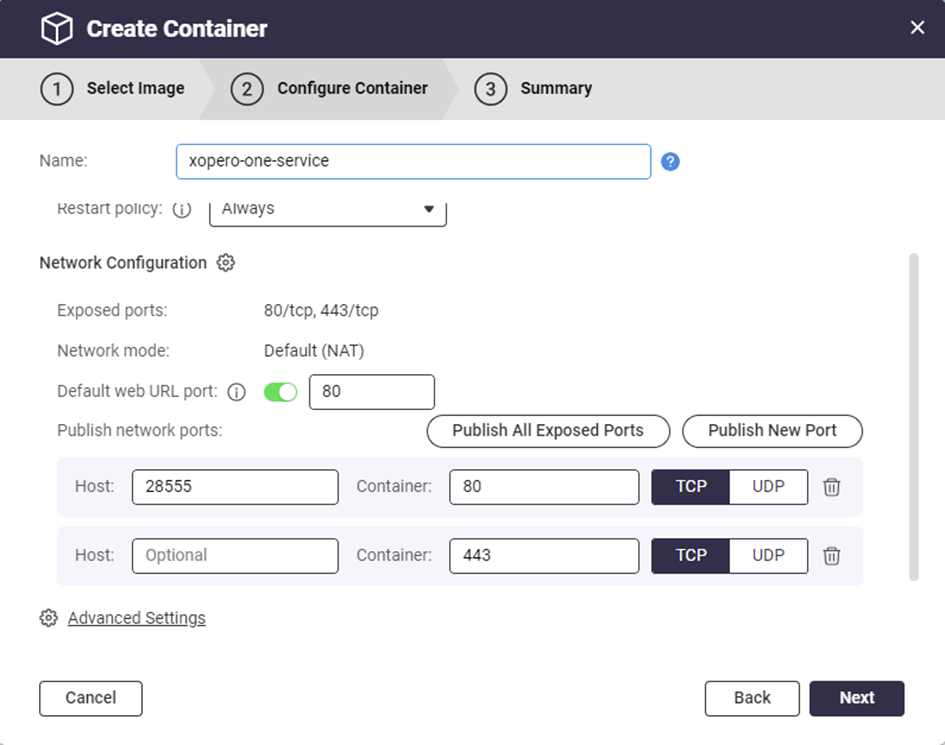
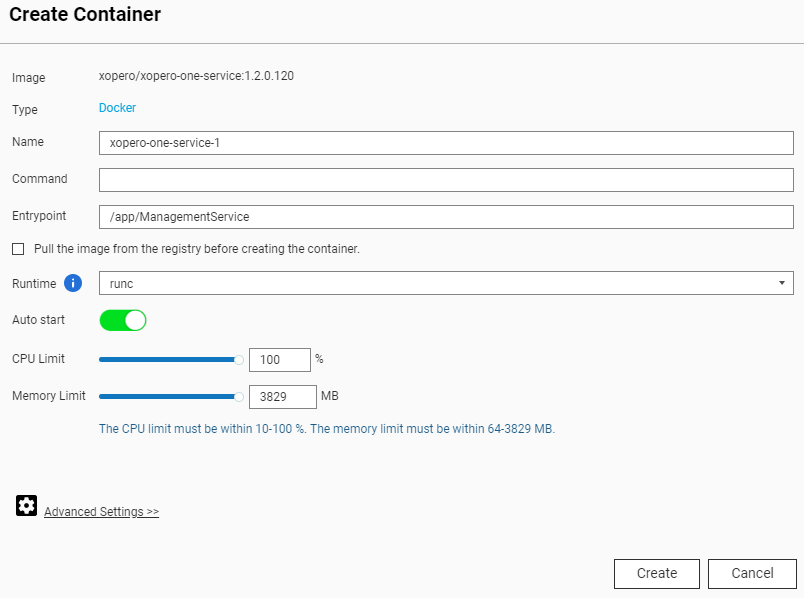
<figure><img src="https://content.gitbook.com/content/0CBTl43C3OO6ySL1DJ6k/blobs/OKO0ZLiTVOUhJrfpyyo2/image.png" alt="Selecting Container Station"><figcaption></figcaption></figure>

2. Download the **Container Station** application. Once downloaded, open the app and select the path you'll be using as your **Docker** container data directory.
3. Click **Start Now** to proceed.

***

## Deployment <a href="#dep-qnap2" id="dep-qnap2"></a>

1. Open the **Container Station** application and click ➕ **Create** in the left-hand side menu.
2. Copy and paste <kbd>xopero/xopero-one-service</kbd> in the search field and hit **Enter** to search for **XMS Docker** image (it should be the first search result in **Docker Hub** tab).&#x20;
3. Click the **Install** button next to the **Docker** image to start the container creation process.

<figure><img src="https://319733277-files.gitbook.io/~/files/v0/b/gitbook-x-prod.appspot.com/o/spaces%2F0CBTl43C3OO6ySL1DJ6k%2Fuploads%2FkjmkPaSErUg1yN87Fg7v%2Fimage.png?alt=media&amp;token=112c8597-d4bf-4af3-8ae5-c04097609ffb" alt=""><figcaption></figcaption></figure>

4. Select the latest image version and click **Next** to continue.

<figure><img src="https://content.gitbook.com/content/0CBTl43C3OO6ySL1DJ6k/blobs/7FmqYtjsRFSLkdqOLzhv/image.png" alt="Selecting Xopero ONE version"><figcaption></figcaption></figure>

5. In the **Create Container** window, configure the **Xopero ONE Docker** container.

> **Name:** set a custom name for the container
>
> **Auto start:** defines if the container should startup automatically (i.e., in case of **QNAP** restart)
>
> **CPU Limit:** allows you to set the CPU percentage usage available for the container
>
> **Memory Limit:** RAM memory allocated to the container

<figure><img src="https://content.gitbook.com/content/0CBTl43C3OO6ySL1DJ6k/blobs/n6HAsts9iWCVKDtelc44/image.png" alt="Creating container"><figcaption></figcaption></figure>

6. Scroll down a little and click the ⚙️ **Advanced Settings>>**&#x20;
7. In the ⚙️ **Advanced Settings>>** go to **Network** and click the **Add** button on the right. Enter a port number in the **Host** field under the **Port Forwarding** section— this will be the port used to connect to **Xopero ONE** service (the recommended, default port number is **28555**).

<figure><img src="https://content.gitbook.com/content/0CBTl43C3OO6ySL1DJ6k/blobs/HAerPEihtpiIBFgXI6vF/image.png" alt="Creating contener - network tab"><figcaption></figcaption></figure>

8. Click the **Create** button— this will display the setup summary. Double-check your configuration and click **OK** to create the container.

<figure><img src="https://content.gitbook.com/content/0CBTl43C3OO6ySL1DJ6k/blobs/pWSkDM0N0nAvBxRXlhHU/image.png" alt="Summary window"><figcaption></figcaption></figure>

9. Once the container creation process is completed, your new container will be available in the **Container Station** application (under **Container** menu option).

<figure><img src="https://content.gitbook.com/content/0CBTl43C3OO6ySL1DJ6k/blobs/IITdIgKgP6c9NsXNCgQf/image.png" alt="View on running container with Xopero ONE"><figcaption></figcaption></figure>

10. Connect to **Xopero ONE Management Service** by launching it via **Container Station**, or using your web URL address in the following format:

> <kbd>[http://QNAPaddress:port](https://helpcenter.xopero.com/xopero-one-en/deployment-and-configuration/xopero-one-management-service-xms/http:/QNAPaddress:port)</kbd>

11. To finish the **XMS** setup, create a new administrative account, provide the license code, and select data to protect.
    {% endtab %}

{% tab title="Synology NAS" %}

<p align="center"><a href="#pre-syno" class="button primary" data-icon="circle-1">Prerequisites</a>    <a href="#dep-syno" class="button primary" data-icon="circle-2">Deployment</a></p>

## Prerequisites <a href="#pre-syno" id="pre-syno"></a>

**Synology** must meet the following requirements:

* [x] x86 or x64 CPU (ARM is <mark style="color:red;">**not supported**</mark>)
* [x] minimum 2 GB of RAM
* [x] **Docker** app from the **Package Center**

***

## Deployment  <a href="#dep-syno" id="dep-syno"></a>

1. Open the **Docker Hub**, navigate to the **Container** menu, and click **Create** button.&#x20;
2. Expand the **Image** section and select **Add image**. Then, search for <kbd>xopero/xopero-one-service</kbd>. Once located, select the image, click **Download**, and choose the version tagged as <mark style="color:red;">**latest**</mark>. Confirm the selection to proceed.

<figure><img src="https://319733277-files.gitbook.io/~/files/v0/b/gitbook-x-prod.appspot.com/o/spaces%2F0CBTl43C3OO6ySL1DJ6k%2Fuploads%2FOzeLrGdmaZ9w1RDESbgq%2Fimage.png?alt=media&amp;token=bbb648de-fc81-4719-87b9-f8e12fcd2bcf" alt="" width="546"><figcaption></figcaption></figure>

3. Once you download the image, select it from the **Image** drop-down menu in **General Settings**. Next, define a name for the container and enter it in the **Container Name** field. Configure container resource limits if necessary.&#x20;
4. Check the **Enable auto-restart** checkbox to ensure the container automatically restarts when the device reboots, and proceed to the next step.

<figure><img src="https://319733277-files.gitbook.io/~/files/v0/b/gitbook-x-prod.appspot.com/o/spaces%2F0CBTl43C3OO6ySL1DJ6k%2Fuploads%2FoQOYZdENtkGiwwhUwsmV%2Fimage.png?alt=media&amp;token=366c8f05-8e17-4e95-9e81-26b85877ec10" alt="" width="550"><figcaption></figcaption></figure>

5. In **Volume Settings**, click ➕ **Add Folder** button. To ensure data persistence during container updates or maintenance operations, mount the management databases to an external directory. The databases are stored in **/app/Xopero** and should be mapped to a designated location outside the container to prevent data loss or inconsistencies.

<figure><img src="https://319733277-files.gitbook.io/~/files/v0/b/gitbook-x-prod.appspot.com/o/spaces%2F0CBTl43C3OO6ySL1DJ6k%2Fuploads%2F7tIAmA2akNGRz2oFz7sz%2Fimage.png?alt=media&amp;token=b3f61ca3-6479-4f2c-b89f-88fc23a3c04c" alt=""><figcaption></figcaption></figure>

6. In the **Environment** section, define the required variables:

> **ASPNETCORE\_URLS:** management service ports for http and https protocol (i.e., **http\://+:**<mark style="color:red;">**PORT\_NUMBER**</mark>**;https\://+:**<mark style="color:red;">**PORT\_NUMBER**</mark>)

{% hint style="warning" %}
The management console is available on port **28555** for the encrypted protocol (**https**), and on port **28556** for the unencrypted (**http**) protocol.
{% endhint %}

<figure><img src="https://319733277-files.gitbook.io/~/files/v0/b/gitbook-x-prod.appspot.com/o/spaces%2F0CBTl43C3OO6ySL1DJ6k%2Fuploads%2F7dgg0O97oqZxhpJBqpAM%2Fimage.png?alt=media&amp;token=0f97e8ee-a795-4af6-b9e8-840c14113d34" alt=""><figcaption></figcaption></figure>

7. Go to **Advanced Settings**. Select **bridge** from the **Network Name** drop-down menu in the **Network** tab to enable the container to share the same network namespace as the container's host, then select **Use the same network as Docker Host** checkbox at the bottom.

<figure><img src="https://319733277-files.gitbook.io/~/files/v0/b/gitbook-x-prod.appspot.com/o/spaces%2F0CBTl43C3OO6ySL1DJ6k%2Fuploads%2FEpM2Ug8a2eFMGShLzD2t%2Fimage.png?alt=media&amp;token=9ac4f04b-52a2-4556-8c09-cda80fc0486f" alt=""><figcaption></figcaption></figure>

8. Confirm the configuration and click **Next**. In **Summary**, double-check the settings and hit **Done** to finish the container creation process.

<figure><img src="https://319733277-files.gitbook.io/~/files/v0/b/gitbook-x-prod.appspot.com/o/spaces%2F0CBTl43C3OO6ySL1DJ6k%2Fuploads%2FMSmM2wAh3Y0pIgfNat6x%2Fimage.png?alt=media&amp;token=3fcac50b-87c6-4877-b6e6-98b5ebce9f93" alt="" width="551"><figcaption></figcaption></figure>

9. Once you've created the container, you can connect to your **XMS** using one of the following addresses:

> https\://<mark style="color:red;">**yourSynologyAddress**</mark>:28555 (i.e., https\://<mark style="color:red;">**192.168.0.100**</mark>:28555)
>
> http\://<mark style="color:red;">**yourSynologyAddress**</mark>:28556 (i.e., http\://<mark style="color:red;">**192.168.0.100**</mark>:28556)
> {% endtab %}
> {% endtabs %}


# Installation with an SSL certificate

Learn how to connect to Xopero ONE Management Service (XMS) admin panel via encrypted HTTPS protocol.

## Kestrel configuration <a href="#using_your_own_ssl_certificate" id="using_your_own_ssl_certificate"></a>

{% hint style="warning" %}
Remember that once you modify the XMS settings you <mark style="color:$danger;">**must**</mark> switch the agent's communication protocol to HTTPS for the **Xopero ONE Backup\&Recovery** service to work correctly.
{% endhint %}

{% hint style="info" %}
You can find more information about **Kestrel** configuration [here](https://learn.microsoft.com/en-us/aspnet/core/fundamentals/servers/kestrel/endpoints?view=aspnetcore-5.0).
{% endhint %}

{% stepper %}
{% step %}
Open `appsettings.json` file located in **Xopero ONE Management Service** installation directory.
{% endstep %}

{% step %}
Find `commented_out_Kestrel` line.

{% code title="Default commented\_out\_Kestrel line:" overflow="wrap" %}

```json
"commented_out_Kestrel": {
"Endpoints": {
"Http": {
"Url": "http://*:5000"
}
}
```

{% endcode %}
{% endstep %}

{% step %}
Modify the following code lines— erase `commented_out_` prefix and add the HTTPS configuration as follows:

{% code title="Modified commented\_out\_Kestrel section:" overflow="wrap" %}

```json
"Kestrel": {
"Endpoints": {
"Http": {
"Url": "http://*:5000"
},
"Https": {
"Url": "https://*:5001",
"Certificate":{
"Path": "<.pfx file path>",
"Password": "<certificate password>"
}}}}}
```

{% endcode %}

> **Path:** path to the .pfx fil&#x65;**\***&#x20;
>
> **Password:** certificate password
>
> **\***<mark style="color:red;">**IMPORTANT!**</mark> Remember to use double slash— if you're keeping the certificate in **C:**<mark style="color:red;">**\\**</mark>**cert.pfx** directory, the path should be entered as **C:**<mark style="color:red;">**\\\\**</mark>**cert.pfx** instead.
> {% endstep %}
> {% endstepper %}

***

## Agent configuration

{% hint style="warning" %}
Modifying the IP address or the protocol (http, https) of the **Management Service** will change the active agent's status to <mark style="color:$danger;">**offline**</mark>. It will reconnect once you switch the agent's protocol to HTTPS.
{% endhint %}

{% stepper %}
{% step %}
Go to your **Xopero ONE Agent** installation directory and open `config.json` file.

Default location of the `config.json` file is:

1. <img src="https://319733277-files.gitbook.io/~/files/v0/b/gitbook-x-prod.appspot.com/o/spaces%2F0CBTl43C3OO6ySL1DJ6k%2Fuploads%2F3ErES7KntIvojgXx3XIt%2Ficons8-windows-client-50.png?alt=media&amp;token=de57dcb5-3bbe-412e-bc8b-a7c636348846" alt="" data-size="line"> **For Windows:** <kbd>C:\Program Files\Xopero ONE Backup\&Recovery Agent</kbd>
2. <img src="https://319733277-files.gitbook.io/~/files/v0/b/gitbook-x-prod.appspot.com/o/spaces%2F0CBTl43C3OO6ySL1DJ6k%2Fuploads%2FD3vvj0qfjzaOHm7cMMwf%2Ficons8-linux-server-50.png?alt=media&amp;token=8bda9533-5a47-4002-b508-2d5ed66befa3" alt="" data-size="line"> **For Linux:** <kbd>/opt/XoperoONEBackupAgent/</kbd>
   {% endstep %}

{% step %}
Change the `ServiceUrl` value from **HTTP** to **HTTPS**.

{% hint style="success" %}
You can edit `config.json` with a simple text editor (i.e., **Notepad**, **Notepad++**).
{% endhint %}

<figure><img src="https://319733277-files.gitbook.io/~/files/v0/b/gitbook-x-prod.appspot.com/o/spaces%2F0CBTl43C3OO6ySL1DJ6k%2Fuploads%2FvOO7hXdGyriUlyglDlwV%2Fimage.png?alt=media&amp;token=e300945d-2e5e-4e5d-a7d4-ff1017f15035" alt=""><figcaption><p><em>Example of <code>config.json</code> file opened in <strong>Notepad++</strong>.</em></p></figcaption></figure>
{% endstep %}

{% step %}
Once the value is changed, the agent will come back online.
{% endstep %}
{% endstepper %}


# Post-installation actions

This article contains information about how to proceed after installing the Xopero ONE Management Service (XMS) component.

## Accessing XMS in on-prem deployment model

To access the on-premise **Xopero ONE Management Service**, connect to the device which **XMS** console is installed on, using the following address:

```
ipAddress:port
```

> **`ipAddress`** - the IP address of the device with **XMS** installed on
>
> **`port`** - port defined during installation process— by default, **Xopero ONE** uses **28555**

If your **Management Service** opened successfully, you can proceed with the below steps (creating your root account, adding the license code, logging in, running your first setup).

***

## Xopero ONE first configuration

{% stepper %}
{% step %}

#### Create the administrator account.

When you launch the **Management Service** for the first time, you will be prompted to create an administrator account. To register a valid admin account you have to provide your **login** (it has to be a **valid email address**) and create a **password** compliant with the **Xopero** password policy.

Once you complete the form click **Register** to proceed to the next step.

<figure><img src="https://content.gitbook.com/content/0CBTl43C3OO6ySL1DJ6k/blobs/EYzIzSMWDO8APeA3y1Ee/gs1.png" alt=""><figcaption></figcaption></figure>
{% endstep %}

{% step %}

#### Add the license key. <a href="#licence_code" id="licence_code"></a>

Having the administrator account registered, you will then be asked to provide a license key (which you should've received via email upon registering for **Xopero ONE**)— this is the last step before the **Xopero ONE** system becomes operational and ready to use.\
\
Once done, click **Proceed** to go to the system setup.

<figure><img src="https://content.gitbook.com/content/0CBTl43C3OO6ySL1DJ6k/blobs/mINCVrfDbVhlE1J5t10n/gs2.png" alt=""><figcaption></figcaption></figure>
{% endstep %}

{% step %}

#### Run your first setup. <a href="#first_run" id="first_run"></a>

In the initial setup you should add your first device which you want to use to set up the storage. Then, you have to install the backup agent and activate it in **Xopero** system.

{% hint style="info" %}
Browse [**Xopero ONE agent**](/xopero-one-en/deployment-and-configuration/xopero-one-agent) category to find more information about agent installation.
{% endhint %}

Next, add the storage where you want to store your data. As **Xopero ONE** is a multi-storage system, you can add different storages from different sources and use both local storage (i.e., **SMB**, **NFS**) and cloud solutions (i.e., **Wasabi**, **Amazon**, etc.).

{% hint style="info" %}
Learn more about storages in [STORAGE (BACKUP DESTINATION) OVERVIEW & SETUP)](/xopero-one-en/storage/overview) section.
{% endhint %}

With all system components initialized, you can start protecting your data and create backup plans.

<figure><img src="https://content.gitbook.com/content/0CBTl43C3OO6ySL1DJ6k/blobs/POcx1uS9hEpWeOhL9y0c/gs3.png" alt="" width="563"><figcaption></figcaption></figure>
{% endstep %}
{% endstepper %}


# Xopero ONE Agent

<table data-view="cards"><thead><tr><th data-type="content-ref"></th><th data-hidden data-card-cover data-type="files"></th></tr></thead><tbody><tr><td><a href="/xopero-one-en/deployment-and-configuration/xopero-one-agent/installation-on-windows-servers-and-workstations">Installation on Windows servers and workstations</a></td><td><a href="https://319733277-files.gitbook.io/~/files/v0/b/gitbook-x-prod.appspot.com/o/spaces%2F0CBTl43C3OO6ySL1DJ6k%2Fuploads%2Fd0DSGoIDRk8GTmGOBS9t%2Ft%C5%82o%20X%201200x628.png?alt=media&amp;token=38366101-520e-4556-8877-022fbe92c8d2">tło X 1200x628.png</a></td></tr><tr><td><a href="/xopero-one-en/deployment-and-configuration/xopero-one-agent/installation-on-linux-and-macos">Installation on Linux &amp; MacOS</a></td><td><a href="https://319733277-files.gitbook.io/~/files/v0/b/gitbook-x-prod.appspot.com/o/spaces%2F0CBTl43C3OO6ySL1DJ6k%2Fuploads%2Fd0DSGoIDRk8GTmGOBS9t%2Ft%C5%82o%20X%201200x628.png?alt=media&amp;token=38366101-520e-4556-8877-022fbe92c8d2">tło X 1200x628.png</a></td></tr><tr><td><a href="/xopero-one-en/deployment-and-configuration/xopero-one-agent/installation-within-a-docker-container">Installation within a Docker container</a></td><td><a href="https://319733277-files.gitbook.io/~/files/v0/b/gitbook-x-prod.appspot.com/o/spaces%2F0CBTl43C3OO6ySL1DJ6k%2Fuploads%2Fd0DSGoIDRk8GTmGOBS9t%2Ft%C5%82o%20X%201200x628.png?alt=media&amp;token=38366101-520e-4556-8877-022fbe92c8d2">tło X 1200x628.png</a></td></tr><tr><td><a href="/xopero-one-en/deployment-and-configuration/xopero-one-agent/agent-configuration">Agent configuration</a></td><td><a href="https://319733277-files.gitbook.io/~/files/v0/b/gitbook-x-prod.appspot.com/o/spaces%2F0CBTl43C3OO6ySL1DJ6k%2Fuploads%2Fd0DSGoIDRk8GTmGOBS9t%2Ft%C5%82o%20X%201200x628.png?alt=media&amp;token=38366101-520e-4556-8877-022fbe92c8d2">tło X 1200x628.png</a></td></tr></tbody></table>


# Installation on Windows servers and workstations

{% tabs fullWidth="false" %}
{% tab title="WS 2008R2 & WS 2012" %}

<p align="center"><a href="#installer_download" class="button primary" data-icon="circle-1">Installer download</a>    <a href="#installation_process" class="button primary" data-icon="circle-2">Installation process</a></p>

## Installer download <a href="#installer_download" id="installer_download"></a>

1. Login to **Xopero ONE Management Service** (**XMS**) using a web browser, then go **Settings** > **Advanced** > **Workers** and click the **Download agent** button.
2. The **Download agent** window will open— scroll down to the **Server** section and click **Windows Server >** button.

<figure><img src="https://319733277-files.gitbook.io/~/files/v0/b/gitbook-x-prod.appspot.com/o/spaces%2F0CBTl43C3OO6ySL1DJ6k%2Fuploads%2FHJ5I1OKMhCTNZ3M3eZmk%2Fimage.png?alt=media&amp;token=961addb9-54ae-4e8c-b573-6cb60601f5b2" alt=""><figcaption></figcaption></figure>

3. Select **WS 2012** or **WS 2008 R2** to download a dedicated installer.

<figure><img src="https://319733277-files.gitbook.io/~/files/v0/b/gitbook-x-prod.appspot.com/o/spaces%2F0CBTl43C3OO6ySL1DJ6k%2Fuploads%2FzyjsNUJ07Tv8Mw0FoRtW%2Fimage.png?alt=media&amp;token=0e2f81e0-06e6-4bfb-b0b0-4c1bd310fb58" alt=""><figcaption></figcaption></figure>

4. The download will start automatically; additionally, an **Installation** tab with a step-by-step installation instruction will pop-up in **XMS**.

<figure><img src="https://content.gitbook.com/content/0CBTl43C3OO6ySL1DJ6k/blobs/JRXM9IF27PD6WhlfWslk/image.png" alt="Downloading a installator"><figcaption></figcaption></figure>

5. Under the **Install** section you will see the address combined a port — save it for later as you will have to use it during agent installation.

<figure><img src="https://content.gitbook.com/content/0CBTl43C3OO6ySL1DJ6k/blobs/QGtXCI78u3OhAT4BdpAY/image.png" alt="Service&#x27;s IP address and port"><figcaption></figcaption></figure>

6. Once the installation wizard is downloaded, you can move to the installation process.

***

## Installation process <a href="#installation_process" id="installation_process"></a>

1. Open and run the downloaded setup wizard. Click **Next** to begin the installation process.

<figure><img src="https://content.gitbook.com/content/0CBTl43C3OO6ySL1DJ6k/blobs/nziV8XR7O8KTWodW5Et9/image.png" alt="Installation wizard window"><figcaption></figcaption></figure>

2. Read and accept the **End-User License Agreement**, then move to the next step.

<figure><img src="https://content.gitbook.com/content/0CBTl43C3OO6ySL1DJ6k/blobs/1ubaNM793frvpRpousB1/image.png" alt="End-user agreement"><figcaption></figcaption></figure>

3. Choose the installation directory for the **Xopero ONE** client.

<figure><img src="https://content.gitbook.com/content/0CBTl43C3OO6ySL1DJ6k/blobs/9TRH0vsRCilWbjOgTe9f/image.png" alt="Choosing installation path"><figcaption></figcaption></figure>

4. Paste the previously copied address to the **Address** field and hit **Next** to continue.

<figure><img src="https://content.gitbook.com/content/0CBTl43C3OO6ySL1DJ6k/blobs/2XElcNLim8NLcMAtWkma/image.png" alt="Setting Management Service URL"><figcaption></figcaption></figure>

5. Click **Install** to start the installation.

<figure><img src="https://content.gitbook.com/content/0CBTl43C3OO6ySL1DJ6k/blobs/YT4d9vZAUfV2OZS2vEUN/image.png" alt="Installation of Xopero ONE"><figcaption></figcaption></figure>

6. Once the wizard finishes installation, click the **Finish** button to close it.

<figure><img src="https://content.gitbook.com/content/0CBTl43C3OO6ySL1DJ6k/blobs/iz8tj1HzirWimyYOsDYL/image.png" alt="Finished installation"><figcaption></figcaption></figure>

7. You can now activate your device in **Xopero ONE Management Service**.
   {% endtab %}

{% tab title="WS & WS 2012 R2+" %}

<p align="center"><a href="#installer-download-serv" class="button primary" data-icon="circle-1">Installer download</a>    <a href="#installation_process_serv" class="button primary" data-icon="circle-2">Installation process</a></p>

## Installer download <a href="#installer-download-serv" id="installer-download-serv"></a>

1. Login to **Xopero ONE Management Service** (**XMS**) using a web browser, then go **Settings** > **Advanced** > **Workers** and click the **Download agent** button.
2. The **Download agent** window will open— scroll down to the **Server** section and click **Windows Server >** button.
<figure><img src="https://319733277-files.gitbook.io/~/files/v0/b/gitbook-x-prod.appspot.com/o/spaces%2F0CBTl43C3OO6ySL1DJ6k%2Fuploads%2FJwAgWF0FEGgC3e4h8bBl%2Fimage.png?alt=media&amp;token=18146942-3954-433d-b1be-ee7301f659ae" alt=""><figcaption></figcaption></figure>

3. Select **WS 2012 R2 OR NEWER** to download a dedicated installer.

<figure><img src="https://content.gitbook.com/content/0CBTl43C3OO6ySL1DJ6k/blobs/Qd6ocEn4K3BE5vr7kLZ0/image.png" alt="Choosing server version"><figcaption></figcaption></figure>

4. The download will start automatically; additionally, an **Installation** tab with a step-by-step installation instruction will pop-up in **XMS**.

<figure><img src="https://content.gitbook.com/content/0CBTl43C3OO6ySL1DJ6k/blobs/qmENZMuZP9x23cCFdJoX/image.png" alt="Download link"><figcaption></figcaption></figure>

5. Under the **Install** section you will see the address combined a port— save it for later as you will have to use it during agent installation.

<figure><img src="https://content.gitbook.com/content/0CBTl43C3OO6ySL1DJ6k/blobs/g06dyLSMOCdhvPskKlos/image.png" alt="Service&#x27;s IP address and port"><figcaption></figcaption></figure>

***

## Installation process <a href="#installation_process_serv" id="installation_process_serv"></a>

1. Open and run the downloaded setup wizard. Click **Next** to begin the installation process.

<figure><img src="https://content.gitbook.com/content/0CBTl43C3OO6ySL1DJ6k/blobs/nziV8XR7O8KTWodW5Et9/image.png" alt="Installation wizard window"><figcaption></figcaption></figure>

2. Read and accept the **End-User License Agreement**, then move to the next step.

<figure><img src="https://content.gitbook.com/content/0CBTl43C3OO6ySL1DJ6k/blobs/1ubaNM793frvpRpousB1/image.png" alt="End-user agreement"><figcaption></figcaption></figure>

3. Choose the installation directory for the **Xopero ONE** client.

<figure><img src="https://content.gitbook.com/content/0CBTl43C3OO6ySL1DJ6k/blobs/9TRH0vsRCilWbjOgTe9f/image.png" alt="Choosing installation path"><figcaption></figcaption></figure>

4. Paste the previously copied address to the **Address** field and hit **Next** to continue.

<figure><img src="https://content.gitbook.com/content/0CBTl43C3OO6ySL1DJ6k/blobs/2XElcNLim8NLcMAtWkma/image.png" alt="Setting Management Service URL"><figcaption></figcaption></figure>

5. Click **Install** to start the installation.

<figure><img src="https://content.gitbook.com/content/0CBTl43C3OO6ySL1DJ6k/blobs/YT4d9vZAUfV2OZS2vEUN/image.png" alt="Installation of Xopero ONE"><figcaption></figcaption></figure>

6. Once the wizard finishes installation, click the **Finish** button to close it.

<figure><img src="https://content.gitbook.com/content/0CBTl43C3OO6ySL1DJ6k/blobs/iz8tj1HzirWimyYOsDYL/image.png" alt="Finished installation"><figcaption></figcaption></figure>

7. You can now activate your device in **Xopero ONE Management Service**.
   {% endtab %}

{% tab title="MSI (mass deployment)" %}

## Installation process

1. Open **Active Directory** and create a new **Organizational Unit** on the domain controller under the **Active Directory Users and Computers** catalog.

<figure><img src="https://319733277-files.gitbook.io/~/files/v0/b/gitbook-x-prod.appspot.com/o/spaces%2F0CBTl43C3OO6ySL1DJ6k%2Fuploads%2Fxr2lEEf7TbO9BwIZ6Mz0%2Fimage.png?alt=media&amp;token=ef55f77a-582c-41d5-a59a-b66770e5405e" alt="" width="563"><figcaption></figcaption></figure>

2. Enter a custom name for the **Organizational Unit** and click **OK** to confirm.

<figure><img src="https://content.gitbook.com/content/0CBTl43C3OO6ySL1DJ6k/blobs/KYBAdDOT5YDNsznU8NQC/image.png" alt="giving a name to organization unit"><figcaption></figcaption></figure>

3. Transfer all devices you want to have the **Xopero ONE** agent installed on to the newly created **Organizational Unit**.

<figure><img src="https://content.gitbook.com/content/0CBTl43C3OO6ySL1DJ6k/blobs/9CVRUg88PVqprIFPrJMy/image.png" alt="transfering the computers to the organization unit" width="563"><figcaption></figcaption></figure>

4. Create a folder that will be **available on your network** to all computers that are to be covered by the installation policy of the **Xopero ONE** **agent**, and place the **.msi** installer in it.

{% hint style="info" %}
The **.msi** installer can be downloaded in **Xopero ONE Management Service** (**XMS**), in **Settings** > **Advanced** > **Workers** > **Download agent** > **Endpoints**.
{% endhint %}

5. Change access permissions of the folder created in the previous step. Right-click the folder and select **Properties**, then go to **Sharing** tab and click the **Advanced Sharing** button.

<figure><img src="https://319733277-files.gitbook.io/~/files/v0/b/gitbook-x-prod.appspot.com/o/spaces%2F0CBTl43C3OO6ySL1DJ6k%2Fuploads%2Fg0eIyuCUp3ZKybU95OX9%2Fimage.png?alt=media&amp;token=45489215-d327-4742-8c0e-23703e756b63" alt=""><figcaption></figcaption></figure>

6. Make sure the ✅**Share this folder** checkbox is checked and click **Apply** to save your settings.

<figure><img src="https://319733277-files.gitbook.io/~/files/v0/b/gitbook-x-prod.appspot.com/o/spaces%2F0CBTl43C3OO6ySL1DJ6k%2Fuploads%2FtcomTIeRYu5YU5XEhxL8%2Fimage.png?alt=media&amp;token=8d8467fd-2fe6-4261-a357-f761c8db724c" alt=""><figcaption></figcaption></figure>

7. Next, click the **Permissions** button under the **Comments** field and change user permissions for the folder.

> For domain adminstrators: **Full Control**\
> For authenticated users: **Read**

<figure><img src="https://319733277-files.gitbook.io/~/files/v0/b/gitbook-x-prod.appspot.com/o/spaces%2F0CBTl43C3OO6ySL1DJ6k%2Fuploads%2FJWj9tQDDFu4RK1qhHXhr%2Fimage.png?alt=media&amp;token=5464ee31-bb2b-44fe-a3c5-4acfa76a2e9d" alt=""><figcaption></figcaption></figure>

8. Open the **Group Policy Management** (**GPO**) window, find the OU created in step 1, right-click it, and select the **Create a GPO in this domain, and Link it here...** option from the drop-down menu.

<figure><img src="https://319733277-files.gitbook.io/~/files/v0/b/gitbook-x-prod.appspot.com/o/spaces%2F0CBTl43C3OO6ySL1DJ6k%2Fuploads%2F32PJZCbqZJa5fxx8ORpL%2Fimage.png?alt=media&amp;token=241aaac8-d143-4be2-a042-bba5a7f771c8" alt="" width="563"><figcaption></figcaption></figure>

9. Enter a custom name for your new group object and click **OK**.

<figure><img src="https://content.gitbook.com/content/0CBTl43C3OO6ySL1DJ6k/blobs/FMIlDV8x4zHiOJU9uvQO/image.png" alt="giving a name to GPO object"><figcaption></figcaption></figure>

10. Right-click the newly created rule and select **Edit...** from the drop-down menu.

<figure><img src="https://content.gitbook.com/content/0CBTl43C3OO6ySL1DJ6k/blobs/atynV3djiLNuHckgueAD/image.png" alt="edditing rule in Windows Server" width="563"><figcaption></figcaption></figure>

11. Expand **Computer Configuration** > **Policies** > **Software Settings** > **Software Installation** tabs. Inside **Software Installation**, right-click anywhere on the right side of the window and select **New** > **Package...** from the dropdown.

<figure><img src="https://319733277-files.gitbook.io/~/files/v0/b/gitbook-x-prod.appspot.com/o/spaces%2F0CBTl43C3OO6ySL1DJ6k%2Fuploads%2F4r1hZadO0LHPYRjYJlKg%2Fimage.png?alt=media&amp;token=d042c648-6e20-45ac-a1d7-21d54fbe7c45" alt="" width="563"><figcaption></figcaption></figure>

12. Find the shared directory in which you've placed the **.msi** installer in, then select and open it.

<figure><img src="https://content.gitbook.com/content/0CBTl43C3OO6ySL1DJ6k/blobs/VpVRDgwopOkpToEmRGg2/image.png" alt="choosing msi file" width="563"><figcaption></figcaption></figure>

13. In **Deploy Software** window select the **Advanced** deployment method and click **OK**.

<figure><img src="https://content.gitbook.com/content/0CBTl43C3OO6ySL1DJ6k/blobs/DNXttxLU6GStxGtQhgZ0/image.png" alt="editing msi file"><figcaption></figcaption></figure>

14. In **Xopero ONE Backup\&Recovery Agent Properties** window, switch to **Modifications** tab.

<figure><img src="https://content.gitbook.com/content/0CBTl43C3OO6ySL1DJ6k/blobs/hTqTdMzCPofyP8zf2TaT/image.png" alt="opening modifications tab" width="563"><figcaption></figcaption></figure>

15. Create an **.mst** file containing additional configuration for the installer — you can use **Orca** software available as part of the **Windows SDK**:

{% hint style="success" %}
Find how to install **Orca** on [Microsoft Learn website](https://helpcenter.gitprotect.io/).
{% endhint %}

1️⃣ Run Orca, go to **File** > **Open**, then find and select the **Xopero ONE** **agent** **.msi** installer.

2️⃣ Click **Transform** and select **New Transform** from the context menu. Find the **Property** table and double-click the **MANAGEMENT\_URL** row to edit it — change its value to your [**XMS**](#user-content-fn-1)[^1] IP address (in <mark style="color:red;">**XMSIPaddress:port**</mark> format, i.e., <kbd><https://123.4.5.6:28555></kbd>).

<figure><img src="https://content.gitbook.com/content/0CBTl43C3OO6ySL1DJ6k/blobs/gMfujhcZhZAWvQ1eAgvG/orca_property.png" alt=""><figcaption></figcaption></figure>

3️⃣ Additional parameters that can be edited are:

> **APPDIR** — **Xopero ONE** agent installation path

4️⃣ Next, click **Transform** > **Generate transform** and save the **.mst** file in the previously created shared directory.

16. Back to **Xopero ONE Backup\&Recovery Agent Properties** window, click **Add...** and specify the path to the **.mst** file corresponding to the **XMS** address (parameter for the **MSI** installer). Once done, click **OK** to confirm the changes and close the window.

<figure><img src="https://content.gitbook.com/content/0CBTl43C3OO6ySL1DJ6k/blobs/U3rx0V4KPZzuaX8agz02/image.png" alt="Completed modifications"><figcaption></figcaption></figure>

17. Once the **GPO** responsible for **MSI** installer distribution and deployment is successfully created, you can implement it on user computers covered by this policy in **Active Directory**— simply run **CMD** and use the following command:

```
gpupdate /force
```

18. After restarting the updated station, the **Xopero ONE** **agent** will be automatically installed with the parameter corresponding to the **XMS** address.
    {% endtab %}
    {% endtabs %}

To learn how to activate the agent in the Xopero management console, check the *Useful links and items* section.

## Useful links and items

{% content-ref url="/pages/sUUV69SpYVc3DM8CFnms" %}
[Agent configuration](/xopero-one-en/deployment-and-configuration/xopero-one-agent/agent-configuration)
{% endcontent-ref %}

[^1]: Xopero ONE Management Service


# Installation on Linux & MacOS

{% tabs %}
{% tab title="Linux" %}

<p align="center"><a href="#prerequisites" class="button primary" data-icon="circle-1">Prerequisites</a>    <a href="#agent_setup" class="button primary" data-icon="circle-2">Installation</a></p>

## Prerequisites

Prior to agent installation, check if your system is meets all the requirements.

{% content-ref url="/pages/sWnNuc32ePz2p4zZ0Rdz" %}
[System requirements](/xopero-one-en/xopero-one/system-requirements)
{% endcontent-ref %}

{% content-ref url="/pages/ZO1Ci3C1rUavK5WvO4ld" %}
[Supported platforms](/xopero-one-en/xopero-one/supported-platforms)
{% endcontent-ref %}

***

## Installation <a href="#agent_setup" id="agent_setup"></a>

1. Download the **agent** installer (bash script) to your **Linux** system and grant execute permission to the file owner (user or group) using the following `chmod` command:

{% hint style="info" %}
To download the agent installer, login to **Xopero ONE Management Service** using a web browser, then go to **Settings** > **Advanced** > **Workers** and click **Download agent** button. The **Download agent** window will open — click the appropriate agent version to download it.
{% endhint %}

```bash
chmod +x xoperoclient.sh
```

<figure><img src="https://content.gitbook.com/content/0CBTl43C3OO6ySL1DJ6k/blobs/oOCTxaEM8RrGJIwarNp9/Granting%20permission%20for%20installer.png" alt="Granting permission for installer"><figcaption></figcaption></figure>

2. Next, run the script using the following command:

```bash
./xoperoclient.sh or bash xoperoclient.sh
```

<figure><img src="https://content.gitbook.com/content/0CBTl43C3OO6ySL1DJ6k/blobs/iVrVqhrFVWo3Fa3DeLps/Running%20the%20installer.png" alt="Running the installer"><figcaption><p><em>Running the script along with <strong><code>sudo</code></strong> command</em></p></figcaption></figure>

{% hint style="warning" %}
The above script should be initiated using an account with administrative privileges — because of that it might be required to use the **`sudo`** command simultaneously (as in the above example).
{% endhint %}

3. Accept the **END-USER LICENSE AGREEMENT** to proceed.

<figure><img src="https://content.gitbook.com/content/0CBTl43C3OO6ySL1DJ6k/blobs/xy0zznRKgnzmvVO2oYrC/End-user%20agreement.png" alt="End-user agreement"><figcaption></figcaption></figure>

4. Next, enter the IP address in the **Address** field (including the protocol and port) and click **OK** to finish the installation. Your address can be found in **Xopero ONE Management Service** — the system will display it once you start downloading the **agent** installer.

<figure><img src="https://content.gitbook.com/content/0CBTl43C3OO6ySL1DJ6k/blobs/TQWFCat45S2nKLW7gxKt/Xopero%20ONE%20service%20URL%20example.png" alt="Xopero ONE service URL example"><figcaption></figcaption></figure>

5. Now that **Xopero ONE agent** is installed, you can activate it in the **Xopero ONE Management Service** (**XMS**) web panel and start protecting your data.
   {% endtab %}

{% tab title="MacOS" %}

<p align="center"><a href="#installation-mac" class="button primary" data-icon="circle-1">Installation</a>    <a href="#unattended-installation" class="button primary" data-icon="circle-2">Unattended installation</a>    <a href="#permissions-configuration" class="button primary" data-icon="circle-3">Permissions configuration</a></p>

## Installation <a href="#installation-mac" id="installation-mac"></a>

1. Download **Xopero ONE agent** installation wizard via XMS[^1] and run it.

{% hint style="info" %}
To download the **agent** installer, login to **Xopero ONE Management Service** using a web browser, then go to **Settings** > **Advanced** > **Workers** and click **Download agent** button. The **Download agent** window will open — click the appropriate **agent** version to download it.
{% endhint %}

2. Click **Continue** to proceed.

<figure><img src="https://319733277-files.gitbook.io/~/files/v0/b/gitbook-x-prod.appspot.com/o/spaces%2F0CBTl43C3OO6ySL1DJ6k%2Fuploads%2Fq3AOV7INHmyhXsKPfMgT%2Fimage.png?alt=media&amp;token=af28d44e-7f20-4ce1-889a-e7d92810fd1e" alt=""><figcaption></figcaption></figure>

3. Select **Continue** in the **Read Me** section.

<figure><img src="https://319733277-files.gitbook.io/~/files/v0/b/gitbook-x-prod.appspot.com/o/spaces%2F0CBTl43C3OO6ySL1DJ6k%2Fuploads%2FF74jxz61GMHi1YCdLLYH%2Fimage.png?alt=media&amp;token=2e1489fc-3ceb-40bb-ae0f-9948a36df2ca" alt=""><figcaption></figcaption></figure>

4. Read the **END-USER LICENSE AGREEMENT** and hit **Continue** to accept it.

<figure><img src="https://319733277-files.gitbook.io/~/files/v0/b/gitbook-x-prod.appspot.com/o/spaces%2F0CBTl43C3OO6ySL1DJ6k%2Fuploads%2Ftnj0iN56cGNH4NxCEkoy%2Fimage.png?alt=media&amp;token=e8007114-8348-4aed-befe-6f8665fc0d2d" alt=""><figcaption></figcaption></figure>

5. Hit **Agree** to accept the terms of the software license agreement.

<figure><img src="https://319733277-files.gitbook.io/~/files/v0/b/gitbook-x-prod.appspot.com/o/spaces%2F0CBTl43C3OO6ySL1DJ6k%2Fuploads%2FYODCWY5DUF2WcMUX4aUH%2Fimage.png?alt=media&amp;token=61f9ee5c-465b-4bc4-8b01-5ed8fe6554c8" alt=""><figcaption></figcaption></figure>

6. Change the installation directory if needed and click **Install** to begin the installation.

<figure><img src="https://319733277-files.gitbook.io/~/files/v0/b/gitbook-x-prod.appspot.com/o/spaces%2F0CBTl43C3OO6ySL1DJ6k%2Fuploads%2FN09gzy0yAgs65Mm1Nt3X%2Fimage.png?alt=media&amp;token=fc0adb23-1da6-4e76-b45e-1436eadc10a4" alt=""><figcaption></figcaption></figure>

7. During the installation process, the creator will ask you for the address of your XMS[^1]— define it in this step.

<figure><img src="https://319733277-files.gitbook.io/~/files/v0/b/gitbook-x-prod.appspot.com/o/spaces%2F0CBTl43C3OO6ySL1DJ6k%2Fuploads%2FzQC9ciLw9mUyuPHBiFEP%2Fimage.png?alt=media&amp;token=39a6a5f8-148c-4892-86c8-ae7d73e9ab17" alt=""><figcaption></figcaption></figure>

8. Click **OK** to confirm your configuration.
9. The **Xopero ONE** agent has been successfully installed— you can close the installation wizard.

<figure><img src="https://319733277-files.gitbook.io/~/files/v0/b/gitbook-x-prod.appspot.com/o/spaces%2F0CBTl43C3OO6ySL1DJ6k%2Fuploads%2FmLK8ND580zVjWgGvEGba%2Fimage.png?alt=media&amp;token=b7d610e8-467a-4db6-b503-68e8bfba52e4" alt=""><figcaption></figcaption></figure>

***

## Unattended installation

If you don't want to use the installation wizard, you can choose the unattended installation option.

1. Download the `xoperoclient.pkg` file to your device.

{% hint style="info" %}
To download the **agent** installer, login to **Xopero ONE Management Service** using a web browser, then go to **Settings** > **Advanced** > **Workers** and click **Download agent** button. The **Download agent** window will open — click the appropriate **agent** version to download it.
{% endhint %}

2. Run the following command in **macOS** terminal (**Applications** > **Utilities** > **Terminal**):

{% code overflow="wrap" %}

```bash
sudo /bin/launchctl setenv "XOPERO_INSTALLER_SERVER_ADDRESS_CONFIG" "https://XMS_adress::28555>" && sudo installer -pkg <pkg_file_location> -target /; sudo /bin/launchctl unsetenv "XOPERO_INSTALLER_SERVER_ADDRESS_CONFIG"
```

{% endcode %}

> **‼️Command overview:**
>
> {% code title="Setting the environment variable with your Xopero ONE Management Service IP address and default port" overflow="wrap" %}
>
> ```bash
> sudo /bin/launchctl setenv "XOPERO_INSTALLER_SERVER_ADDRESS_CONFIG" "https://<XMS_adress::28555>"
> ```
>
> {% endcode %}
>
> {% code title="Launching the installer" overflow="wrap" %}
>
> ```bash
> sudo installer -pkg <pkg_file_location> -target /;
> ```
>
> {% endcode %}
>
> {% code title="Removing environment variables" overflow="wrap" %}
>
> ```bash
> sudo /bin/launchctl unsetenv "XOPERO_INSTALLER_SERVER_ADDRESS_CONFIG"
> ```
>
> {% endcode %}

***

## Permissions configuration

After installation, in a few steps you need to add the necessary permissions for the **Xopero** file.

1. Click on the **Mac** icon in the upper left corner and select **System Preferences...** from the drop-down menu.

<figure><img src="https://319733277-files.gitbook.io/~/files/v0/b/gitbook-x-prod.appspot.com/o/spaces%2F0CBTl43C3OO6ySL1DJ6k%2Fuploads%2F1NKr9uzwKhWHH2ZDFOpo%2Fimage.png?alt=media&amp;token=4955ec47-f982-4bb5-b9e0-1304997e81b3" alt=""><figcaption></figcaption></figure>

2. Next, go to **Security & Privacy**.

<figure><img src="https://319733277-files.gitbook.io/~/files/v0/b/gitbook-x-prod.appspot.com/o/spaces%2F0CBTl43C3OO6ySL1DJ6k%2Fuploads%2FwRleX13WwnWXog4Rfr2b%2Fimage.png?alt=media&amp;token=23d9c046-01dc-4a03-aabb-307269f27753" alt="" width="517"><figcaption></figcaption></figure>

3. Navigate to the **Privacy** tab, then select **Full Disk Access** from the menu on the left.

<figure><img src="https://319733277-files.gitbook.io/~/files/v0/b/gitbook-x-prod.appspot.com/o/spaces%2F0CBTl43C3OO6ySL1DJ6k%2Fuploads%2FrVviTndret1ANHh5gmfQ%2Fimage.png?alt=media&amp;token=9604ac14-e860-49b2-9449-1996c5a04024" alt="" width="515"><figcaption></figcaption></figure>

4. Add **Xopero.Device.App.app** to the list.

<figure><img src="https://319733277-files.gitbook.io/~/files/v0/b/gitbook-x-prod.appspot.com/o/spaces%2F0CBTl43C3OO6ySL1DJ6k%2Fuploads%2FO3fYAsYB5mxQfu37wASn%2FUntitled-3.png?alt=media&amp;token=a9b2df21-8cad-4914-894d-706469e05bfe" alt=""><figcaption></figcaption></figure>

5. Grant access to **Xopero.Device.App.app** to finish the configuration.

<figure><img src="https://319733277-files.gitbook.io/~/files/v0/b/gitbook-x-prod.appspot.com/o/spaces%2F0CBTl43C3OO6ySL1DJ6k%2Fuploads%2FSiPGbMGJXTXxNGkazcM7%2Fimage.png?alt=media&amp;token=f73dc90c-2e91-48ad-bc31-3b7a862ed198" alt="" width="563"><figcaption></figcaption></figure>
{% endtab %}
{% endtabs %}

To learn how to activate the agent in the Xopero management console, check the *Useful links and items* section.

## Useful links and items

{% content-ref url="/pages/sUUV69SpYVc3DM8CFnms" %}
[Agent configuration](/xopero-one-en/deployment-and-configuration/xopero-one-agent/agent-configuration)
{% endcontent-ref %}

[^1]: Xopero ONE Management Service


# Installation within a Docker container

{% hint style="info" %}
Agent service image is hosted on [the official Xopero profile on Docker Hub](https://hub.docker.com/r/xopero/xone-agent).
{% endhint %}

{% tabs %}
{% tab title="Docker" %}

## Deployment  <a href="#deployment" id="deployment"></a>

1. To install the **Xopero ONE** agent within a **Docker** container, use the images available on **Docker Hub**:

```docker
docker pull xopero/xone-agent:latest
```

2. Create a host directory for the **Xopero ONE** service container databases (which are located at `/app/Xopero` inside the container) to store databases outside the container:

```docker
mkdir -p /opt/xone-agent/data
```

3. Run the container with the correct volume mounting and environment variables using the following command:

```docker
docker run -v /host/path:/container/path -e ENV_VAR=value image_name
```

```docker
docker run -d \
  --name <container_name> \
  -e ManagementServiceUrl="<your_xopero_one_service_URL>" \
  -e XoperoOverriddenHostName="<device_name>" \
  -v /opt/xone-agent/data:/app/Xopero \
  --restart unless-stopped \
  xopero/xone-agent:latest
```

{% code title="Example" overflow="wrap" %}

```docker
docker run -d \
  --name xone-agent \
  -e ManagementServiceUrl="https://192.168.1.10:28555" \
  -e XoperoOverriddenHostName="Docker_agent" \
  -v /opt/xone-agent/data:/app/Xopero \
  --restart unless-stopped \
  xopero/xone-agent:latest
```

{% endcode %}

4. Check if the container works correctly by using the following command:

```docker
docker ps
```

5. Once all the above steps are completed, the agent will report to the **Xopero ONE Management Service** panel for activation.
   {% endtab %}

{% tab title="QNAP NAS (CS > 3.0)" %}

<p align="center"><a href="#prerequisites" class="button primary" data-icon="circle-1">Prerequisites</a>    <a href="#environment_setup" class="button primary" data-icon="circle-2">Environment setup</a>    <a href="#deployment-1" class="button primary" data-icon="circle-3">Deployment</a></p>

## Prerequisites <a href="#prerequisites" id="prerequisites"></a>

**QNAP** with:

* x86 or x64 CPU (<mark style="color:red;">**ARM is not supported**</mark>)
* minimum 2GB RAM
* **Container Station** app from **AppCenter**

***

## Environment setup <a href="#environment_setup" id="environment_setup"></a>

1. Download the **Container Station** app from the **App Center**.
2. Login to your **QNAP** web panel and open the **AppCenter** application. In **QNAP Store**, select **All Apps** and search for the **Container Station**.

<figure><img src="https://319733277-files.gitbook.io/~/files/v0/b/gitbook-x-prod.appspot.com/o/spaces%2F0CBTl43C3OO6ySL1DJ6k%2Fuploads%2F8ZsdAUzgnKVFEY91NIIK%2Fimage.png?alt=media&amp;token=afc165b2-8e63-493e-9f65-712c5d048218" alt=""><figcaption></figcaption></figure>

<figure><img src="https://319733277-files.gitbook.io/~/files/v0/b/gitbook-x-prod.appspot.com/o/spaces%2F0CBTl43C3OO6ySL1DJ6k%2Fuploads%2FbZ6ODYEwz0taq5KvteAS%2Fimage.png?alt=media&amp;token=109a768b-0295-41c1-a3ba-f80d09056347" alt=""><figcaption></figcaption></figure>

3. Download and open the application. Select the path that will be used as a directory for your **Docker** container data, and click **Start Now** to proceed.

***

## Deployment <a href="#deployment" id="deployment"></a>

1. Open the **Container Station** application, select the **Containers** tab, and click the **Create** button.

<figure><img src="https://content.gitbook.com/content/0CBTl43C3OO6ySL1DJ6k/blobs/iKl7ulXnwYYe189ZOVHC/image.png" alt=""><figcaption></figcaption></figure>

2. In **Image Configuration** choose the **Advanced mode** option. In the image type, select **Docker image**, and in the **Image** field, paste the following command:

```docker
xopero/xone-agent:latest
```

3. Ensure the **Try pulling image from the registry before creating the container** option is checked, and hit **Next**.

<figure><img src="https://319733277-files.gitbook.io/~/files/v0/b/gitbook-x-prod.appspot.com/o/spaces%2F0CBTl43C3OO6ySL1DJ6k%2Fuploads%2F0rXsrpVJUZBujRBie7xO%2Fimage.png?alt=media&amp;token=7f01c845-e1d4-47e8-b085-b6c55369b846" alt=""><figcaption></figcaption></figure>

4. Within the **Configure Container** tab, the form contains several fields, with the most crucial being:

> **Name** — here you can set a custom name for the container
>
> **Restart policy** — defines if the container will star automatically in case of, for example, **QNAP** restart

<figure><img src="https://319733277-files.gitbook.io/~/files/v0/b/gitbook-x-prod.appspot.com/o/spaces%2F0CBTl43C3OO6ySL1DJ6k%2Fuploads%2FREg6ID5mXee5zAG5ItHx%2Fimage.png?alt=media&amp;token=f55aa2c2-7e97-4b88-a92e-43267385c8d1" alt=""><figcaption></figcaption></figure>

5. In the **Configure Container** tab, navigate to ⚙️**Advanced Settings**.
6. Go to the **Environments** section and click **Add New Variable** to add new environment variables with the following values:

{% code title="ASPNETCORE\_URLS" overflow="wrap" %}

```docker
http://+:80
```

{% endcode %}

{% code title="DOTNET\_RUNNING\_IN\_CONTAINER" overflow="wrap" %}

```docker
true
```

{% endcode %}

{% code title="ManagementServiceUrl" overflow="wrap" %}

```docker
Xopero ONE Management Service address
```

{% endcode %}

{% hint style="warning" %}
Replace `Xopero ONE Management Service address` with your **Xopero ONE Management Service** addres&#x73;**\***.
{% endhint %}

**‼️\*ManagementServiceUrl** – your **Xopero ONE Management Service** (**XMS**) address in one of the following formats (depending on the **XMS** deployment model):

1. `http://ipaddress:port`, i.e., `http://192.168.0.1:28555`&#x20;
2. `https://XMSID.ads.xopero.com`, i.e., `https://a00b0dc0-0116-0000-0000-d0000028960e.ads.xopero.com`

{% code title="XoperoOverriddenHostName" %}

```docker
your custom QNAP container name
```

{% endcode %}

<figure><img src="https://319733277-files.gitbook.io/~/files/v0/b/gitbook-x-prod.appspot.com/o/spaces%2F0CBTl43C3OO6ySL1DJ6k%2Fuploads%2FirSBZNyl3gB7b9os8I5d%2Fimage.png?alt=media&amp;token=73fdb3a7-d5ab-4c6c-afab-5cd50b3f1a2b" alt="" width="563"><figcaption></figcaption></figure>

7. Click **Apply** to save your changes.
8. Navigate to **Storage** tab—here you can mount your **QNAP** volumes to the **Xopero ONE** agent docker container.

{% hint style="success" %}
You can mount multiple directories to the container using **Add Volume** button and repeating the operation.
{% endhint %}

{% hint style="info" %}
To back up data from your **QNAP** device, choose **Bind Mount Host Path** under **Add Volume** drop-down menu — it lets you specify which data the **Xopero ONE** container can access. Select a directory from the host and enter the path visible inside the container in the **Container** field.
{% endhint %}

<figure><img src="https://content.gitbook.com/content/0CBTl43C3OO6ySL1DJ6k/blobs/Xg7tcQCfeQkrAOQaLxXB/image.png" alt="" width="563"><figcaption></figcaption></figure>

<figure><img src="https://content.gitbook.com/content/0CBTl43C3OO6ySL1DJ6k/blobs/mV5611ffRmaBAtzwJN9L/image.png" alt="" width="563"><figcaption></figcaption></figure>

9. Next, double-check and confirm your settings, then click **Finish** to create the container.

<figure><img src="https://319733277-files.gitbook.io/~/files/v0/b/gitbook-x-prod.appspot.com/o/spaces%2F0CBTl43C3OO6ySL1DJ6k%2Fuploads%2FhmdsFeulUCLSmayGrusN%2Fimage.png?alt=media&amp;token=49ee60ca-5083-4780-936b-9bc527bf41bd" alt="" width="563"><figcaption></figcaption></figure>

10. **Container Station** will download the latest **Xopero ONE** image and create the container based on that image.

<figure><img src="https://319733277-files.gitbook.io/~/files/v0/b/gitbook-x-prod.appspot.com/o/spaces%2F0CBTl43C3OO6ySL1DJ6k%2Fuploads%2FUWyN5Azbs7oG999CmiPa%2Fimage.png?alt=media&amp;token=d6ccb543-f050-4ba2-8c68-ae4b131967c9" alt=""><figcaption></figcaption></figure>

11. Once the container creation process is completed, your new container will be visible under **Container** tab in **Container Station**.

<figure><img src="https://319733277-files.gitbook.io/~/files/v0/b/gitbook-x-prod.appspot.com/o/spaces%2F0CBTl43C3OO6ySL1DJ6k%2Fuploads%2F8UEPLRgpmlHyyk8NvRt0%2Fimage.png?alt=media&amp;token=4e8e5c7c-a087-46fb-be12-fb71a9b31a2d" alt=""><figcaption></figcaption></figure>

12. You can now connect to your **Xopero ONE Management Service** admin panel to activate the agent.
    {% endtab %}

{% tab title="QNAP NAS (CS < 3.0)" %}

<p align="center"><a href="#prerequisites-sec" class="button primary" data-icon="circle-1">Prerequisites</a>    <a href="#environment_setup-sec" class="button primary" data-icon="circle-2">Environment setup</a>    <a href="#deployment-sec" class="button primary" data-icon="circle-3">Deployment</a></p>

## Prerequisites <a href="#prerequisites-sec" id="prerequisites-sec"></a>

**QNAP** with:

* x86 or x64 CPU (<mark style="color:red;">**ARM is not supported**</mark>)
* minimum 2GB RAM
* **Container Station** app from **AppCenter**

***

## Environment setup <a href="#environment_setup-sec" id="environment_setup-sec"></a>

1. Download the **Container Station** app from the **AppCenter**.
2. Login to your **QNAP** web panel and open the **AppCenter** application. In **QNAP Store**, select **All Apps** and search for the **Container Station**.

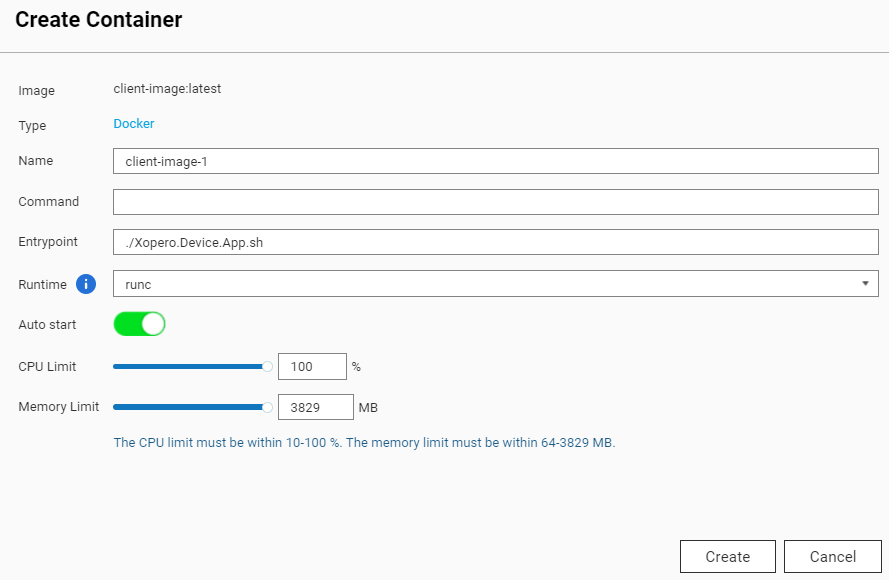
<figure><img src="https://319733277-files.gitbook.io/~/files/v0/b/gitbook-x-prod.appspot.com/o/spaces%2F0CBTl43C3OO6ySL1DJ6k%2Fuploads%2F8ZsdAUzgnKVFEY91NIIK%2Fimage.png?alt=media&amp;token=afc165b2-8e63-493e-9f65-712c5d048218" alt=""><figcaption></figcaption></figure>

<figure><img src="https://319733277-files.gitbook.io/~/files/v0/b/gitbook-x-prod.appspot.com/o/spaces%2F0CBTl43C3OO6ySL1DJ6k%2Fuploads%2FbZ6ODYEwz0taq5KvteAS%2Fimage.png?alt=media&amp;token=109a768b-0295-41c1-a3ba-f80d09056347" alt=""><figcaption></figcaption></figure>

3. Download and open the application. Select the path that will be used as a directory for your **Docker** container data, and click **Start Now** to proceed.
4. Once done, download the **Xopero ONE** agent **Docker** image, which is available [here](https://xopero.com/download/xopero_one/latest/client-image.tar).

***

## Deployment <a href="#deployment-sec" id="deployment-sec"></a>

1. Open the **Container Station** application and navigate the **Import** tab.&#x20;
2. Click the ➕**Import** button to upload the previously downloaded **Docker** image file.

<figure><img src="https://content.gitbook.com/content/0CBTl43C3OO6ySL1DJ6k/blobs/HJbk23JWsPeKukzUwg9z/Importing%20the%20docker%20file.png" alt="Importing the docker file"><figcaption></figcaption></figure>

3. In **Create Import Task** window, select the source type and file path of the **Xopero ONE** agent **Docker** image and hit **Next** to continue.&#x20;

{% hint style="info" %}
Selecting a file from a local source enables you to choose files stored on your device. Alternatively, you can use the **NAS** option to access files directly from **QNAP**.
{% endhint %}

<figure><img src="https://content.gitbook.com/content/0CBTl43C3OO6ySL1DJ6k/blobs/wak0j0iDgZQyzaaFanHG/Creating%20import%20task.png" alt="Creating import task" width="375"><figcaption></figcaption></figure>

4. Within the **Create Container** tab, the form contains several fields, with the most crucial being:

> **Name** — here you can set a custom name for the container
>
> **Auto start** — defines if the container will star automatically in case of, for example, **QNAP** restart
>
> **CPU Limit** — allows you to specify the percentage of CPU usage allocated for the container
>
> **Memory Limit** — RAM limit for the container

<figure><img src="https://content.gitbook.com/content/0CBTl43C3OO6ySL1DJ6k/blobs/ZHwujFJbb8YjtwzZAUVw/Creating%20container.png" alt="Creating container"><figcaption></figcaption></figure>

5. Click the ⚙️**Advanced Settings >>** button and navigate to the **Environment** section.

<figure><img src="https://319733277-files.gitbook.io/~/files/v0/b/gitbook-x-prod.appspot.com/o/spaces%2F0CBTl43C3OO6ySL1DJ6k%2Fuploads%2FAVQnCCgvnIBXaxugVZ7U%2Fimage.png?alt=media&amp;token=6fb94332-eca8-4e62-8316-dd28a4cb5d91" alt=""><figcaption></figcaption></figure>

6. To add a new environment variable, click the **Add** button, name it **ManagementServiceUrl**, and set its value to your **Xopero ONE Management Service** addres&#x73;**\***.

**‼️\*ManagementServiceUrl** – your **Xopero ONE Management Service** (**XMS**) address in one of the following formats (depending on the **XMS** deployment model):

> a. `http://ipaddress:port`, i.e., `http://192.168.0.1:28555`&#x20;
>
> b. `https://XMSID.ads.xopero.com`, i.e., `https://a00b0dc0-0116-0000-0000-d0000028960e.ads.xopero.com`

<figure><img src="https://content.gitbook.com/content/0CBTl43C3OO6ySL1DJ6k/blobs/GeB2iwFYkPya66nNfOpt/create%20container.png" alt="create container"><figcaption></figcaption></figure>

7. Go to the **Shared Folders** section — here you can mount your **QNAP** volumes to the **Xopero ONE** agent **Docker** container.

{% hint style="success" %}
You can mount multiple directories to the container using **Add** button in **Volume from host** section and repeating the operation.
{% endhint %}

<figure><img src="https://content.gitbook.com/content/0CBTl43C3OO6ySL1DJ6k/blobs/lsjtzzV2ih8On2YvbExz/Setting%20shared%20folders.png" alt="Setting shared folders"><figcaption></figcaption></figure>

8. To back up data from your **QNAP** device, choose **Add** under **Volume from host** section— it lets you specify which data the **Xopero ONE** container can access. Select a directory from the host in **Volume from host** field and enter the path visible inside the container in the **Mount Point** field.

{% hint style="info" %}
For instance, if you need to back up a directory named **Backup** inside a public shared folder, set the **Volume from the host** field to `/Public/Backup`. The **Mount Point** can be different, i.e., `/Backup`.
{% endhint %}

9. Once you're done with the above steps, click **Create** to continue.
10. In the **Summary** window double-check your settings, then click **OK** to finish the configuration.

<figure><img src="https://content.gitbook.com/content/0CBTl43C3OO6ySL1DJ6k/blobs/6pYqL9JyM4QgMY2ga72i/Summary%20window.png" alt="Summary window"><figcaption></figcaption></figure>

10. You can now connect to your **Xopero ONE Management Service** admin panel to activate the agent.
    {% endtab %}

{% tab title="Synology NAS" %}

## Deployment

{% hint style="warning" %}
To deploy the **Xopero ONE** agent on a **Synology** device using **Docker**, use the **Container Manager** application. If it's not installed, download it from the **Package Center**.
{% endhint %}

1. Navigate to the **Container** tab and click the **Create** button. Expand the **Image** section and click **Add image**, then search for `xopero/xone-agent` image.

{% hint style="info" %}
All **Xopero** service images are hosted on **Docker Hub**.
{% endhint %}

<figure><img src="https://319733277-files.gitbook.io/~/files/v0/b/gitbook-x-prod.appspot.com/o/spaces%2F0CBTl43C3OO6ySL1DJ6k%2Fuploads%2FtmAUJ2bZdtbhVY4zD8pT%2F1.png?alt=media&amp;token=f179dac5-8c66-4c7e-a37d-d7b300a1c0be" alt="" width="563"><figcaption></figcaption></figure>

2. Select the image, click **Download**, and choose the version tagged as latest. Click **Select** to confirm.&#x20;
3. Once the image is downloaded, select it from the **Image** field drop-down menu.&#x20;
4. Next, define a custom name for the container. Additionally, configure container resource limits if needed.
5. Check the **Enable auto-restart** option to ensure the container automatically restarts when the device reboots, then click **Next** to proceed.

<figure><img src="https://319733277-files.gitbook.io/~/files/v0/b/gitbook-x-prod.appspot.com/o/spaces%2F0CBTl43C3OO6ySL1DJ6k%2Fuploads%2F0dErto1cOBpD5j1hRZSr%2F2.png?alt=media&amp;token=8b1e4d91-e14f-46e7-905b-c003e1ce96cb" alt="" width="563"><figcaption></figcaption></figure>

6. In the **Volume Settings** section, click the ➕**Add Folder** button, and select directories that require protection. The container needs to have external directories mounted to access them while performing backups.

{% hint style="info" %}
To protect data stored in the **Public** directory, select this folder and specify **the same path** to ensure consistency between the host and the container's file systems.
{% endhint %}

{% hint style="success" %}
You can mount multiple directories to the container by clicking ➕ **Add Folder** and repeating the operation.
{% endhint %}

7. Additionally, to ensure data persistence during container updates or maintenance operations, mount agent databases to an external directory. These databases are located in `/app/Xopero` and should be mapped to a designated location outside the container to avoid data loss or inconsistency.

<figure><img src="https://content.gitbook.com/content/0CBTl43C3OO6ySL1DJ6k/blobs/BW06iBFItxvRnuujByAO/3.PNG" alt=""><figcaption></figcaption></figure>

8. Next, in the **Environment** section, define the required variables:

> **ManagementServiceUrl** — your **Xopero ONE Management Service** (**XMS**) address in one of the following formats (depending on the **XMS** deployment model):
>
> a. `http://ipaddress:port`, i.e., `http://192.168.0.1:28555`&#x20;
>
> b. `https://XMSID.ads.xopero.com`, i.e., `https://a00b0dc0-0116-0000-0000-d0000028960e.ads.xopero.com`
>
> **XoperoOverriddenHostName** — specify agent's name to facilitate identification

<figure><img src="https://content.gitbook.com/content/0CBTl43C3OO6ySL1DJ6k/blobs/pVdsYIZZ1yfxDjSKA5ho/4.PNG" alt=""><figcaption></figcaption></figure>

9. Click **Next** to confirm the configuration. In **Summary** window, double-check your settings and if they're all correct, hit **Done** to finalize the process.

<figure><img src="https://319733277-files.gitbook.io/~/files/v0/b/gitbook-x-prod.appspot.com/o/spaces%2F0CBTl43C3OO6ySL1DJ6k%2Fuploads%2F9AJBJBExYa1g8FDBaLXK%2F5.png?alt=media&amp;token=a5f3a5a8-b400-4bd0-a0a6-5578e644cc47" alt=""><figcaption></figcaption></figure>
{% endtab %}
{% endtabs %}


# Agent configuration

## Activation (license assignment)

{% stepper %}
{% step %}
Login to your **Xopero ONE Management Service** (**XMS**) console.
{% endstep %}

{% step %}
Click the **Activate agent** icon in the top menu.
{% endstep %}

{% step %}
A sidebar will appear, showing a list of available agents — you can view basic details like device type, name, IP address, and operating system.

<figure><img src="https://content.gitbook.com/content/0CBTl43C3OO6ySL1DJ6k/blobs/tUwP9il5MfPMcKjnK0u3/Agent_activation.png" alt="Agent activation"><figcaption></figcaption></figure>
{% endstep %}

{% step %}
Select the device you want to activate (you can select multiple devices if you assign them the same license type) and press the **Activate** button to proceed.
{% endstep %}

{% step %}
Next, select the license type you want to assign to the chosen device(s) and click **Assign license** to confirm your selection.
{% endstep %}

{% step %}
Once the license is correctly assigned, your device(s) will be visible in the **Devices** tab.
{% endstep %}
{% endstepper %}

{% hint style="info" %}
In the **Xopero ONE** system, the local worker, cloud worker, and feature worker licenses are <mark style="color:$success;">**free**</mark>. These licenses allow specific operations, except for backing up the device itself — thus, devices with these licenses appear under **Settings** > **Advanced** > **Workers** tab.
{% endhint %}

***

## Configuration

{% hint style="danger" %}
To modify the `config.json` file, <mark style="color:red;">**you must stop**</mark> the **Xopero ONE Backup\&Recovery Agent** service. After making your changes, restart the service (you might also need to refresh the changes in the **Management Service** panel).
{% endhint %}

The `config.json` file, by default, is located in the following locations:

1. For **Windows**: `C:\Program Files\Xopero ONE Backup&Recovery Agent`
2. For **Linux**: `/opt/XoperoONEBackupAgent/`

💡You can edit `config.json` with a simple text editor (i.e., **Notepad++**).

### <mark style="background-color:blue;">Management Service address</mark> <a href="#management_service_address" id="management_service_address"></a>

The **Xopero ONE** **Management Service** (**XMS**) address to which your agent connects is crucial during both installation and configuration. If the IP address or protocol (http/https) of the **Management Service** changes, the agent's status will switch to offline. To re-establish the connection, update the `ServiceUrl` value in the configuration file with the updated address.

<figure><img src="https://content.gitbook.com/content/0CBTl43C3OO6ySL1DJ6k/blobs/cS066qdsHDQ5arTNitLt/notepad%20%20json%20configuration1.png" alt="notepad  json configuration1"><figcaption></figcaption></figure>

***

### <mark style="background-color:blue;">Log level</mark> <a href="#log_level" id="log_level"></a>

By default, the `LogLevel` value is set to `Information`. You can change it to:&#x20;

1. `Trace`
2. `Debug`
3. `Information`
4. `Warning`
5. `Error`
6. `Critical`
7. `None`

<figure><img src="https://content.gitbook.com/content/0CBTl43C3OO6ySL1DJ6k/blobs/oMG1wjxeiaOrDgT22JRn/notepad%20%20json%20configuration2.png" alt="notepad  json configuration2"><figcaption></figcaption></figure>

***

### <mark style="background-color:blue;">Default log path</mark> <a href="#default_log_path" id="default_log_path"></a>

By default, application logs are stored in the following directory: `C:\ProgramData\Xopero ONE\Xopero ONE Backup&Recovery Agent\Logs`. To change the location, modify the `AppDataFolder` parameter.

{% hint style="warning" %}
Please note that the correct `AppDataFolder` value format includes <mark style="color:red;">**double slash**</mark> after the drive letter (i.e., `D:\\`).
{% endhint %}

<figure><img src="https://content.gitbook.com/content/0CBTl43C3OO6ySL1DJ6k/blobs/Gk7o8WKlAGknRBNdJPfT/notepad%20%20json%20configuration3.png" alt="notepad  json configuration3"><figcaption></figcaption></figure>

***

### <mark style="background-color:blue;">Device name</mark> <a href="#device_name" id="device_name"></a>

The device name defaults to the system's name. To customize it, modify the `OverriddenHostName` parameter.

{% hint style="warning" %}
Please note that the custom name must be in entered with quotation marks (i.e., `"TESTNAME"`).
{% endhint %}

<figure><img src="https://content.gitbook.com/content/0CBTl43C3OO6ySL1DJ6k/blobs/VsL5vKYvHj0RWxaWsBho/notepad%20%20json%20configuration4.png" alt="notepad  json configuration4"><figcaption></figcaption></figure>

***

### <mark style="background-color:blue;">Number of retries</mark>

If database backup task ends with error **DV0249 - "Unable to read backup data"**, first address any connection stability issues on your end. If the problem persists, you can increase the retry attempts in the **Xopero ONE** application— to do this, simply edit the `MaxRetriesCount` parameter, changing its default value from **2** to a higher value, i.e., **20**.

<figure><img src="https://content.gitbook.com/content/0CBTl43C3OO6ySL1DJ6k/blobs/89cQN3vSm7KGkzgRlP1d/config%20json.png" alt="MaxRetriesCount config json"><figcaption></figcaption></figure>

***

### <mark style="background-color:blue;">Virtual appliance</mark> <a href="#virtual_appliance" id="virtual_appliance"></a>

The **VMware** virtual appliance is a **Linux**-based machine with an agent service. You can modify its settings by editing the `config.json` file.

To configure the timeout for snapshot creation, locate the **VMware** section at the bottom of the file and adjust the `SnapshotCreationTimeout` parameter to your needs.

<figure><img src="https://content.gitbook.com/content/0CBTl43C3OO6ySL1DJ6k/blobs/oYp6AavOy1po79YdcQLh/notepad%20json%20configuration5.png" alt="notepad  json configuration5"><figcaption></figcaption></figure>


# Xopero ONE worker

<table data-view="cards"><thead><tr><th data-type="content-ref"></th><th data-hidden data-card-cover data-type="image">Cover image</th></tr></thead><tbody><tr><td><a href="/xopero-one-en/deployment-and-configuration/xopero-one-worker/local-worker">Local worker</a></td><td><a href="https://319733277-files.gitbook.io/~/files/v0/b/gitbook-x-prod.appspot.com/o/spaces%2F0CBTl43C3OO6ySL1DJ6k%2Fuploads%2FuruCv73sybNr7JH3htcv%2Ft%C5%82o%20X%201200x628.png?alt=media&amp;token=6aebddd9-8e43-49c2-b6d7-793239c0379d">background_XONE.png</a></td></tr><tr><td><a href="/xopero-one-en/deployment-and-configuration/xopero-one-worker/cloud-worker">Cloud worker</a></td><td><a href="https://319733277-files.gitbook.io/~/files/v0/b/gitbook-x-prod.appspot.com/o/spaces%2F0CBTl43C3OO6ySL1DJ6k%2Fuploads%2FuruCv73sybNr7JH3htcv%2Ft%C5%82o%20X%201200x628.png?alt=media&amp;token=6aebddd9-8e43-49c2-b6d7-793239c0379d">background_XONE.png</a></td></tr></tbody></table>


# Local worker

## Overview

Worker can manage storage, perform and restore backups; it can be combined with a dedicated **Microsoft 365**, **GitProtect**, or **Jira** license, but it <mark style="color:red;">**cannot back up its own device**</mark>.

{% hint style="info" %}
Under the licensing policy, a worker license is a free license type assigned per agent — <mark style="color:red;">**feature worker**</mark>. The only difference between a server/endpoint **agent** and a feature **worker** license is, as mentioned above, that a feature worker <mark style="color:red;">**cannot back up its own data**</mark>. It serves only as a **worker** while securing other data.
{% endhint %}

Installing a **worker** in your local environment can be crucial and essential in many scenarios. The backup agent is the only component that directly handles data during its transfer to storage.

Using a **local worker** helps comply with internal policies by keeping data internal and secure. It also allows direct backups to your local infrastructure, which the SaaS **agent** ([cloud worker](/xopero-one-en/deployment-and-configuration/xopero-one-worker/cloud-worker)) does not have access to.

***

## Installer download <a href="#installer_download" id="installer_download"></a>

1. In **Xopero ONE Management Service** (**XMS**) go to the **Settings**, then select **Advanced** > **Workers** and click the **Download agent** button.

<figure><img src="https://319733277-files.gitbook.io/~/files/v0/b/gitbook-x-prod.appspot.com/o/spaces%2F0CBTl43C3OO6ySL1DJ6k%2Fuploads%2FkK9WKrPMJy1ordslZ16d%2Fimage.png?alt=media&amp;token=5d0f5aa8-c338-49cd-af10-dc4f10826534" alt="" width="536"><figcaption></figcaption></figure>

2. Choose your installer based on the system you want to install the worker on.
3. After downloading the installer, install the agent on your device — you can use the installation guides for different types of operating systems listed in [**Xopero ONE agent** menu](/xopero-one-en/deployment-and-configuration/xopero-one-agent) under **DEPLOYMENT & CONFIGURATION** section.

***

## Useful links & items

{% content-ref url="/pages/MPPruGaBeSFEcj3XiDhQ" %}
[Xopero ONE Agent](/xopero-one-en/deployment-and-configuration/xopero-one-agent)
{% endcontent-ref %}


# Cloud worker

In this article you will get information about cloud worker - what is it, their usage, and their licensing model.

{% hint style="warning" %}
**Cloud worker** is available <mark style="color:red;">**only**</mark> for the **Xopero ONE** SaaS deployment model.
{% endhint %}

The **cloud worker** is a **Xopero ONE** **agent** installed in the cloud. It connects to cloud-based environments like **Microsoft 365** or cloud storage services to perform backup tasks.

You don't have to assign any licenses to **cloud workers** — the correct license is assigned automatically by **Xopero ONE** system.

**Cloud worker's** installation location depends on the **Xopero ONE Management Service** installation directory.

***

## Useful links and items

{% content-ref url="/pages/DA7Y9Heiew6Z2JqGE0Kh" %}
[Service hosting location](/xopero-one-en/registration/xopero-one-saas/service-hosting-location)
{% endcontent-ref %}


# Workstations and servers

<table data-view="cards"><thead><tr><th data-type="content-ref"></th><th data-hidden data-card-cover data-type="image">Cover image</th></tr></thead><tbody><tr><td><a href="/xopero-one-en/backup-and-recovery/workstations-and-servers/overview">Overview</a></td><td><a href="https://319733277-files.gitbook.io/~/files/v0/b/gitbook-x-prod.appspot.com/o/spaces%2F0CBTl43C3OO6ySL1DJ6k%2Fuploads%2Fd0DSGoIDRk8GTmGOBS9t%2Ft%C5%82o%20X%201200x628.png?alt=media&amp;token=38366101-520e-4556-8877-022fbe92c8d2">tło X 1200x628.png</a></td></tr><tr><td><a href="/xopero-one-en/backup-and-recovery/workstations-and-servers/file-level-backup">File-level backup</a></td><td><a href="https://319733277-files.gitbook.io/~/files/v0/b/gitbook-x-prod.appspot.com/o/spaces%2F0CBTl43C3OO6ySL1DJ6k%2Fuploads%2FuruCv73sybNr7JH3htcv%2Ft%C5%82o%20X%201200x628.png?alt=media&amp;token=6aebddd9-8e43-49c2-b6d7-793239c0379d">background_XONE.png</a></td></tr><tr><td><a href="/xopero-one-en/backup-and-recovery/workstations-and-servers/file-level-backup-recovery">File-level backup recovery</a></td><td><a href="https://319733277-files.gitbook.io/~/files/v0/b/gitbook-x-prod.appspot.com/o/spaces%2F0CBTl43C3OO6ySL1DJ6k%2Fuploads%2FuruCv73sybNr7JH3htcv%2Ft%C5%82o%20X%201200x628.png?alt=media&amp;token=6aebddd9-8e43-49c2-b6d7-793239c0379d">background_XONE.png</a></td></tr><tr><td><a href="/xopero-one-en/backup-and-recovery/workstations-and-servers/image-level-backup">Image-level backup</a></td><td><a href="https://319733277-files.gitbook.io/~/files/v0/b/gitbook-x-prod.appspot.com/o/spaces%2F0CBTl43C3OO6ySL1DJ6k%2Fuploads%2FuruCv73sybNr7JH3htcv%2Ft%C5%82o%20X%201200x628.png?alt=media&amp;token=6aebddd9-8e43-49c2-b6d7-793239c0379d">background_XONE.png</a></td></tr><tr><td><a href="/xopero-one-en/backup-and-recovery/workstations-and-servers/image-level-backup-recovery">Image-level backup recovery</a></td><td><a href="https://319733277-files.gitbook.io/~/files/v0/b/gitbook-x-prod.appspot.com/o/spaces%2F0CBTl43C3OO6ySL1DJ6k%2Fuploads%2FuruCv73sybNr7JH3htcv%2Ft%C5%82o%20X%201200x628.png?alt=media&amp;token=6aebddd9-8e43-49c2-b6d7-793239c0379d">background_XONE.png</a></td></tr><tr><td><a href="/xopero-one-en/backup-and-recovery/workstations-and-servers/database-backup">Database backup</a></td><td><a href="https://319733277-files.gitbook.io/~/files/v0/b/gitbook-x-prod.appspot.com/o/spaces%2F0CBTl43C3OO6ySL1DJ6k%2Fuploads%2FuruCv73sybNr7JH3htcv%2Ft%C5%82o%20X%201200x628.png?alt=media&amp;token=6aebddd9-8e43-49c2-b6d7-793239c0379d">background_XONE.png</a></td></tr><tr><td><a href="/xopero-one-en/backup-and-recovery/workstations-and-servers/database-backup-recovery">Database backup recovery</a></td><td><a href="https://319733277-files.gitbook.io/~/files/v0/b/gitbook-x-prod.appspot.com/o/spaces%2F0CBTl43C3OO6ySL1DJ6k%2Fuploads%2FuruCv73sybNr7JH3htcv%2Ft%C5%82o%20X%201200x628.png?alt=media&amp;token=6aebddd9-8e43-49c2-b6d7-793239c0379d">background_XONE.png</a></td></tr></tbody></table>


# Overview

This article provides general information about data protection planning.

#### With Xopero ONE, you can protect multiple components of your infrastructure, including workstations and servers.

***

## Backup & recovery

To protect your workstations and servers, you can use one of three main types of backups:

1. **File-level** — saves individual files and directories.
2. **Image-level** — protects the entire physical disk.
3. **Databases** — backs up your databases.

Similarly to backup types, **Xopero ONE** offers three methods to restore your data:

1. **File-level backup** — allows you to restore files directly from your storage. It can also be used to restore databases protected with **file-level backup**.
2. **Image-level backup** — enables restoring an entire disk, individual files from the backup, or the disk as an image file. You can also use **BMR** (**bare-metal recovery**) technology to recover data, allowing restoration between physical devices.
3. **Database recovery** — includes methods for restoring previously backed-up databases.

***

## Good practices

1. Test the **Xopero ONE** system to determine when backups are performed and choose the best backup schedule. For example, you can schedule backups to run after working hours and enable automatic device shutdown after the backup in the plan settings.
2. The backup process typically uses the **VSS** service and device resources. To reduce resource usage, you don’t need to create multiple backup plans for different storages — instead, you can create a replication plan to copy data to another storage.

***

## Useful links and items

{% content-ref url="/pages/HtI1Ej1mjn8OtLJgJjZW" %}
[Planning your backups](/xopero-one-en/backup-plans-and-features/planning-your-backups)
{% endcontent-ref %}


# File-level backup

This article provides information about file-level backup in Xopero ONE.

#### File-level backup protects selected directories and individual files on your device.

***

## Creating a backup plan

{% stepper %}
{% step %}
Log in to **Xopero ONE Management Service**, go to the **Backup** tab (**Plans** > **Backup**) and click the **+ Add plan** button in the top toolbar.

<figure><img src="https://319733277-files.gitbook.io/~/files/v0/b/gitbook-x-prod.appspot.com/o/spaces%2F0CBTl43C3OO6ySL1DJ6k%2Fuploads%2Fd0F5f5WhfSR9uvIlOIH6%2Fimage.png?alt=media&amp;token=25d5ea87-098c-479d-b73f-70fd4e31c0a3" alt=""><figcaption></figcaption></figure>
{% endstep %}

{% step %}
Select **Devices** from the platforms list.

<figure><img src="https://319733277-files.gitbook.io/~/files/v0/b/gitbook-x-prod.appspot.com/o/spaces%2F0CBTl43C3OO6ySL1DJ6k%2Fuploads%2F4ZVwNgz1HAtRTmTxa3il%2Fimage.png?alt=media&amp;token=50f868db-0b47-41cc-8e02-d6649344a33f" alt=""><figcaption></figcaption></figure>
{% endstep %}

{% step %}
In the next aside, select **Files & folders** option and choose one or more devices for the plan to apply to (you can also select the plan to include all activated devices).

<figure><img src="https://319733277-files.gitbook.io/~/files/v0/b/gitbook-x-prod.appspot.com/o/spaces%2F0CBTl43C3OO6ySL1DJ6k%2Fuploads%2FhOZaol42pbVF5MPFOkNJ%2Fimage.png?alt=media&amp;token=9c53d8d2-0598-4c17-ac99-3309a79e0838" alt=""><figcaption></figcaption></figure>
{% endstep %}

{% step %}
Define the name of the backup plan.
{% endstep %}

{% step %}
In the **Data to protect** section, select the data you want to include in the backup plan:

1. **Global rules** allow you to define locations that will apply to all selected devices. This method offers three options to choose from:
   1. **Path** — allows you to manually enter the file or folder path.
   2. **System variable** — enables the use of OS variables such as `USERPROFILE`, `ALLUSERSPROFILE`, or `SystemRoot`.\
      \
      ‼️**When specifying a variable in Xopero ONE, percent signs `%`** <mark style="color:red;">**must be omitted**</mark>**.**<br>
   3. **Xopero variable** — provides a predefined list of variables such as `SYSTEM_DISK`, `ALL_DISKS`, and `HOMES`.

<figure><img src="https://319733277-files.gitbook.io/~/files/v0/b/gitbook-x-prod.appspot.com/o/spaces%2F0CBTl43C3OO6ySL1DJ6k%2Fuploads%2Fav7T1KXRZugHnMDDalzm%2Fimage.png?alt=media&amp;token=8049f9fe-6d8a-43ce-bbef-30bad5c64cb5" alt=""><figcaption></figcaption></figure>

2. **Select from device** — this method allows you to choose paths individually for each device by connecting remotely to its file system.

<figure><img src="https://319733277-files.gitbook.io/~/files/v0/b/gitbook-x-prod.appspot.com/o/spaces%2F0CBTl43C3OO6ySL1DJ6k%2Fuploads%2Fod5Qfq4gOQtnLyI4VUcy%2Fimage.png?alt=media&amp;token=ce666e23-2be4-44fa-8dbc-2a2053cdf828" alt=""><figcaption></figcaption></figure>
{% endstep %}

{% step %}
When creating a backup plan, you can use filters to gain better control over the files being backed up.

{% hint style="success" %}
All information about filters and how to use them can be found in [this article](/xopero-one-en/management/backup-plans/filters).
{% endhint %}

{% hint style="danger" %}
Filters are available <mark style="color:red;">**only in the file-level backup plan**</mark>.
{% endhint %}
{% endstep %}

{% step %}
Specify the backup location by choosing from the available storage options within your service.

<figure><img src="https://319733277-files.gitbook.io/~/files/v0/b/gitbook-x-prod.appspot.com/o/spaces%2F0CBTl43C3OO6ySL1DJ6k%2Fuploads%2FQvqHvZdTuCaE6pBAxIP4%2Fimage.png?alt=media&amp;token=581e4f12-1661-4fc5-8ef7-af24affb9446" alt=""><figcaption></figcaption></figure>
{% endstep %}

{% step %}
Configure the [**Scheduler & data retention** settings](/xopero-one-en/management/scheduler-and-retention) by defining when backups should run and which types of backup copies to use.

{% hint style="danger" %}
Set the retention policy to determine how long backups are stored — any copies exceeding this period <mark style="color:red;">**will be automatically deleted**</mark>.
{% endhint %}

<figure><img src="https://319733277-files.gitbook.io/~/files/v0/b/gitbook-x-prod.appspot.com/o/spaces%2F0CBTl43C3OO6ySL1DJ6k%2Fuploads%2F8dpkkYg7BsXGb6ERheGA%2Fimage.png?alt=media&amp;token=315d8750-d3bc-4eb6-b8bc-6bac78056a65" alt=""><figcaption></figcaption></figure>
{% endstep %}

{% step %}
Go to the **Advanced settings** section to customize additional options, including encryption, compression levels, and bandwidth limit. These settings provide greater flexibility and help optimize the backup process.

<figure><img src="https://319733277-files.gitbook.io/~/files/v0/b/gitbook-x-prod.appspot.com/o/spaces%2F0CBTl43C3OO6ySL1DJ6k%2Fuploads%2FI8ABUBjA4Bfa2UczzqUa%2Fimage.png?alt=media&amp;token=b7bab2e4-dca6-4297-a054-8cb5f7674153" alt=""><figcaption></figcaption></figure>
{% endstep %}

{% step %}
After completing the configuration, click the **Save** button. The protection plan will then automatically begin protecting your devices according to the schedule you defined.&#x20;

{% hint style="success" %}
You can also click **Save\&Run** button to immediately start the backup process, regardless of schedule.
{% endhint %}
{% endstep %}
{% endstepper %}


# File-level backup recovery

In this article, you will learn how to restore data from a file-level backup.

#### Xopero ONE allows you to easily restore data — an entire backup, selected directories, or individual files — to any location.

***

## Recovery process

{% stepper %}
{% step %}
Open the restore view in **Xopero ONE Management Service** using one of the following options:

#### **Option A**

1. Go to the **Devices** tab and click **Restore** next to the device whose data you want to recover. After selecting the device you want to restore, choose the plan containing the data you want to recover from the **Backup plans** drop-down menu.

{% hint style="info" %}
At the bottom of the aside, you can see which **agent** is being used to access the storage. To change the device, click **Change**. Ensure the selected device has access to the storage.
{% endhint %}

<figure><img src="https://319733277-files.gitbook.io/~/files/v0/b/gitbook-x-prod.appspot.com/o/spaces%2F0CBTl43C3OO6ySL1DJ6k%2Fuploads%2FJeu0xZObziAjAdBgouAf%2Fimage.png?alt=media&amp;token=833282bc-1b66-4c68-9b3a-aba7728179d7" alt=""><figcaption></figcaption></figure>

#### **Option B**

1. Go to the **Storages** tab, select the storage containing the backup data, and click the **folder** 📂icon to browse the storage.

<figure><img src="https://319733277-files.gitbook.io/~/files/v0/b/gitbook-x-prod.appspot.com/o/spaces%2F0CBTl43C3OO6ySL1DJ6k%2Fuploads%2FaJQkVYAvOM8mK35JPV2g%2Fimage.png?alt=media&amp;token=89f7f272-af3f-470a-aa46-705956622434" alt="" width="554"><figcaption></figcaption></figure>

2. Select the device whose data you want to restore. Then, choose the backup plan and review the information about the **agent** used to connect to the storage.

<figure><img src="https://319733277-files.gitbook.io/~/files/v0/b/gitbook-x-prod.appspot.com/o/spaces%2F0CBTl43C3OO6ySL1DJ6k%2Fuploads%2FOZO9Y39Hf8xgVHK9YXiC%2Fimage.png?alt=media&amp;token=f80f1cf0-5a72-40f3-9ac1-37812dee5395" alt=""><figcaption></figcaption></figure>
{% endstep %}

{% step %}
After selecting the appropriate device and backup plan, the system will display the **Backup copies** section — here, you can choose the backup version you want to restore. Click the desired date, then select **Restore**.

<figure><img src="https://319733277-files.gitbook.io/~/files/v0/b/gitbook-x-prod.appspot.com/o/spaces%2F0CBTl43C3OO6ySL1DJ6k%2Fuploads%2FxRj2CjpSYPRk0dcSNRNQ%2Fimage.png?alt=media&amp;token=3e8c9ea9-00a6-4715-aeed-853edf465ee0" alt=""><figcaption></figcaption></figure>
{% endstep %}

{% step %}
The **Select data to restore** section displays a tree structure of directories and files. You can select specific directories or individual files to restore by marking the checkboxes next to them. To restore the selected data, click **Restore selected**. If you want to restore all items included in the backup plan, click **Restore all**.

<figure><img src="https://319733277-files.gitbook.io/~/files/v0/b/gitbook-x-prod.appspot.com/o/spaces%2F0CBTl43C3OO6ySL1DJ6k%2Fuploads%2FVTSu5mu3Olu4ecjlRHK1%2Fimage.png?alt=media&amp;token=91a27b24-8079-45d9-aab8-cdcd5416b949" alt=""><figcaption></figcaption></figure>
{% endstep %}

{% step %}
In the **Data to restore** section, you can modify the previously selected data that will be included in the restore process. To change or add data, click the **Edit** button.

<figure><img src="https://319733277-files.gitbook.io/~/files/v0/b/gitbook-x-prod.appspot.com/o/spaces%2F0CBTl43C3OO6ySL1DJ6k%2Fuploads%2FFH5YcaFmcI32DPU7Z0eQ%2Fimage.png?alt=media&amp;token=81dfeacb-53ca-4cd7-b902-abcce05e9b15" alt=""><figcaption></figcaption></figure>
{% endstep %}

{% step %}
The **Restore to** section allows you to define the destination for the restore process—here, you can select **any device that is assigned to the Xopero ONE platform** as the target location for your restored data.

<figure><img src="https://319733277-files.gitbook.io/~/files/v0/b/gitbook-x-prod.appspot.com/o/spaces%2F0CBTl43C3OO6ySL1DJ6k%2Fuploads%2FVxyl7N1PzISCtQzxtOZp%2Fimage.png?alt=media&amp;token=67203539-d8bc-4acb-8667-c3993336c80d" alt=""><figcaption></figcaption></figure>
{% endstep %}

{% step %}
In **Restore directory** section you can specify **the exact location** where the data will be restored. You can choose to restore it to the original directory or select a new directory.

<figure><img src="https://319733277-files.gitbook.io/~/files/v0/b/gitbook-x-prod.appspot.com/o/spaces%2F0CBTl43C3OO6ySL1DJ6k%2Fuploads%2FZSVyK9X2RIBXJ84bsewJ%2Fimage.png?alt=media&amp;token=c042a562-370b-4175-a8a0-7f23b34d605d" alt=""><figcaption></figcaption></figure>
{% endstep %}

{% step %}
In **Restore settings** section, you will find three additional options that can be enabled for the restoration process:

1. **Overwrite existing data** — determines whether existing files in the restore directory should be replaced with the restored ones.
2. **Restore files permissions** — restores the original file permissions.
3. **Reduce bandwidth** — limits network usage during the restore process.

<figure><img src="https://319733277-files.gitbook.io/~/files/v0/b/gitbook-x-prod.appspot.com/o/spaces%2F0CBTl43C3OO6ySL1DJ6k%2Fuploads%2FWLdb6h6pHXA5ojeURBTC%2Fimage.png?alt=media&amp;token=9d36e567-4f1f-43e6-8e66-264e5e421d3a" alt=""><figcaption></figcaption></figure>
{% endstep %}

{% step %}
Double-check your configuration and click the **Start now** button to begin the recovery process.
{% endstep %}
{% endstepper %}


# Image-level backup

In this article you will learn how to configure image-level backup using Xopero ONE Management Service.

#### Image-level backup creates a full snapshot of your system, including the operating system, applications, and data.

***

## Overview

**Drive image-level backup** (aka **disk image backup**) by definition creates a complete, byte-for-byte copy of a hard drive, including the operating system, all installed applications, settings, and other data. In case of failure, drive image-level backup allows for a rapid and full restoration of the system to its previous state, either on the original or a new device.

{% hint style="warning" %}
The **Linux** disk backup feature requires **Ubuntu** 21.04 or later. Earlier **Ubuntu** releases include an outdated version of `lsblk` that cannot be updated independently to a supported version (compatibility with earlier **Ubuntu** releases is currently in development).
{% endhint %}

{% hint style="info" %}
Backups of **Linux**-based systems are created **without snapshot integration** (LVM/Btrfs/DMERA).
{% endhint %}

<figure><img src="https://content.gitbook.com/content/0CBTl43C3OO6ySL1DJ6k/blobs/epO2VfRtbDHYpACM9AlN/image-level%20backup%20type.png" alt="image-level backup type"><figcaption><p><em>Backup types example in Xopero ONE Management Service.</em></p></figcaption></figure>

***

## Creating a backup plan

{% hint style="success" %}
Drive image-level backup plan can be applied to multiple devices at once.
{% endhint %}

{% stepper %}
{% step %}
Log in to **Xopero ONE Management Service**, go to the **Backup** tab (**Plans** > **Backup**) and click the **+ Add plan** button in the top toolbar.

<figure><img src="https://319733277-files.gitbook.io/~/files/v0/b/gitbook-x-prod.appspot.com/o/spaces%2F0CBTl43C3OO6ySL1DJ6k%2Fuploads%2Fd0F5f5WhfSR9uvIlOIH6%2Fimage.png?alt=media&amp;token=25d5ea87-098c-479d-b73f-70fd4e31c0a3" alt=""><figcaption></figcaption></figure>
{% endstep %}

{% step %}
Select **Devices** from the platforms list.

<figure><img src="https://319733277-files.gitbook.io/~/files/v0/b/gitbook-x-prod.appspot.com/o/spaces%2F0CBTl43C3OO6ySL1DJ6k%2Fuploads%2F4ZVwNgz1HAtRTmTxa3il%2Fimage.png?alt=media&amp;token=50f868db-0b47-41cc-8e02-d6649344a33f" alt=""><figcaption></figcaption></figure>
{% endstep %}

{% step %}
In the next aside, select **Whole OS** option and choose one or more devices for the plan to apply to (you can also select the plan to include all activated devices, or select device groups for the plan to cover).

<figure><img src="https://319733277-files.gitbook.io/~/files/v0/b/gitbook-x-prod.appspot.com/o/spaces%2F0CBTl43C3OO6ySL1DJ6k%2Fuploads%2FUuwgEZjF7VJQuZTXpJce%2Fimage.png?alt=media&amp;token=efc85d77-149b-4f86-96e6-fc24c290ac03" alt=""><figcaption></figcaption></figure>
{% endstep %}

{% step %}
Define the name of the backup plan.
{% endstep %}

{% step %}
In the **Data to protect** section, select the data you want to include in the backup plan:

1. **Global rules** allow you to define locations that will apply to all selected devices. This method offers the **Xopero variable** option, which provides a predefined list of variables such as `SYSTEM_DISK`, `ALL_DISKS`, and `HOMES`.

<figure><img src="https://319733277-files.gitbook.io/~/files/v0/b/gitbook-x-prod.appspot.com/o/spaces%2F0CBTl43C3OO6ySL1DJ6k%2Fuploads%2F49YM6Ghgbz8jVC1RyLJK%2Fimage.png?alt=media&amp;token=2d2dad18-ca9a-409b-8c1c-51dbac07928a" alt=""><figcaption></figcaption></figure>

2. **Select from device** — this method allows you to select disks individually for each device by connecting remotely to its file system.&#x20;

{% hint style="warning" %}
Note that you cannot select specific partitions — the entire disk, including all partitions, is always backed up.
{% endhint %}

{% hint style="danger" %}
If a disk containing the boot partition is not included in the backup, the operating system **cannot be restored from that backup**.
{% endhint %}

<figure><img src="https://319733277-files.gitbook.io/~/files/v0/b/gitbook-x-prod.appspot.com/o/spaces%2F0CBTl43C3OO6ySL1DJ6k%2Fuploads%2FXXA82xxFCa0pcaa6qpsb%2Fimage.png?alt=media&amp;token=6c1754cb-2e76-4e2d-9a4b-0041bce3cfd6" alt=""><figcaption></figcaption></figure>
{% endstep %}

{% step %}
Specify the backup location by choosing from the available storage options within your service.

{% hint style="danger" %}
S3 storages have a buffer limit which is set to 128 MiB by default and allows you to transfer \~1250GiB of data. You can expand your buffer by following the [backup optimization](/xopero-one-en/management/backup-plans/optimization) guide.
{% endhint %}

<figure><img src="https://319733277-files.gitbook.io/~/files/v0/b/gitbook-x-prod.appspot.com/o/spaces%2F0CBTl43C3OO6ySL1DJ6k%2Fuploads%2FQvqHvZdTuCaE6pBAxIP4%2Fimage.png?alt=media&amp;token=581e4f12-1661-4fc5-8ef7-af24affb9446" alt=""><figcaption></figcaption></figure>
{% endstep %}

{% step %}
Configure the [**Scheduler & data retention** settings](/xopero-one-en/management/scheduler-and-retention) by defining when backups should run and which types of backup copies to use.

{% hint style="danger" %}
Set the retention policy to determine how long backups are stored — any copies exceeding this period **will be automatically deleted**.
{% endhint %}

<figure><img src="https://319733277-files.gitbook.io/~/files/v0/b/gitbook-x-prod.appspot.com/o/spaces%2F0CBTl43C3OO6ySL1DJ6k%2Fuploads%2F8dpkkYg7BsXGb6ERheGA%2Fimage.png?alt=media&amp;token=315d8750-d3bc-4eb6-b8bc-6bac78056a65" alt=""><figcaption></figcaption></figure>
{% endstep %}

{% step %}
Go to the **Advanced settings** section to customize additional options, including encryption, compression levels, and bandwidth limit. These settings provide greater flexibility and help optimize the backup process.

<figure><img src="https://319733277-files.gitbook.io/~/files/v0/b/gitbook-x-prod.appspot.com/o/spaces%2F0CBTl43C3OO6ySL1DJ6k%2Fuploads%2FI8ABUBjA4Bfa2UczzqUa%2Fimage.png?alt=media&amp;token=b7bab2e4-dca6-4297-a054-8cb5f7674153" alt=""><figcaption></figcaption></figure>
{% endstep %}

{% step %}
After completing the configuration, click the **Save** button. The protection plan will then automatically begin protecting your devices according to the schedule you defined.&#x20;

{% hint style="success" %}
You can also click **Save\&Run** button to immediately start the backup process, regardless of schedule.
{% endhint %}
{% endstep %}
{% endstepper %}


# Image-level backup recovery

Restore data using bare-metal recovery (BMR), iSCSI target mounting, or file image exports.

<table data-view="cards"><thead><tr><th data-type="content-ref"></th><th></th><th data-hidden data-card-cover data-type="files"></th></tr></thead><tbody><tr><td><a href="/xopero-one-en/backup-and-recovery/workstations-and-servers/image-level-backup-recovery/granular-recovery">Granular recovery</a></td><td>Perform targeted granular recovery to restore individual files and folders without conducting a full system rollback.</td><td><a href="https://319733277-files.gitbook.io/~/files/v0/b/gitbook-x-prod.appspot.com/o/spaces%2F0CBTl43C3OO6ySL1DJ6k%2Fuploads%2Fd0DSGoIDRk8GTmGOBS9t%2Ft%C5%82o%20X%201200x628.png?alt=media&amp;token=38366101-520e-4556-8877-022fbe92c8d2">tło X 1200x628.png</a></td></tr><tr><td><a href="/xopero-one-en/backup-and-recovery/workstations-and-servers/image-level-backup-recovery/bare-metal-recovery">Bare-metal recovery</a></td><td>Restore the entire system from an image-level backup copy.</td><td><a href="https://319733277-files.gitbook.io/~/files/v0/b/gitbook-x-prod.appspot.com/o/spaces%2F0CBTl43C3OO6ySL1DJ6k%2Fuploads%2Fd0DSGoIDRk8GTmGOBS9t%2Ft%C5%82o%20X%201200x628.png?alt=media&amp;token=38366101-520e-4556-8877-022fbe92c8d2">tło X 1200x628.png</a></td></tr></tbody></table>


# Granular recovery

Perform targeted granular recovery to restore individual files and folders without conducting a full system rollback.

**Granular recovery enables the restoration of individual files and folders directly from image-level backups. By mounting the disk image through an iSCSI target or as a raw file image, administrators can extract selected data without running a full system restore.**

***

## iSCSI target

The **iSCSI target** recovery option allows you to quickly create and share an iSCSI resource over TCP/IP. You can connect this resource to any device without restoring the backup copy to another location. This method facilitates granular recovery, enabling you to easily copy individual files.

{% hint style="info" %}
In the event of a system failure, the iSCSI target can also be attached as a virtual machine disk.
{% endhint %}

The following steps describe how to restore data via an iSCSI target in the **Xopero ONE Management Service** console.

{% stepper %}
{% step %}
Open the **Devices** tab, locate the device from which you want to restore the backup, and click the **Restore** button.

<figure><img src="https://319733277-files.gitbook.io/~/files/v0/b/gitbook-x-prod.appspot.com/o/spaces%2F0CBTl43C3OO6ySL1DJ6k%2Fuploads%2FAtP2WtS8AqQnNjh2WLHJ%2Fimage.png?alt=media&amp;token=c045bf60-7666-4806-bae0-06c93a183da9" alt=""><figcaption></figcaption></figure>
{% endstep %}

{% step %}
Select the backup plan from which you want to restore the data.
{% endstep %}

{% step %}
Choose the timestamp from which you want to restore the data, click **Restore**, and select the **iSCSI target** recovery option from the drop-down menu.

<figure><img src="https://319733277-files.gitbook.io/~/files/v0/b/gitbook-x-prod.appspot.com/o/spaces%2F0CBTl43C3OO6ySL1DJ6k%2Fuploads%2FoDumnvmeX1YgwddcrFjS%2Fimage.png?alt=media&amp;token=7cf51565-c3a1-4a7f-9173-5fba1f00e0fe" alt=""><figcaption></figcaption></figure>
{% endstep %}

{% step %}
Select the disk you want to restore and click **Restore selected**, or select all disks by clicking **Restore all**.

<figure><img src="https://319733277-files.gitbook.io/~/files/v0/b/gitbook-x-prod.appspot.com/o/spaces%2F0CBTl43C3OO6ySL1DJ6k%2Fuploads%2FQ8jIMdFT6WErskhjiOZP%2Fimage.png?alt=media&amp;token=3b46e906-97e3-48ea-9c40-8c4fbf1714b3" alt=""><figcaption></figcaption></figure>

{% hint style="info" %}
To modify your selection later, click **Edit** next to the **Data to restore** section to return to the selection window.
{% endhint %}
{% endstep %}

{% step %}
In the **iSCSI settings** section, select the target network interface and specify the port. You can accept the default values or enter custom parameters.

<figure><img src="https://319733277-files.gitbook.io/~/files/v0/b/gitbook-x-prod.appspot.com/o/spaces%2F0CBTl43C3OO6ySL1DJ6k%2Fuploads%2FoFaVTjOz8xKvh1N8rMXk%2Fimage.png?alt=media&amp;token=4c1917a3-7dde-48a1-a78e-8a283f7af039" alt=""><figcaption></figcaption></figure>
{% endstep %}

{% step %}
Accept the default iSCSI target name or enter a custom name.

<figure><img src="https://319733277-files.gitbook.io/~/files/v0/b/gitbook-x-prod.appspot.com/o/spaces%2F0CBTl43C3OO6ySL1DJ6k%2Fuploads%2FhC74nUHMWOo1TmBAd1Gn%2Fimage.png?alt=media&amp;token=861ea367-191e-467d-958c-6d36406cfdff" alt=""><figcaption></figcaption></figure>
{% endstep %}

{% step %}
Select the default worker, which will host the iSCSI target.

<figure><img src="https://319733277-files.gitbook.io/~/files/v0/b/gitbook-x-prod.appspot.com/o/spaces%2F0CBTl43C3OO6ySL1DJ6k%2Fuploads%2FjkC9TnwlZ8kCdspvaUlS%2Fimage.png?alt=media&amp;token=354c2671-c40c-4670-8c7e-2424c5ac70b3" alt=""><figcaption></figcaption></figure>
{% endstep %}

{% step %}
Verify that all entered settings are correct, then click the **Run iSCSI** button to start the iSCSI service.

{% hint style="info" %}
You can view the iSCSI service status in the **Tasks** tab of **Xopero ONE Management Service**.
{% endhint %}
{% endstep %}

{% step %}
Once the iSCSI service is running, connect to the iSCSI target to access and restore the selected data.
{% endstep %}
{% endstepper %}

***

## Mounting the iSCSI target (Windows)

The following steps describe how to connect to an iSCSI target and initialize the disk in **Windows**.

{% stepper %}
{% step %}
Press **Windows** key + **R** to open the **Run** dialog box, type <kbd>iscsicpl.exe</kbd>, and click **OK** or press **Enter** to launch the **iSCSI Initiator**.
{% endstep %}

{% step %}
In the **Targets** tab, enter the IP address of the network interface from your **Xopero ONE** iSCSI configuration into the **Target** field, then click **Quick Connect**.

<figure><img src="https://319733277-files.gitbook.io/~/files/v0/b/gitbook-x-prod.appspot.com/o/spaces%2F0CBTl43C3OO6ySL1DJ6k%2Fuploads%2FUgkwcXFwB5gyoVUl7QaZ%2Fimage.png?alt=media&amp;token=b4799aa0-2e87-4176-ad42-9dfb3821eaec" alt=""><figcaption></figcaption></figure>
{% endstep %}

{% step %}
The **iSCSI Initiator** automatically searches for available iSCSI targets and adds them to the **Discovered targets** list. Click **Done** to close the dialog box.

<figure><img src="https://319733277-files.gitbook.io/~/files/v0/b/gitbook-x-prod.appspot.com/o/spaces%2F0CBTl43C3OO6ySL1DJ6k%2Fuploads%2F9O9DGboxs7mjg0ZDBPwi%2Fimage.png?alt=media&amp;token=ff6bd33f-dff1-4bab-96df-01a5292cb835" alt=""><figcaption></figcaption></figure>
{% endstep %}

{% step %}
If the setup is successful, the target status will change to **Connected**.

<figure><img src="https://319733277-files.gitbook.io/~/files/v0/b/gitbook-x-prod.appspot.com/o/spaces%2F0CBTl43C3OO6ySL1DJ6k%2Fuploads%2Ffcx1k9sX8rsSrePaq6mZ%2Fimage.png?alt=media&amp;token=2d70eb51-856b-4e80-9db2-d1d69b866597" alt=""><figcaption></figcaption></figure>
{% endstep %}

{% step %}
Press **Windows** key + **R** to open the **Run** dialog box, type <kbd>compmgmt.msc</kbd>, and click **OK** or press **Enter** to launch the **Computer Management** tool. In the left pane, select **Disk Management**.

<figure><img src="https://319733277-files.gitbook.io/~/files/v0/b/gitbook-x-prod.appspot.com/o/spaces%2F0CBTl43C3OO6ySL1DJ6k%2Fuploads%2FnTwJKeTPnNyz50pk6jEX%2Fimage.png?alt=media&amp;token=95ad1a1e-67ad-4375-afd2-8303bd1f2545" alt=""><figcaption></figcaption></figure>
{% endstep %}

{% step %}
Locate the new disk on the list, right-click it, and select **Initialize Disk**.
{% endstep %}

{% step %}
Once initialized, the disk status changes to **Online** in **Disk Management**. You can now open **File Explorer** to browse and copy your selected files and folders to the destination storage.
{% endstep %}

{% step %}
After the data copy is complete, disconnect the target, open the **Tasks** tab in **Xopero ONE Management Service**, click the info <i class="fa-circle-info">:circle-info:</i> icon next to the active iSCSI task, and click **Stop iSCSI** in the bottom-right corner of the task details pane.
{% endstep %}
{% endstepper %}

***

## Mounting iSCSI target (Linux)

The following steps describe how to connect to an iSCSI target and mount the disk in **Linux**.

{% stepper %}
{% step %}
Install the iSCSI initiator package using the following commands:

{% code overflow="wrap" %}

```bash
sudo apt update
sudo apt install open-iscsi
```

{% endcode %}
{% endstep %}

{% step %}
The second command installs `open-iscsi` and creates the initiator name configuration file at `/etc/iscsi/initiatorname.iscsi`. Verify or modify this file if your target requires a specific IQN (iSCSI Qualified Name).

{% code overflow="wrap" %}

```bash
cat /etc/iscsi/initiatorname.iscsi
```

{% endcode %}
{% endstep %}

{% step %}
Next, start and enable the service.

{% code overflow="wrap" %}

```bash
sudo systemctl enable --now iscsid
sudo systemctl status iscsid
```

{% endcode %}
{% endstep %}

{% step %}
Once the iSCSI service is running, discover available iSCSI targets by running the following command (use the IP address of the network interface from your **Xopero ONE** iSCSI configuration):

{% code overflow="wrap" %}

```bash
sudo iscsiadm -m discovery -t sendtargets -p <TARGET_IP>:3260
```

{% endcode %}

Running this command returns a list of available target IQNs, for example:

{% code overflow="wrap" %}

```bash
192.168.1.50:3260,1 iqn.2023-01.com.example:storage.disk1
```

{% endcode %}
{% endstep %}

{% step %}
Optionally, configure CHAP authentication — if the target requires authentication, configure your credentials before connecting.

{% code overflow="wrap" %}

```bash
sudo iscsiadm -m node -T <TARGET_IQN> -p <TARGET_IP>:3260 \
  --op=update -n node.session.auth.authmethod -v CHAP

sudo iscsiadm -m node -T <TARGET_IQN> -p <TARGET_IP>:3260 \
  --op=update -n node.session.auth.username -v <CHAP_USER>

sudo iscsiadm -m node -T <TARGET_IQN> -p <TARGET_IP>:3260 \
  --op=update -n node.session.auth.password -v <CHAP_PASSWORD>
```

{% endcode %}
{% endstep %}

{% step %}
Next, log in to the target.

{% code overflow="wrap" %}

```bash
sudo iscsiadm -m node -T <TARGET_IQN> -p <TARGET_IP>:3260 --login
```

{% endcode %}
{% endstep %}

{% step %}
Verify that the new disk appears.

{% hint style="info" %}
You should see a new device, such as `/dev/sdb`.
{% endhint %}

{% code overflow="wrap" %}

```bash
lsblk
sudo dmesg | tail -20
```

{% endcode %}
{% endstep %}

{% step %}
Format and mount the disk using the following commands:

{% code overflow="wrap" %}

```bash
sudo mkfs.ext4 /dev/sdb
sudo mkdir -p /mnt/iscsi_disk
sudo mount /dev/sdb /mnt/iscsi_disk
```

{% endcode %}
{% endstep %}

{% step %}
Once the disk is mounted, you can browse and copy your selected files and folders to the destination storage.
{% endstep %}

{% step %}
After the data copy is complete, disconnect the target, open the **Tasks** tab in **Xopero ONE Management Service**, click the info <i class="fa-circle-info">:circle-info:</i> icon next to the active iSCSI task, and click **Stop iSCSI** in the bottom-right corner of the task details pane.
{% endstep %}
{% endstepper %}

***

## File image

The following steps describe how to restore disk backup data via file image in the **Xopero ONE Management Service** console.

{% stepper %}
{% step %}
Open the **Devices** tab, locate the device from which you want to restore the backup, and click the **Restore** button.

<figure><img src="https://319733277-files.gitbook.io/~/files/v0/b/gitbook-x-prod.appspot.com/o/spaces%2F0CBTl43C3OO6ySL1DJ6k%2Fuploads%2FIKRAyvPSYCUCnHMjn73O%2Fimage.png?alt=media&amp;token=c908f9aa-3471-491d-b9ac-011b300c535f" alt=""><figcaption></figcaption></figure>
{% endstep %}

{% step %}
Select the backup plan from which you want to restore the data.
{% endstep %}

{% step %}
Choose the timestamp from which you want to restore the data, click **Restore**, and select the **file image** recovery option from the drop-down menu.

<figure><img src="https://319733277-files.gitbook.io/~/files/v0/b/gitbook-x-prod.appspot.com/o/spaces%2F0CBTl43C3OO6ySL1DJ6k%2Fuploads%2FRuE6qjHM2CPsWs4W1Jxt%2Fimage.png?alt=media&amp;token=4f0b1519-2f8b-4e50-ac49-769341efa81b" alt=""><figcaption></figcaption></figure>
{% endstep %}

{% step %}
Select the disk you want to restore and click **Restore selected**.

<figure><img src="https://319733277-files.gitbook.io/~/files/v0/b/gitbook-x-prod.appspot.com/o/spaces%2F0CBTl43C3OO6ySL1DJ6k%2Fuploads%2FECxLhG0343ziCoTAga1q%2Fimage.png?alt=media&amp;token=68b936d4-4f5e-4ebe-bb42-8d5f6e5b3863" alt=""><figcaption></figcaption></figure>

{% hint style="info" %}
To modify your selection later, click **Edit** next to the **Data to restore** section to return to the selection window.
{% endhint %}
{% endstep %}

{% step %}
Next, select the image format from the available options: **RAW**, **VHD**, **VHDX**, or **VMDK**.

<figure><img src="https://319733277-files.gitbook.io/~/files/v0/b/gitbook-x-prod.appspot.com/o/spaces%2F0CBTl43C3OO6ySL1DJ6k%2Fuploads%2FPT6XN9dCJEl0KC08ZD3E%2Fobraz_2026-09-28_143047014.png?alt=media&amp;token=69bf772a-cd58-4ba3-bd8a-41fe5eb720a5" alt=""><figcaption></figcaption></figure>
{% endstep %}

{% step %}
Select the device where you want to restore data. To change it, click the **Edit** button next to the **Restore to** section.

<figure><img src="https://319733277-files.gitbook.io/~/files/v0/b/gitbook-x-prod.appspot.com/o/spaces%2F0CBTl43C3OO6ySL1DJ6k%2Fuploads%2FRurgCypl7b1rlfGKUDPA%2Fobraz_2026-09-28_143818297.png?alt=media&amp;token=fbd868f4-f193-4144-8469-c43de4927849" alt=""><figcaption></figcaption></figure>
{% endstep %}

{% step %}
In the **Restore directory** section, specify the exact path to restore data.

{% hint style="warning" %}
Please note that the restored file image requires the same amount of storage space as the original disk.
{% endhint %}
{% endstep %}

{% step %}
In the **Restore settings** section, configure the following options:

<figure><img src="https://319733277-files.gitbook.io/~/files/v0/b/gitbook-x-prod.appspot.com/o/spaces%2F0CBTl43C3OO6ySL1DJ6k%2Fuploads%2FV9rJaEdKZae2qReEhC79%2Fobraz_2026-09-28_144235839.png?alt=media&amp;token=35ae7926-76e2-4304-a1d7-e0508bfde073" alt=""><figcaption></figcaption></figure>

1. **Overwrite existing data:** overwrites existing files in the target restore directory.
2. **Reduce bandwidth to:** limits network bandwidth consumption during the restoration process.
3. **Reset drivers:** resets system drivers to defaults to ensure hardware compatibility during system restoration.
   {% endstep %}

{% step %}
Double-check your configuration and click the **Restore** button to start the recovery process.

{% hint style="info" %}
You can monitor the restoration progress in the **Tasks** tab of **Xopero ONE Management Service**.
{% endhint %}
{% endstep %}
{% endstepper %}


# Bare-metal recovery

Restore the entire system from an image-level backup copy.

**Bare-metal recovery (BMR) restores the entire environment from an image-level backup, including the operating system, applications, and all associated data.**

***

## General information

BMR (bare-metal restore, also known as bare-metal recovery) enables rapid system recovery using a system image created with disk-imaging software. The image file restores the entire operating system and its underlying configurations in minutes, completely bypassing the lengthy process of manual OS and application re-installation. Because BMR allows you to quickly return a physical machine or server to its full operational state following a data-loss event or hardware failure, it serves as a cornerstone of an effective disaster recovery strategy.

{% hint style="danger" %}
**Initiating a bare-metal recovery will completely erase all existing partitions and data on the target system disk.** The process deletes the current disk structure, recreates the original partition layout from the backup, and then restores the operating system and files onto the machine.
{% endhint %}

In **Xopero ONE**, the BMR process is streamlined into four primary steps:

1. Create an ISO file that includes the pre-configured **Xopero ONE** backup agent.
2. Write the ISO file to a USB flash drive—or any alternative bootable media—to create a recovery drive.
3. Boot the target device (the device onto which the system image will be restored) using the newly created media.
4. Log in to the **Xopero ONE Management Service** (**XMS**) and start the recovery process.

***

## Creating an ISO file (Windows)

The following steps outline the process of creating an ISO image with a pre-configured backup agent using the **SVS Creator** utility.

{% hint style="warning" %}
**SVS Creator** relies on the **Windows Assessment and Deployment Kit** (**ADK**) to generate ISO images. Please verify that **Windows ADK** is installed on the system before starting the creation wizard — if it's not, you must [download and install it](https://learn.microsoft.com/en-us/windows-hardware/get-started/adk-install) before proceeding with the media configuration process.
{% endhint %}

{% stepper %}
{% step %}
[Download the SVS Creator](https://xopero.com/latest-updates/) utility from the official **Xopero** website and extract the contents of the ZIP archive to a separate folder.

<figure><img src="https://319733277-files.gitbook.io/~/files/v0/b/gitbook-x-prod.appspot.com/o/spaces%2F0CBTl43C3OO6ySL1DJ6k%2Fuploads%2FdIjTzhyf7CSMMKDTrZ0Q%2Fimage.png?alt=media&amp;token=698aae58-95d8-48f4-9973-9d6a8ed47443" alt=""><figcaption></figcaption></figure>
{% endstep %}

{% step %}
Run **SVSCreator.exe** to open the creation wizard.
{% endstep %}

{% step %}
In the **SVS Creator** wizard window, specify the temporary working directory path, which also serves as the output destination where the final ISO image will be created. By default, this path is set to <kbd>C:\Windows\Temp</kbd>, but you can modify it to a different directory if needed. Once the path is selected, click **Next**.

{% hint style="info" %}
Please note that the **SVS Creator** will automatically download three required components during this process: **Windows PE**, the **Java Runtime Environment** (**JRE**), and the **Xopero ONE** backup agent.
{% endhint %}

<figure><img src="https://319733277-files.gitbook.io/~/files/v0/b/gitbook-x-prod.appspot.com/o/spaces%2F0CBTl43C3OO6ySL1DJ6k%2Fuploads%2FQNIcdT8JOHv8aOn6kkMW%2Fimage.png?alt=media&amp;token=359678f5-3b01-4261-b3ee-bb4d6df6d833" alt=""><figcaption></figcaption></figure>
{% endstep %}

{% step %}
Select the appropriate OS architecture (32-bit or 64-bit), then click **Next**.

{% hint style="warning" %}
If the **Windows ADK** is not detected on the system, clicking **Next** will automatically launch the **ADK** installation wizard. Once the installation is complete, you will be automatically returned to the **SVS Creator** window to resume the configuration.
{% endhint %}

<figure><img src="https://319733277-files.gitbook.io/~/files/v0/b/gitbook-x-prod.appspot.com/o/spaces%2F0CBTl43C3OO6ySL1DJ6k%2Fuploads%2FfS4vrTcHXHNK6fLq60Ha%2Fimage.png?alt=media&amp;token=60409689-0fe1-4849-bce9-dd9fd7b99722" alt=""><figcaption></figcaption></figure>
{% endstep %}

{% step %}
The wizard will then automatically download and install the required components.

<figure><img src="https://319733277-files.gitbook.io/~/files/v0/b/gitbook-x-prod.appspot.com/o/spaces%2F0CBTl43C3OO6ySL1DJ6k%2Fuploads%2FxmCd8Pzn3kDQG7e2dr4V%2Fimage.png?alt=media&amp;token=e90d079e-c302-480d-8dbb-327628f1f51c" alt=""><figcaption></figcaption></figure>

<figure><img src="https://319733277-files.gitbook.io/~/files/v0/b/gitbook-x-prod.appspot.com/o/spaces%2F0CBTl43C3OO6ySL1DJ6k%2Fuploads%2FjFNAeSdispmpalBzX3Sx%2Fimage.png?alt=media&amp;token=6bbdb968-d23e-4aa3-94d5-65b024689762" alt=""><figcaption></figcaption></figure>
{% endstep %}

{% step %}
Once all required components are successfully installed, you have the option to include specific drivers required for the target system's recovery. Click **Add** to browse and select the necessary drivers, then click **Next** to proceed.

{% hint style="info" %}
This step is optional — you only need to include drivers if your target device utilizes specialized components (such as dedicated RAID controllers or specific network interface cards) that require custom drivers to initialize during boot. Otherwise, you can safely skip this step.
{% endhint %}

<figure><img src="https://319733277-files.gitbook.io/~/files/v0/b/gitbook-x-prod.appspot.com/o/spaces%2F0CBTl43C3OO6ySL1DJ6k%2Fuploads%2FVIRLSw8lcxSrcad7XtrO%2Fimage.png?alt=media&amp;token=f6fb2f97-db5c-48b6-acfe-7a4603fff07d" alt=""><figcaption></figcaption></figure>
{% endstep %}

{% step %}
The wizard will then start generating the final **Windows PE**-based ISO image.

<figure><img src="https://319733277-files.gitbook.io/~/files/v0/b/gitbook-x-prod.appspot.com/o/spaces%2F0CBTl43C3OO6ySL1DJ6k%2Fuploads%2FXakQLcrxa1EegWmGOzpE%2Fimage.png?alt=media&amp;token=9a86b99e-e7ae-4303-ae84-5a0c5cd8e1ac" alt=""><figcaption></figcaption></figure>
{% endstep %}

{% step %}
Once the ISO image is successfully created, an **"ISO image with Windows PE successfully built"** confirmation message will appear, displaying the exact output directory path of the file. You can then safely close the **SVS Creator** utility.

<figure><img src="https://319733277-files.gitbook.io/~/files/v0/b/gitbook-x-prod.appspot.com/o/spaces%2F0CBTl43C3OO6ySL1DJ6k%2Fuploads%2FVICOqqGDpRgu7vSn2ADF%2Fimage.png?alt=media&amp;token=8eff2391-0e6e-48f9-b037-c2bb5d35ba54" alt=""><figcaption></figcaption></figure>
{% endstep %}

{% step %}
Next, write the ISO image to a USB flash drive—or another bootable media—to create a recovery drive. Use it to boot the target device and initiate the image-level backup restore.

{% hint style="info" %}
To create a bootable media, you can use a third-party utility, such as [Rufus](https://rufus.ie/en/).
{% endhint %}
{% endstep %}
{% endstepper %}

***

## Preparing the target device

The following steps outline the process of booting the **Xopero ONE** recovery environment on the target device.

{% stepper %}
{% step %}
Boot the target device using the previously prepared recovery drive.

{% hint style="info" %}
To launch the **SVS** recovery environment from a USB flash drive, configure the target device's BIOS/UEFI settings to prioritize USB-HDD in the boot sequence.
{% endhint %}
{% endstep %}

{% step %}
After the device boots, the **SVS** application will launch automatically, displaying the following menu options:

<figure><img src="https://319733277-files.gitbook.io/~/files/v0/b/gitbook-x-prod.appspot.com/o/spaces%2F0CBTl43C3OO6ySL1DJ6k%2Fuploads%2FM2pId96GjO69KtVqqo0f%2Fimage.png?alt=media&amp;token=27ff8038-5aad-42fd-b852-88c8cd38b907" alt=""><figcaption></figcaption></figure>

1. **Xopero:** opens the **Xopero** window with additional recovery options.
2. **Shell:** opens the command-line interface, which can be used for manual network interface configuration.
3. **Reboot:** restarts the device.
4. **Shutdown:** shuts down the device.
   {% endstep %}

{% step %}
Select **Xopero** to continue.
{% endstep %}

{% step %}
A new menu screen will appear with the following options:

<figure><img src="https://319733277-files.gitbook.io/~/files/v0/b/gitbook-x-prod.appspot.com/o/spaces%2F0CBTl43C3OO6ySL1DJ6k%2Fuploads%2F4KbLdQBYpaLuxSs8Qo6o%2Fimage.png?alt=media&amp;token=532f511b-f861-4790-94c3-3fae61adbe88" alt=""><figcaption></figcaption></figure>

1. **Device app:** launches the **Xopero ONE** backup agent application on the device.
2. **Fix boot problems:** resolves the operating system boot issues; can be used to fix errors related to the **SVS** application.
3. **Drivers:** allows you to load or add new drivers.
   {% endstep %}

{% step %}
Select **Device app** to continue.
{% endstep %}

{% step %}
Enter the service address and the device name to use in **Xopero ONE Management Service**, then click **Connect**.

<figure><img src="https://319733277-files.gitbook.io/~/files/v0/b/gitbook-x-prod.appspot.com/o/spaces%2F0CBTl43C3OO6ySL1DJ6k%2Fuploads%2FFGG8D60A1Pog4wGBM99C%2Fimage.png?alt=media&amp;token=5aa81c0e-6c0f-48a8-9f85-fa85dc746044" alt=""><figcaption><p><em>Example of the service</em> <em>address in the on-premises deployment model.</em></p></figcaption></figure>

<figure><img src="https://319733277-files.gitbook.io/~/files/v0/b/gitbook-x-prod.appspot.com/o/spaces%2F0CBTl43C3OO6ySL1DJ6k%2Fuploads%2FCRJnV1FZatO59OgfcZnU%2Fimage.png?alt=media&amp;token=09368ea6-f4d5-45a2-acc2-54e41df70a15" alt=""><figcaption><p><em>Example of the service address in the SaaS deployment model.</em></p></figcaption></figure>
{% endstep %}

{% step %}
On another device, open the **Xopero ONE Management Service** panel and start the recovery procedure.
{% endstep %}
{% endstepper %}

***

## Starting the restore process

The following steps describe the restore process in **Xopero ONE Management Service**.

{% stepper %}
{% step %}
Click the <i class="fa-laptop">:laptop:</i> laptop icon in the top-right corner of the management service panel.
{% endstep %}

{% step %}
Find the target device, select it, and click **Activate** to assign a license to it.&#x20;

{% hint style="info" %}
Once the target device successfully establishes a connection, it automatically appears in the **Agents without licenses** list.
{% endhint %}

{% hint style="success" %}
You do not need to select a license manually — **Xopero ONE** assigns it automatically.
{% endhint %}

<figure><img src="https://319733277-files.gitbook.io/~/files/v0/b/gitbook-x-prod.appspot.com/o/spaces%2F0CBTl43C3OO6ySL1DJ6k%2Fuploads%2FLDzZeI5hzMV4mXvfM8V9%2Fobraz_2026-09-23_165112789.png?alt=media&amp;token=3d68ef47-ef64-4d91-992f-14ab8d8a34fa" alt=""><figcaption></figcaption></figure>
{% endstep %}

{% step %}
Open the **Devices** tab, locate the device from which you want to restore the backup, and click the **Restore** button.

<figure><img src="https://319733277-files.gitbook.io/~/files/v0/b/gitbook-x-prod.appspot.com/o/spaces%2F0CBTl43C3OO6ySL1DJ6k%2Fuploads%2FGJewpvTBlSn5JRCIrpvc%2Fobraz_2026-09-23_161005155.png?alt=media&amp;token=a51af9e0-64e3-4e33-bd7a-c526f1d6a5e0" alt=""><figcaption></figcaption></figure>
{% endstep %}

{% step %}
Select the backup plan from which you want to restore the data.

<figure><img src="https://319733277-files.gitbook.io/~/files/v0/b/gitbook-x-prod.appspot.com/o/spaces%2F0CBTl43C3OO6ySL1DJ6k%2Fuploads%2FqnXinz05sktVn7B3qXm9%2Fobraz_2026-09-23_163639496.png?alt=media&amp;token=840b76c3-10ee-43dc-975f-9ca7af5f32ab" alt=""><figcaption></figcaption></figure>
{% endstep %}

{% step %}
Choose the timestamp from which you want to restore the data, click **Restore**, and select the **BMR** recovery option from the drop-down menu.

<figure><img src="https://319733277-files.gitbook.io/~/files/v0/b/gitbook-x-prod.appspot.com/o/spaces%2F0CBTl43C3OO6ySL1DJ6k%2Fuploads%2FZl1tiYuP6zdcsqlrzW53%2Fimage.png?alt=media&amp;token=22bc38d2-77c2-4a09-a06f-753edd366592" alt=""><figcaption></figcaption></figure>
{% endstep %}

{% step %}
Next, select the disk you want to restore and click **Restore selected**.

<figure><img src="https://319733277-files.gitbook.io/~/files/v0/b/gitbook-x-prod.appspot.com/o/spaces%2F0CBTl43C3OO6ySL1DJ6k%2Fuploads%2FRMU9Reln2UDoyJ1l3dGo%2Fobraz_2026-09-23_164655143.png?alt=media&amp;token=a87a4fd8-f91e-4348-be01-bb210bcf5bbe" alt=""><figcaption></figcaption></figure>
{% endstep %}

{% step %}
Verify that the correct target device is selected in the **Restore to** field. To change it, click **Edit** and select the appropriate device. Then, in the **Restore directory** section, specify the disk to which the backup should be restored.
{% endstep %}

{% step %}
Optionally, in the **Restore settings** section, select the checkbox to reset the system drivers, or leave it unchecked to keep the original driver configuration.
{% endstep %}

{% step %}
Verify that all entered settings are correct, then click the **Restore** button in the bottom-right corner of the **Restore data** pane to begin the recovery process.

{% hint style="info" %}
You can monitor the restoration progress in the **Tasks** tab of **Xopero ONE Management Service**.
{% endhint %}

<figure><img src="https://319733277-files.gitbook.io/~/files/v0/b/gitbook-x-prod.appspot.com/o/spaces%2F0CBTl43C3OO6ySL1DJ6k%2Fuploads%2F4xLJ378KyEUqPmdBWsq7%2Fimage.png?alt=media&amp;token=91cef183-4b0a-452c-8a02-147a583580f7" alt="BMR Recovery details"><figcaption></figcaption></figure>
{% endstep %}
{% endstepper %}

***

## Useful links and items

{% embed url="<https://xopero.com/latest-updates/>" %}

{% embed url="<https://learn.microsoft.com/en-us/windows-hardware/get-started/adk-install>" %}

{% embed url="<https://rufus.ie/en/>" %}


# Database backup

<table data-view="cards"><thead><tr><th data-type="content-ref"></th><th data-hidden data-card-cover data-type="files"></th></tr></thead><tbody><tr><td><a href="/xopero-one-en/backup-and-recovery/workstations-and-servers/database-backup/preparing-linux-to-backup-oracle">Preparing Linux to backup Oracle</a></td><td><a href="https://319733277-files.gitbook.io/~/files/v0/b/gitbook-x-prod.appspot.com/o/spaces%2F0CBTl43C3OO6ySL1DJ6k%2Fuploads%2Fd0DSGoIDRk8GTmGOBS9t%2Ft%C5%82o%20X%201200x628.png?alt=media&amp;token=38366101-520e-4556-8877-022fbe92c8d2">tło X 1200x628.png</a></td></tr><tr><td><a href="/xopero-one-en/backup-and-recovery/workstations-and-servers/database-backup/changing-oracle-database-mode">Changing Oracle database mode</a></td><td><a href="https://319733277-files.gitbook.io/~/files/v0/b/gitbook-x-prod.appspot.com/o/spaces%2F0CBTl43C3OO6ySL1DJ6k%2Fuploads%2Fd0DSGoIDRk8GTmGOBS9t%2Ft%C5%82o%20X%201200x628.png?alt=media&amp;token=38366101-520e-4556-8877-022fbe92c8d2">tło X 1200x628.png</a></td></tr><tr><td><a href="/xopero-one-en/backup-and-recovery/workstations-and-servers/database-backup/changing-the-temporary-dump-folder">Changing the temporary dump folder</a></td><td><a href="https://319733277-files.gitbook.io/~/files/v0/b/gitbook-x-prod.appspot.com/o/spaces%2F0CBTl43C3OO6ySL1DJ6k%2Fuploads%2Fd0DSGoIDRk8GTmGOBS9t%2Ft%C5%82o%20X%201200x628.png?alt=media&amp;token=38366101-520e-4556-8877-022fbe92c8d2">tło X 1200x628.png</a></td></tr><tr><td><a href="/xopero-one-en/backup-and-recovery/workstations-and-servers/database-backup/oracle-database-backup">Oracle database backup</a></td><td><a href="https://319733277-files.gitbook.io/~/files/v0/b/gitbook-x-prod.appspot.com/o/spaces%2F0CBTl43C3OO6ySL1DJ6k%2Fuploads%2Fd0DSGoIDRk8GTmGOBS9t%2Ft%C5%82o%20X%201200x628.png?alt=media&amp;token=38366101-520e-4556-8877-022fbe92c8d2">tło X 1200x628.png</a></td></tr><tr><td><a href="/xopero-one-en/backup-and-recovery/workstations-and-servers/database-backup/mysql-database-backup">MySQL database backup</a></td><td><a href="https://319733277-files.gitbook.io/~/files/v0/b/gitbook-x-prod.appspot.com/o/spaces%2F0CBTl43C3OO6ySL1DJ6k%2Fuploads%2Fd0DSGoIDRk8GTmGOBS9t%2Ft%C5%82o%20X%201200x628.png?alt=media&amp;token=38366101-520e-4556-8877-022fbe92c8d2">tło X 1200x628.png</a></td></tr><tr><td><a href="/xopero-one-en/backup-and-recovery/workstations-and-servers/database-backup/microsoft-sql-database-backup">Microsoft SQL database backup</a></td><td><a href="https://319733277-files.gitbook.io/~/files/v0/b/gitbook-x-prod.appspot.com/o/spaces%2F0CBTl43C3OO6ySL1DJ6k%2Fuploads%2Fd0DSGoIDRk8GTmGOBS9t%2Ft%C5%82o%20X%201200x628.png?alt=media&amp;token=38366101-520e-4556-8877-022fbe92c8d2">tło X 1200x628.png</a></td></tr><tr><td><a href="/xopero-one-en/backup-and-recovery/workstations-and-servers/database-backup/postgresql-database-backup">PostgreSQL database backup</a></td><td><a href="https://319733277-files.gitbook.io/~/files/v0/b/gitbook-x-prod.appspot.com/o/spaces%2F0CBTl43C3OO6ySL1DJ6k%2Fuploads%2Fd0DSGoIDRk8GTmGOBS9t%2Ft%C5%82o%20X%201200x628.png?alt=media&amp;token=38366101-520e-4556-8877-022fbe92c8d2">tło X 1200x628.png</a></td></tr></tbody></table>


# Preparing Linux to backup Oracle

This article describes how to prepare a Linux operating system for backing up an Oracle database environment.

#### Oracle database backup involves generating a database dump using backup scripts and then backing up the resulting dump file.

***

## Linux preparation process

{% hint style="warning" %}
**Xopero ONE agent** requires the availability of the `rman` and `sqlplus` tools. Before starting, ensure that these tools are installed and accessible.
{% endhint %}

{% stepper %}
{% step %}
Using the **Linux** command line, log in to the account used for backing up your **Oracle** database and execute the following commands:

```bash
echo 'connect target /; quit' | rman
```

```bash
echo 'SELECT INSTANCE_NAME FROM V$INSTANCE;' | sqlplus / as sysdba
```

{% endstep %}

{% step %}
If these tools are unavailable (example below) you need to configure the environment variables.

<figure><img src="https://319733277-files.gitbook.io/~/files/v0/b/gitbook-x-prod.appspot.com/o/spaces%2F0CBTl43C3OO6ySL1DJ6k%2Fuploads%2FpGP74LLgpZXQJJupCAaa%2Fimage.png?alt=media&amp;token=45f6451a-6ff2-4d39-949e-5280a7bd9cbb" alt=""><figcaption></figcaption></figure>

1. Edit the `/home//.bash_profile` file and add the following records:

```bash
export ORACLE_SID=<database_ID>
```

```bash
export ORACLE_HOME=database_directory
```

{% hint style="warning" %}
The `database_directory` specifies the location of the **Oracle** database.
{% endhint %}

```bash
export PATH=$ORACLE_HOME/bin:$PATH
```

<figure><img src="https://319733277-files.gitbook.io/~/files/v0/b/gitbook-x-prod.appspot.com/o/spaces%2F0CBTl43C3OO6ySL1DJ6k%2Fuploads%2FSHvnhIarZ8cwZS1vgqpc%2Fimage.png?alt=media&amp;token=7afbc266-00fe-4c9b-a4f8-c6bdb166ab1d" alt="" width="563"><figcaption><p><em>Example of correctly configured environment variables.</em></p></figcaption></figure>

2. Now, after logging in again, executing the following commands should complete successfully.

```bash
echo 'connect target /; quit' | rman
```

```bash
echo 'SELECT INSTANCE_NAME FROM V$INSTANCE;' | sqlplus / as sysdba
```

<figure><img src="https://319733277-files.gitbook.io/~/files/v0/b/gitbook-x-prod.appspot.com/o/spaces%2F0CBTl43C3OO6ySL1DJ6k%2Fuploads%2FpxJXSb5XtDPoowy8YFXM%2Fimage.png?alt=media&amp;token=579c069f-8202-4c10-b509-1484914897ca" alt=""><figcaption></figcaption></figure>
{% endstep %}

{% step %}
Once done, your **Linux** system should now be ready to backup an **Oracle** environment.
{% endstep %}
{% endstepper %}


# Changing Oracle database mode

This article describes how to change the Oracle database mode.

#### Changing the Oracle database mode is crucial for the correct backup execution.

***

{% hint style="danger" %}
Executing the following operations will temporarily make the **Oracle** database environment unavailable.
{% endhint %}

## Prerequisites

Before starting the **Oracle** database backup task, make sure that the database mode is set to `ARCHIVELOG`. To verify that the mode is configured correctly or to change it, open the command line **as the user configured in the backup plan** and run the `sqlplus` tool using the following command:

```sql
sqlplus / as sysdba
```

You can then close this tool using the `QUIT;` command.

***

## Verifying the settings

To verify that the database mode is correctly set to `ARCHIVELOG`, run the following command:

```sql
SELECT LOG_MODE FROM v$database;
```

<figure><img src="https://319733277-files.gitbook.io/~/files/v0/b/gitbook-x-prod.appspot.com/o/spaces%2F0CBTl43C3OO6ySL1DJ6k%2Fuploads%2F4cCa7awXHHDQhtjlpLac%2Fimage.png?alt=media&amp;token=1c43730f-5e1c-4a76-b8c0-874ccf385367" alt=""><figcaption><p><em>Incorrect database mode example.</em></p></figcaption></figure>

If the database mode is set to `NOARCHIVELOG`, change it to `ARCHIVELOG`.

***

## Changing the database mode

You can switch the database mode from `NOARCHIVELOG` to `ARCHIVELOG` using the following commands:

```sql
SHUTDOWN IMMEDIATE;
```

```sql
STARTUP MOUNT;
```

```sql
ALTER DATABASE ARCHIVELOG;
```

```sql
ALTER DATABASE OPEN;
```

```sql
QUIT;
```

Now, verify that the database mode has been changed successfully by running the following command:

```sql
SELECT LOG_MODE FROM v$database;
```

<figure><img src="https://319733277-files.gitbook.io/~/files/v0/b/gitbook-x-prod.appspot.com/o/spaces%2F0CBTl43C3OO6ySL1DJ6k%2Fuploads%2F8VatWgFQttEs3tqPYjc2%2Fimage.png?alt=media&amp;token=294a387f-68c1-427c-b5e9-938edfb6fb8f" alt=""><figcaption></figcaption></figure>

***

## Useful links and items

{% embed url="<https://docs.oracle.com/database/121/ADMQS/GUID-16741F21-B0A4-4408-9A9D-75A87C7EF7C0.htm>" %}


# Changing the temporary dump folder

This article describes how to change the temporary folder used for database backup dumps.

#### Database backup involves generating a database dump and then backing up the resulting dump file.

***

## Data to protect

When creating a backup plan, in the **Data to protect** section, select the folder where database dumps will be stored. You can choose either **Select from device** or **Select path or variable** — switch between these options by clicking on the text in the list.

<figure><img src="https://319733277-files.gitbook.io/~/files/v0/b/gitbook-x-prod.appspot.com/o/spaces%2F0CBTl43C3OO6ySL1DJ6k%2Fuploads%2FZsQxW65T61sxp5nX40jb%2Fimage.png?alt=media&amp;token=e6228562-a393-4eb4-9e1c-9f1bc356cddd" alt=""><figcaption></figcaption></figure>

{% hint style="warning" %}
If the specified folder is deleted, you will not be able to select it from the list of available folders on the device — in that case, switch to **Select path or variable**.
{% endhint %}

***

## Changing the temporary dump folder

1. Create a new temporary folder.
2. Go to the **Plans** tab and edit the plan you want to change or create a new one.
3. In the **Data to protect** section, uncheck the old folder and select the new one (if you're creating a new plan, simply select the newly created temporary folder from the list).
4. Next, go to **Advanced settings**, then **Backup scripts**, and update the script arguments to the new database dump location.
5. Save the changes.

{% hint style="danger" %}
If you delete the old directory first, you will not be able to deselect the folder in the **Select from device** section — switch to **Select path or variable** and remove the old directory.
{% endhint %}


# Oracle database backup

This article describes how to configure the Oracle database environment in Xopero ONE.

#### In Xopero ONE, you can back up a variety of databases, including MySQL, Microsoft SQL, PostgreSQL, and Oracle.

***

## General information

The **Oracle** database backup process in **Xopero ONE** consists of two stages:

1. Creating a database dump using backup scripts.
2. Backing up the created dump file.

The first stage is executed through **Xopero ONE** using the [backup scripts](/xopero-one-en/management/backup-plans/scripts) feature, while the second stage is performed as a standard **file-level backup**.

**Xopero ONE** creates a full database copy using the **RMAN** tool. It does not interfere with other copies performed by **RMAN**, but the backup created by **Xopero ONE** will be visible in **RMAN**.

{% hint style="warning" %}
The backup reflects the database state at the moment the dump creation task finishes, as **Xopero ONE** attaches the archive logs to ensure data consistency.
{% endhint %}

***

## Requirements and limitations

{% hint style="warning" %}
**Xopero ONE** supports **Oracle** database environments starting from version **19c**.
{% endhint %}

{% hint style="danger" %}
**Xopero ONE** supports **Oracle** database backup only on supported **Linux** operating systems.
{% endhint %}

The Oracle database environment must operate in `ARCHIVELOG` mode. For instructions on how to change the database mode, refer to [this article](/xopero-one-en/backup-and-recovery/workstations-and-servers/database-backup/changing-oracle-database-mode).

***

## Backup configuration

{% hint style="info" %}
If a file-level backup plan has already been created and is running, you can skip directly to **step 6**.
{% endhint %}

{% stepper %}
{% step %}
Log in to [**XMS**](#user-content-fn-1)[^1], go to the **Backup** tab (**Plans** > **Backup**) and click the **+ Add plan** button in the top toolbar.

<figure><img src="https://319733277-files.gitbook.io/~/files/v0/b/gitbook-x-prod.appspot.com/o/spaces%2F0CBTl43C3OO6ySL1DJ6k%2Fuploads%2Fd0F5f5WhfSR9uvIlOIH6%2Fimage.png?alt=media&amp;token=25d5ea87-098c-479d-b73f-70fd4e31c0a3" alt=""><figcaption></figcaption></figure>
{% endstep %}

{% step %}
Select **Devices** from the platforms list.

<figure><img src="https://319733277-files.gitbook.io/~/files/v0/b/gitbook-x-prod.appspot.com/o/spaces%2F0CBTl43C3OO6ySL1DJ6k%2Fuploads%2F4ZVwNgz1HAtRTmTxa3il%2Fimage.png?alt=media&amp;token=50f868db-0b47-41cc-8e02-d6649344a33f" alt=""><figcaption></figcaption></figure>
{% endstep %}

{% step %}
In the next aside, select **Files & folders** option and choose one or more devices for the plan to apply to (you can also select the plan to include all activated devices).

<figure><img src="https://319733277-files.gitbook.io/~/files/v0/b/gitbook-x-prod.appspot.com/o/spaces%2F0CBTl43C3OO6ySL1DJ6k%2Fuploads%2Fv9YCWJEaNZrkBElog39m%2Fimage.png?alt=media&amp;token=08def376-ced7-4bf5-89ee-ff2ef8c32093" alt=""><figcaption></figcaption></figure>
{% endstep %}

{% step %}
Define the name of the backup plan.
{% endstep %}

{% step %}
Configure your backup plan according to your needs (more information about the backup plan setup can be found in [this article](/xopero-one-en/backup-and-recovery/workstations-and-servers/file-level-backup)).
{% endstep %}

{% step %}
Go to the **Advanced settings** section and click **Edit** to customize additional options.

<figure><img src="https://319733277-files.gitbook.io/~/files/v0/b/gitbook-x-prod.appspot.com/o/spaces%2F0CBTl43C3OO6ySL1DJ6k%2Fuploads%2FRyfgoxkvn1BZkxzswOIX%2Fimage.png?alt=media&amp;token=6a3e613e-5e14-422b-8c24-52905e764352" alt=""><figcaption></figcaption></figure>
{% endstep %}

{% step %}
Scroll down to the **Backup scripts** section and click the **Pre-task script** toggle to turn it on.

<figure><img src="https://319733277-files.gitbook.io/~/files/v0/b/gitbook-x-prod.appspot.com/o/spaces%2F0CBTl43C3OO6ySL1DJ6k%2Fuploads%2FZlH6T78heqkgJMjgCtUv%2Fimage.png?alt=media&amp;token=0e970b7e-069e-4fa9-9c98-67f1200ab2ca" alt=""><figcaption></figcaption></figure>
{% endstep %}

{% step %}
Select the script dedicated to backing up the **Oracle** database environment.

<figure><img src="https://319733277-files.gitbook.io/~/files/v0/b/gitbook-x-prod.appspot.com/o/spaces%2F0CBTl43C3OO6ySL1DJ6k%2Fuploads%2FF7m3XYH6kLK0b4YD3ZFG%2Fimage.png?alt=media&amp;token=c2c99780-f03f-4784-a911-8d732839520c" alt=""><figcaption></figcaption></figure>
{% endstep %}

{% step %}
Set up the script arguments — it should be entered in the **Script arguments** field as follows:

```
ORACLE_SID;dbuser;temp_directory
```

1. `ORACLE_SID` — the database identifier.
2. `dbuser` — the name of the user with backup privileges (for example, `database_user`). This must be a local **Linux** **OS** user with permissions to back up the **Oracle** environment. Instructions for creating this user are provided in the [Creating a user to back up **Oracle**](#how_to_create_user_to_back_up_the_oracle_environment_-_how_to_requirements_and_permissions) section of this article.
3. `temp_directory` — the directory where the **Oracle** tool will temporarily write backup files. After the backup tasks are complete, these files will be deleted. This directory must also be included in the **Data to protect** section when creating a [file-level backup plan](/xopero-one-en/backup-and-recovery/workstations-and-servers/file-level-backup).
   {% endstep %}

{% step %}
You can enable the two additional options using the checkboxes:

1. **Wait for the script to continue the task** — the application will wait until the dump is ready.
2. **Fail the task if the script fails** — if the script fails, the system will notify you of the backup error.

<figure><img src="https://319733277-files.gitbook.io/~/files/v0/b/gitbook-x-prod.appspot.com/o/spaces%2F0CBTl43C3OO6ySL1DJ6k%2Fuploads%2F3l8LsulpuY5ePaUxG7r1%2Fimage.png?alt=media&amp;token=ac5de632-48fc-4a30-a097-2f3065c0d5eb" alt=""><figcaption></figcaption></figure>
{% endstep %}

{% step %}
Double-check your settings and click **Save** to close the **Advanced settings** aside.
{% endstep %}

{% step %}
After completing the configuration, click the **Save** button. The protection plan will then automatically begin protecting your devices and databases according to the schedule you defined.

{% hint style="success" %}
You can also click **Save\&Run** button to immediately start the backup process, regardless of schedule.
{% endhint %}
{% endstep %}
{% endstepper %}

***

## Creating a user to back up Oracle <a href="#how_to_create_user_to_back_up_the_oracle_environment_-_how_to_requirements_and_permissions" id="how_to_create_user_to_back_up_the_oracle_environment_-_how_to_requirements_and_permissions"></a>

1. Add a new user (for example, `dbuser`) to the **Linux** operating system by executing the following command:

```bash
sudo useradd dbuser
```

2. Add the user to the `dba` group, which has permission to perform backups:

```bash
sudo usermod -a -G dba dbuser
```

{% hint style="danger" %}
**Oracle** tools may require additional permissions, such as access to the file system — in that case, you may need to add the user to other groups depending on your system configuration.
{% endhint %}

3. Finally, configure the system environment variables by following the instructions in [this article](/xopero-one-en/backup-and-recovery/workstations-and-servers/database-backup/preparing-linux-to-backup-oracle).

[^1]: Xopero ONE Management Service


# MySQL database backup

This article explains how to use backup scripts to create a MySQL database dump and include it in a backup plan.

#### In Xopero ONE, you can back up a variety of databases, including Oracle, Microsoft SQL, PostgreSQL, and MySQL.

***

## General information

The **MySQL** database backup process in **Xopero ONE** consists of two steps:

1. Creating a database dump using backup scripts.
2. Backing up the database dump.

The first step is performed through **Xopero ONE** using the **backup scripts** feature. The second step is a standard **file-level** or **image-level** backup executed directly by **Xopero ONE**.

By using the `mysqldump` tool, **Xopero ONE** supports all **MySQL** versions that are officially supported by **Oracle**.

***

## Backup configuration

{% hint style="info" %}
If a file-level backup plan has already been created and is running, you can skip directly to **step 6**.
{% endhint %}

{% stepper %}
{% step %}
Log in to [**XMS**](#user-content-fn-1)[^1], go to the **Backup** tab (**Plans** > **Backup**) and click the **+ Add plan** button in the top toolbar.

<figure><img src="https://319733277-files.gitbook.io/~/files/v0/b/gitbook-x-prod.appspot.com/o/spaces%2F0CBTl43C3OO6ySL1DJ6k%2Fuploads%2Fd0F5f5WhfSR9uvIlOIH6%2Fimage.png?alt=media&amp;token=25d5ea87-098c-479d-b73f-70fd4e31c0a3" alt=""><figcaption></figcaption></figure>
{% endstep %}

{% step %}
Select **Devices** from the platforms list.

<figure><img src="https://319733277-files.gitbook.io/~/files/v0/b/gitbook-x-prod.appspot.com/o/spaces%2F0CBTl43C3OO6ySL1DJ6k%2Fuploads%2F4ZVwNgz1HAtRTmTxa3il%2Fimage.png?alt=media&amp;token=50f868db-0b47-41cc-8e02-d6649344a33f" alt=""><figcaption></figcaption></figure>
{% endstep %}

{% step %}
In the next aside, select **one of the available** options and choose one or more devices for the plan to apply to (you can also select the plan to include all activated devices).

<figure><img src="https://319733277-files.gitbook.io/~/files/v0/b/gitbook-x-prod.appspot.com/o/spaces%2F0CBTl43C3OO6ySL1DJ6k%2Fuploads%2FKVtZPjeVYiAB8kPTkb5H%2Fimage.png?alt=media&amp;token=ef86ef7e-39a3-4679-bbc2-e0e8301c22c1" alt=""><figcaption></figcaption></figure>
{% endstep %}

{% step %}
Define the name of the backup plan.
{% endstep %}

{% step %}
Configure your backup plan according to your needs (more information about the backup plan setup can be found in [File-level backup](/xopero-one-en/backup-and-recovery/workstations-and-servers/file-level-backup) and [Image-level backup](/xopero-one-en/backup-and-recovery/workstations-and-servers/image-level-backup) articles).
{% endstep %}

{% step %}
Go to the **Advanced settings** section and click **Edit** to customize additional options.

<figure><img src="https://319733277-files.gitbook.io/~/files/v0/b/gitbook-x-prod.appspot.com/o/spaces%2F0CBTl43C3OO6ySL1DJ6k%2Fuploads%2FRyfgoxkvn1BZkxzswOIX%2Fimage.png?alt=media&amp;token=6a3e613e-5e14-422b-8c24-52905e764352" alt=""><figcaption></figcaption></figure>
{% endstep %}

{% step %}
Scroll down to the **Backup scripts** section and click the **Pre-task script** toggle to turn it on.

<figure><img src="https://319733277-files.gitbook.io/~/files/v0/b/gitbook-x-prod.appspot.com/o/spaces%2F0CBTl43C3OO6ySL1DJ6k%2Fuploads%2FZlH6T78heqkgJMjgCtUv%2Fimage.png?alt=media&amp;token=0e970b7e-069e-4fa9-9c98-67f1200ab2ca" alt=""><figcaption></figcaption></figure>
{% endstep %}

{% step %}
Select one of the scripts dedicated to backing up the **MySQL** database environment (**Windows** or **Linux**).

<div><figure><img src="https://319733277-files.gitbook.io/~/files/v0/b/gitbook-x-prod.appspot.com/o/spaces%2F0CBTl43C3OO6ySL1DJ6k%2Fuploads%2FBVL9GqHatKxxGrwEXsGB%2Fimage.png?alt=media&amp;token=5c7ce0bf-e348-403d-aea8-8e5044ff9c08" alt=""><figcaption></figcaption></figure> <figure><img src="https://319733277-files.gitbook.io/~/files/v0/b/gitbook-x-prod.appspot.com/o/spaces%2F0CBTl43C3OO6ySL1DJ6k%2Fuploads%2FKK2bVqYmov2ClJoJqcHO%2Fimage.png?alt=media&amp;token=38425d0d-eb24-4e36-9ec0-d4a42cf0a456" alt=""><figcaption></figcaption></figure></div>
{% endstep %}

{% step %}
Type your database **username** into the **Database user** field.

{% hint style="warning" %}
It is strongly recommended to create a dedicated user specifically for database backup operations.
{% endhint %}

<figure><img src="https://319733277-files.gitbook.io/~/files/v0/b/gitbook-x-prod.appspot.com/o/spaces%2F0CBTl43C3OO6ySL1DJ6k%2Fuploads%2F5dx050hdE6VLZHsPr6VG%2Fimage.png?alt=media&amp;token=d9952760-afb3-4cb0-a674-46256f46c9f1" alt=""><figcaption></figcaption></figure>
{% endstep %}

{% step %}
Choose the user password by opening the **Password Manager**, where you can either add a new password or select an existing one.

<figure><img src="https://319733277-files.gitbook.io/~/files/v0/b/gitbook-x-prod.appspot.com/o/spaces%2F0CBTl43C3OO6ySL1DJ6k%2Fuploads%2FjC6HkM84mpVYFUSvp14s%2Fimage.png?alt=media&amp;token=0726abc4-f6a8-4224-857c-ea73752550fa" alt=""><figcaption></figcaption></figure>
{% endstep %}

{% step %}
Set up the script arguments — it should be entered in the **Script arguments** field as follows:

{% code title="Windows" overflow="wrap" %}

```
database output_dir mysqldump_dir port
```

{% endcode %}

{% code title="Linux" overflow="wrap" %}

```
database output_dir port
```

{% endcode %}

1. `database` — the name of the database. To include multiple databases in one backup plan, enter their names in the following format: `[database1 database2 database3]`. To back up all databases, use the `--all` parameter instead of specifying a database name.
2. `output_dir` — the directory where the database dump will be saved. This directory must also be selected in the **Data to protect** section when creating a backup plan.
3. `mysqldump_dir` — the path to the `mysqldump` utility.
4. `port` — an optional parameter. Enter the port number only if a non-standard port is used. The default port is **3306**.

{% hint style="danger" %}
When using the `mysqldump` utility on **Linux**, connections to the host named **'localhost'** are established through a socket file. If you do not specify a port in the configuration, the tool will connect correctly even when using a non-standard port. However, if you connect via **127.0.0.1**, specifying a non-standard port is required.
{% endhint %}

For example, to back up all databases from the **MySQL** environment, use the following arguments:

```
--all C:\MySQLBackup\ "C:\Program Files\MySQL\MySQL Server 8.0\bin"
```

If you want to back up only selected databases from the **MySQL** environment (for example, two out of seven), use the following arguments:

{% code overflow="wrap" %}

```
database1 database2 C:\MySQLBackup\ "C:\Program Files\MySQL\MySQL Server 8.0\bin"
```

{% endcode %}

{% hint style="warning" %}
**Important!** The `mysqldump` tool is part of the **MySQL** server and should be installed by default. If, for any reason, it is not available, you can download the **MySQL Utilities** package, which includes the `mysqldump` tool.
{% endhint %}
{% endstep %}

{% step %}
Enable the two additional options using the checkboxes:

1. **Wait for the script to continue the task** — the application will wait until the dump is ready.
2. **Fail the task if the script fails** — if the script fails, the system will notify you of the backup error.

<figure><img src="https://319733277-files.gitbook.io/~/files/v0/b/gitbook-x-prod.appspot.com/o/spaces%2F0CBTl43C3OO6ySL1DJ6k%2Fuploads%2F3l8LsulpuY5ePaUxG7r1%2Fimage.png?alt=media&amp;token=ac5de632-48fc-4a30-a097-2f3065c0d5eb" alt=""><figcaption></figcaption></figure>
{% endstep %}

{% step %}
Double-check your settings and click **Save** to close the **Advanced settings** aside.
{% endstep %}

{% step %}
After completing the configuration, click the **Save** button. The protection plan will then automatically begin protecting your devices and databases according to the schedule you defined.

{% hint style="success" %}
You can also click **Save\&Run** button to immediately start the backup process, regardless of schedule.
{% endhint %}
{% endstep %}

{% step %}
That’s all you need to do to create the database dump — this file should now be included in the **Data to protect** section if you are performing a file-level backup (to back up only the database). Alternatively, you can run an image-level backup to protect the entire drive.
{% endstep %}
{% endstepper %}

***

## Useful links and items

{% embed url="<https://downloads.mysql.com/archives/utilities>" %}

[^1]: Xopero ONE Management Service


# Microsoft SQL database backup

This article explains how to configure the Microsoft SQL database environment using Xopero ONE.

#### In Xopero ONE, you can back up a variety of databases, including Oracle, MySQL, PostgreSQL, and Microsoft SQL.

***

## General information

The **Microsoft SQL** database backup process in **Xopero ONE** consists of two steps:

1. Creating a database dump using backup scripts.
2. Backing up the database dump.

The first step is performed through **Xopero ONE** using the **backup scripts** feature. The second step is a standard **file-level** or **image-level** backup executed directly by **Xopero ONE**.

***

## Backup configuration

{% hint style="info" %}
If a file-level backup plan has already been created and is running, you can skip directly to **step 6**.
{% endhint %}

{% stepper %}
{% step %}
Log in to [**XMS**](#user-content-fn-1)[^1], go to the **Backup** tab (**Plans** > **Backup**) and click the **+ Add plan** button in the top toolbar.

<figure><img src="https://319733277-files.gitbook.io/~/files/v0/b/gitbook-x-prod.appspot.com/o/spaces%2F0CBTl43C3OO6ySL1DJ6k%2Fuploads%2Fd0F5f5WhfSR9uvIlOIH6%2Fimage.png?alt=media&amp;token=25d5ea87-098c-479d-b73f-70fd4e31c0a3" alt=""><figcaption></figcaption></figure>
{% endstep %}

{% step %}
Select **Devices** from the platforms list.

<figure><img src="https://319733277-files.gitbook.io/~/files/v0/b/gitbook-x-prod.appspot.com/o/spaces%2F0CBTl43C3OO6ySL1DJ6k%2Fuploads%2F4ZVwNgz1HAtRTmTxa3il%2Fimage.png?alt=media&amp;token=50f868db-0b47-41cc-8e02-d6649344a33f" alt=""><figcaption></figcaption></figure>
{% endstep %}

{% step %}
In the next aside, select **one of the available** options and choose one or more devices for the plan to apply to (you can also select the plan to include all activated devices).

<figure><img src="https://319733277-files.gitbook.io/~/files/v0/b/gitbook-x-prod.appspot.com/o/spaces%2F0CBTl43C3OO6ySL1DJ6k%2Fuploads%2FKVtZPjeVYiAB8kPTkb5H%2Fimage.png?alt=media&amp;token=ef86ef7e-39a3-4679-bbc2-e0e8301c22c1" alt=""><figcaption></figcaption></figure>
{% endstep %}

{% step %}
Define the name of the backup plan.
{% endstep %}

{% step %}
Configure your backup plan according to your needs (more information about the backup plan setup can be found in [File-level backup](/xopero-one-en/backup-and-recovery/workstations-and-servers/file-level-backup) and [Image-level backup](/xopero-one-en/backup-and-recovery/workstations-and-servers/image-level-backup) articles).
{% endstep %}

{% step %}
Go to the **Advanced settings** section and click **Edit** to customize additional options.

<figure><img src="https://319733277-files.gitbook.io/~/files/v0/b/gitbook-x-prod.appspot.com/o/spaces%2F0CBTl43C3OO6ySL1DJ6k%2Fuploads%2FRyfgoxkvn1BZkxzswOIX%2Fimage.png?alt=media&amp;token=6a3e613e-5e14-422b-8c24-52905e764352" alt=""><figcaption></figcaption></figure>
{% endstep %}

{% step %}
Scroll down to the **Backup scripts** section and click the **Pre-task script** toggle to turn it on.

<figure><img src="https://319733277-files.gitbook.io/~/files/v0/b/gitbook-x-prod.appspot.com/o/spaces%2F0CBTl43C3OO6ySL1DJ6k%2Fuploads%2FZlH6T78heqkgJMjgCtUv%2Fimage.png?alt=media&amp;token=0e970b7e-069e-4fa9-9c98-67f1200ab2ca" alt=""><figcaption></figcaption></figure>
{% endstep %}

{% step %}
Select the script dedicated to backing up the **Microsoft SQL** database environment (**Windows**).

<figure><img src="https://319733277-files.gitbook.io/~/files/v0/b/gitbook-x-prod.appspot.com/o/spaces%2F0CBTl43C3OO6ySL1DJ6k%2Fuploads%2F82oe0Gxr273KDmDqfQic%2Fimage.png?alt=media&amp;token=d38dccc4-8f90-434c-967c-e75904ac421f" alt=""><figcaption></figcaption></figure>
{% endstep %}

{% step %}
Type your database **username** into the **Database user** field.

{% hint style="warning" %}
It is strongly recommended to create a dedicated user specifically for database backup operations.
{% endhint %}

<figure><img src="https://319733277-files.gitbook.io/~/files/v0/b/gitbook-x-prod.appspot.com/o/spaces%2F0CBTl43C3OO6ySL1DJ6k%2Fuploads%2FHLZblxl8GpVOmfIl78fI%2Fimage.png?alt=media&amp;token=8992a081-2b6c-47d9-9a89-c6209dc5f881" alt=""><figcaption></figcaption></figure>
{% endstep %}

{% step %}
Choose the user password by opening the **Password Manager**, where you can either add a new password or select an existing one.

{% hint style="danger" %}
The user entered in the **Database user** field must use **SQL Server** authentication.
{% endhint %}

<figure><img src="https://319733277-files.gitbook.io/~/files/v0/b/gitbook-x-prod.appspot.com/o/spaces%2F0CBTl43C3OO6ySL1DJ6k%2Fuploads%2FKTp59fZ1QxtSP2J9cHOn%2Fimage.png?alt=media&amp;token=b50e73c1-3fe9-4363-8a2b-edf68f07e8f6" alt=""><figcaption></figcaption></figure>
{% endstep %}

{% step %}
Set up the script arguments — it should be entered in the **Script arguments** field as follows:

{% code overflow="wrap" %}

```
copy_type server_name "output_dir" database1 database2 ... databaseN
```

{% endcode %}

1. `copy_type` — defines the type of copy to be performed. You can choose one of three options: `full_only`, `full_diff`, or `copy_only`:
   1. `full_only` — always performs a full copy.
   2. `full_diff` — performs differential copies with periodic full copies.
   3. `copy_only` — creates a full database copy without affecting the regular backup cycle.

{% hint style="danger" %}
If your operating system runs other backup software or schedulers that perform additional database dumps, use `full_only` dumps. Using other types (`full_diff` or `copy_only`) may cause issues when other processes on the system also create database dumps.
{% endhint %}

{% hint style="info" %}
**Full copies** are executed according to the defined schedule. **Differential copies** are performed whenever **differential** or **incremental** backups are scheduled. If a file containing a **differential copy** is deleted, the next **differential copy** will be created based on the most recent **full copy**.
{% endhint %}

2. `server_name` — the name of the **Microsoft SQL** server along with its instance.
3. `output_dir` — the directory where database dumps will be saved. This directory must also be selected as the location to back up.
4. `database1` `database2` (...) — names of databases to be backed up, separated by spaces. You can leave this parameter empty — if no database is specified, **Xopero ONE** will automatically back up all databases from the server specified in the database access parameters.

{% code title="Example database script arguments" overflow="wrap" %}

```
full_diff WINSRV-2019\SQLEXPRESS "C:\MsSQLDumps" database1 database2
```

{% endcode %}
{% endstep %}

{% step %}
You can enable the two additional options using the checkboxes:

1. **Wait for the script to continue the task** — the application will wait until the dump is ready.
2. **Fail the task if the script fails** — if the script fails, the system will notify you of the backup error.

<figure><img src="https://319733277-files.gitbook.io/~/files/v0/b/gitbook-x-prod.appspot.com/o/spaces%2F0CBTl43C3OO6ySL1DJ6k%2Fuploads%2F3l8LsulpuY5ePaUxG7r1%2Fimage.png?alt=media&amp;token=ac5de632-48fc-4a30-a097-2f3065c0d5eb" alt=""><figcaption></figcaption></figure>
{% endstep %}

{% step %}
Double-check your settings and click **Save** to close the **Advanced settings** aside.
{% endstep %}

{% step %}
After completing the configuration, click the **Save** button. The protection plan will then automatically begin protecting your devices and databases according to the schedule you defined.

{% hint style="success" %}
You can also click **Save\&Run** button to immediately start the backup process, regardless of schedule.
{% endhint %}
{% endstep %}

{% step %}
That’s all you need to do to create the database dump — this file should now be included in the **Data to protect** section if you are performing a **file-level backup** (to back up only the database). Alternatively, you can run an **image-level backup** to protect the entire drive.
{% endstep %}
{% endstepper %}

[^1]: Xopero ONE Management Service


# PostgreSQL database backup

This article explains how to configure the PostgreSQL database environment in Xopero ONE.

#### In Xopero ONE, you can back up a variety of databases, including Oracle, MySQL, Microsoft SQL, and PostgreSQL.

***

## Prerequisites

To maintain data consistency, **Xopero** recommends using a dedicated backup type: **a file-based backup** with a pre-backup script for the **PostgreSQL** database.

{% hint style="success" %}
The pre-backup script can also be used to generate a database dump before performing a **disk-level backup**.
{% endhint %}

Database backup begins with a script that requests the database server to create a dump in a temporary directory. Once the dump is complete, **Xopero ONE** backs up the generated dump file.

**Xopero ONE** uses the `pg_dump` utility to back up **PostgreSQL** databases.

***

## Backup configuration

{% stepper %}
{% step %}
Log in to [**XMS**](#user-content-fn-1)[^1], go to the **Backup** tab (**Plans** > **Backup**) and click the **+ Add plan** button in the top toolbar.

<figure><img src="https://319733277-files.gitbook.io/~/files/v0/b/gitbook-x-prod.appspot.com/o/spaces%2F0CBTl43C3OO6ySL1DJ6k%2Fuploads%2FNR1RTwfNKRDNXOy13RLV%2Fimage.png?alt=media&amp;token=654afc7d-649d-41b1-8bae-1200327f3f5c" alt=""><figcaption></figcaption></figure>
{% endstep %}

{% step %}
Select **Devices** from the platforms list.

<figure><img src="https://319733277-files.gitbook.io/~/files/v0/b/gitbook-x-prod.appspot.com/o/spaces%2F0CBTl43C3OO6ySL1DJ6k%2Fuploads%2FFO602wfQbkqX6jKDcl6m%2Fimage.png?alt=media&amp;token=7416fbfc-fb5d-4594-ba96-ab111f4b21fe" alt=""><figcaption></figcaption></figure>
{% endstep %}

{% step %}
In the next aside, select **one of the available** options and choose one or more devices for the plan to apply to (you can also select the plan to include all activated devices).

<figure><img src="https://319733277-files.gitbook.io/~/files/v0/b/gitbook-x-prod.appspot.com/o/spaces%2F0CBTl43C3OO6ySL1DJ6k%2Fuploads%2FOnTrPpQHPoX2m7OUAG8V%2Fimage.png?alt=media&amp;token=530163e4-dc0f-40e2-ab5e-7a373b9a9d58" alt=""><figcaption></figcaption></figure>
{% endstep %}

{% step %}
Define the name of the backup plan.
{% endstep %}

{% step %}
Configure your backup plan according to your needs (more information about the backup plan setup can be found in [File-level backup](/xopero-one-en/backup-and-recovery/workstations-and-servers/file-level-backup) and [Image-level backup](/xopero-one-en/backup-and-recovery/workstations-and-servers/image-level-backup) articles).
{% endstep %}

{% step %}
Go to the **Advanced settings** section and click **Edit** to customize additional options.

<figure><img src="https://319733277-files.gitbook.io/~/files/v0/b/gitbook-x-prod.appspot.com/o/spaces%2F0CBTl43C3OO6ySL1DJ6k%2Fuploads%2Fha10dL2ZYQm7a4ovCy41%2Fimage.png?alt=media&amp;token=f8671a05-5fca-4229-9e6e-027f9e234429" alt=""><figcaption></figcaption></figure>
{% endstep %}

{% step %}
Scroll down to the **Backup scripts** section and click the **Pre-task script** toggle to turn it on.

<figure><img src="https://319733277-files.gitbook.io/~/files/v0/b/gitbook-x-prod.appspot.com/o/spaces%2F0CBTl43C3OO6ySL1DJ6k%2Fuploads%2FbshPK67etXFSg2GEAqqf%2Fimage.png?alt=media&amp;token=0ea5bb79-c304-4760-a5a6-489d0700ddbf" alt=""><figcaption></figcaption></figure>
{% endstep %}

{% step %}
Select the script dedicated to backing up the **PostgreSQL** database environment.

<figure><img src="https://319733277-files.gitbook.io/~/files/v0/b/gitbook-x-prod.appspot.com/o/spaces%2F0CBTl43C3OO6ySL1DJ6k%2Fuploads%2FnMcYnzic8NdquDcqT7XV%2Fimage.png?alt=media&amp;token=faec952b-b63f-41c7-a9ac-7672e4ee7c43" alt=""><figcaption></figcaption></figure>
{% endstep %}

{% step %}
Type your database **username** into the **Database user** field.

{% hint style="warning" %}
It is strongly recommended to create a dedicated user specifically for database backup operations.
{% endhint %}
{% endstep %}

{% step %}
Choose the user password by opening the **Password Manager**, where you can either add a new password or select an existing one.

<figure><img src="https://319733277-files.gitbook.io/~/files/v0/b/gitbook-x-prod.appspot.com/o/spaces%2F0CBTl43C3OO6ySL1DJ6k%2Fuploads%2FUX2zy5NDWsDoWTLwiRCs%2Fimage.png?alt=media&amp;token=97adfc85-2867-4eef-801f-eb6baca38605" alt=""><figcaption></figcaption></figure>
{% endstep %}

{% step %}
Set up the script arguments — it should be entered in the **Script arguments** field as follows:

<figure><img src="https://319733277-files.gitbook.io/~/files/v0/b/gitbook-x-prod.appspot.com/o/spaces%2F0CBTl43C3OO6ySL1DJ6k%2Fuploads%2FJ3G669RXQTaBoh987iw5%2Fimage.png?alt=media&amp;token=219c1399-ccd6-40b5-a777-8260faa86679" alt=""><figcaption></figcaption></figure>

```
database output_dir "pg_dump_dir" port_number
```

1. `database` — the name of the database to back up. A backup plan can target a single database or all databases. To back up all databases, use the `--all` parameter instead of specifying a database name.
2. `output_dir` — the directory where the database dump will be created; this is also the folder that **Xopero ONE** will back up.
3. `pg_dump_dir` — the path to the `pg_dump` utility. This is required only for **PostgreSQL** databases hosted on **Windows**.
4. `port_number` — required only if your **PostgreSQL** server uses a non-standard port (**other than 5432**).

{% hint style="warning" %}
**Specifying the port is optional.** If no port is provided, the default port (**5432**) will be used. Use the `port_number` parameter only if your **PostgreSQL** server uses a non-standard port.
{% endhint %}
{% endstep %}

{% step %}
You can enable the two additional options using the checkboxes:

1. **Wait for the script to continue the task** — the application will wait until the dump is ready.
2. **Fail the task if the script fails** — if the script fails, the system will notify you of the backup error.

<figure><img src="https://319733277-files.gitbook.io/~/files/v0/b/gitbook-x-prod.appspot.com/o/spaces%2F0CBTl43C3OO6ySL1DJ6k%2Fuploads%2FLV85bZ0ekhZcnEgT4CZB%2Fimage.png?alt=media&amp;token=5411ed3c-f8fd-4905-bea2-af39551c0d80" alt=""><figcaption></figcaption></figure>
{% endstep %}

{% step %}
Double-check your settings and click **Save** to close the **Advanced settings** aside.
{% endstep %}

{% step %}
After completing the configuration, click the **Save** button. The protection plan will then automatically begin protecting your devices and databases according to the schedule you defined.
{% endstep %}
{% endstepper %}

***

## Useful links and items

{% content-ref url="/pages/ZOPPjr4kLmSqnPfBTTTg" %}
[File-level backup recovery](/xopero-one-en/backup-and-recovery/workstations-and-servers/file-level-backup-recovery)
{% endcontent-ref %}

{% content-ref url="/pages/2kRF9D5o6i1a6aog9zXR" %}
[File-level backup](/xopero-one-en/backup-and-recovery/workstations-and-servers/file-level-backup)
{% endcontent-ref %}

{% content-ref url="/pages/fmxku9Sr43u0Fvr8JTt7" %}
[Restoring PostgreSQL database](/xopero-one-en/backup-and-recovery/workstations-and-servers/database-backup-recovery/restoring-postgresql-database)
{% endcontent-ref %}

[^1]: Xopero ONE Management Service


# Database backup recovery

<table data-view="cards"><thead><tr><th data-type="content-ref"></th><th data-hidden data-card-cover data-type="files"></th></tr></thead><tbody><tr><td><a href="/xopero-one-en/backup-and-recovery/workstations-and-servers/database-backup-recovery/restoring-oracle-database">Restoring Oracle database</a></td><td><a href="https://319733277-files.gitbook.io/~/files/v0/b/gitbook-x-prod.appspot.com/o/spaces%2F0CBTl43C3OO6ySL1DJ6k%2Fuploads%2Fd0DSGoIDRk8GTmGOBS9t%2Ft%C5%82o%20X%201200x628.png?alt=media&amp;token=38366101-520e-4556-8877-022fbe92c8d2">tło X 1200x628.png</a></td></tr><tr><td><a href="/xopero-one-en/backup-and-recovery/workstations-and-servers/database-backup-recovery/restoring-mysql-database">Restoring MySQL database</a></td><td><a href="https://319733277-files.gitbook.io/~/files/v0/b/gitbook-x-prod.appspot.com/o/spaces%2F0CBTl43C3OO6ySL1DJ6k%2Fuploads%2Fd0DSGoIDRk8GTmGOBS9t%2Ft%C5%82o%20X%201200x628.png?alt=media&amp;token=38366101-520e-4556-8877-022fbe92c8d2">tło X 1200x628.png</a></td></tr><tr><td><a href="/xopero-one-en/backup-and-recovery/workstations-and-servers/database-backup-recovery/restoring-microsoft-sql-database">Restoring Microsoft SQL database</a></td><td><a href="https://319733277-files.gitbook.io/~/files/v0/b/gitbook-x-prod.appspot.com/o/spaces%2F0CBTl43C3OO6ySL1DJ6k%2Fuploads%2Fd0DSGoIDRk8GTmGOBS9t%2Ft%C5%82o%20X%201200x628.png?alt=media&amp;token=38366101-520e-4556-8877-022fbe92c8d2">tło X 1200x628.png</a></td></tr><tr><td><a href="/xopero-one-en/backup-and-recovery/workstations-and-servers/database-backup-recovery/restoring-postgresql-database">Restoring PostgreSQL database</a></td><td><a href="https://319733277-files.gitbook.io/~/files/v0/b/gitbook-x-prod.appspot.com/o/spaces%2F0CBTl43C3OO6ySL1DJ6k%2Fuploads%2Fd0DSGoIDRk8GTmGOBS9t%2Ft%C5%82o%20X%201200x628.png?alt=media&amp;token=38366101-520e-4556-8877-022fbe92c8d2">tło X 1200x628.png</a></td></tr></tbody></table>


# Restoring Oracle database

This article explains how to restore an Oracle database from a backup.

#### An Oracle database can be restored to its original location or to a new temporary directory.

***

## How to restore an Oracle database from backup

The first step in restoring an **Oracle** database from backup is to restore the database files from storage to a temporary directory. These files will then be imported into the **Oracle** database environment.

To restore files backed up using a file-level backup plan follow [this guide](/xopero-one-en/backup-and-recovery/workstations-and-servers/file-level-backup-recovery).

{% hint style="warning" %}
**Xopero** recommends restoring the database files to their original directory to avoid potential permission issues in a different location.
{% endhint %}

If the database files are restored to a temporary directory, run the following command in the **CLI**:

{% code overflow="wrap" %}

```bash
/opt/XoperoONEBackupAgent/Xopero.Device.App --oracle-restore database_ID backupuser /home/backupuser/oracle/oracle_database_dump
```

{% endcode %}

* `/opt/XoperoONEBackupAgent/Xopero.Device.App` — path to the **Xopero ONE** application
* `--oracle-restore` — parameter used to restore the **Oracle** database
* `database_ID` — ID of the database to be restored
* `backupuser` — user with permission to restore the database
* `/home/backupuser/oracle/oracle_database_dump` — path to the directory containing the restored database files

If the restore completes successfully, information about the restored database will be displayed on the screen:

<figure><img src="https://319733277-files.gitbook.io/~/files/v0/b/gitbook-x-prod.appspot.com/o/spaces%2F0CBTl43C3OO6ySL1DJ6k%2Fuploads%2FFjxF0iXhhJn4V7a0wYAp%2Fimage.png?alt=media&amp;token=fc57b237-cf5c-412c-b008-b921a847f005" alt=""><figcaption></figcaption></figure>

***

## Restoring the database to the source host when part of it is unavailable

If part of the database is currently unavailable (for example, if a user deleted a table), the restoration process described above may fail, as the deletion is a more recent operation in the database.

The solution is to run the modified command:

{% code overflow="wrap" %}

```bash
/opt/XoperoONEBackupAgent/Xopero.Device.App --oracle-restore database_ID backupuser /home/backupuser/oracle/oracle_database_dump true
```

{% endcode %}

The last optional parameter, required **only when restoring to the source host**, should be set to `true`. This ensures **Xopero** sets the **SCN** (**System Change Number**) to the point immediately after the backup.

Setting this parameter resolves issues with unrestored parts of the database. The restoration method described in the first section of this article will still work, but it may not always produce the expected results.


# Restoring MySQL database

This article explains how to restore a MySQL database from a backup.

#### MySQL database can be restored to its original location or to a new temporary directory.

***

## How to restore MySQL database from backup

The first step in restoring a **MySQL** database from backup is to restore the database files from storage to a temporary directory. These files will then be imported into the **MySQL** database environment.

To restore files backed up using a file-level backup plan follow [this guide](/xopero-one-en/backup-and-recovery/workstations-and-servers/file-level-backup-recovery). If your database was backed up using an **image-level backup**, use granular recovery to restore it as described in [this article](/xopero-one-en/backup-and-recovery/workstations-and-servers/image-level-backup-recovery/granular-recovery).

{% hint style="warning" %}
**Xopero** recommends restoring the database files to their original directory to avoid potential permission issues in a different location.
{% endhint %}

Once the database files are restored, the next step is to import them into the **MySQL** environment. To restore the database to the **MySQL** server, use a [database management tool](#useful-links-and-items).

{% hint style="info" %}
This guide uses the **MySQL** command-line utility.
{% endhint %}

{% stepper %}
{% step %}
To restore the database, log in to the database server using the following command:

```sql
mysql -h SERVER_ADDRESS -u USER -p
```

* `SERVER_ADDRESS` — the address of the **MySQL** server where the database will be restored
* `USER` — the username of the database user
  {% endstep %}

{% step %}
Next, type:

```sql
USE DATABASE_NAME
```

* `DATABASE_NAME` — the name of the database where the dump file will be restored

‼️ If the corrupted database still exists in **MySQL**, first drop it and recreate the database using the following command:

```sql
CREATE DATABASE DATABASE_NAME
```

* `DATABASE_NAME` — the name of the database to be created for importing the database dump

After creating the new database, use the `USE DATABASE_NAME` command as described above.
{% endstep %}

{% step %}
The database backup is restored using the `SOURCE PATH_TO_FILE` command, replacing `PATH_TO_FILE` with the full path to the previously restored database file. The syntax is as follows:

```sql
SOURCE PATH_TO_FILE
```

{% endstep %}
{% endstepper %}

***

## Useful links and items

{% embed url="<https://dev.mysql.com/downloads/utilities/>" %}


# Restoring Microsoft SQL database

This article explains how to restore a Microsoft SQL database from a backup.

#### Microsoft SQL database can be restored to its original location or to a new temporary directory.

***

## How to restore Microsoft SQL database from backup

The first step in restoring a **Microsoft SQL** database from backup is to restore the database files from storage to a temporary directory. These files will then be imported into the **Microsoft SQL** database environment.

To restore files backed up using a file-level backup plan follow [this guide](/xopero-one-en/backup-and-recovery/workstations-and-servers/file-level-backup-recovery). If your database was backed up using an **image-level backup**, use granular recovery to restore it as described in [this article](/xopero-one-en/backup-and-recovery/workstations-and-servers/image-level-backup-recovery/granular-recovery).

{% hint style="warning" %}
**Xopero** recommends restoring the database files to their original directory to avoid potential permission issues in a different location.
{% endhint %}

Once the database files are restored, the next step is to import them into the **Microsoft SQL** environment.

{% stepper %}
{% step %}
Open the **Microsoft SQL Management Studio**.
{% endstep %}

{% step %}
Log in to the directory tree, right-click **Databases**, and select the **Restore Database** option.

<figure><img src="https://319733277-files.gitbook.io/~/files/v0/b/gitbook-x-prod.appspot.com/o/spaces%2F0CBTl43C3OO6ySL1DJ6k%2Fuploads%2FAuEPNjuzyfg4DDedsXdL%2Fimage.png?alt=media&amp;token=6642ff0b-8fe5-4b52-ba89-598c77657761" alt=""><figcaption></figcaption></figure>
{% endstep %}

{% step %}
In the opened window, select **Device** as the backup source and provide the path to the folder containing the **\*.bak** database dump file.

<figure><img src="https://319733277-files.gitbook.io/~/files/v0/b/gitbook-x-prod.appspot.com/o/spaces%2F0CBTl43C3OO6ySL1DJ6k%2Fuploads%2F3tg5SVI9sRksWrW6SCUa%2Fimage.png?alt=media&amp;token=d6bae5e9-17e2-43e6-98ab-36d3e19ea38f" alt=""><figcaption></figcaption></figure>
{% endstep %}

{% step %}
After selecting the **\*.bak** file, click **OK**.

<figure><img src="https://319733277-files.gitbook.io/~/files/v0/b/gitbook-x-prod.appspot.com/o/spaces%2F0CBTl43C3OO6ySL1DJ6k%2Fuploads%2F1f8KEtNzcw9AEMYLnTaw%2Fimage.png?alt=media&amp;token=9923b899-08db-4a13-be93-7be0524e2c5f" alt=""><figcaption></figcaption></figure>
{% endstep %}

{% step %}
The database has been successfully restored and is now listed in the directory tree.
{% endstep %}
{% endstepper %}


# Restoring PostgreSQL database

This article explains how to restore a PostgreSQL database from a backup.

#### PostgreSQL database can be restored to its original location or to a new temporary directory.

***

## How to restore PostgreSQL database from backup

The first step in restoring a **PostgreSQL** database from backup is to restore the database files from storage to a temporary directory. These files will then be imported into the **PostgreSQL** database environment.

To restore files backed up using a file-level backup plan follow [this guide](/xopero-one-en/backup-and-recovery/workstations-and-servers/file-level-backup-recovery). If your database was backed up using an **image-level backup**, use granular recovery to restore it as described in [this article](/xopero-one-en/backup-and-recovery/workstations-and-servers/image-level-backup-recovery/granular-recovery).

{% hint style="warning" %}
**Xopero** recommends restoring the database files to their original directory to avoid potential permission issues in a different location.
{% endhint %}

Once the database files are restored, the next step is to import them into the **PostgreSQL** environment.

{% stepper %}
{% step %}
Log in to your database server using **SSH**.
{% endstep %}

{% step %}
Enter the following command:

```sql
psql dbname < dumpfile.sql
```

{% hint style="danger" %}
**This command does not create the database.** If you want to import the database dump file into a non-existing database, you must create the database first. If you want to restore the dump file to an existing database, you must drop the database, create it again, and then import the dump file.
{% endhint %}
{% endstep %}

{% step %}
The database has been successfully restored
{% endstep %}
{% endstepper %}


# Virtual machines

<table data-view="cards"><thead><tr><th data-type="content-ref"></th><th data-hidden data-card-cover data-type="files"></th></tr></thead><tbody><tr><td><a href="/xopero-one-en/backup-and-recovery/virtual-machines/hyper-v">Hyper-V</a></td><td><a href="https://319733277-files.gitbook.io/~/files/v0/b/gitbook-x-prod.appspot.com/o/spaces%2F0CBTl43C3OO6ySL1DJ6k%2Fuploads%2Fd0DSGoIDRk8GTmGOBS9t%2Ft%C5%82o%20X%201200x628.png?alt=media&amp;token=38366101-520e-4556-8877-022fbe92c8d2">tło X 1200x628.png</a></td></tr><tr><td><a href="/xopero-one-en/backup-and-recovery/virtual-machines/vmware">VMware</a></td><td><a href="https://319733277-files.gitbook.io/~/files/v0/b/gitbook-x-prod.appspot.com/o/spaces%2F0CBTl43C3OO6ySL1DJ6k%2Fuploads%2Fd0DSGoIDRk8GTmGOBS9t%2Ft%C5%82o%20X%201200x628.png?alt=media&amp;token=38366101-520e-4556-8877-022fbe92c8d2">tło X 1200x628.png</a></td></tr></tbody></table>


# Hyper-V

<table data-view="cards"><thead><tr><th data-type="content-ref"></th><th data-hidden data-card-cover data-type="files"></th></tr></thead><tbody><tr><td><a href="/xopero-one-en/backup-and-recovery/virtual-machines/hyper-v/integration">Integration</a></td><td><a href="https://319733277-files.gitbook.io/~/files/v0/b/gitbook-x-prod.appspot.com/o/spaces%2F0CBTl43C3OO6ySL1DJ6k%2Fuploads%2Fd0DSGoIDRk8GTmGOBS9t%2Ft%C5%82o%20X%201200x628.png?alt=media&amp;token=38366101-520e-4556-8877-022fbe92c8d2">tło X 1200x628.png</a></td></tr><tr><td><a href="/xopero-one-en/backup-and-recovery/virtual-machines/hyper-v/backup">Backup</a></td><td><a href="https://319733277-files.gitbook.io/~/files/v0/b/gitbook-x-prod.appspot.com/o/spaces%2F0CBTl43C3OO6ySL1DJ6k%2Fuploads%2Fd0DSGoIDRk8GTmGOBS9t%2Ft%C5%82o%20X%201200x628.png?alt=media&amp;token=38366101-520e-4556-8877-022fbe92c8d2">tło X 1200x628.png</a></td></tr><tr><td><a href="/xopero-one-en/backup-and-recovery/virtual-machines/hyper-v/recovery">Recovery</a></td><td><a href="https://319733277-files.gitbook.io/~/files/v0/b/gitbook-x-prod.appspot.com/o/spaces%2F0CBTl43C3OO6ySL1DJ6k%2Fuploads%2Fd0DSGoIDRk8GTmGOBS9t%2Ft%C5%82o%20X%201200x628.png?alt=media&amp;token=38366101-520e-4556-8877-022fbe92c8d2">tło X 1200x628.png</a></td></tr></tbody></table>


# Integration

<table data-view="cards"><thead><tr><th data-type="content-ref"></th><th data-hidden data-card-cover data-type="files"></th></tr></thead><tbody><tr><td><a href="/xopero-one-en/backup-and-recovery/virtual-machines/hyper-v/integration/requirements">Requirements</a></td><td><a href="https://319733277-files.gitbook.io/~/files/v0/b/gitbook-x-prod.appspot.com/o/spaces%2F0CBTl43C3OO6ySL1DJ6k%2Fuploads%2Fd0DSGoIDRk8GTmGOBS9t%2Ft%C5%82o%20X%201200x628.png?alt=media&amp;token=38366101-520e-4556-8877-022fbe92c8d2">tło X 1200x628.png</a></td></tr><tr><td><a href="/xopero-one-en/backup-and-recovery/virtual-machines/hyper-v/integration/adding-hyper-v-host-to-xopero-one">Adding Hyper-V host to Xopero ONE</a></td><td><a href="https://319733277-files.gitbook.io/~/files/v0/b/gitbook-x-prod.appspot.com/o/spaces%2F0CBTl43C3OO6ySL1DJ6k%2Fuploads%2Fd0DSGoIDRk8GTmGOBS9t%2Ft%C5%82o%20X%201200x628.png?alt=media&amp;token=38366101-520e-4556-8877-022fbe92c8d2">tło X 1200x628.png</a></td></tr></tbody></table>


# Requirements

## Hyper-V host OS

To back up virtual machines directly from the Hyper-V host, you need to run **Windows Server 2016 or newer**. Integration with older operating systems is <mark style="color:$danger;">**not possible**</mark>.

{% hint style="success" %}
In addition to **Windows Server** editions, **Xopero ONE** supports the **Hyper-V** feature in **Windows 10**.
{% endhint %}

***

## Host types

**Xopero ONE** supports both standalone hosts and hosts connected in clusters. In clustered environments, you must install a dedicated **Hyper-V** agent on each host.

{% hint style="danger" %}
If the hosts are clustered, you cannot add a single host.
{% endhint %}

***

## Account type

When adding a **Hyper-V** cluster, you must use an **administrator account**.


# Adding Hyper-V host to Xopero ONE

This article describes how to add a Hyper-V server to Xopero ONE.

## Adding Hyper-V

{% hint style="info" %}
In **Xopero ONE**, the minimum supported **Hyper-V** server version is **Windows Server 2016**. Integration requires a **Hyper-V** per-socket license, based on the number of sockets in the server's motherboard. For example, a server with two CPU sockets needs two licenses (even if there's only one processor).
{% endhint %}

{% stepper %}
{% step %}
Log in to [**XMS**](#user-content-fn-1)[^1], open the **Virtual Machines** tab on the left side of the window, and select **Hyper-V** from the list.

<figure><img src="https://319733277-files.gitbook.io/~/files/v0/b/gitbook-x-prod.appspot.com/o/spaces%2F0CBTl43C3OO6ySL1DJ6k%2Fuploads%2FnnbtNUM7rH5PjvwUjlhj%2Fimage.png?alt=media&amp;token=491340e8-31e0-453d-a689-d6e92a61bfbf" alt=""><figcaption></figcaption></figure>
{% endstep %}

{% step %}
Click the **Connect** button under **Hyper-V**.

<figure><img src="https://319733277-files.gitbook.io/~/files/v0/b/gitbook-x-prod.appspot.com/o/spaces%2F0CBTl43C3OO6ySL1DJ6k%2Fuploads%2FrEyvpcYxpj7FVivpZUUe%2Fimage.png?alt=media&amp;token=c72f4a2a-735b-47ec-a17b-aeea89d282cd" alt=""><figcaption></figcaption></figure>
{% endstep %}

{% step %}
Download and install the agent&#x20;on all **Hyper-V** hosts you want to protect. After installation, the device(s) will appear in the upper-right corner for activation. Once added, it will be listed in the **Devices** tab and ready to protect physical hardware.

<figure><img src="https://319733277-files.gitbook.io/~/files/v0/b/gitbook-x-prod.appspot.com/o/spaces%2F0CBTl43C3OO6ySL1DJ6k%2Fuploads%2F6b9tsXm1lvghSNbLjU0v%2Fimage.png?alt=media&amp;token=a9b305ca-3356-4197-95e9-9fc5a39e515c" alt=""><figcaption></figcaption></figure>
{% endstep %}

{% step %}
Activated devices will now appear in the **Available hosts** section. Select the host(s) you want to integrate with, and click **Save**.

<figure><img src="https://319733277-files.gitbook.io/~/files/v0/b/gitbook-x-prod.appspot.com/o/spaces%2F0CBTl43C3OO6ySL1DJ6k%2Fuploads%2FQmA8Dawe2NPBziNQd6Xa%2Fimage.png?alt=media&amp;token=500d10c4-9482-4204-9c4e-6669cee4fc04" alt="" width="392"><figcaption></figcaption></figure>
{% endstep %}

{% step %}
Specify the frequency at which the **Hyper-V** server should refresh.

<figure><img src="https://319733277-files.gitbook.io/~/files/v0/b/gitbook-x-prod.appspot.com/o/spaces%2F0CBTl43C3OO6ySL1DJ6k%2Fuploads%2F0YTBt3Xb70c98mAFSBqR%2Fimage.png?alt=media&amp;token=62cedfb1-8c98-4f32-9c9d-f2ce3f652528" alt="" width="326"><figcaption></figcaption></figure>
{% endstep %}

{% step %}
Once these steps are complete, you can start planning your **Hyper-V** backup strategy.

<figure><img src="https://319733277-files.gitbook.io/~/files/v0/b/gitbook-x-prod.appspot.com/o/spaces%2F0CBTl43C3OO6ySL1DJ6k%2Fuploads%2FJfu37a8rFYZsfC25Eyhz%2Fimage.png?alt=media&amp;token=0a3d24e7-e7ac-43c3-832e-3e95b97bd048" alt=""><figcaption></figcaption></figure>
{% endstep %}
{% endstepper %}

***

## Adding Hyper-V cluster

Integrating a **Hyper-V** cluster in **Xopero ONE** follows [the same procedure as adding a single host](#adding-hyper-v), with one key difference: the agent must be installed **on every host in the cluster**. When adding the cluster, select all machines to include in the setup and enter the **cluster IP address**, and administrator’s login credentials.

<figure><img src="https://319733277-files.gitbook.io/~/files/v0/b/gitbook-x-prod.appspot.com/o/spaces%2F0CBTl43C3OO6ySL1DJ6k%2Fuploads%2FaTnzwxM1EffergAC07LS%2Fimage.png?alt=media&amp;token=20eed873-1e17-4f90-8dd4-fd6632ef65d2" alt="" width="294"><figcaption></figcaption></figure>

[^1]: Xopero ONE Management Service


# Backup

<table data-view="cards"><thead><tr><th data-type="content-ref"></th><th data-hidden data-card-cover data-type="image">Cover image</th></tr></thead><tbody><tr><td><a href="/xopero-one-en/backup-and-recovery/virtual-machines/hyper-v/backup/planning">Planning</a></td><td><a href="https://319733277-files.gitbook.io/~/files/v0/b/gitbook-x-prod.appspot.com/o/spaces%2F0CBTl43C3OO6ySL1DJ6k%2Fuploads%2Fd0DSGoIDRk8GTmGOBS9t%2Ft%C5%82o%20X%201200x628.png?alt=media&amp;token=38366101-520e-4556-8877-022fbe92c8d2">tło X 1200x628.png</a></td></tr><tr><td><a href="/xopero-one-en/backup-and-recovery/virtual-machines/hyper-v/backup/features">Features</a></td><td><a href="https://319733277-files.gitbook.io/~/files/v0/b/gitbook-x-prod.appspot.com/o/spaces%2F0CBTl43C3OO6ySL1DJ6k%2Fuploads%2FuruCv73sybNr7JH3htcv%2Ft%C5%82o%20X%201200x628.png?alt=media&amp;token=6aebddd9-8e43-49c2-b6d7-793239c0379d">background_XONE.png</a></td></tr><tr><td><a href="/xopero-one-en/backup-and-recovery/virtual-machines/hyper-v/backup/host-backup">Host backup</a></td><td><a href="https://319733277-files.gitbook.io/~/files/v0/b/gitbook-x-prod.appspot.com/o/spaces%2F0CBTl43C3OO6ySL1DJ6k%2Fuploads%2Fd0DSGoIDRk8GTmGOBS9t%2Ft%C5%82o%20X%201200x628.png?alt=media&amp;token=38366101-520e-4556-8877-022fbe92c8d2">tło X 1200x628.png</a></td></tr><tr><td><a href="/xopero-one-en/backup-and-recovery/virtual-machines/hyper-v/backup/vm-backup">VM backup</a></td><td><a href="https://319733277-files.gitbook.io/~/files/v0/b/gitbook-x-prod.appspot.com/o/spaces%2F0CBTl43C3OO6ySL1DJ6k%2Fuploads%2Fd0DSGoIDRk8GTmGOBS9t%2Ft%C5%82o%20X%201200x628.png?alt=media&amp;token=38366101-520e-4556-8877-022fbe92c8d2">tło X 1200x628.png</a></td></tr></tbody></table>


# Planning

Learn more about planning your Hyper-V backup.

## General information&#x20;

Using **Xopero ONE**, you can protect **Hyper-V** environments with native support for virtual machine backups, as well as file-level and image-level backups of the physical **Hyper-V** host.

{% hint style="info" %}
You can protect virtual machines using the **Hyper-V** backup type, while the **Hyper-V** host itself can be secured with file-level or image-level backups.
{% endhint %}

***

## Backup overview

The performance of the Hyper-V host is a key factor, as it determines how many virtual machines can be secured simultaneously.

You can create backup for all machines on the host and automatically include any new machines created in the future. In the backup plan, under **Advanced settings** in the **Task balancing** tab, you can specify how many virtual machines should be backed up simultaneously. Alternatively, you can back them up individually with breaks in between.

When protecting virtual machines, **Xopero ONE** uses the **RCT** (**Resilient Change Tracking**) function to detect changes in virtual machine disk blocks, enabling much faster backups. Alternatively, you can choose to use the classic, slower method.

You can configure the backup to bypass virtual machine disks that cannot be included in the system snapshot. This ensures the backup proceeds without those disks when snapshot inclusion isn't possible.

***

## Application-aware snapshots

Backup of **Hyper-V** virtual machines is based on system snapshots. Different levels of support are available, but the goal is always to create **application-aware snapshots**, as they provide the highest consistency.

With the **application-aware** option, **Hyper-V** also creates file-system consistent snapshots. For this reason, it is recommended to keep the **application-aware** option enabled, especially when protecting various **Linux** distributions.

***

## Useful links and items

{% embed url="<https://learn.microsoft.com/en-us/windows-server/virtualization/hyper-v/supported-linux-and-freebsd-virtual-machines-for-hyper-v-on-windows>" %}

{% embed url="<https://learn.microsoft.com/en-us/windows-server/virtualization/hyper-v/supported-windows-guest-operating-systems-for-hyper-v-on-windows>" %}


# Features

In this article, you will learn more about the Hyper-V backup features.

## Application-aware backup

In **Xopero ONE**, you can enable **application-aware** backups for **Windows Server** virtual machines, which allows you to create consistent backups. This functionality is based on **Microsoft VSS** (**Volume Shadow Copy Service**), which silences applications and suspends write requests for **up to 60 seconds**. **VSS** flushes the file system buffer and freezes the file system, ensuring that metadata is saved and data is written in a consistent order. You can also enable the **Continue backup on errors** option, which allows the backup to proceed even if **application-aware** issues occur.

***

## Hyper-V RCT

### <mark style="background-color:$primary;">Definition</mark>

**Hyper-V RCT** (**Resilient Change Tracking**) is a built-in feature of the **Hyper-V** architecture that tracks changes in the disk blocks of virtual machines. Similar to **VMware**’s **Changed Block Tracking** (**CBT**), it greatly improves the efficiency of data backup operations. **RCT** allows incremental and differential backups to run faster and more effectively by providing a direct list of changed blocks since the last backup, eliminating the need to compare current VM disk data with previous backup versions.

### <mark style="background-color:$primary;">How it works</mark>

**RCT** works by maintaining a dedicated change tracking log for every virtual disk connected to a VM. This log keeps track of all disk blocks that have been modified since the last backup. When a backup starts, **RCT** supplies the backup software with a list of these changed blocks, allowing it to copy only the modified data. The tracking log is continuously updated after each backup, ensuring that future backup operations remain fast, incremental, and efficient.

### <mark style="background-color:$primary;">Use cases</mark>

1. **Incremental backups** — **RCT** is highly effective for incremental backups, as it identifies and captures only the data blocks that have changed since the last backup. This approach greatly reduces both the backup duration and storage consumption.
2. **Differential backups** — in case of differential backups, which include all changes made since the last full backup, **RCT** simplifies the process by directly identifying the modified blocks. This makes differential backups faster, more reliable, and easier to manage.

***

## Skip disks

### <mark style="background-color:$primary;">Definition</mark>

The **skip disks** feature in **Hyper-V** allows the backup process to omit certain disks from snapshot creation. This applies to disks where snapshots are not supported or practical, such as shared disks or physical disks directly attached to a virtual machine. By skipping these disks, **Hyper-V** ensures that the backup operation can continue smoothly without errors or interruptions, maintaining the overall stability and reliability of the backup process.

**Skip disks** feature highlights **Xopero ONE**’s adaptability and commitment to delivering a seamless backup experience, even in complex virtualized environments. By leveraging this feature, IT administrators can optimize backup performance, increase flexibility, and ensure reliable protection of their virtual infrastructure against data loss and downtime.

### <mark style="background-color:$primary;">Use cases</mark>

1. **Shared Virtual Hard Disks (VHDX)** — when virtual machines use shared **VHDX** files for clustering, these disks typically cannot be snapshotted. The **skip disks** feature allows such configurations to be backed up while excluding the shared **VHDX**, ensuring the process completes successfully.
2. **Physical disks** — for VMs that use physical disks through pass-through functionality (directly attached storage), standard snapshot methods do not apply. By skipping these disks, the backup can proceed smoothly, protecting the rest of the environment without interruption.
3. **Virtual machines with Fibre Channel adapters** — VMs configured with **Fibre Channel** adapters may encounter backup failures if the **skip disks** option is not enabled. Using this feature prevents such errors and helps maintain the stability and reliability of the backup operation.


# Host backup

Learn how to protect a Hyper-V host with Xopero ONE.

## General information

**Hyper-V**, **Microsoft**’s virtualization platform, allows organizations to run multiple virtual machines efficiently on a single host. Ensuring the protection of both the **Hyper-V** host and its VMs is essential for maintaining business continuity and safeguarding data. This article outlines a simple guide on how to secure your **Hyper-V** environment using **Xopero ONE**, along with recommended best practices and additional resources.

***

## Protecting a Hyper-V host

### <mark style="background-color:blue;">Prerequisites</mark>

To protect a **Hyper-V** host, start by installing a dedicated version of the **Xopero ONE** agent designed for **Hyper-V** environments. Once installed, the host will automatically appear in the **Devices** tab of **Xopero ONE Management Service** (**XMS**) admin panel.

### <mark style="background-color:blue;">Creating a backup plan</mark>

{% stepper %}
{% step %}
Go to the **Plans** tab in the **XMS** dashboard and select **+ Add plan**.&#x20;

<figure><img src="https://319733277-files.gitbook.io/~/files/v0/b/gitbook-x-prod.appspot.com/o/spaces%2F0CBTl43C3OO6ySL1DJ6k%2Fuploads%2FRAQSRipMItaHHKiB8dCi%2Fimage.png?alt=media&amp;token=b3cb392a-9096-4aca-993c-97b3a6a07773" alt=""><figcaption></figcaption></figure>
{% endstep %}

{% step %}
Select **Devices** from the platform list.

<figure><img src="https://319733277-files.gitbook.io/~/files/v0/b/gitbook-x-prod.appspot.com/o/spaces%2F0CBTl43C3OO6ySL1DJ6k%2Fuploads%2F2yeeo7AIDZHGUy0W3Nrx%2Fimage.png?alt=media&amp;token=a633d0a1-f4f7-403e-98ab-696e00a066e2" alt=""><figcaption></figcaption></figure>
{% endstep %}

{% step %}
Choose the appropriate backup type based on your requirements and configure the settings to ensure proper protection of your **Hyper-V** host.

<figure><img src="https://319733277-files.gitbook.io/~/files/v0/b/gitbook-x-prod.appspot.com/o/spaces%2F0CBTl43C3OO6ySL1DJ6k%2Fuploads%2FqpzB4h6ljXNc02KWOArr%2Fimage.png?alt=media&amp;token=e14f10c3-8568-48a5-853a-2bacb6a895ca" alt=""><figcaption></figcaption></figure>
{% endstep %}

{% step %}
Select the **Hyper-V** host from the list of available devices and specify the type of data you want to back up.
{% endstep %}

{% step %}
Define the name of the backup plan.
{% endstep %}

{% step %}
Choose your backup storage location.
{% endstep %}

{% step %}
Next, set up the backup schedule and retention policy to define how often backups will run and how long they will be kept. In **Advanced settings** section you can also enable additional options, such as encryption and compression, to enhance data security and optimize storage usage.

<figure><img src="https://319733277-files.gitbook.io/~/files/v0/b/gitbook-x-prod.appspot.com/o/spaces%2F0CBTl43C3OO6ySL1DJ6k%2Fuploads%2FRYY4oZVEnUkr0JAoOegy%2Fimage.png?alt=media&amp;token=561c968f-b56d-4085-963e-191ce3bb7ea6" alt=""><figcaption></figcaption></figure>
{% endstep %}

{% step %}
After completing the configuration, click the **Save** button. The protection plan will then automatically begin protecting your **Hyper-V** host according to the schedule you defined.
{% endstep %}
{% endstepper %}

***

## Useful links and items

{% content-ref url="/pages/wIAgiC6YFWvEUVceteUh" %}
[Adding Hyper-V host to Xopero ONE](/xopero-one-en/backup-and-recovery/virtual-machines/hyper-v/integration/adding-hyper-v-host-to-xopero-one)
{% endcontent-ref %}

{% content-ref url="/pages/VEu0XsS0F4wHVnT5saIV" %}
[Features](/xopero-one-en/backup-and-recovery/virtual-machines/hyper-v/backup/features)
{% endcontent-ref %}


# VM backup

This article explains the process of creating a backup plan for Hyper-V virtual machines.

## General information

One of the key features of **Xopero ONE** is native **Hyper-V** backup. It enables you to back up either all virtual machines or selected VMs on both standalone and clustered **Hyper-V** hosts.

***

## Creating a backup plan

{% stepper %}
{% step %}
Log in to [**XMS**](#user-content-fn-1)[^1], go to the **Plans** tab and click the **+ Add plan** button in the top toolbar.

<figure><img src="https://319733277-files.gitbook.io/~/files/v0/b/gitbook-x-prod.appspot.com/o/spaces%2F0CBTl43C3OO6ySL1DJ6k%2Fuploads%2Fd0F5f5WhfSR9uvIlOIH6%2Fimage.png?alt=media&amp;token=25d5ea87-098c-479d-b73f-70fd4e31c0a3" alt=""><figcaption></figcaption></figure>
{% endstep %}

{% step %}
Select **Hyper-V** from the platforms list.

<figure><img src="https://319733277-files.gitbook.io/~/files/v0/b/gitbook-x-prod.appspot.com/o/spaces%2F0CBTl43C3OO6ySL1DJ6k%2Fuploads%2Fb3DRauIKA9E6mdE0ap2u%2Fimage.png?alt=media&amp;token=ad82e95b-00c0-4d2a-90ec-95b31c72d21d" alt=""><figcaption></figcaption></figure>
{% endstep %}

{% step %}
Define the name of the backup plan.
{% endstep %}

{% step %}
In the configuration aside, choose the host you want to protect. You can then either:

1. Back up all virtual machines (VMs) for comprehensive protection.
2. Select specific VMs by checking the boxes next to the desired entries.
   {% endstep %}

{% step %}
Configure options specific to **Hyper-V** backup.

<figure><img src="https://319733277-files.gitbook.io/~/files/v0/b/gitbook-x-prod.appspot.com/o/spaces%2F0CBTl43C3OO6ySL1DJ6k%2Fuploads%2FXPkEAhQICx1RcL9QUoyP%2Fimage.png?alt=media&amp;token=be977d97-4417-494b-acb9-f33d08fb1693" alt=""><figcaption></figcaption></figure>
{% endstep %}

{% step %}
Choose your backup storage location.
{% endstep %}

{% step %}
Configure the [**Scheduler & data retention** settings](/xopero-one-en/management/scheduler-and-retention) by defining when backups should run and which types of backup copies to use.

{% hint style="danger" %}
Set the retention policy to determine how long backups are stored — any copies exceeding this period <mark style="color:$danger;">**will be automatically deleted**</mark>.
{% endhint %}
{% endstep %}

{% step %}
Go to the **Advanced settings** section to customize additional options, including encryption, compression levels, and deduplication. These settings provide greater flexibility and help optimize the backup process.

<figure><img src="https://319733277-files.gitbook.io/~/files/v0/b/gitbook-x-prod.appspot.com/o/spaces%2F0CBTl43C3OO6ySL1DJ6k%2Fuploads%2FWcWazh8kmM5kDr1wkaar%2Fimage.png?alt=media&amp;token=effb8bba-435a-4448-bfdd-ab41d97371e2" alt=""><figcaption></figcaption></figure>
{% endstep %}

{% step %}
After completing the configuration, click the **Save** button. The protection plan will then automatically begin protecting your **Hyper-V** virtual machines according to the schedule you defined.
{% endstep %}
{% endstepper %}

[^1]: Xopero ONE Management Service


# Unsupported disk types

Learn about virtual disk types that are excluded from backups due to hypervisor snapshot limitations, and how to protect them.

**When performing a virtual machine backup (agentless), Xopero ONE relies on the hypervisor's snapshot mechanism to ensure data consistency. Certain disk types are architecturally excluded from snapshots by the hypervisor itself, which means they cannot be included in a standard VM-level backup.**

***

## Excluded Hyper-V disks

The following disk modes do not support snapshots and cannot be backed up:

* **Pass-through disks** — these disks are directly attached to the physical storage and are bypassed by the **Hyper-V** checkpoint (snapshot) mechanism.

{% hint style="info" %}
This is not a limitation of **Xopero ONE**, but a characteristic of how these virtual disks are designed to operate within **VMware** and **Hyper-V** environments. Because a snapshot cannot be created, **Xopero ONE** cannot guarantee data consistency or access data during a host-level task.
{% endhint %}

***

## Recommended workaround

If you need to protect data on pass-through disks, you can use the following method:

1. Install the **Xopero ONE Backup\&Recovery Agent** directly within the virtual machine’s guest operating system.
2. Configure a file or image-level backup task with the installed agent.

By using an in-guest agent, **Xopero ONE** utilizes the internal VSS (**Windows**) or live-read (**Linux**) mechanisms to capture the data, effectively bypassing the hypervisor's snapshot limitations.


# Recovery

<table data-view="cards"><thead><tr><th data-type="content-ref"></th><th data-hidden data-card-cover data-type="files"></th></tr></thead><tbody><tr><td><a href="/xopero-one-en/backup-and-recovery/virtual-machines/hyper-v/recovery/overview">Overview</a></td><td><a href="https://319733277-files.gitbook.io/~/files/v0/b/gitbook-x-prod.appspot.com/o/spaces%2F0CBTl43C3OO6ySL1DJ6k%2Fuploads%2Fd0DSGoIDRk8GTmGOBS9t%2Ft%C5%82o%20X%201200x628.png?alt=media&amp;token=38366101-520e-4556-8877-022fbe92c8d2">tło X 1200x628.png</a></td></tr><tr><td><a href="/xopero-one-en/backup-and-recovery/virtual-machines/hyper-v/recovery/limitations">Limitations</a></td><td><a href="https://319733277-files.gitbook.io/~/files/v0/b/gitbook-x-prod.appspot.com/o/spaces%2F0CBTl43C3OO6ySL1DJ6k%2Fuploads%2Fd0DSGoIDRk8GTmGOBS9t%2Ft%C5%82o%20X%201200x628.png?alt=media&amp;token=38366101-520e-4556-8877-022fbe92c8d2">tło X 1200x628.png</a></td></tr><tr><td><a href="/xopero-one-en/backup-and-recovery/virtual-machines/hyper-v/recovery/instant-restore">Instant restore</a></td><td><a href="https://319733277-files.gitbook.io/~/files/v0/b/gitbook-x-prod.appspot.com/o/spaces%2F0CBTl43C3OO6ySL1DJ6k%2Fuploads%2Fd0DSGoIDRk8GTmGOBS9t%2Ft%C5%82o%20X%201200x628.png?alt=media&amp;token=38366101-520e-4556-8877-022fbe92c8d2">tło X 1200x628.png</a></td></tr><tr><td><a href="/xopero-one-en/backup-and-recovery/virtual-machines/hyper-v/recovery/whole-machine-restore">Whole machine restore</a></td><td><a href="https://319733277-files.gitbook.io/~/files/v0/b/gitbook-x-prod.appspot.com/o/spaces%2F0CBTl43C3OO6ySL1DJ6k%2Fuploads%2Fd0DSGoIDRk8GTmGOBS9t%2Ft%C5%82o%20X%201200x628.png?alt=media&amp;token=38366101-520e-4556-8877-022fbe92c8d2">tło X 1200x628.png</a></td></tr></tbody></table>


# Overview

Hyper-V virtual machines restoration process overview.

## General information

When working with backup software, it’s important to know how to restore your data efficiently. **Xopero ONE** offers multiple methods to restore virtual machines directly to **Hyper-V** hosts — select one that best fits your requirements.

{% hint style="success" %}
Note that these restore options also allow you to transfer VMs between different **Hyper-V** hosts, as long as they are connected to the **Xopero ONE Management Service**.
{% endhint %}

***

## Instant restore

The **instant restore** feature quickly restores a VM’s configuration files to the **Hyper-V** host and prepares the virtual machine by mounting its disks directly from storage using the iSCSI protocol. This enables the VM to start within minutes. Because the data remains in the backup storage, no actual data is copied or restored elsewhere, allowing fast access without duplicating the backup.

{% hint style="danger" %}
This method is intended for disaster recovery scenarios and <mark style="color:$danger;">**should not**</mark> be used as a standard production restoration process.
{% endhint %}

To restore a virtual machine to **Hyper-V** after an incident, run both the **instant restore** and **whole VM recovery** tasks <mark style="color:$danger;">**at the same time**</mark>. This allows you to access and use the VM almost immediately via **instant restore**. Once the **whole VM recovery** is finished, you can stop the **instant restore** process and switch to using the fully recovered VM in production.

{% hint style="danger" %}
Note that this is a non-production restore; any changes or modifications made during the **instant restore** session are temporary and <mark style="color:$danger;">**will not be saved**</mark>. When you perform another restore, these changes will no longer be visible.
{% endhint %}

{% hint style="info" %}
All modifications are written only to the **Hyper-V** host’s temporary files.
{% endhint %}

***

## Whole machine restore

**Whole VM recovery** allows you to restore a virtual machine to its original location or to a new one. This is the standard method for VM restoration — **Xopero ONE** retrieves the VM data directly from storage and restores it to the **Hyper-V** host.

***

## Summary

1. **Instant restore** is perfect for immediate disaster recovery, giving rapid access to your virtual machines within minutes.
2. **Whole VM recovery** ensures that your VM is fully restored and ready for production use.
3. Using both methods together allows you to quickly recover **Hyper-V** virtual machines while minimizing downtime.


# Limitations

Learn more about Hyper-V recovery limitations in Xopero ONE.

## **General information**

Depending on the situation, **Xopero ONE** uses two restoration methods: one that provides higher accuracy and another that is less precise. The system automatically selects the appropriate method based on predefined criteria.

***

## **Less accurate restoration method triggers**

### <mark style="background-color:$primary;">**Lower configuration version on the host**</mark>

If the configuration version on the host where the restoration is taking place is lower than that of the VM being restored, a warning labeled **DW9715** will appear. You can check the host’s configuration version using the following **PowerShell** command:

```powershell
Get-VMHostSupportedVersion | Where-Object { $_.IsDefault -eq $true }
```

{% hint style="warning" %}
It’s important to note that this limitation originates from **Hyper-V** itself.
{% endhint %}

### <mark style="background-color:$primary;">**TPM enabled on the backed-up machine**</mark>

If the VM you backed up had the **TPM** (**Trusted Platform Module**) enabled, a warning labeled **DW9717** will appear during restoration.

{% hint style="info" %}
**TPM** (**Trusted Platform Module**) is a hardware-based security feature that protects system integrity and sensitive data by providing cryptographic keys. Restrictions on restoring VMs with **TPM** enabled stem from limitations inherent to **Hyper-V**.
{% endhint %}

***

## Not restored by less accurate method

Several important settings cannot be restored using the less accurate method. These include:

* CD/DVD drive controller settings.
* Connect access settings.
* Console support settings.
* Disk QoS (quality of service).
* Display settings.
* EFI boot order settings.
* Floppy drive settings.
* Machine group memberships.
* Resource measurement settings.

{% hint style="warning" %}
Keep these limitations in mind when restoring **Hyper-V** machine settings. If you have any questions or encounter issues, contact **Xopero ONE** technical support for assistance.
{% endhint %}


# Instant restore

Instant restore - disaster recovery feature.

## General information

Instant restore provides immediate virtual machine recovery— it restores VM’s configuration files to the **Hyper-V** host, prepares the VM, and mounts its disks directly from the backup. This allows the **Xopero ONE** administrator to start using the VM almost immediately, without waiting for the full restoration.

{% hint style="warning" %}
Instant restore is intended only for disaster recovery and is not suitable for production use — to restore production data, use the whole VM recovery option.
{% endhint %}

{% hint style="danger" %}
When a VM backup is stored in cloud storage, the instant restore feature may work slower due to the need for random-access read operations.
{% endhint %}

***

## Restoration process

{% hint style="danger" %}
Instant restore can be performed for only one virtual machine per backup agent at a time.
{% endhint %}

{% stepper %}
{% step %}
Open the **Hyper-V** tab (**Virtual Machines** > **Hyper-V**) in [**XMS**](#user-content-fn-1)[^1], then click the **Manage & Restore** button next to the host whose backup you want to restore.

<figure><img src="https://319733277-files.gitbook.io/~/files/v0/b/gitbook-x-prod.appspot.com/o/spaces%2F0CBTl43C3OO6ySL1DJ6k%2Fuploads%2FHNoBLaoFU3t9tZqVRMWs%2Fimage.png?alt=media&amp;token=6a770a26-40b4-4b1b-845f-addf0704a086" alt=""><figcaption></figcaption></figure>
{% endstep %}

{% step %}
Select the VM you want to restore and click the **restore** <img src="https://319733277-files.gitbook.io/~/files/v0/b/gitbook-x-prod.appspot.com/o/spaces%2F0CBTl43C3OO6ySL1DJ6k%2Fuploads%2FnnEzO6uWLI0FSaSKcvQT%2Fimage.png?alt=media&amp;token=d02b437f-5696-4839-b589-2707a428e494" alt="" data-size="original"> button.

<figure><img src="https://319733277-files.gitbook.io/~/files/v0/b/gitbook-x-prod.appspot.com/o/spaces%2F0CBTl43C3OO6ySL1DJ6k%2Fuploads%2FjDQTUoz3xw12biUK9Srf%2Fimage.png?alt=media&amp;token=b7cb5a38-40f9-4df6-afb9-67ea004a89a5" alt=""><figcaption></figcaption></figure>
{% endstep %}

{% step %}
After choosing the backup plan and VM version, click **Restore** under the backup copy you wish to recover and select the **Instant restore** option from the drop-down list.

<figure><img src="https://319733277-files.gitbook.io/~/files/v0/b/gitbook-x-prod.appspot.com/o/spaces%2F0CBTl43C3OO6ySL1DJ6k%2Fuploads%2FcV3DFFdPMP9t99QEgsFF%2Fimage.png?alt=media&amp;token=bce70d39-0e9d-43b0-9f24-4446278e1e32" alt=""><figcaption></figcaption></figure>
{% endstep %}

{% step %}
Specify whether to restore the VM to its original location or a new one. Provide key details, including the restored VM name, desired power state (on/off) after restoration, and the iSCSI port to use.

<figure><img src="https://319733277-files.gitbook.io/~/files/v0/b/gitbook-x-prod.appspot.com/o/spaces%2F0CBTl43C3OO6ySL1DJ6k%2Fuploads%2FCsG1w7O7gVes9reaVGLn%2Fimage.png?alt=media&amp;token=c68d1564-7320-4952-b067-6423667ba994" alt=""><figcaption></figcaption></figure>
{% endstep %}

{% step %}
Next, select a directory for the VM configuration files, choose a location to store the VM disks, and assign a **Hyper-V** switch or resource pool for the network adapters.

{% hint style="success" %}
In **Restore settings** you can also limit the internet bandwidth.
{% endhint %}

<figure><img src="https://319733277-files.gitbook.io/~/files/v0/b/gitbook-x-prod.appspot.com/o/spaces%2F0CBTl43C3OO6ySL1DJ6k%2Fuploads%2FBtqx8CuSbZhRabpfkdm4%2Fimage.png?alt=media&amp;token=c2ea4539-8923-46b5-9cc4-d299adaf062a" alt=""><figcaption></figcaption></figure>
{% endstep %}

{% step %}
Once configured, click **Start now** to begin the restoration process.
{% endstep %}
{% endstepper %}

***

## Monitoring

You can monitor active instant restore tasks in the **Tasks** tab in **XMS**. When you're finished working with the VM, you can shut it down by canceling the instant restore job — click the **X** button and confirm the cancellation.

<figure><img src="https://319733277-files.gitbook.io/~/files/v0/b/gitbook-x-prod.appspot.com/o/spaces%2F0CBTl43C3OO6ySL1DJ6k%2Fuploads%2FSmphUh2jM2bsAsV7Z7e5%2Fimage.png?alt=media&amp;token=dc979d86-896f-4d50-bcf7-c28d4857d655" alt=""><figcaption></figcaption></figure>

[^1]: Xopero ONE Management Service


# Whole machine restore

Learn how to restore whole virtual machines in Xopero ONE.

## Restoration process

{% stepper %}
{% step %}
Open the **Hyper-V** tab (**Virtual Machines** > **Hyper-V**) in [**XMS**](#user-content-fn-1)[^1], then click the **Manage & Restore** button next to the host whose backup you want to restore.

<figure><img src="https://319733277-files.gitbook.io/~/files/v0/b/gitbook-x-prod.appspot.com/o/spaces%2F0CBTl43C3OO6ySL1DJ6k%2Fuploads%2FHNoBLaoFU3t9tZqVRMWs%2Fimage.png?alt=media&amp;token=6a770a26-40b4-4b1b-845f-addf0704a086" alt=""><figcaption></figcaption></figure>
{% endstep %}

{% step %}
Select the VM you want to restore and click the **restore** <img src="https://319733277-files.gitbook.io/~/files/v0/b/gitbook-x-prod.appspot.com/o/spaces%2F0CBTl43C3OO6ySL1DJ6k%2Fuploads%2FnnEzO6uWLI0FSaSKcvQT%2Fimage.png?alt=media&amp;token=d02b437f-5696-4839-b589-2707a428e494" alt="" data-size="original"> button.

<figure><img src="https://319733277-files.gitbook.io/~/files/v0/b/gitbook-x-prod.appspot.com/o/spaces%2F0CBTl43C3OO6ySL1DJ6k%2Fuploads%2FjDQTUoz3xw12biUK9Srf%2Fimage.png?alt=media&amp;token=b7cb5a38-40f9-4df6-afb9-67ea004a89a5" alt=""><figcaption></figcaption></figure>
{% endstep %}

{% step %}
After choosing the backup plan and VM version, click **Restore** under the backup copy you wish to recover and select the **Whole machine** option from the drop-down list.

<figure><img src="https://319733277-files.gitbook.io/~/files/v0/b/gitbook-x-prod.appspot.com/o/spaces%2F0CBTl43C3OO6ySL1DJ6k%2Fuploads%2FcV3DFFdPMP9t99QEgsFF%2Fimage.png?alt=media&amp;token=bce70d39-0e9d-43b0-9f24-4446278e1e32" alt=""><figcaption></figcaption></figure>
{% endstep %}

{% step %}
Specify whether to restore the VM to its original location or a new one. Provide key details, including the restored VM’s name and desired power state (on/off) after restoration.

<figure><img src="https://319733277-files.gitbook.io/~/files/v0/b/gitbook-x-prod.appspot.com/o/spaces%2F0CBTl43C3OO6ySL1DJ6k%2Fuploads%2Fa2zHMmPqoSh6Zg2mZjf0%2Fimage.png?alt=media&amp;token=4473534a-bcc5-4961-b63e-f4e1b638c5b0" alt=""><figcaption></figcaption></figure>
{% endstep %}

{% step %}
Next, select a directory for the VM configuration files, choose a location to store the VM disks, and assign a **Hyper-V** switch or resource pool for the network adapters.

{% hint style="success" %}
In **Restore settings** you can also limit the internet bandwidth.
{% endhint %}

<figure><img src="https://319733277-files.gitbook.io/~/files/v0/b/gitbook-x-prod.appspot.com/o/spaces%2F0CBTl43C3OO6ySL1DJ6k%2Fuploads%2FBtqx8CuSbZhRabpfkdm4%2Fimage.png?alt=media&amp;token=c2ea4539-8923-46b5-9cc4-d299adaf062a" alt=""><figcaption></figcaption></figure>
{% endstep %}

{% step %}
Once configured, click **Start now** to begin the restoration process.
{% endstep %}
{% endstepper %}

[^1]: Xopero ONE Management Service


# VMware

<table data-view="cards"><thead><tr><th data-type="content-ref"></th><th data-hidden data-card-cover data-type="files"></th></tr></thead><tbody><tr><td><a href="/xopero-one-en/backup-and-recovery/virtual-machines/vmware/integration">Integration</a></td><td><a href="https://319733277-files.gitbook.io/~/files/v0/b/gitbook-x-prod.appspot.com/o/spaces%2F0CBTl43C3OO6ySL1DJ6k%2Fuploads%2Fd0DSGoIDRk8GTmGOBS9t%2Ft%C5%82o%20X%201200x628.png?alt=media&amp;token=38366101-520e-4556-8877-022fbe92c8d2">tło X 1200x628.png</a></td></tr><tr><td><a href="/xopero-one-en/backup-and-recovery/virtual-machines/vmware/backup">Backup</a></td><td><a href="https://319733277-files.gitbook.io/~/files/v0/b/gitbook-x-prod.appspot.com/o/spaces%2F0CBTl43C3OO6ySL1DJ6k%2Fuploads%2Fd0DSGoIDRk8GTmGOBS9t%2Ft%C5%82o%20X%201200x628.png?alt=media&amp;token=38366101-520e-4556-8877-022fbe92c8d2">tło X 1200x628.png</a></td></tr><tr><td><a href="/xopero-one-en/backup-and-recovery/virtual-machines/vmware/recovery">Recovery</a></td><td><a href="https://319733277-files.gitbook.io/~/files/v0/b/gitbook-x-prod.appspot.com/o/spaces%2F0CBTl43C3OO6ySL1DJ6k%2Fuploads%2Fd0DSGoIDRk8GTmGOBS9t%2Ft%C5%82o%20X%201200x628.png?alt=media&amp;token=38366101-520e-4556-8877-022fbe92c8d2">tło X 1200x628.png</a></td></tr></tbody></table>


# Integration

<table data-view="cards"><thead><tr><th data-type="content-ref"></th><th data-hidden data-card-cover data-type="files"></th></tr></thead><tbody><tr><td><a href="/xopero-one-en/backup-and-recovery/virtual-machines/vmware/integration/general-requirements">General requirements</a></td><td><a href="https://319733277-files.gitbook.io/~/files/v0/b/gitbook-x-prod.appspot.com/o/spaces%2F0CBTl43C3OO6ySL1DJ6k%2Fuploads%2Fd0DSGoIDRk8GTmGOBS9t%2Ft%C5%82o%20X%201200x628.png?alt=media&amp;token=38366101-520e-4556-8877-022fbe92c8d2">tło X 1200x628.png</a></td></tr><tr><td><a href="/xopero-one-en/backup-and-recovery/virtual-machines/vmware/integration/overview">Overview</a></td><td><a href="https://319733277-files.gitbook.io/~/files/v0/b/gitbook-x-prod.appspot.com/o/spaces%2F0CBTl43C3OO6ySL1DJ6k%2Fuploads%2Fd0DSGoIDRk8GTmGOBS9t%2Ft%C5%82o%20X%201200x628.png?alt=media&amp;token=38366101-520e-4556-8877-022fbe92c8d2">tło X 1200x628.png</a></td></tr><tr><td><a href="/xopero-one-en/backup-and-recovery/virtual-machines/vmware/integration/virtual-appliance">Virtual appliance</a></td><td><a href="https://319733277-files.gitbook.io/~/files/v0/b/gitbook-x-prod.appspot.com/o/spaces%2F0CBTl43C3OO6ySL1DJ6k%2Fuploads%2Fd0DSGoIDRk8GTmGOBS9t%2Ft%C5%82o%20X%201200x628.png?alt=media&amp;token=38366101-520e-4556-8877-022fbe92c8d2">tło X 1200x628.png</a></td></tr><tr><td><a href="/xopero-one-en/backup-and-recovery/virtual-machines/vmware/integration/adding-vmware-server-to-xopero-one">Adding VMware server to Xopero ONE</a></td><td><a href="https://319733277-files.gitbook.io/~/files/v0/b/gitbook-x-prod.appspot.com/o/spaces%2F0CBTl43C3OO6ySL1DJ6k%2Fuploads%2Fd0DSGoIDRk8GTmGOBS9t%2Ft%C5%82o%20X%201200x628.png?alt=media&amp;token=38366101-520e-4556-8877-022fbe92c8d2">tło X 1200x628.png</a></td></tr></tbody></table>


# General requirements

This article provides information about prerequisites and requirements for VMware integration.

## VMware version

To access all **VMware** features, including advanced and LAN-free transport methods, **Xopero ONE** requires **VMware version 6.7 or later**.

***

## License&#x20;

**Xopero ONE** requires a commercial **VMware** license.

***

## ESXi & vSphere

**Xopero ONE** works with both **ESXi** and **vSphere**.

If you use **vSphere**, connect **Xopero ONE** to the **vSphere** server rather than an individual **ESXi** host. Connecting directly to an **ESXi** host when a **vSphere** server is active may cause backup issues.

***

## Virtual appliance

Installing a **virtual appliance** (**VA**) is optional-- you can protect your infrastructure without it, but deploying a **VA** is strongly recommended.

{% hint style="info" %}
Learn more about virtual appliances in [this article](/xopero-one-en/backup-and-recovery/virtual-machines/vmware/integration/virtual-appliance).
{% endhint %}

***

## Account type

To connect **VMware** to **Xopero ONE**, you need a **VMware administrative account**. It is recommended to create a dedicated **VMware** user account for backup tasks.

{% hint style="info" %}
Learn more about the required **VMware** permissions [here](/xopero-one-en/backup-and-recovery/virtual-machines/vmware/integration/required-permissions).
{% endhint %}

***

## macOS

**MacOS** devices are <mark style="color:$danger;">**not supported**</mark> for many **VMware** operations. You cannot use **macOS** devices to:

* Register the **VMware** host in **Xopero ONE**.
* Back up **VMware** virtual machines.
* Deploy virtual appliance machines on the **VMware** host.


# Required permissions

List of the minimum VMware permissions required to use Xopero ONE.

**For Xopero ONE to back up and restore VMware environments, the assigned permissions must cover all resources that need protection, ensuring your virtual machines and configurations can be securely accessed and managed.**

***

## VMware permissions

Below is a list of all permissions required by **Xopero ONE** to back up and protect your **VMware** environment. Click each section to expand it and view the full set of privileges.

{% hint style="danger" %}
The listed permissions represent the minimum required for **Xopero ONE** to function. It is recommended to use the full set of permissions to ensure optimal operation.
{% endhint %}

{% hint style="info" %}
The list is presented in **alphabetical order**.
{% endhint %}

<details>

<summary>DATASTORE</summary>

* [x] Allocate space
* [x] Browse datastore
* [x] Configure datastore
* [x] Low level file operations
* [x] Move datastore
* [x] Remove datastore
* [x] Rename datastore
* [x] Update virtual machine files

</details>

<details>

<summary>FOLDER</summary>

* [x] Create folder
* [x] Delete folder
* [x] Rename folder

</details>

<details>

<summary>GLOBAL</summary>

* [x] Cancel task
* [x] Licenses
* [x] Log event

</details>

<details>

<summary>HOST</summary>

* [x] Configuration
* [x] Storage partition configuration
* [x] System management
* [x] System resources

</details>

<details>

<summary>NETWORK</summary>

* [x] Assign network

</details>

<details>

<summary>RESOURCE</summary>

* [x] Assign virtual machine to resource pool

</details>

<details>

<summary>TASKS</summary>

* [x] Create task
* [x] Update task

</details>

<details>

<summary>vAPP</summary>

* [x] Add virtual machine
* [x] Assign resource pool
* [x] Create

</details>

<details>

<summary>VIRTUAL MACHINE</summary>

**Change configuration:**

* [x] Acquire disk lease
* [x] Add existing disk
* [x] Add new disk
* [x] Add or remove device
* [x] Advanced configuration
* [x] Change CPU count
* [x] Change memory
* [x] Change settings
* [x] Change swapfile placement
* [x] Change resource
* [x] Configure host USB device
* [x] Configure raw device
* [x] Configure managedBy
* [x] Display connection settings
* [x] Extend virtual disk
* [x] Modify device settings
* [x] Query fault tolerance compatibility
* [x] Query unowned files
* [x] Reload from path
* [x] Remove disk
* [x] Rename
* [x] Reset guest information
* [x] Set annotation
* [x] Toggle disk change tracking
* [x] Toggle fork parent
* [x] Upgrade virtual machine compatibility

**Edit inventory:**

* [x] Create new
* [x] Move
* [x] Register
* [x] Remove
* [x] Unregister

**Guest operations:**

* [x] Guest operation modifications
* [x] Guest operation program execution
* [x] Guest operation queries

**Interaction:**

* [x] Answer question
* [x] Backup operation on virtual machine
* [x] Create screenshot
* [x] Guest operating system management by VIX API
* [x] Power off
* [x] Power on
* [x] Reset
* [x] Suspend

**Provisioning:**

* [x] Allow disk access
* [x] Allow read-only disk access
* [x] Allow virtual machine download
* [x] Allow virtual machine files upload

**Snapshot management:**

* [x] Create snapshot
* [x] Remove snapshot
* [x] Revert to snapshot

</details>


# Overview

## Account type

To integrate **VMware** hosts with **Xopero ONE**, you need an **administrator account** (root is not required). You can use an existing account, but best practice is to create a dedicated **VMware** user with admin privileges for backup and restore tasks.

***

## Transport methods&#x20;

Adding **VMware** hosts is just the first step.

To fully integrate the **VMware** environment, you can install a **virtual appliance** (**VA**) on the **VMware** host — this enables faster backups using advanced transport methods like **HotAdd**. Installing the **VA** is not required for faster backups — you can also use a storage area network (SAN), though this requires proper configuration and a SAN datastore.

{% hint style="warning" %}
Remember that **Xopero ONE** requires **VMware version 6.7 or later** and at least an essential license.
{% endhint %}

***

## ESXi and vCenter servers&#x20;

If a **vCenter** server exists in your infrastructure, connect **Xopero ONE** to the **vCenter** server rather than an individual **ESXi** host. Connecting directly to an **ESXi** host when a **vCenter** server is present may cause issues.


# Virtual appliance

Learn about virtual appliance and its role in Xopero ONE backup.

## Overview

A **virtual appliance** (**VA**) is a virtual machine image running on a **Linux**-based system with the **Xopero ONE** application pre-installed. It can be deployed through the **Xopero ONE Management Service** (**XMS**).

The main purpose of a **VA** is to act as a backup proxy. It enables the use of SCSI **HotAdd**, one of the fastest transport methods, which allows attaching devices to a running virtual machine. This capability is especially useful for both backup and restore operations.

The default **virtual appliance** (**VA**) configuration parameters are:

* 2 CPUs
* 4 GB RAM
* 100 GB disk space

{% hint style="success" %}
**Xopero** recommends using a virtual appliance to achieve the highest backup efficiency.
{% endhint %}

***

## Deployment&#x20;

{% stepper %}
{% step %}
Log in to [**XMS**](#user-content-fn-1)[^1], open the **Virtual Machines** tab on the left side of the window, and select **Deploy virtual appliance** at the top.

{% hint style="info" %}
You must have at least one VMware organization added for this option to appear.
{% endhint %}

<figure><img src="https://319733277-files.gitbook.io/~/files/v0/b/gitbook-x-prod.appspot.com/o/spaces%2F0CBTl43C3OO6ySL1DJ6k%2Fuploads%2FH6KraAbdA0niWXDuhvnI%2Fimage.png?alt=media&amp;token=b7b5c0e2-0579-4c20-a0fd-eee6926281b6" alt=""><figcaption></figcaption></figure>
{% endstep %}

{% step %}
The system will display the **New VMware protection** view, where you can select one of the **VMware** environments available in **Xopero ONE**.

<figure><img src="https://319733277-files.gitbook.io/~/files/v0/b/gitbook-x-prod.appspot.com/o/spaces%2F0CBTl43C3OO6ySL1DJ6k%2Fuploads%2FKnLoTV77Rr5BUJzR8SzF%2Fimage.png?alt=media&amp;token=28ac7714-4c2e-4e6f-899e-18728aa1dcb7" alt=""><figcaption></figcaption></figure>
{% endstep %}

{% step %}
The selected environment will be responsible for running the **Xopero ONE** **virtual appliance**. You can choose the specific **host** or **cluster** on which the machine will run, as well as the **datastore** that will store the virtual machine drives.

<figure><img src="https://319733277-files.gitbook.io/~/files/v0/b/gitbook-x-prod.appspot.com/o/spaces%2F0CBTl43C3OO6ySL1DJ6k%2Fuploads%2Fwc3aJ90auoRHEItgmktw%2Fimage.png?alt=media&amp;token=7b534a19-f1e3-498c-9c4b-d276bd17389d" alt=""><figcaption></figcaption></figure>
{% endstep %}

{% step %}
The next section is dedicated to the virtual network, where you can configure the **network** for your machine, **guest OS username** and **password**, as well as the **Xopero ONE Management Service** (**XMS**) address, which the application on the **virtual appliance** will use to establish a connection.

{% hint style="success" %}
The password for the created **virtual appliance** on the host can be found in its description (**notes**). It is recommended to change it to a new, secure password after the machine is created.
{% endhint %}

{% hint style="danger" %}
Make sure the device used for deployment can communicate with your **VMware** host or cluster, as it will be responsible for the installation. If communication between the selected device and **VMware** is unavailable, the process will fail.
{% endhint %}

{% hint style="warning" %}
Devices with **macOS** are <mark style="color:$danger;">**not supported**</mark> as deployment devices for **virtual appliances** in **Xopero ONE**.
{% endhint %}

<figure><img src="https://content.gitbook.com/content/0CBTl43C3OO6ySL1DJ6k/blobs/Vuf7fI3v3e6eWIpnKQbj/4.png" alt="Configuration of network, username and XMS address"><figcaption></figcaption></figure>
{% endstep %}

{% step %}
In **Network settings** you can also configure the IP settings by selecting **Automatic assignment** (**DHCP**) or **Manual setup** from the drop-down list. The first option automatically assigns network settings to the virtual machine adapter through the DHCP protocol, while the second option allows you to configure each parameter manually according to your preferences.

<figure><img src="https://content.gitbook.com/content/0CBTl43C3OO6ySL1DJ6k/blobs/NIZCydQjkJXryhKUuUWr/5.png" alt="Two options of network configuration"><figcaption></figcaption></figure>
{% endstep %}

{% step %}
After making your selection and providing all the required details, click the **Save** button in **Network settings**, then click **Next** to install the **virtual appliance**. The system will display the progress of the deployment process.

<figure><img src="https://319733277-files.gitbook.io/~/files/v0/b/gitbook-x-prod.appspot.com/o/spaces%2F0CBTl43C3OO6ySL1DJ6k%2Fuploads%2FOvsgHDlGOfWZWKGcGCDI%2Fimage.png?alt=media&amp;token=de419c90-959d-474c-810a-a96058971ae4" alt=""><figcaption></figcaption></figure>
{% endstep %}

{% step %}
Once the process completes successfully, the system will display a success message. You can now use the **virtual appliance** agent as a worker device in any **VMware** backup plan.
{% endstep %}
{% endstepper %}

[^1]: Xopero ONE Management Service


# Adding VMware server to Xopero ONE

This article explains how to add a VMware ESXi or vCenter server to Xopero ONE.

{% hint style="warning" %}
To add a **VMware** server to **Xopero ONE**, you must have at least one device on the same network with the **Xopero ONE Agent** installed. This device will handle the initial communication with **VMware**.
{% endhint %}

{% stepper %}
{% step %}
Log in to [**XMS**](#user-content-fn-1)[^1], open the **Virtual Machines** tab on the left side of the window, and select **VMware** from the list.

<figure><img src="https://319733277-files.gitbook.io/~/files/v0/b/gitbook-x-prod.appspot.com/o/spaces%2F0CBTl43C3OO6ySL1DJ6k%2Fuploads%2FGvWe8VvObfngmfIUpsaa%2Fimage.png?alt=media&amp;token=30c107ea-0465-467d-92f9-a53d1ff3114b" alt=""><figcaption></figcaption></figure>
{% endstep %}

{% step %}
Click the **Connect** button under **vSphere/ESX**.

<figure><img src="https://319733277-files.gitbook.io/~/files/v0/b/gitbook-x-prod.appspot.com/o/spaces%2F0CBTl43C3OO6ySL1DJ6k%2Fuploads%2FXSEImk1XW4N1i7jPYEbl%2Fimage.png?alt=media&amp;token=df59afa2-8c90-4a52-bfb9-cec4eedcb76b" alt=""><figcaption></figcaption></figure>
{% endstep %}

{% step %}
Provide the IP address or name of your **VMware** server, enter a username, and add or select a password from the **Password Manager**.

{% hint style="warning" %}
You need an administrator account for the **VMware** host.
{% endhint %}

<figure><img src="https://319733277-files.gitbook.io/~/files/v0/b/gitbook-x-prod.appspot.com/o/spaces%2F0CBTl43C3OO6ySL1DJ6k%2Fuploads%2FEuDWOm54yh5DLGE28NAz%2Fimage.png?alt=media&amp;token=cb99a356-dcbe-489c-a9ca-eb405b0e1f8a" alt=""><figcaption></figcaption></figure>
{% endstep %}

{% step %}
Select the default **VMware** agent—the device that can communicate with **VMware** and will handle adding it to **Xopero ONE**.

{% hint style="danger" %}
Devices with **macOS** are not supported as **VMware** registration devices in **Xopero ONE**.
{% endhint %}
{% endstep %}

{% step %}
Specify the frequency at which the **VMware** server should refresh.
{% endstep %}

{% step %}
After completing the form, click **Next** to proceed. Once these steps are complete, you can start planning your **VMware** backup strategy.

<figure><img src="https://319733277-files.gitbook.io/~/files/v0/b/gitbook-x-prod.appspot.com/o/spaces%2F0CBTl43C3OO6ySL1DJ6k%2Fuploads%2FlJ7g90kWeNxh6TxeGn2V%2Fimage.png?alt=media&amp;token=63e60ea8-f9cb-46b5-b4ee-9f25f8f3575f" alt=""><figcaption></figcaption></figure>
{% endstep %}
{% endstepper %}

[^1]: Xopero ONE Management Service


# Backup

Guide to VMware backup in Xopero ONE, covering available backup options, backup mechanisms, plan configuration, and scheduling.

<table data-view="cards"><thead><tr><th data-type="content-ref"></th><th></th><th data-hidden data-card-cover data-type="image">Cover image</th></tr></thead><tbody><tr><td><a href="/xopero-one-en/backup-and-recovery/virtual-machines/vmware/backup/process-overview">Process overview</a></td><td>Functionality and mechanisms of <strong>VMware</strong> backup plans in <strong>Xopero ONE</strong>.</td><td><a href="https://319733277-files.gitbook.io/~/files/v0/b/gitbook-x-prod.appspot.com/o/spaces%2F0CBTl43C3OO6ySL1DJ6k%2Fuploads%2Fd0DSGoIDRk8GTmGOBS9t%2Ft%C5%82o%20X%201200x628.png?alt=media&amp;token=38366101-520e-4556-8877-022fbe92c8d2">tło X 1200x628.png</a></td></tr><tr><td><a href="/xopero-one-en/backup-and-recovery/virtual-machines/vmware/backup/backup-options-and-features">Backup options &amp; features</a></td><td>Overview of <strong>VMware</strong> backup options and features in <strong>Xopero ONE</strong>, including useful tools, transport methods, and backup capacity settings.</td><td><a href="https://319733277-files.gitbook.io/~/files/v0/b/gitbook-x-prod.appspot.com/o/spaces%2F0CBTl43C3OO6ySL1DJ6k%2Fuploads%2FuruCv73sybNr7JH3htcv%2Ft%C5%82o%20X%201200x628.png?alt=media&amp;token=6aebddd9-8e43-49c2-b6d7-793239c0379d">background_XONE.png</a></td></tr><tr><td><a href="/xopero-one-en/backup-and-recovery/virtual-machines/vmware/backup/unsupported-disk-types">Unsupported disk types</a></td><td>Learn about virtual disk types that are excluded from backups due to hypervisor snapshot limitations, and how to protect them.</td><td><a href="https://319733277-files.gitbook.io/~/files/v0/b/gitbook-x-prod.appspot.com/o/spaces%2F0CBTl43C3OO6ySL1DJ6k%2Fuploads%2FuruCv73sybNr7JH3htcv%2Ft%C5%82o%20X%201200x628.png?alt=media&amp;token=6aebddd9-8e43-49c2-b6d7-793239c0379d">background_XONE.png</a></td></tr><tr><td><a href="/xopero-one-en/backup-and-recovery/virtual-machines/vmware/backup/creating-a-backup-plan">Creating a backup plan</a></td><td>How to create a <strong>VMware</strong> backup plan.</td><td><a href="https://319733277-files.gitbook.io/~/files/v0/b/gitbook-x-prod.appspot.com/o/spaces%2F0CBTl43C3OO6ySL1DJ6k%2Fuploads%2Fd0DSGoIDRk8GTmGOBS9t%2Ft%C5%82o%20X%201200x628.png?alt=media&amp;token=38366101-520e-4556-8877-022fbe92c8d2">tło X 1200x628.png</a></td></tr></tbody></table>


# Process overview

Functionality and mechanisms of VMware backup plans in Xopero ONE.

**Xopero ONE provides secure, consistent protection for virtual machines by capturing entire VM data or selected disks according to defined backup policies. Data is collected directly from the VMware environment, then encrypted before transfer to the designated storage datastore. Backup jobs follow configured schedules and retention policies, ensuring data integrity, efficient storage usage, and rapid recovery in case of system failure or data loss.**

***

## General information

Using **Xopero ONE**, you can protect multiple components of your IT infrastructure, including **VMware** environments. Each environment can have its own specific backup configuration and may use either a [virtual appliance](/xopero-one-en/backup-and-recovery/virtual-machines/vmware/integration/virtual-appliance) or a local backup agent.

In **VMware** environments, efficient communication and data transfer to data stores are critical. Fast transport methods, like HotAdd, require a virtual appliance (VA). Without it, local devices acting as **VMware** backup agents (workers) transfer data over the LAN—first to the agent and then to storage—resulting in much longer transfer times. For improved backup efficiency, it is recommended to use a VA rather than a local agent.

{% hint style="warning" %}
**VMware** backups are created using system snapshots (application-aware on supported systems); therefore **VMware Tools** must be installed.
{% endhint %}

To test **VMware** snapshots for **Xopero ONE**, create a snapshot as follows:

<figure><img src="https://319733277-files.gitbook.io/~/files/v0/b/gitbook-x-prod.appspot.com/o/spaces%2F0CBTl43C3OO6ySL1DJ6k%2Fuploads%2FIrlCwaRPtYRA4nTCElqH%2Fimage.png?alt=media&amp;token=3acaceb9-7b62-4a09-b0ed-73c91f28e2ed" alt=""><figcaption></figcaption></figure>

***

## Backup snapshots

**VMware** backup copies are created using system snapshots. For machines running **Windows**, **Xopero ONE** uses file-system consistent backups by default. Application-aware backups can be enabled for machines running **Windows Server**.

Only crash-consistent backups are supported on **Linux** systems.

### <mark style="background-color:blue;">Application-aware backup</mark>

In **Xopero ONE**, when creating or editing a **VMware** backup plan, you can enable the application-aware backup option (available only for machines running **Windows Server**), which allows you to create transactionally consistent backups or replicas of virtual machines.

The functionality relies on **Microsoft** VSS (Volume Shadow Copy Service) technology, which temporarily silences the application, pauses write requests for up to 60 seconds, flushes the file system buffer, and freezes the file system. This ensures that file system metadata is recorded and data is saved in a consistent order.

<figure><img src="https://319733277-files.gitbook.io/~/files/v0/b/gitbook-x-prod.appspot.com/o/spaces%2F0CBTl43C3OO6ySL1DJ6k%2Fuploads%2FZ8WBWXuHanxqcIlKNp02%2Fappaw.png?alt=media&amp;token=4a5e00a4-9b52-4338-b042-4869bda4d3b7" alt=""><figcaption></figcaption></figure>

### <mark style="background-color:blue;">File-system consistent backup</mark>

File-system consistent backups achieve consistency by capturing a snapshot of all data on the virtual disks simultaneously. These snapshots flush in-memory buffers to disk and synchronize file system metadata and open files, ensuring that the logical relationships among data on the disk are accurate and complete.

{% hint style="info" %}
Consistency is typically achieved through system-level operations, such as VSS writer coordination on **Windows**.
{% endhint %}

While a file-system consistent backup ensures that the file system itself will not be corrupted upon restore, it does not guarantee that running applications are in a consistent state. To create an application-consistent snapshot, the application should be paused or quiesced before taking the snapshot. This ensures that all in-memory operations are safely written to disk, allowing a reliable and consistent restore.

### <mark style="background-color:blue;">Crash-consistent backup</mark>

A crash-consistent backup captures all data on a disk at a single, precise moment, similar to abruptly powering off the syste&#x6D;**\***. It ensures write-order consistency, meaning files are not corrupted, but it does not capture in-memory data or pending I/O transactions. As a result, crash-consistent backups are suitable for file servers but not for active databases or email servers. They are faster and simpler to perform, but less reliable for transactional workloads.

<sub>**\***</sub><sub>The term "crash-consistent" indicates that the backup reflects the system state just before a server crash, power-off, or reset, effectively serving as a restore point.</sub>

***

## Full VSS backup

**Xopero ONE** relies on the Volume Shadow Copy Service (VSS) to create application-aware backups, coordinating with VSS-aware applications such as **Microsoft Exchange** and **Microsoft SQL Server**. This method ensures that both the file system and the running applications are captured in a consistent state, allowing reliable restoration of application data.

When the full VSS backup option is enabled, the backup captures all relevant data via shadow copy and notifies the application that the full backup has been completed. This allows transaction logs to be safely truncated, helping to manage storage and maintain application health.

Enabling full VSS backup is recommended in the following cases:

* [x] When backing up **Microsoft Exchange** or **Microsoft SQL Server** and automatically truncating transaction logs.
* [x] When performing a production-grade backup of any VSS-aware application with internal transaction logs.
* [x] When ensuring the backup is recognized by the application as a complete and valid recovery point.

{% hint style="warning" %}
If another system already handles log truncation, or if you only need a data copy without impacting the application's internal backup cycle, avoid using the full VSS backup option.
{% endhint %}

***

## Backup resiliency

**Xopero ONE** ensures the resilience of **VMware** machine backups and restores against network issues. In the event of temporary disconnections, the system automatically retries connecting to the machine's disk, ensuring that backup tasks complete successfully.

Additionally, administrators can use direct disk access via the **VMware** datastore to shorten the data transfer path, minimize network issues, and improve backup performance.

{% hint style="info" %}
Learn how to enable datastore access mode in [this article](/xopero-one-en/backup-and-recovery/virtual-machines/vmware/backup/datastore-access-mode).
{% endhint %}

***

## Disk consolidation

**Xopero ONE** allows administrators to force disk consolidation of the source machine's disks on the **VMware** side before taking a snapshot, ensuring virtual disk consistency and optimizing I/O performance. The disk consolidation option can be enabled in the backup plan settings.

In scenarios where the virtual appliance (VA) fails, such as during a sudden service outage, **VMware** machine disks mounted to the VA may remain attached. This can block disk consolidation and leave behind unnecessary incremental VMDK files. To ensure proper disk consolidation and prevent disk space from filling up in the affected **VMware** environment, **Xopero ONE** uses a mechanism that, at the start of a backup task, identifies disks still attached to the VA and safely unmounts them, freeing the locked resources.

***

## Useful links and items

{% content-ref url="/pages/xbBqRlmzgCZ3TGMi7KiB" %}
[Backup options & features](/xopero-one-en/backup-and-recovery/virtual-machines/vmware/backup/backup-options-and-features)
{% endcontent-ref %}

{% content-ref url="/pages/1lIPVWeAAZ3sjrImG47Q" %}
[Datastore access mode](/xopero-one-en/backup-and-recovery/virtual-machines/vmware/backup/datastore-access-mode)
{% endcontent-ref %}

{% embed url="<https://learn.microsoft.com/en-us/previous-versions/windows/it-pro/windows-server-2003/cc785914(v=ws.10)?redirectedfrom=MSDN>" %}


# Backup options & features

Overview of VMware backup options and features in Xopero ONE, including useful tools, transport methods, and backup capacity settings.

## Application aware

In **Xopero ONE**, when you're creating or editing a **VMware** backup plan, you can enable the **application-aware backup** option (available only for **Windows Server** versions). This allows you to create transactionally consistent backups or replicas of virtual machines.

<figure><img src="https://content.gitbook.com/content/0CBTl43C3OO6ySL1DJ6k/blobs/Sa4FAiXdbHvb5k71gGBn/9.png" alt="aplication aware snapshot settings"><figcaption></figcaption></figure>

This functionality relies on the **Microsoft VSS** (**Volume Shadow Copy Service**). **VSS** temporarily pauses the application and write requests (up to **60 seconds**), flushes the file system buffer, and freezes the file system. This process ensures that file system metadata is written and that data is saved in a consistent order.

***

## Changed Block Tracking (CBT)

The **Changed Block Tracking** (**CBT**) tool calculates and provides **Xopero** with the differences between full, differential, and incremental backups; it's a **VMware**-provided tool that **Xopero ONE** uses by default.

{% hint style="info" %}
If **CBT** is unavailable or you choose not to use it, you can enable the **Xopero ONE Classic Method** instead. In this case, the **Xopero ONE** agent calculates the differences between differential and incremental backup executions.
{% endhint %}

{% hint style="success" %}
It is recommended to use the **Xopero ONE virtual appliance** for **VMware** backups. If you choose to use the **Xopero ONE Classic Method**, the **agent** installed on the **virtual appliance** will handle the calculation of changes.
{% endhint %}

### <mark style="background-color:blue;">Configuration</mark>

The method for calculating changes can be selected from the drop-down list. When **VMware CBT (recommended)** is selected, you can configure two additional checkboxes:

1. **Enable Change Blocks Tracking in VMware for all virtual machines selected for backup (recommended)** — when this option is enabled, **CBT** will be used for all protected virtual machines.
2. **Reset CBT every full copy** — when enabled, **CBT** will be reset during each full backup. Since **CBT** leaves markers indicating where the last changes occurred, this option clears those markers to prevent potential issues.

<figure><img src="https://content.gitbook.com/content/0CBTl43C3OO6ySL1DJ6k/blobs/7iXZiBsyrgLOArumckR3/11.png" alt="VMware CBT"><figcaption></figcaption></figure>

***

## Transport methods

Following are all transport methods available in **VMware** backup settings:

1. **Automatic (recommended)** — **Xopero ONE** will automatically determine the best available transport method for each worker and apply it accordingly.
2. **HotAdd** — available only for **virtual appliance workers** (see [this article](/xopero-one-en/backup-and-recovery/virtual-machines/vmware/integration/virtual-appliance) for more details). This method creates a snapshot and a linked clone of the target virtual machine. The disk is then attached to the **worker**, which reads the linked clone’s virtual disks for backup.
3. **SAN** — this mode requires the backup server to have access to the **SAN** storage containing the virtual disks. A **SAN backup worker** must be a physical machine. In this mode, data is read directly from the **VMware LUN** storage where the virtual disks are located.
4. **LAN** — also called **NBD**/**NBDSSL**. In this mode, the **ESXi** host reads data from the storage and sends it over the network to the worker. This method is typically used when no other transport option is available.

***

## Skip SWAP and empty blocks

This feature skips **SWAP** partitions and files, as well as empty blocks. By using it, you can reduce the backup size and the time required to transfer the backup to storage.

This feature is enabled by default. Administrators can configure two additional settings:

1. **Skip SWAP files, and partitions** — **SWAP** files and partitions will be excluded from the backup.
2. **Skip empty blocks** — all empty blocks will be skipped during the backup.

<figure><img src="https://319733277-files.gitbook.io/~/files/v0/b/gitbook-x-prod.appspot.com/o/spaces%2F0CBTl43C3OO6ySL1DJ6k%2Fuploads%2FoJBJImVOBy2CJYfdZM08%2Fimage.png?alt=media&amp;token=e24fcbbf-38ef-4284-a1fe-222974efbb14" alt=""><figcaption></figcaption></figure>

***

## Disk consolidation

**Disk consolidation** option forces consolidation of the source machine's disks on the **VMware** side before taking a snapshot to ensure virtual disk consistency and optimize I/O performance.

<figure><img src="https://319733277-files.gitbook.io/~/files/v0/b/gitbook-x-prod.appspot.com/o/spaces%2F0CBTl43C3OO6ySL1DJ6k%2Fuploads%2FFMUMngZVI9Ds6Ydc1x7E%2Fimage.png?alt=media&amp;token=5c30b4dc-6592-46b9-9ffc-1ad563771641" alt=""><figcaption></figcaption></figure>

***

## Useful links and items

{% content-ref url="/pages/SXOVkShrma2WqK5eDCy6" %}
[Virtual appliance](/xopero-one-en/backup-and-recovery/virtual-machines/vmware/integration/virtual-appliance)
{% endcontent-ref %}

{% embed url="<https://kb.vmware.com/s/article/1020128>" %}


# Datastore access mode

Learn how to connect to a virtual machine's disk via VMware datastore.

**Xopero ONE automatically retries connecting to the virtual machine's disk in the event of network disconnections, ensuring that backup tasks complete successfully. Administrators can enable direct disk access via VMware datastore to shorten the data transfer path, reduce network issues, and improve backup performance.**

***

## Enabling datastore access mode <a href="#improvement-reconnecting-to-vmware-machine-disk-via-datastore-upon-disconnection-xone-6700" id="improvement-reconnecting-to-vmware-machine-disk-via-datastore-upon-disconnection-xone-6700"></a>

By default, the datastore access mode is disabled, and connections occur through the virtual machine. In on-premises deployment model, administrators can enable this mode globally by adding the following section to the **Xopero ONE Management Service** configuration (appsettings.json file):

{% code overflow="wrap" expandable="true" %}

```json
"VMware": { "DiskAccessMode": 1 }
```

{% endcode %}

{% hint style="danger" %}
After saving the changes, the **Xopero ONE Management Service** must be restarted. If the section is not added or the value is incorrect, the system will revert to the previous connection mode, which uses the virtual machine.
{% endhint %}

***

## Useful links and items

{% content-ref url="/pages/xbBqRlmzgCZ3TGMi7KiB" %}
[Backup options & features](/xopero-one-en/backup-and-recovery/virtual-machines/vmware/backup/backup-options-and-features)
{% endcontent-ref %}


# Unsupported disk types

Learn about virtual disk types that are excluded from backups due to hypervisor snapshot limitations, and how to protect them.

**When performing a virtual machine backup (agentless), Xopero ONE relies on the hypervisor's snapshot mechanism to ensure data consistency. Certain disk types are architecturally excluded from snapshots by the hypervisor itself, which means they cannot be included in a standard VM-level backup.**

***

## Excluded VMware disks

The following disk modes do not support snapshots and cannot be backed up:

* **Independent persistent** — changes are written immediately to the disk, but the disk does not participate in snapshots.
* **Independent non-persistent** — changes are discarded when the VM is powered off or reset; these disks also do not support snapshots.

{% hint style="info" %}
This is not a limitation of **Xopero ONE**, but a characteristic of how these virtual disks are designed to operate within **VMware** and **Hyper-V** environments. Because a snapshot cannot be created, **Xopero ONE** cannot guarantee data consistency or access data during a host-level task.
{% endhint %}

***

## Recommended workaround

If you need to protect data on independent disks, you can use the following method:

1. Install the **Xopero ONE Backup\&Recovery Agent** directly within the virtual machine’s guest operating system.
2. Configure a file or image-level backup task with the installed agent.

By using an in-guest agent, **Xopero ONE** utilizes the internal VSS (**Windows**) or live-read (**Linux**) mechanisms to capture the data, effectively bypassing the hypervisor's snapshot limitations.


# Creating a backup plan

How to create a VMware backup plan.

## General information

One of the key features of **Xopero ONE** software is **VMware** backup. The system enables you to back up all or selected virtual machines hosted on your **ESXi** or **vCenter** server. This article focuses on creating a **VMware** backup plan.

***

## Creating a backup plan

{% stepper %}
{% step %}
Log in to [**XMS**](#user-content-fn-1)[^1], go to the **Backup** tab (**Plans** > **Backup**) and click the **+ Add plan** button in the top toolbar.

<figure><img src="https://319733277-files.gitbook.io/~/files/v0/b/gitbook-x-prod.appspot.com/o/spaces%2F0CBTl43C3OO6ySL1DJ6k%2Fuploads%2Fd0F5f5WhfSR9uvIlOIH6%2Fimage.png?alt=media&amp;token=25d5ea87-098c-479d-b73f-70fd4e31c0a3" alt=""><figcaption></figcaption></figure>
{% endstep %}

{% step %}
Select **VMware** from the platforms list.

<figure><img src="https://319733277-files.gitbook.io/~/files/v0/b/gitbook-x-prod.appspot.com/o/spaces%2F0CBTl43C3OO6ySL1DJ6k%2Fuploads%2F2smsIAR7jadubOKzgCMr%2Fimage.png?alt=media&amp;token=50bd798b-d368-4f73-8e17-4f46c2a42d31" alt=""><figcaption></figcaption></figure>
{% endstep %}

{% step %}
Define the name of the backup plan.
{% endstep %}

{% step %}
Select one of the available **ESXi** or **vCenter** servers (from those already connected to **Xopero ONE**) and choose which virtual machines you want to protect. You can select **Protect all** to include all VMs from the chosen server, or **Select VMs** to manually add only specific virtual machines.

<figure><img src="https://319733277-files.gitbook.io/~/files/v0/b/gitbook-x-prod.appspot.com/o/spaces%2F0CBTl43C3OO6ySL1DJ6k%2Fuploads%2Fe6ipBKoF8CMgOGhZD67z%2Fimage.png?alt=media&amp;token=48debbf0-1dac-4faa-b409-e0682a1decbd" alt=""><figcaption></figcaption></figure>
{% endstep %}

{% step %}
Click the **Edit** button next to the **VMware backup options** section to configure the following settings:

<figure><img src="https://319733277-files.gitbook.io/~/files/v0/b/gitbook-x-prod.appspot.com/o/spaces%2F0CBTl43C3OO6ySL1DJ6k%2Fuploads%2Fl8dAItLpBJCq8ICctYs1%2Fimage.png?alt=media&amp;token=041b9f9c-ba12-478a-ac7a-375274a55a61" alt=""><figcaption></figcaption></figure>

1. **Application aware** — a **VSS**-based feature that ensures a consistent backup of the virtual machine and its applications (for example, **Windows Server** systems running **Microsoft SQL Server**, **Microsoft Exchange**, or **Microsoft Active Directory**). In **Xopero ONE**, you can enable **application-aware backup** on supported guest operating systems (recommended). You can also choose to continue the backup in case of application errors—if this option is enabled, the backup process will proceed even if the **application-aware** feature encounters an error.

<figure><img src="https://319733277-files.gitbook.io/~/files/v0/b/gitbook-x-prod.appspot.com/o/spaces%2F0CBTl43C3OO6ySL1DJ6k%2Fuploads%2FveNU6hjQj7hY7dW2B6lS%2Fimage.png?alt=media&amp;token=46f87581-b019-485e-82d1-71b0028832ee" alt=""><figcaption></figcaption></figure>

2. **Changes processing (CBT)** — a feature that lets you configure how differential and incremental backups are performed. You can choose between the following options:
   1. **VMware CBT** (recommended) — a **VMkernel** feature that tracks changes to the storage blocks of virtual machines over time. For **VMware CBT**, there are two additional settings: **Enable CBT in VMware** for all VMs included in the backup, and **Reset CBT for every full copy** to prevent any issues related to **CBT**.
   2. **Xopero ONE classic method** — a less efficient but useful option when **VMware CBT** fails. This method compares data block by block to identify changes between the previous and current backup.&#x20;

<figure><img src="https://319733277-files.gitbook.io/~/files/v0/b/gitbook-x-prod.appspot.com/o/spaces%2F0CBTl43C3OO6ySL1DJ6k%2Fuploads%2FBdg2hlYjbKulddCfs5EK%2Fimage.png?alt=media&amp;token=529bd5b0-aa0b-4cd7-a203-d9aebeeb3509" alt=""><figcaption></figcaption></figure>

3. **Virtual machine state** — an optional feature that lets you specify the VM states in which the backup should be performed. If a virtual machine is in a different state than the one selected, it will not be included in the backup process.
4. **Transport method** — defines how virtual machines are transferred between **VMware** and the **backup worker**. There are four options available:
   1. **Automatic (recommended)** — **Xopero ONE** will automatically determine the best available transport method for each worker and apply it accordingly.
   2. **HotAdd** — available only for **virtual appliance workers** (see [this article](/xopero-one-en/backup-and-recovery/virtual-machines/vmware/integration/virtual-appliance) for more details). This method creates a snapshot and a linked clone of the target virtual machine. The disk is then attached to the **worker**, which reads the linked clone’s virtual disks for backup.
   3. **SAN** — this mode requires the backup server to have access to the **SAN** storage containing the virtual disks. A **SAN backup worker** must be a physical machine. In this mode, data is read directly from the **VMware LUN** storage where the virtual disks are located.
   4. **LAN** — also called **NBD**/**NBDSSL**. In this mode, the **ESXi** host reads data from the storage and sends it over the network to the worker. This method is typically used when no other transport option is available.

<figure><img src="https://319733277-files.gitbook.io/~/files/v0/b/gitbook-x-prod.appspot.com/o/spaces%2F0CBTl43C3OO6ySL1DJ6k%2Fuploads%2Fhb92ou9arMtCfeAfY5TG%2Fimage.png?alt=media&amp;token=b394ce91-f2a6-481f-b69d-45b9721e238c" alt=""><figcaption></figcaption></figure>

5. **Skip SWAP and empty blocks** — **Xopero ONE** allows you to reduce backup size using two additional options:
   1. **Skip SWAP files, and partitions** — when this option is enabled, **Xopero ONE** will skip swap partitions and files. These function as virtual memory, storing temporary data that is not currently used by RAM.
   2. **Skip empty blocks** — when this option is enabled, **Xopero ONE** will skip empty blocks that do not need to be backed up, reducing the overall backup size.

<figure><img src="https://319733277-files.gitbook.io/~/files/v0/b/gitbook-x-prod.appspot.com/o/spaces%2F0CBTl43C3OO6ySL1DJ6k%2Fuploads%2F7Cim6grc9TexmuyQ25Oh%2Fimage.png?alt=media&amp;token=d9875de9-4b73-463a-9052-2758ee417c2e" alt=""><figcaption></figcaption></figure>

6. **Disk consolidation:** when this option is enabled, **Xopero ONE** forces consolidation of the source machine's disks on the **VMware** side before taking a snapshot.&#x20;

<figure><img src="https://319733277-files.gitbook.io/~/files/v0/b/gitbook-x-prod.appspot.com/o/spaces%2F0CBTl43C3OO6ySL1DJ6k%2Fuploads%2FFMUMngZVI9Ds6Ydc1x7E%2Fimage.png?alt=media&amp;token=5c30b4dc-6592-46b9-9ffc-1ad563771641" alt=""><figcaption></figcaption></figure>

7. **Default worker** — device directly responsible for backing up your virtual machines. You can have multiple workers and assign different workers to each backup plan. A worker can be either a physical or virtual machine.

<figure><img src="https://319733277-files.gitbook.io/~/files/v0/b/gitbook-x-prod.appspot.com/o/spaces%2F0CBTl43C3OO6ySL1DJ6k%2Fuploads%2FcMKgQt6OrZC9SYGfDnR6%2Fimage.png?alt=media&amp;token=1c48ae0f-cf8c-4201-a04b-c763b0f48c72" alt=""><figcaption></figcaption></figure>

{% hint style="warning" %}
Note that using transport methods like **HotAdd** requires a **virtual appliance**.
{% endhint %}

{% hint style="danger" %}
Devices running on **macOS** cannot be used as **worker** devices in VMware backup plans in Xopero ONE.
{% endhint %}
{% endstep %}

{% step %}
Specify the backup location by choosing from the available storage options within your service.
{% endstep %}

{% step %}
Configure the [**Scheduler & data retention** settings](/xopero-one-en/management/scheduler-and-retention) by defining when backups should run and which types of backup copies to use.

{% hint style="danger" %}
Set the retention policy to determine how long backups are stored — any copies exceeding this period <mark style="color:$danger;">**will be automatically deleted**</mark>.
{% endhint %}
{% endstep %}

{% step %}
Go to the **Advanced settings** section to customize additional options, including encryption, compression levels, and deduplication. These settings provide greater flexibility and help optimize the backup process.
{% endstep %}

{% step %}
After completing the configuration, click the **Save** button. The protection plan will then automatically begin protecting your **VMware** virtual machines according to the schedule you defined.
{% endstep %}
{% endstepper %}

***

## Useful links and items

{% content-ref url="/pages/7HrIOJELj5Aypl0FKmVD" %}
[Adding VMware server to Xopero ONE](/xopero-one-en/backup-and-recovery/virtual-machines/vmware/integration/adding-vmware-server-to-xopero-one)
{% endcontent-ref %}

[^1]: Xopero ONE Management Service


# Recovery

<table data-view="cards"><thead><tr><th data-type="content-ref"></th><th data-hidden data-card-cover data-type="files"></th></tr></thead><tbody><tr><td><a href="/xopero-one-en/backup-and-recovery/virtual-machines/vmware/recovery/overview">Overview</a></td><td><a href="https://319733277-files.gitbook.io/~/files/v0/b/gitbook-x-prod.appspot.com/o/spaces%2F0CBTl43C3OO6ySL1DJ6k%2Fuploads%2Fd0DSGoIDRk8GTmGOBS9t%2Ft%C5%82o%20X%201200x628.png?alt=media&amp;token=38366101-520e-4556-8877-022fbe92c8d2">tło X 1200x628.png</a></td></tr><tr><td><a href="/xopero-one-en/backup-and-recovery/virtual-machines/vmware/recovery/whole-vm-recovery">Whole VM recovery</a></td><td><a href="https://319733277-files.gitbook.io/~/files/v0/b/gitbook-x-prod.appspot.com/o/spaces%2F0CBTl43C3OO6ySL1DJ6k%2Fuploads%2Fd0DSGoIDRk8GTmGOBS9t%2Ft%C5%82o%20X%201200x628.png?alt=media&amp;token=38366101-520e-4556-8877-022fbe92c8d2">tło X 1200x628.png</a></td></tr><tr><td><a href="/xopero-one-en/backup-and-recovery/virtual-machines/vmware/recovery/granular-recovery-iscsi">Granular recovery (iSCSI)</a></td><td><a href="https://319733277-files.gitbook.io/~/files/v0/b/gitbook-x-prod.appspot.com/o/spaces%2F0CBTl43C3OO6ySL1DJ6k%2Fuploads%2Fd0DSGoIDRk8GTmGOBS9t%2Ft%C5%82o%20X%201200x628.png?alt=media&amp;token=38366101-520e-4556-8877-022fbe92c8d2">tło X 1200x628.png</a></td></tr><tr><td><a href="/xopero-one-en/backup-and-recovery/virtual-machines/vmware/recovery/instant-restore-disaster-recovery">Instant restore (disaster recovery)</a></td><td><a href="https://319733277-files.gitbook.io/~/files/v0/b/gitbook-x-prod.appspot.com/o/spaces%2F0CBTl43C3OO6ySL1DJ6k%2Fuploads%2Fd0DSGoIDRk8GTmGOBS9t%2Ft%C5%82o%20X%201200x628.png?alt=media&amp;token=38366101-520e-4556-8877-022fbe92c8d2">tło X 1200x628.png</a></td></tr><tr><td><a href="/xopero-one-en/backup-and-recovery/virtual-machines/vmware/recovery/test-restore">Test restore</a></td><td><a href="https://319733277-files.gitbook.io/~/files/v0/b/gitbook-x-prod.appspot.com/o/spaces%2F0CBTl43C3OO6ySL1DJ6k%2Fuploads%2Fd0DSGoIDRk8GTmGOBS9t%2Ft%C5%82o%20X%201200x628.png?alt=media&amp;token=38366101-520e-4556-8877-022fbe92c8d2">tło X 1200x628.png</a></td></tr></tbody></table>


# Overview

Learn more about the VMware recovery process in Xopero ONE.

## General information

**Xopero ONE** offers several methods to restore virtual machines directly to **VMware**. Below you will find the available VM recovery methods for **VMware** environment — choose the option that best fits your needs.

{% hint style="info" %}
Keep in mind that these restore methods allow you to recover virtual machines between **VMware** hosts, as long as they are connected to the **Xopero ONE Management Service**.
{% endhint %}

***

## Instant restore

This process involves restoring the machine’s configuration files to the **VMware** datastore, preparing a virtual machine, and mounting the disks to run directly from the storage. As a result, you can start your virtual machine within just a few minutes.

This method is not intended for production use. It serves as a **disaster recovery** feature. If you need to restore a virtual machine to **VMware** after a failure, run both the **instant restore** and **whole VM recovery** tasks simultaneously. This way, you can access the virtual machine within minutes using **instant restore**, and once the **whole VM recovery** task is completed, you can stop the **instant restore** process and switch to the fully restored, production-ready virtual machine.

***

## Granular recovery (iSCSI)

The **granular recovery** feature allows you to restore individual files and folders from a **VMware** virtual machine backup. This makes the restoration process faster and more convenient in many unexpected situations. Using the **iSCSI** protocol, the **Xopero ONE agent** accesses files directly from the storage, enabling you to recover only the specific files you need without restoring unnecessary data.

***

## Whole VM recovery

This feature allows you to create a new virtual machine either in its original location or in a different one. It is the most traditional method of restoring a virtual machine — **Xopero ONE** restores the virtual machine data directly from the storage to the **VMware** datastore.


---

[Next Page](https://helpcenter.xopero.com/xopero-one-en/llms-full.txt/1)